Developer Portal Page Archiver
Build an attended RPA (Robotic Process Automation) flow that opens the Infor Developer Portal, saves the landing page as a PDF, navigates to the Tutorials and Challenge pages via a configured Click activity, and saves a second PDF.
Challenge Overview
This challenge tests your ability to build and run a complete attended RPA flow in Infor RPA Studio that automates the archival of two pages from the Infor Developer Portal. No manual browsing required — the flow handles everything from opening Chrome to saving the final PDF.
You will create a new attended RPA project in Studio with the correct name, location, and sequence structure. Configure input and output arguments for the archive folder path and saved file path. Build a sequence using Open Browser, Maximize Window, Save As PDF, Click, and a second Save As PDF to capture both the Dev Portal landing page and the Tutorials page. Run the flow locally via Studio Run and confirm two PDF output files are created in the archive folder. You will complete the Independent Challenge by modifying the Click activity to target the Challenges page and re-running the flow.
Learning Objectives
- Design a minimal attended RPA flow using browser automation activities.
- Use arguments and variables to configure output folder paths and filenames dynamically.
- Configure a Click activity with an XPath selector to navigate between pages in a live browser.
- Apply Wait Before and Wait After delay values to handle browser load times reliably.
- Save web pages as PDF output files and confirm successful workflow execution.
Business Scenario
You are responsible for maintaining a daily archive of your organization's developer portal pages to support audit trails and change tracking. Because many portal pages do not expose APIs or export capabilities, the team relies on RPA as a pragmatic, low-overhead solution.
Your task is to build and run an attended flow that captures two key pages — the Dev Portal landing page and the Tutorials landing page — as timestamped PDF snapshots. The flow must be repeatable, portable, and structured so a team member can run it in minutes without manual browser work.
Note: Screenshot links below are pre-signed URLs and expire about one hour after they were generated (2026-10-26 16:26 UTC).
Requirements
- RPA Studio installed on your workstation (attended install).
- Note: If not installed, you need access to Infor OS Portal with the following security roles assigned: RPA-USER and RPA-ADMIN.
- Also if not installed: Download RPA Studio from your tenant, run the installer, and select Attended + Studio ID as needed.
- A writable local folder to save PDFs, and permission to create files there.
Step 1: Create the Project
Create a new attended RPA project in RPA Studio.
Note: Enter your initials for the [YOUR INITIALS] values.
1.1 Start a new project
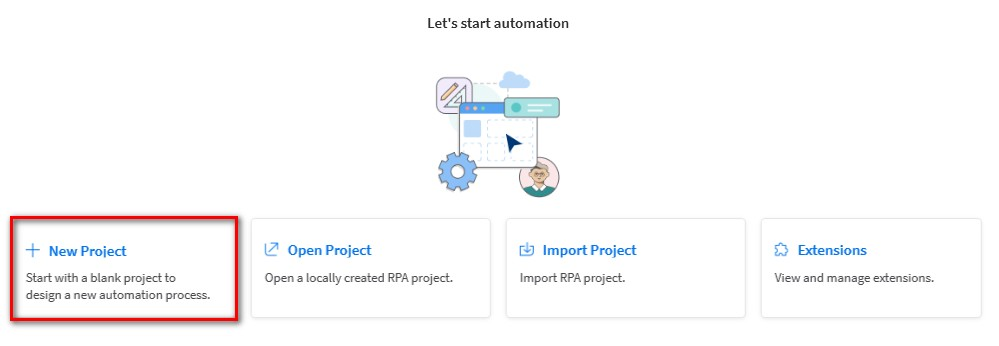
- Open RPA Studio → New Project → Blank Project.
1.2 Name and create the project
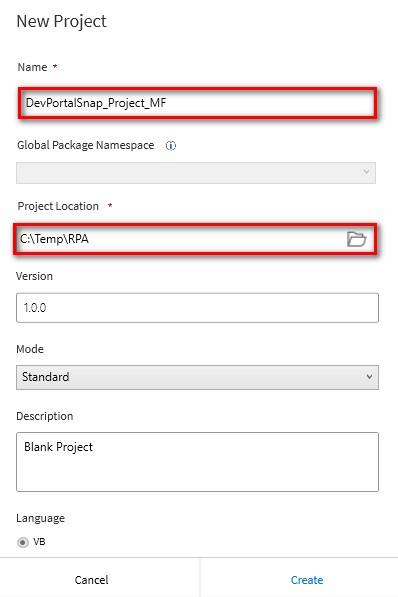
- On the New Project screen, click the + Standard button.
- Name:
DevPortalSnap_Project_[YOUR INITIALS] - Project Location:
C:\Temp\RPA - Note: Make sure you manually create the
C:\Temp\RPAdirectory. - Click Create.
We will now create a main Sequence.
Step 2: Configure Arguments
Add an input and output argument for the destination folder.
2.1 Add the SaveFolder input argument
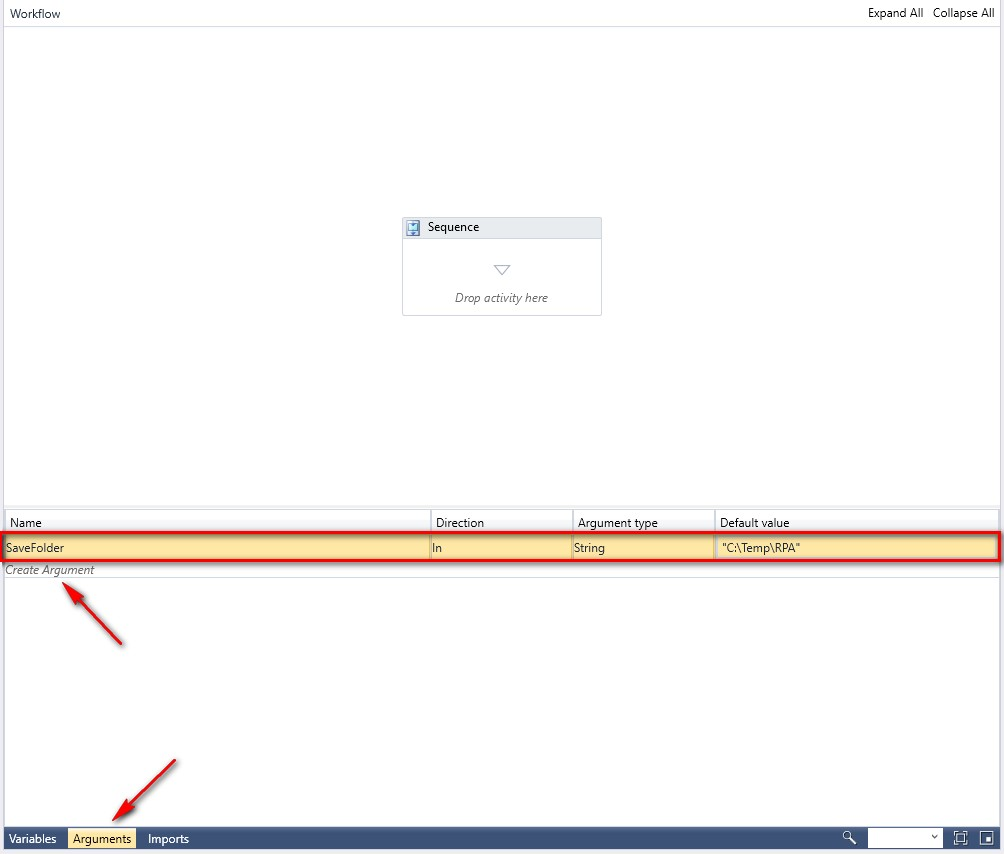
- Open the Arguments tab (or Variables/Arguments pane) for the top-level sequence.
- Click the Create Argument option and add an argument:
- Name:
SaveFolder - Direction: In
- Argument Type: String
- Default Value:
"C:\Temp\RPA"(use quotes for this expression)
2.2 Add the SavePath output argument
- Click the Create Argument option again and add the following output direction settings:
- Name:
SavePath - Direction: Out
- Argument Type: String
- Default Value: No input needed — will capture the last saved file path.
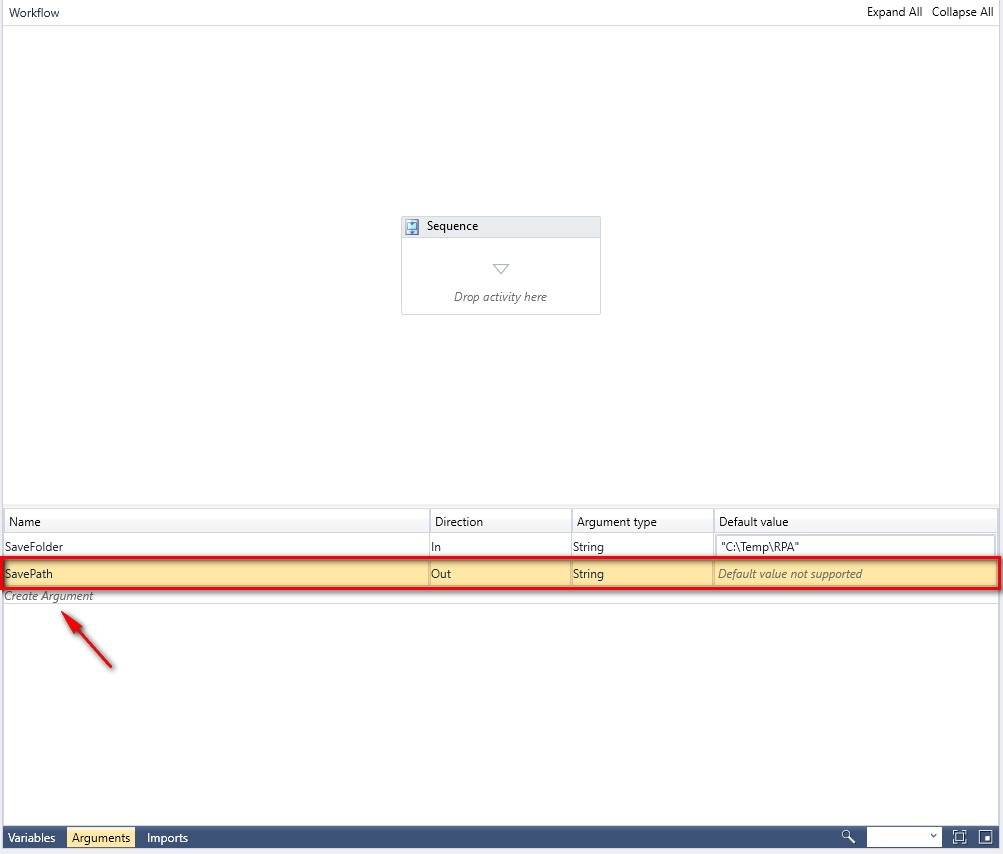
Step 3: Build the Sequence
Add five activities to the Sequence in this order: Open Browser, Maximize Window, Save As PDF, Click, and a second Save As PDF.
3.1 Open Browser
This activity will open the website in a browser.
- Expand Activities, scroll down to the Web section, and select the Open Browser activity. Drag and drop it into the Sequence.
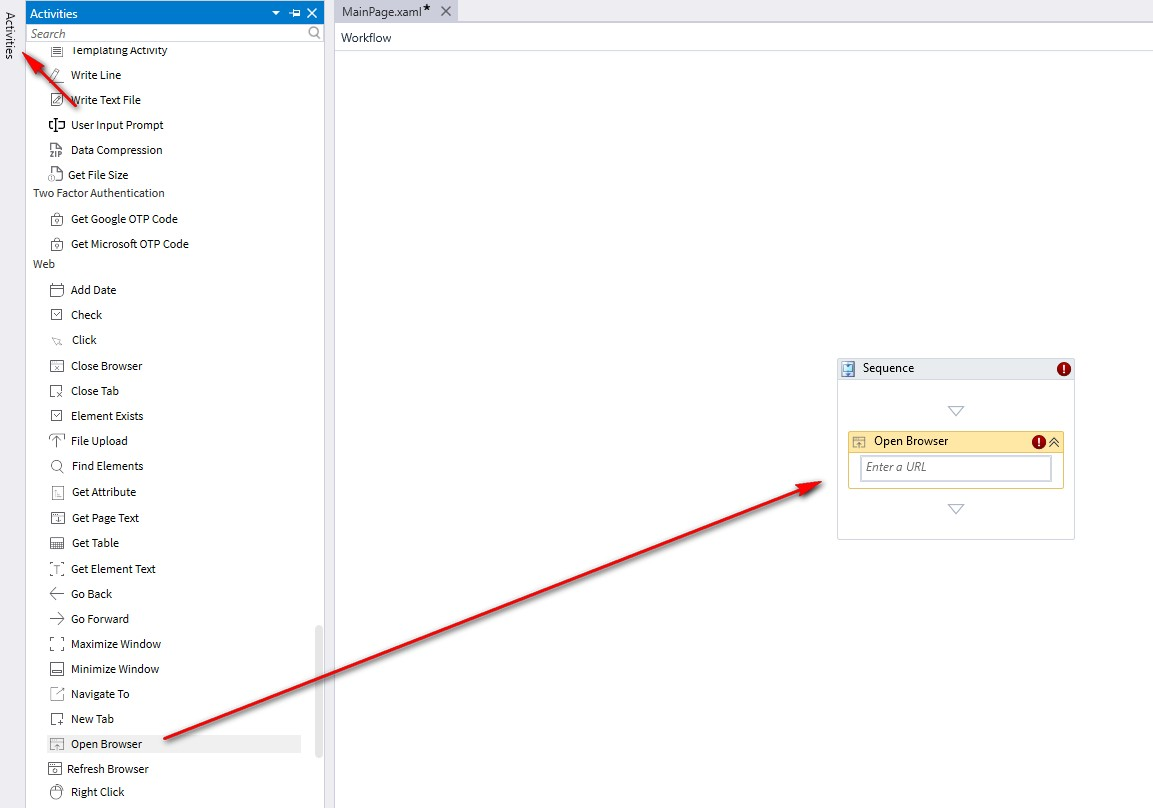
- In the Properties section, enter the following:
- Uncheck Continue on error.
- Browser: Chrome
- URL:
"https://developer.infor.com/hub/velocityweek"(Note: Quotes are needed) - Leave all other values set to default values.
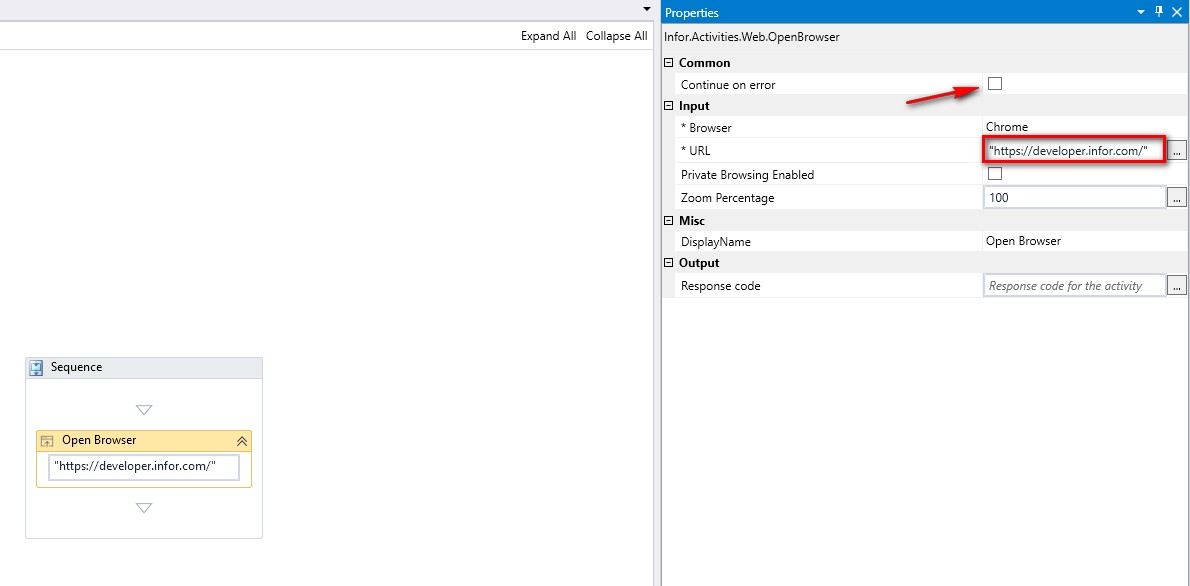
3.2 Maximize Window
This activity will maximize the browser window.
- Open Activities, and under the Web section, select the Maximize Window activity. Drag and drop it into the Sequence (place after the Open Browser activity).
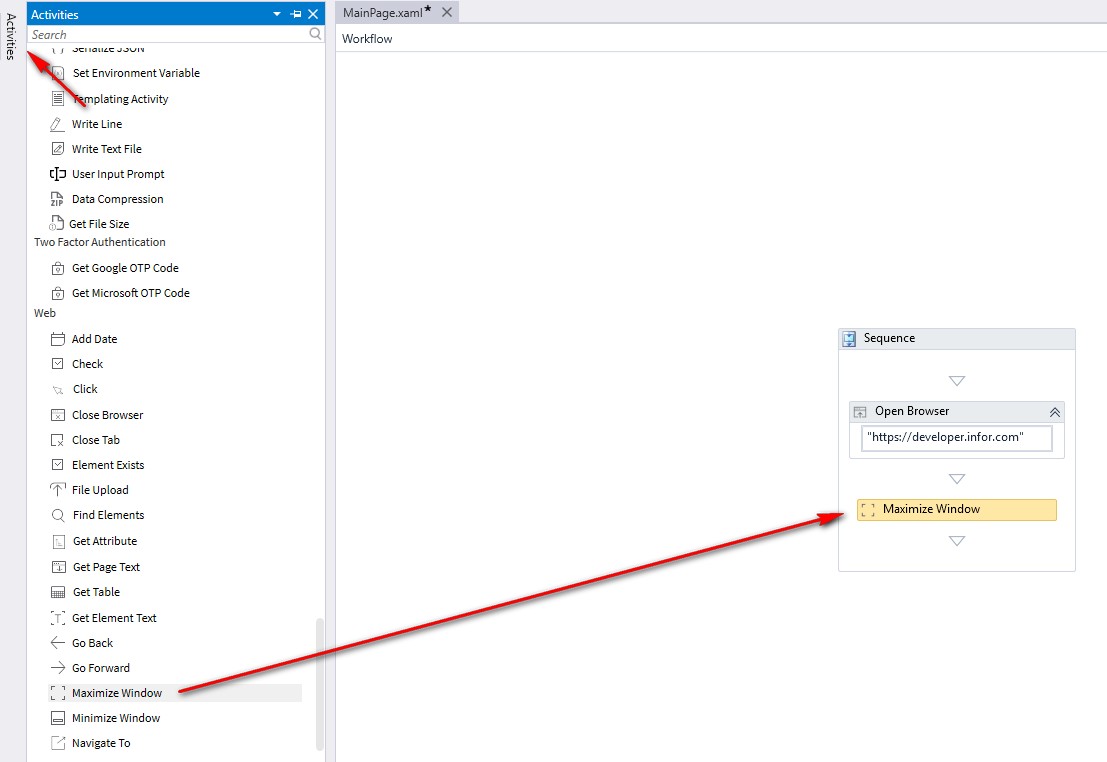
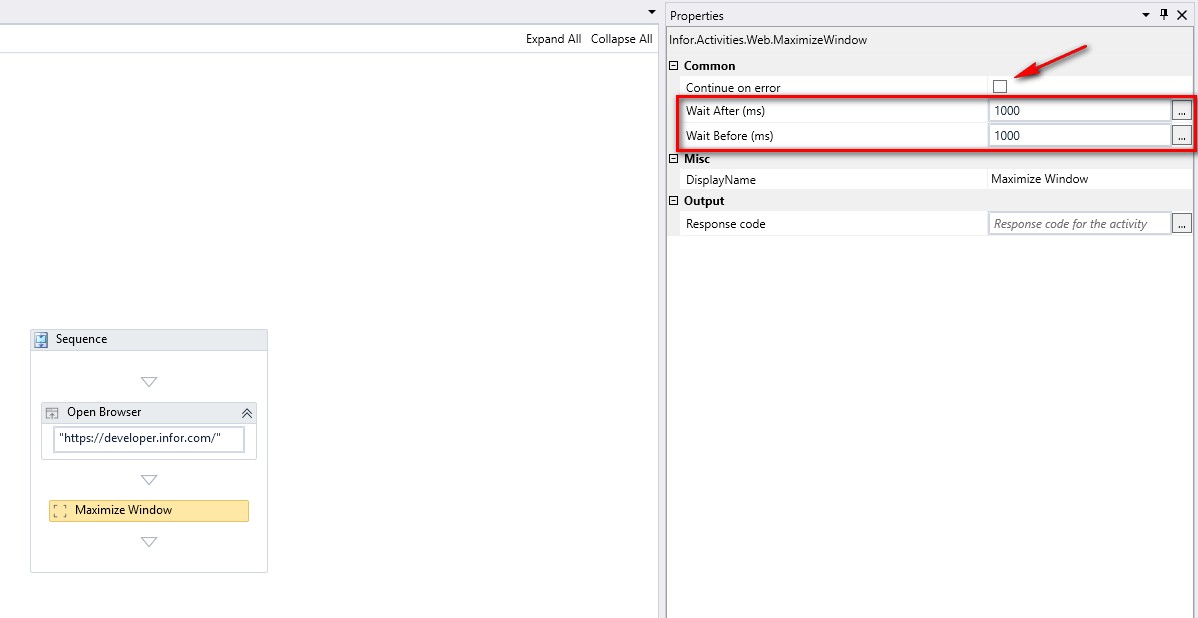
- In the Properties section, enter the following:
- Uncheck Continue on error.
- Wait After:
1000(milliseconds) - Wait Before:
1000(milliseconds) - Note: These values may need to be increased if you have a slow internet connection.
3.3 Save Developer Portal Landing Page as PDF
This Save As PDF activity will save a screenshot of the Dev Portal landing page as a PDF.
- Open Activities, and under the Web section, select the Save As PDF activity. Drag and drop it into the Sequence (place after the Maximize Window activity).
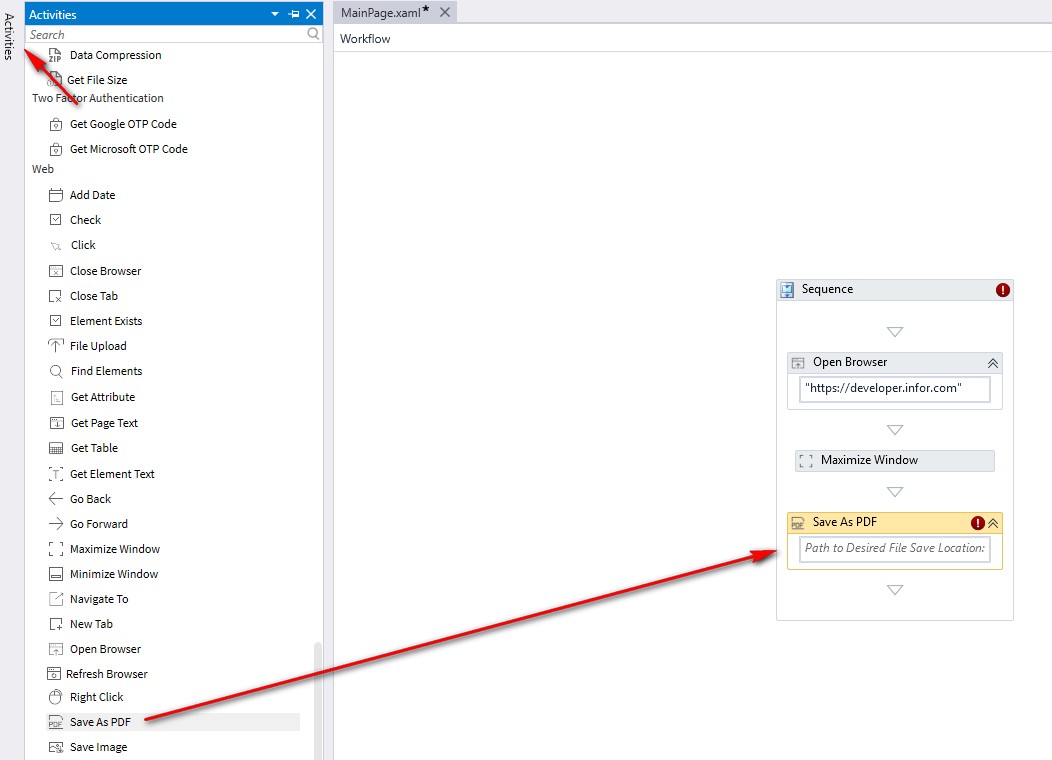
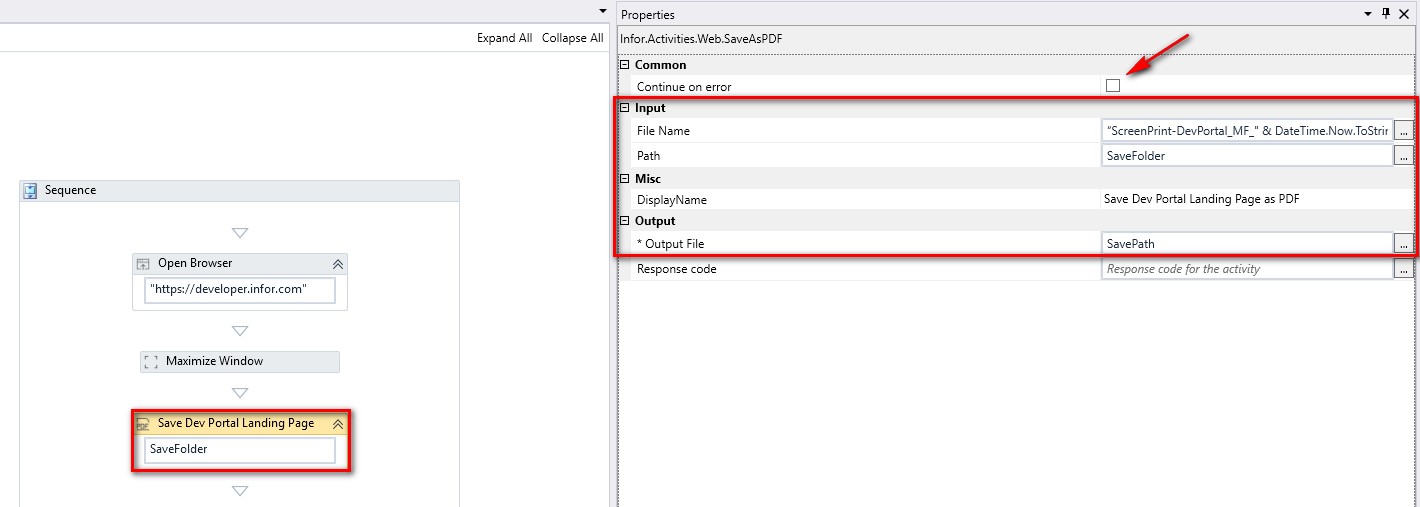
- In the Properties section, enter the following:
- Uncheck Continue on error.
- File Name: SEE NOTE BELOW
- Path:
SaveFolder - DisplayName:
Save Dev Portal Landing Page as PDF - Output File:
SavePath- Note: The File Name needs to be quoted, and we added Date and Time output configuration parameters:
" & System.DateTime.Now.ToString("yyyy-MM-dd-HHmmss") & "
Copy and paste the following text into the File Name field:
"ScreenPrint-DevPortal_[YOUR INITIALS]_" & System.DateTime.Now.ToString("yyyy-MM-dd-HHmmss") & ".pdf"
3.4 Add the Click activity
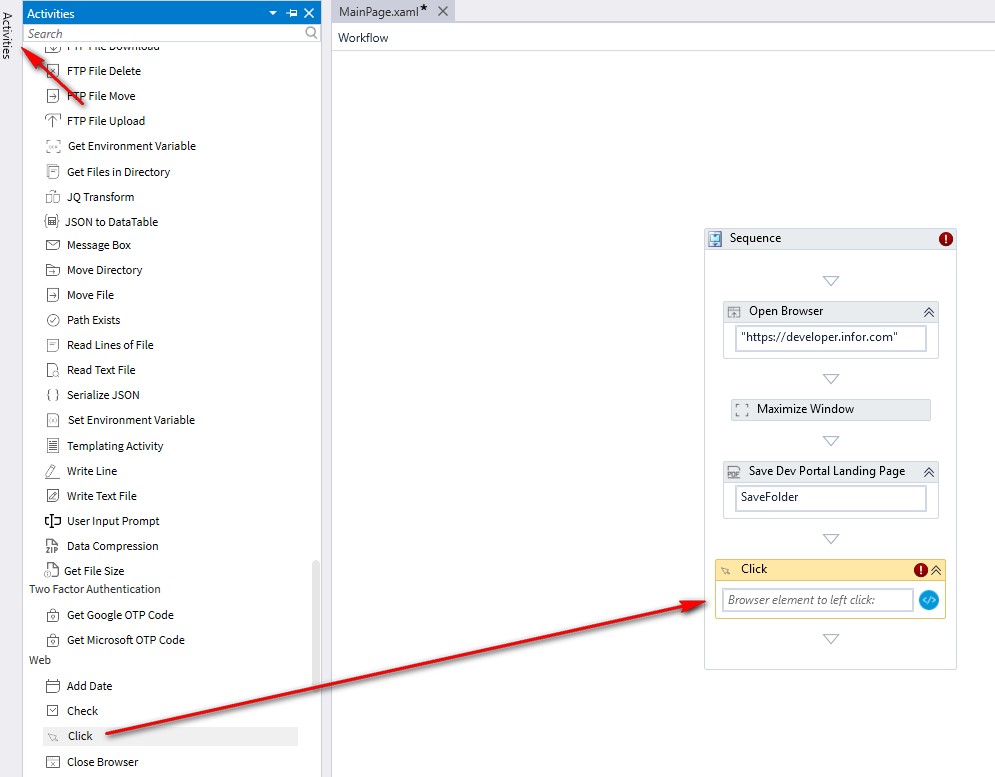
This Click activity will navigate to the Tutorials link on the Dev Portal and open it.
- Open Activities, and under the Web section, select the Click activity. Drag and drop it into the Sequence after the Save As PDF activity.
3.5 Understand the XPath
In the instructions that follow, you will configure the Click activity to target the Tutorials link on the Dev Portal home page using this XPath:
"/html/body/div[1]/div[1]/body/div/header/div/div[1]/div[2]/a/span"
XPath Breakdown — What This Targets
This is an absolute XPath that navigates through the HTML document structure to locate a specific <span> element.
div— stands for "division" in HTML.header— The top navigation bar. Selects the<header>element at the root level.div[1]— The first div inside the header (typically the nav wrapper).div[2]— The second navigation item/group (Tutorials option/link).a— A clickable link.span— The text label inside that link.
Here is an example of the Dev Portal header with the Tutorials link as the div[2] navigation item. Note: the position number of the Challenges link.

3.6 Find the XPath with the Inspect tool
You can also use the browser's Inspect tool to find the XPath expression.
- Open the following Developer Portal URL in a browser:
https://developer.infor.com/hub/velocityweek - Highlight and right-click the Tutorials header, then select Inspect.
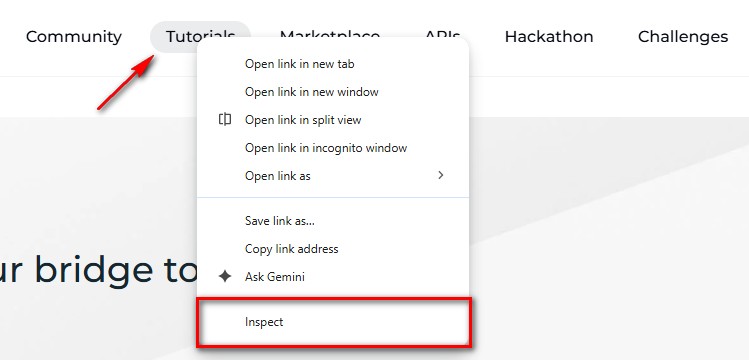
- Right-click the Tutorials
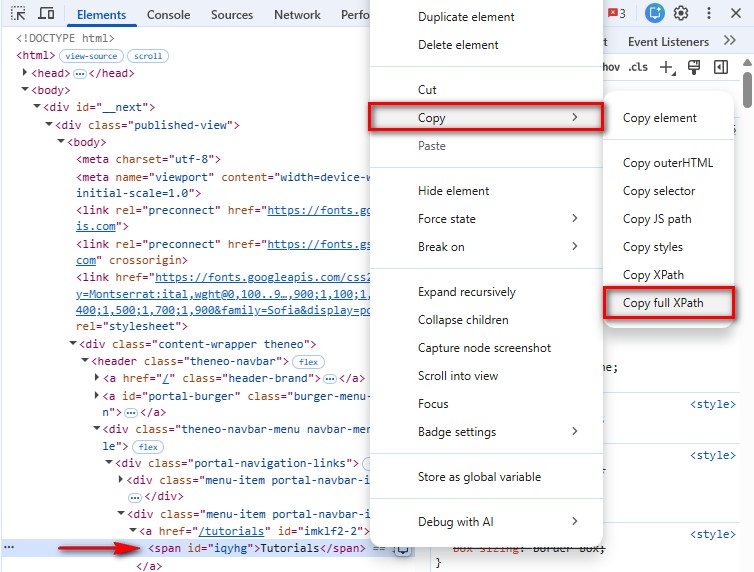
<span>and select Copy → Copy full XPath. - Paste it into Notepad to display the value. It should look something like this:
/html/body/div[1]/div[1]/body/div/header/div/div[1]/div[2]/a/span
3.7 Configure the Click activity
On the Infor Developer Portal, the header navigation includes APIs, Tutorials, Community, and more. The div[2] link is the second nav item — Tutorials.
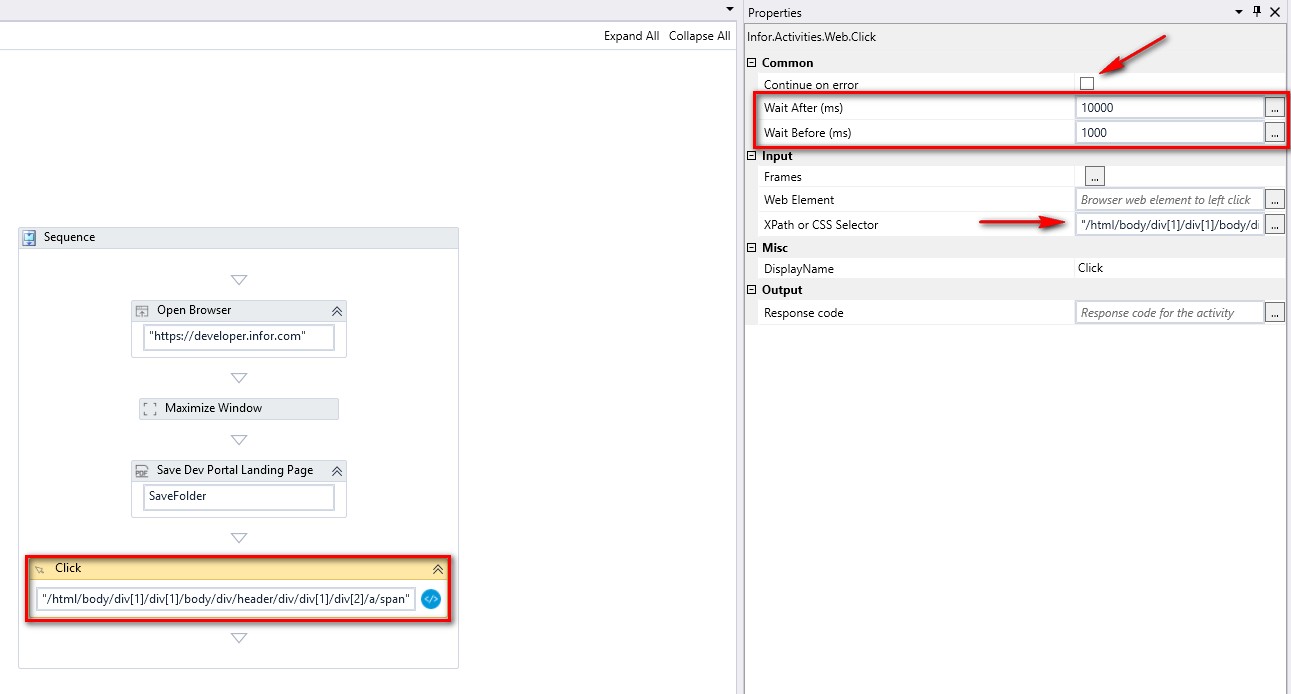
- In the Click activity Properties section, enter the following:
- Uncheck Continue on error.
- Wait After:
10000(milliseconds) - Wait Before:
1000(milliseconds)
Copy and paste the following text into the XPath or CSS Selector field:
"/html/body/div[1]/div[1]/body/div/header/div/div[1]/div[2]/a/span"
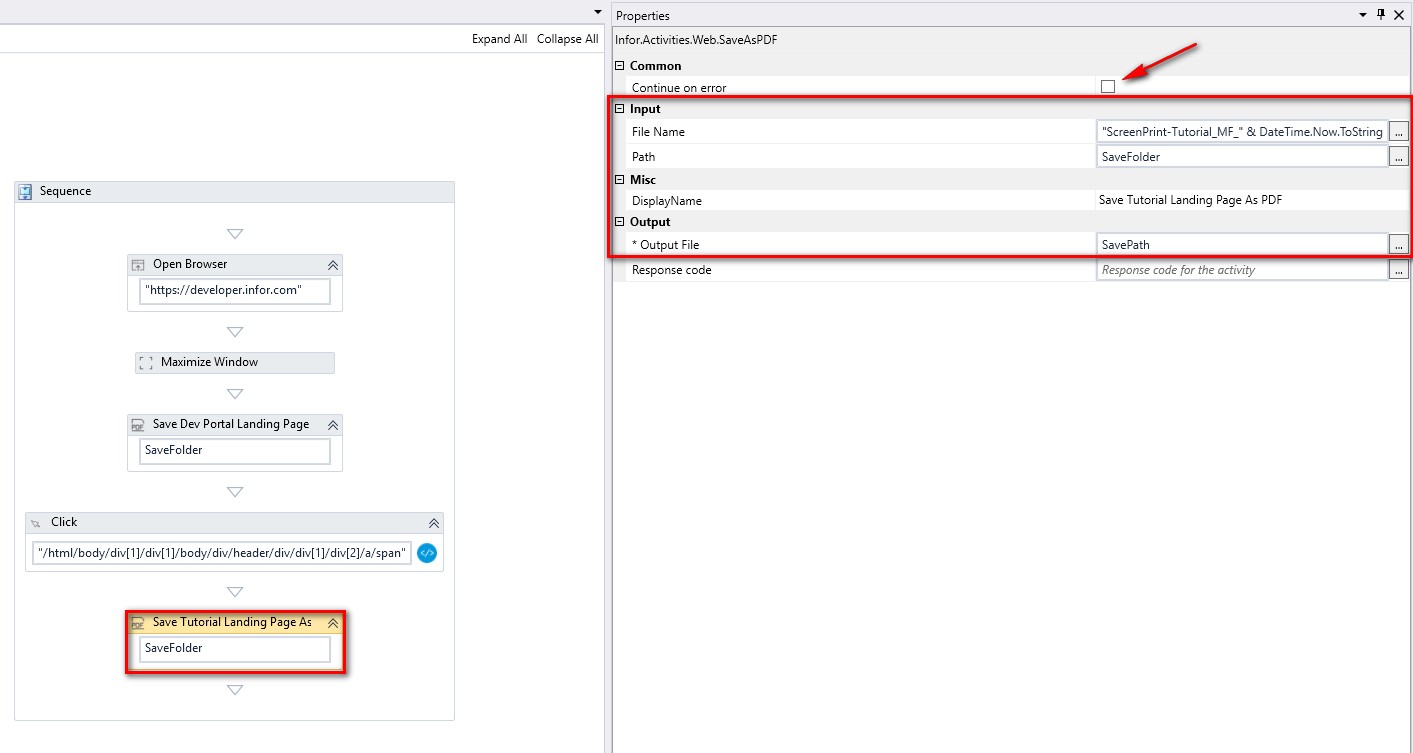
3.8 Save Tutorial Landing Page as PDF
This Save As PDF activity will save a screenshot of the Tutorials landing page as a PDF file.
- Open Activities, and under the Web section, select the Save As PDF activity. Drag and drop it into the Sequence (place after the Click activity).
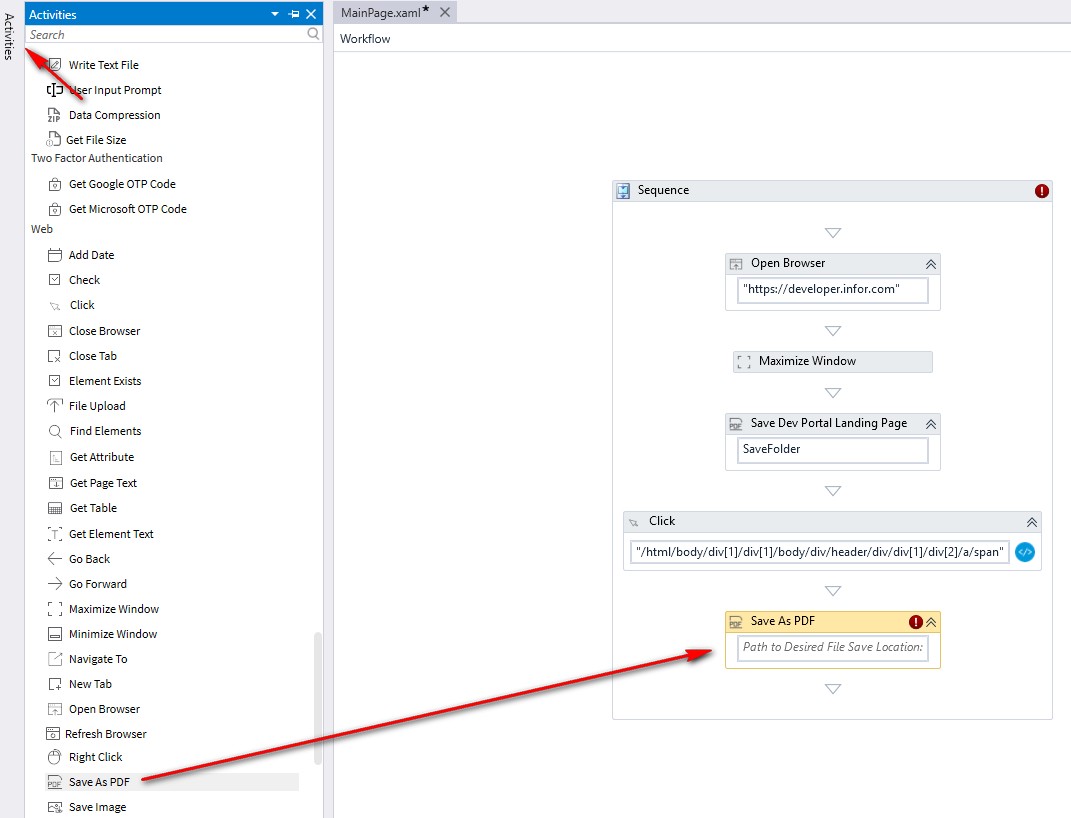
- In the Properties section, enter the following:
- Uncheck Continue on error.
- Path:
SaveFolder - DisplayName:
Save Tutorial Landing Page As PDF - Output File:
SavePath - Note: The File Name needs to be quoted, and we added Date and Time output configuration parameters:
" & System.DateTime.Now.ToString("yyyy-MM-dd-HHmmss") & "
Copy and paste the following text into the File Name field:
"ScreenPrint-Tutorial_[YOUR INITIALS]_" & System.DateTime.Now.ToString("yyyy-MM-dd-HHmmss") & ".pdf"
Step 4: Save & Run the RPA Flow
Run the flow to confirm it creates both PDF files.
- Click the Save button (or Ctrl+S) to save the project.
- Click Run in Studio to execute the flow locally.

- Monitor the Output panel for success or error messages.

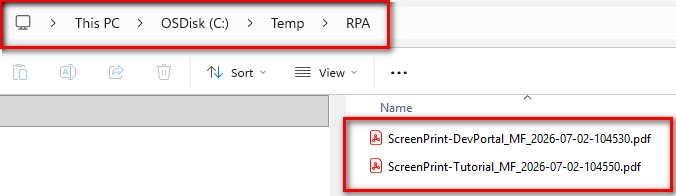
- Confirm that two PDF files were created in the
SaveFolderpath.