
How to create an RPA Flow using FTP activities
Intermediate | 25 Minutes
Overview
This tutorial will show you how to create a flow allowing you to read files from an FTP server and store them on your local system.
📋 RequirementsBefore you can start building the flow, you’ll need to:
|
Tutorial
1
Open RPA Studio
- Open RPA Studio on your machine. If you're not signed into the tenant already, you'll be prompted to sign in before proceeding to the RPA flow designer screens.
2
Create a New Project
- On the Home page of RPA Studio, click Create New Project and specify the following properties in the popup window:
- Name: FtpActivities
- Project Location:
<default> - Description: Downloading the files from FTP server and storing in local directory
- Language: VB (selected by default)
3
Add FTP List Directory Activity
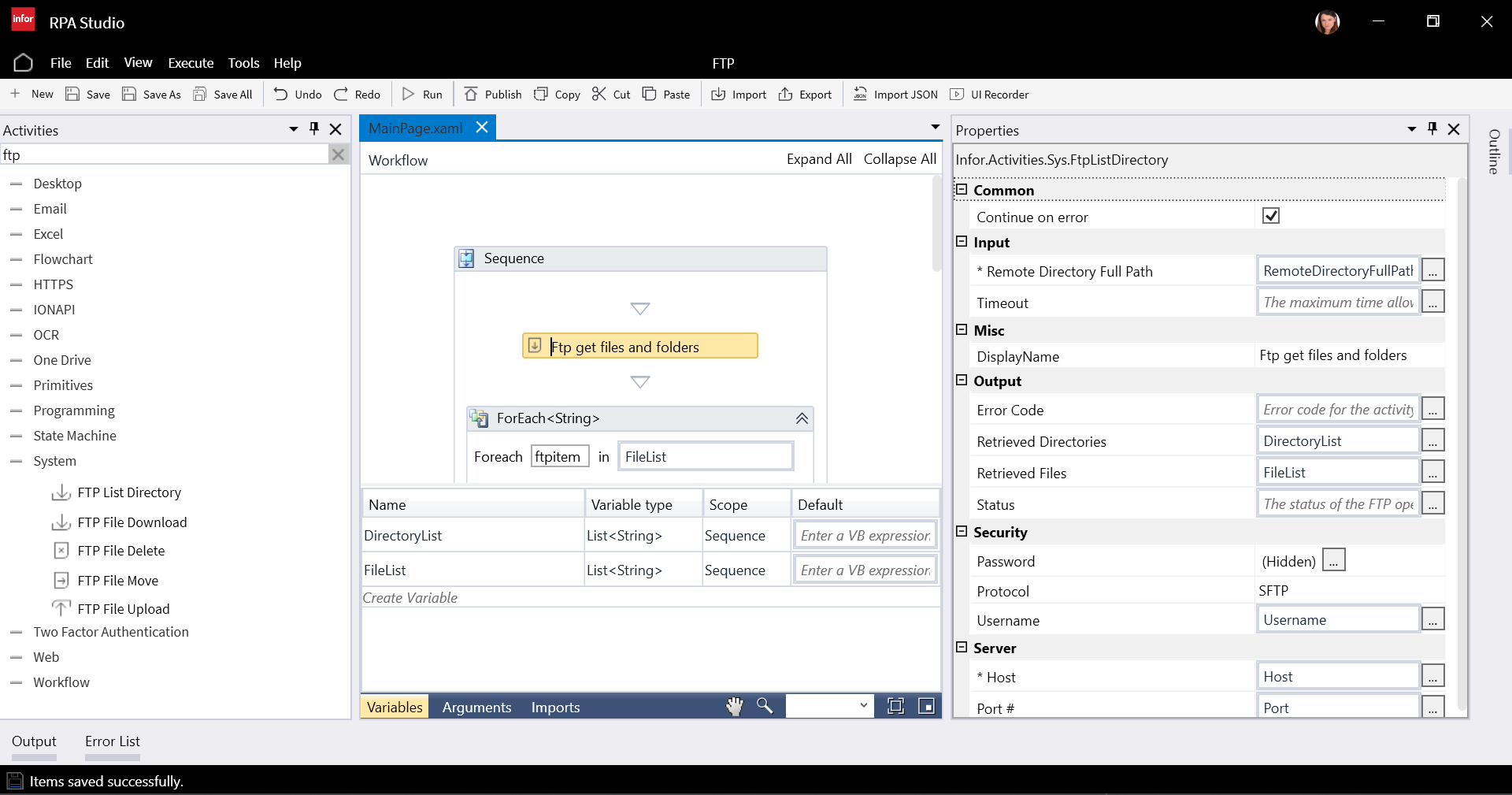
- First, add the FTP List Directory activity to list the files in the FTP directory. Configure its properties as follows:
- Remote Directory Full Path: Create an argument called RemoteDirectoryFullPath of type string with a default value of the (S)FTP directory (e.g.,
/local/InforRPA). - Retrieved Directories: Create a variable called DirectoryList of type List without any default value.
- Retrieved Files: Create a variable called FileList of type List without any default value.
- Password: Provide the password to the (S)FTP server (hidden).
- Protocol: Select either SFTP or FTP, depending on what is being used.
- User Name: Create an argument called UserName of type string with the default value of the (S)FTP username.
- Host: Create an argument called Host of type string with the default value of the (S)FTP host.
- Port: Create an argument called Port of type string with the default value of the (S)FTP port.
4
Create a Loop for Downloading Files
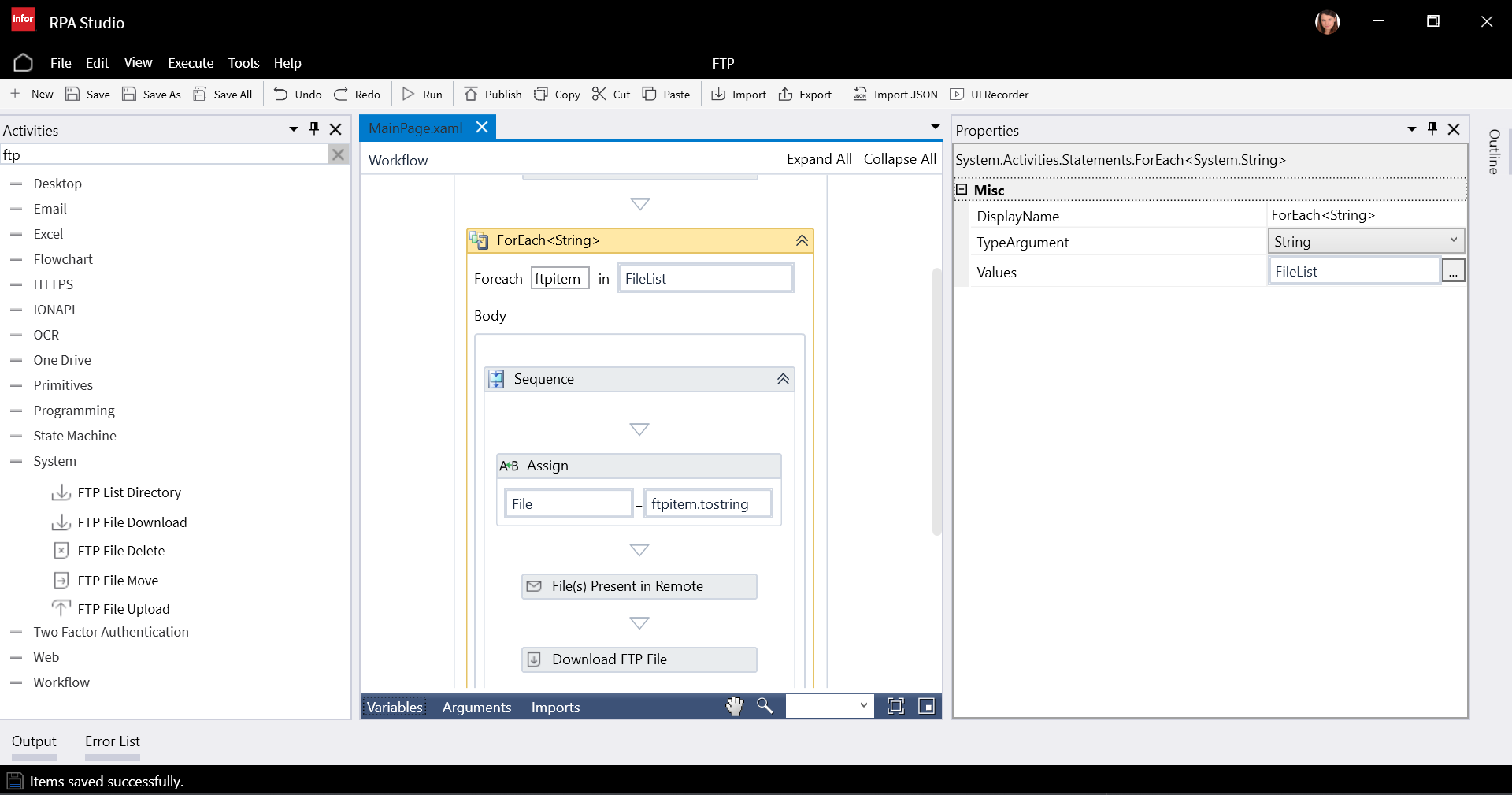
- Next, add a For Each activity to download the FTP file one by one. Configure it as follows:
- For Each Item: Use the variable FileList.
- Type: Set as String (each item in the list).
- Value: Set as FileList.
- On the design canvas, you will see the text: For each ftpitem in FileList, where ftpitem refers to a single file in the list.
5
Add Assign Activity for File Path
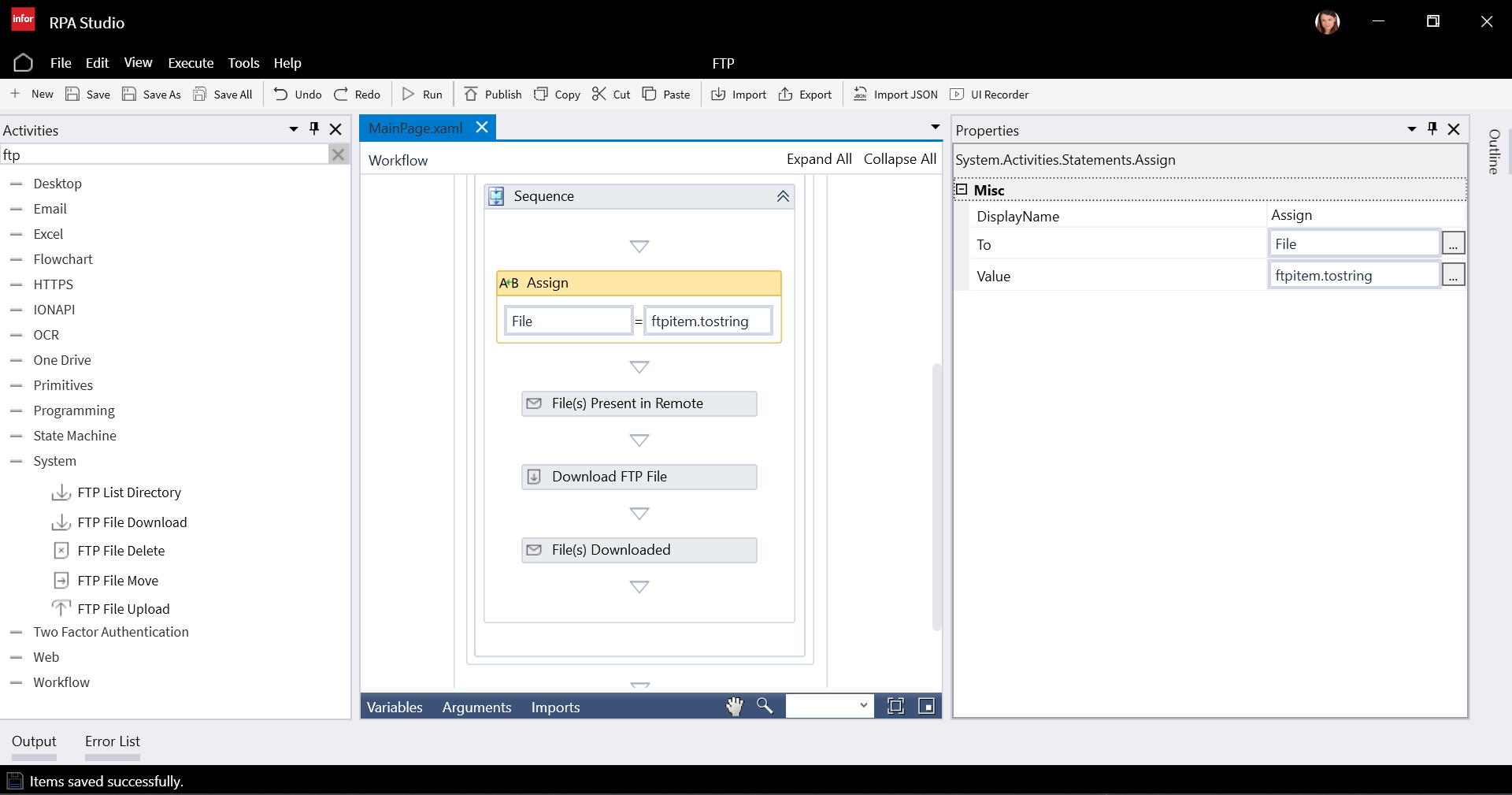
- Add an Assign activity to assign the file path to a variable. Configure it as follows:
- To: Create a variable called File of type string.
- Value: Define the following VB expression:
_ftpitem.ToString()_.
6
Optional: Add Message Box for Troubleshooting
- For troubleshooting, you can add a Message Box activity to check the file path.
- Input Text: Define the following VB expression:
"File(s) present in remote location: " + File. - Message Box Title, Button Selection, Response Code: Leave empty.

7
Add Download FTP File Activity
- Add the Download FTP File activity to download the files from the (S)FTP directory. Configure it as follows:
- File Name: Use the File variable.
- File Path: Create an argument called LocalFilePath of type string with a default value of
C:\Data\RPA\RPAFTP\FTPDownloads. - Remote File Full Path: Use the following VB expression:
_RemoteDirectoryFullPath + "/" + File_. - Password: Provide the (S)FTP server password (hidden).
- Protocol: Select either SFTP or FTP, depending on what is being used.
- User Name: Use the UserName argument.
- Host: Use the Host argument.
- Port: Use the Port argument.
- Output File: Create a variable called DownLoadedFile of type string.


8
Optional: Add Message Box for Troubleshooting
- For troubleshooting, you can add a Message Box activity to check if the file was downloaded successfully.
- Input Text: Define the following VB expression:
"File(s) downloaded into location local: " + DownloadedFile. - Message Box Title, Button Selection, Response Code: Leave empty.
Once the flow is run, the files will be read from the FTP server and written to your local system.
Was this section helpful?
On this page
- How to create an RPA Flow using FTP activities