
External access to Data Lake APIs
Beginner | 15 Minutes
Overview
API access is vital for managing access to services in a cloud environment. Organizations looking to leverage the Data Fabric API suite to programmatically query and retrieve datasets from the Infor Data Lake can do so through any number of available tools and development platforms. Postman is an example of a platform that facilitates testing and scripting around APIs.
External applications need to be authorized to connect to Datalake. For that we use IONAPI Gateway to create credentials to be used as a token of authorization.
This tutorial guides you through connecting to Data Fabric’s Data Lake using API manger tool Postman, authorizing third-party access, and running SQL queries via APIs.
Postman is an example of a platform that facilitates testing and scripting around APIs.
Note: The Data Fabric Compass API is an asynchronous API endpoint. It allows authenticated users to make requests and receive responses through two distinct calls, without having to wait for the server to finish processing all of the data.
📋 Requirements
|
Tutorial
This tutorial covers the necessary steps in setting up and testing the Data Fabric Compass APIs within Postman.
1
Download and install Postman (https://www.postman.com/downloads/).
Download the desktop version of postman for your corresponding OS from the official site.
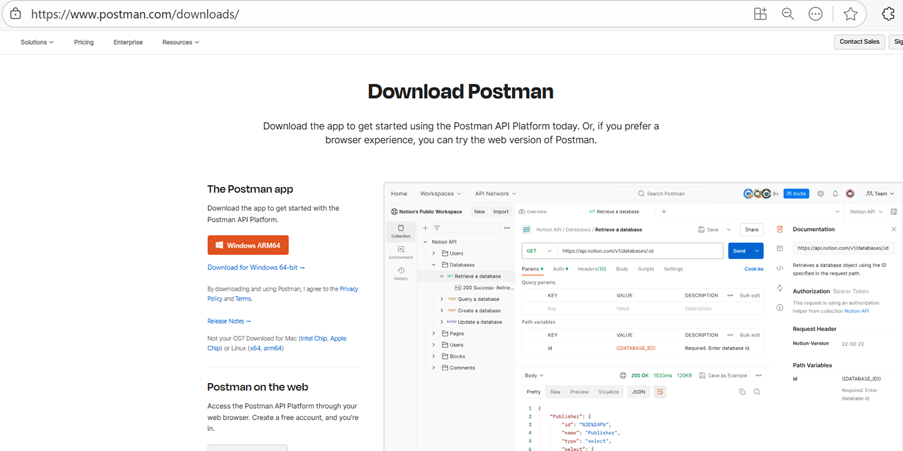
Install and launch Postman. You need to create and account in postman, or log into your account.
2
Authorize Postman as third-party application
- In your Data Fabric tenant, navigate to API Gateway > Authorized Apps.
- Click “Add New Authorized App.”
- Note: If you do not see the “+” button, you need API Gateway Admin rights.
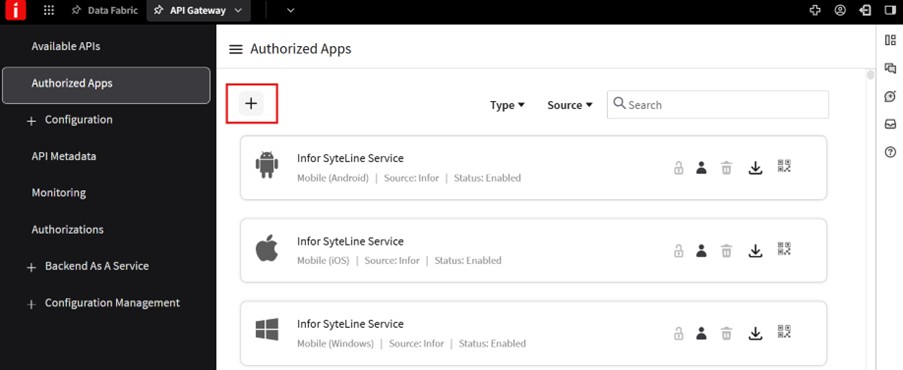
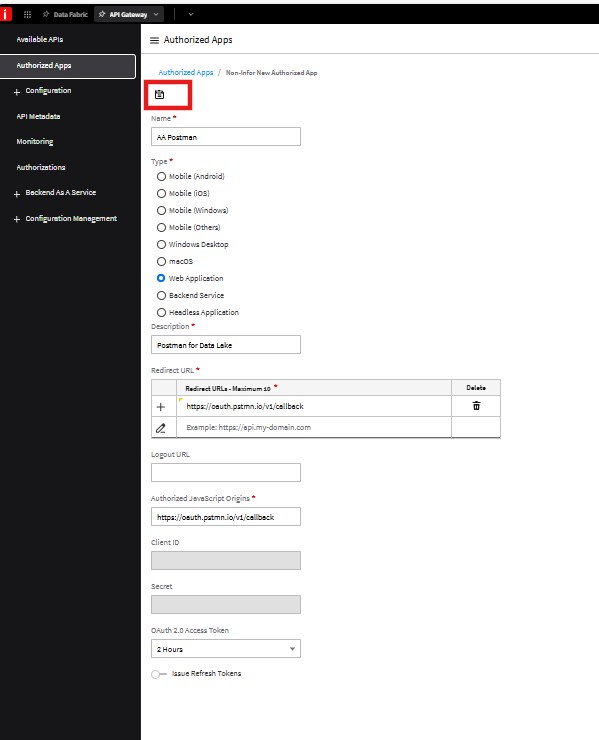
- Choose “Web Application.”
- Enter a name and description (e.g. “YourName Postman”).
- For Redirect URL and Authorized JavaScript Orgin, use “https://oauth.pstmn.io/v1/callback”
- Save the app.
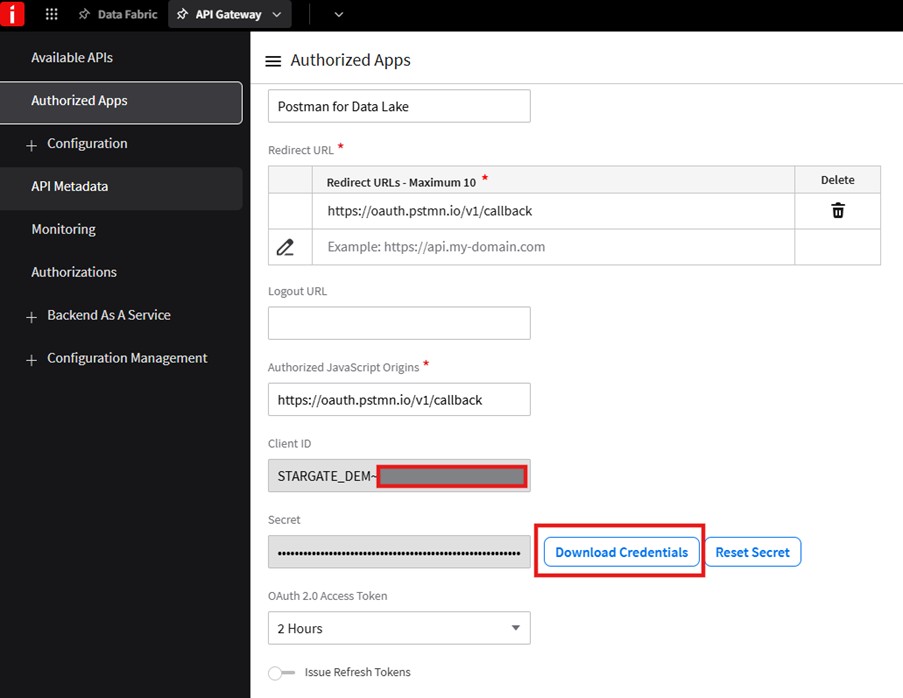
- Once you save the authorized app, the Client ID and the secret code will be filled in and the download credential button will appear.
- Download the credentials file using the Download Credentials button.
- Note: If you do not see the “Download Credentials” button, ensure all fields are filled in and the app is saved.
3
Import Data Fabric API Collection into Postman
In API Gateway, under Available APIs, search for “Data Fabric” . Then enter the Infor provisioned Data Fabric API set.
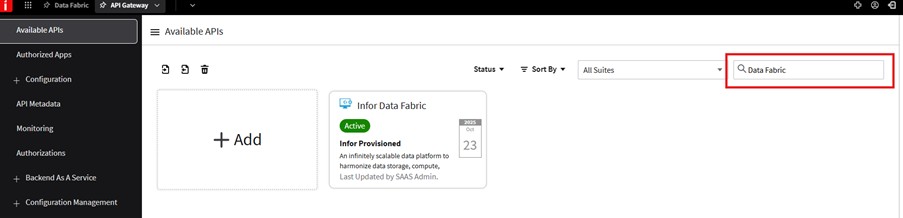
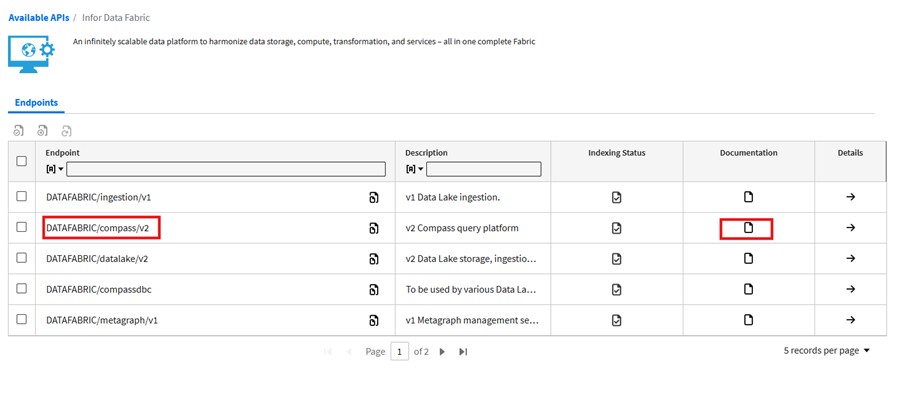
You can see a list of Data Fabric API collections. The compass API allows you to retrieve and interact with data that has been stored in the Infor Data Lake via SQL.
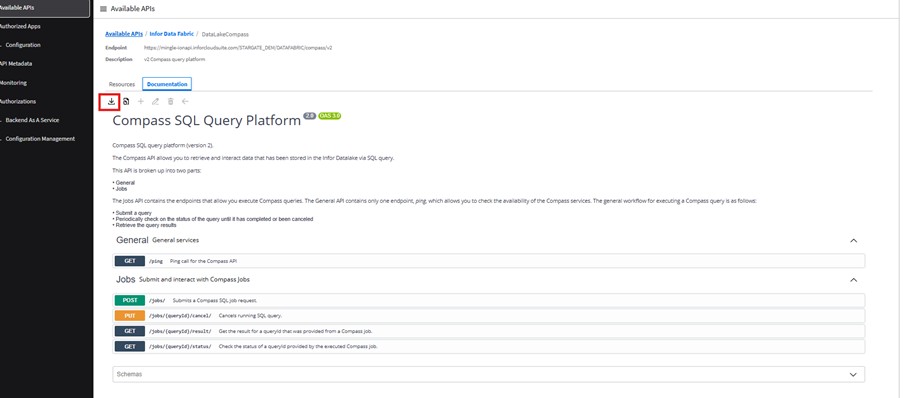
Select the “Compass” API. Then, click on the documentation.
Click the download button to export the OpenAPI/Swagger JSON file for the Compass API.
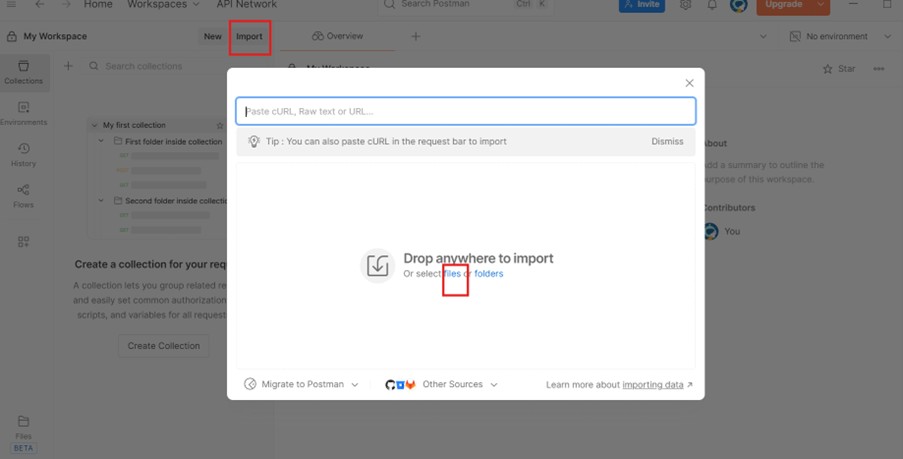
In Postman, click “Import”, select the downloaded file, and import the collection. Note: You must be signed into Postman to import collections.
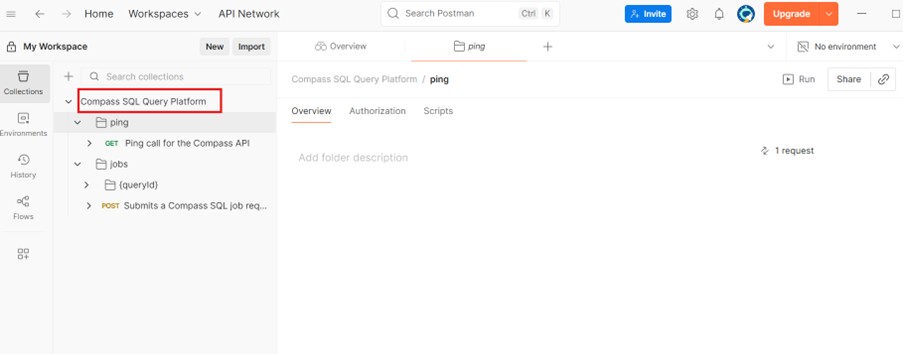
Once you have imported the “DataLakeCompass.JSON”, the Postman collection APIs become visable.
4
Configure OAuth 2.0 Authentication in postman
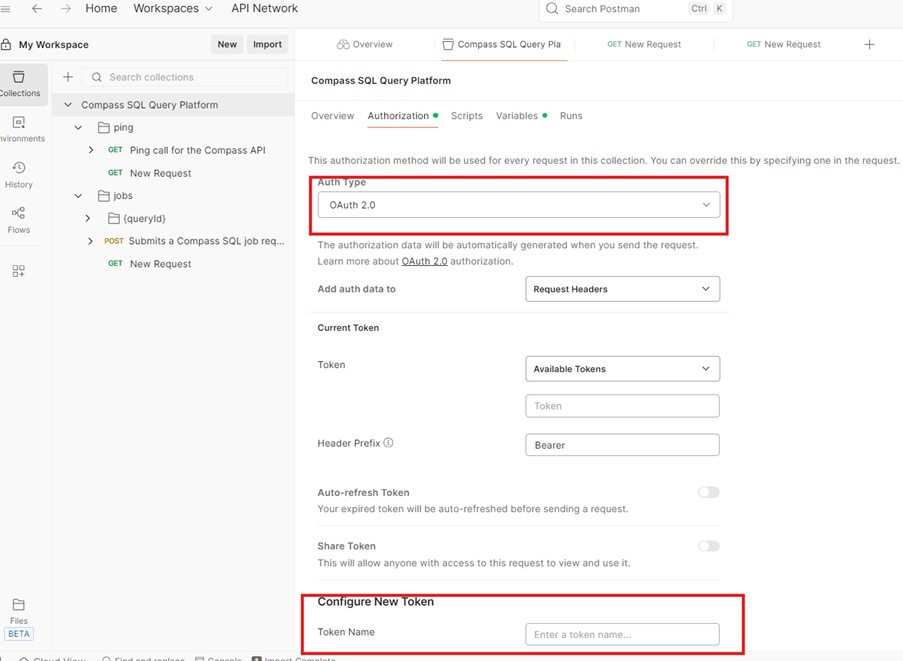
- In the imported collection, go to authorization settings.
- Select “OAuth 2.0” as the type.
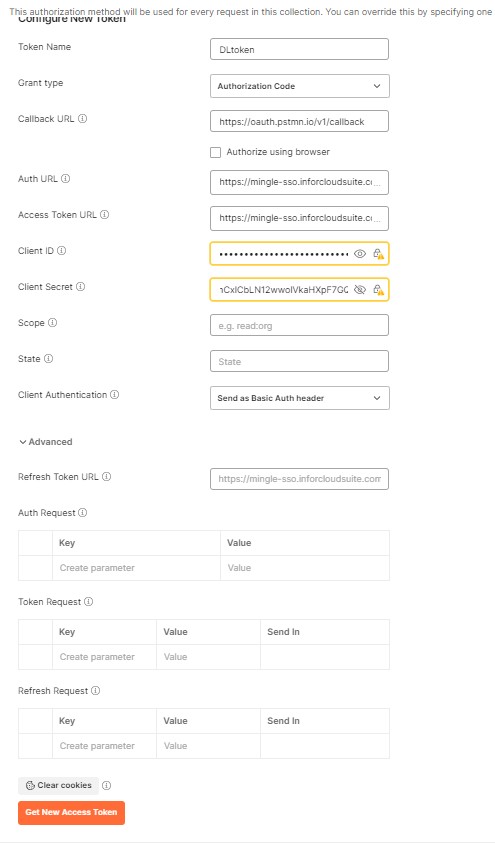
- Fill in “Configure New Token.” Give the token a name.
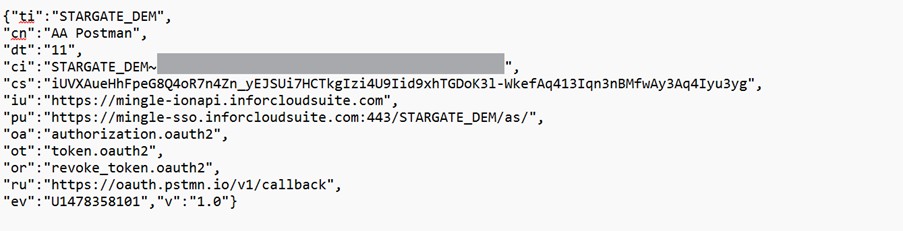
- Fill in the following field s using your downlaoded credentials file. In this case, the “AA postman.IONAPI”:
- Callback URL: https://oauth.pstman.io/v1/callback
- Auth URL: [pu] + [oa]
- Access Token URL: [pu] + [ot]
- Client ID: [ci] value
- Client Secret: [cs] value
Click “Get new access token." Approve the prompt and use the token.
Tip: The credentials file contains all require values; combine as shown above.
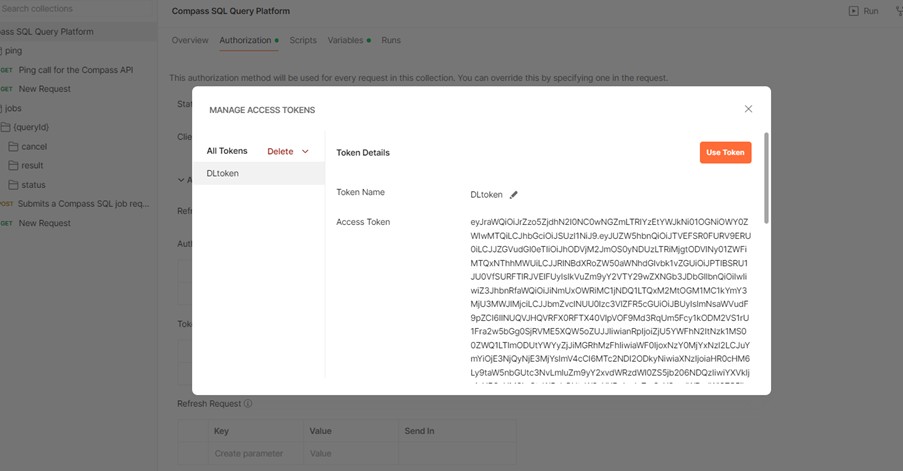
Now that the token is created, click Use Token.
5
Test API Connectivity (ping)
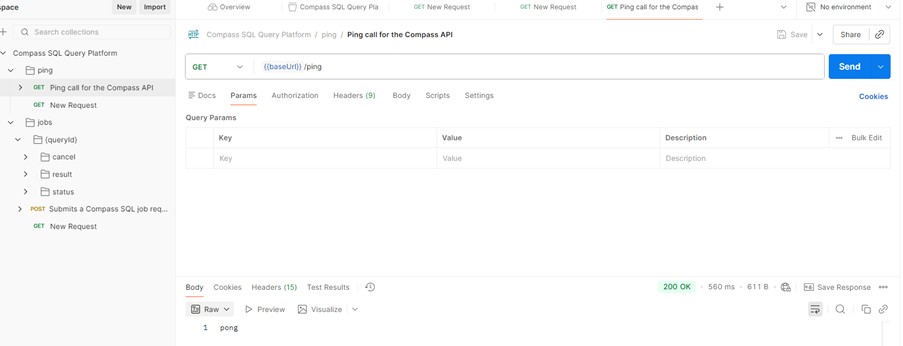
In the compass collection, select the "GET /ping" endpoint.
Ensure Authorization is set to use your new token (inherent from parent).
Click “Send”. You should receive a “pong” response, confirming connectivity.
6
Run a SQL Query via API
In Data Fabric (Compass or Data Warehouse), write a sample SQL query and run it.
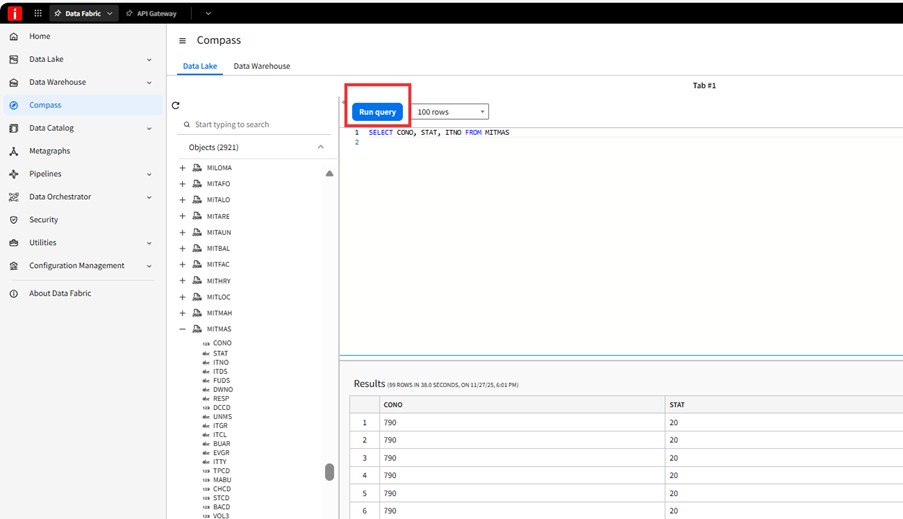
Test the query in the Data Fabric UI to ensure it works.
Copy the SQL Query.
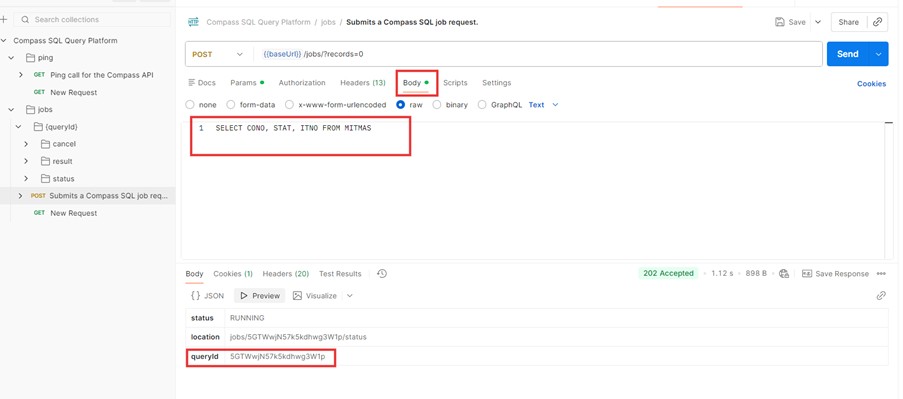
In postman, select the "POST /jobs" endpoint.
In the body tab, paste the SQL Query copied above as raw text.
Click Send. The response will include a query/job ID.
7
Check the Query Status
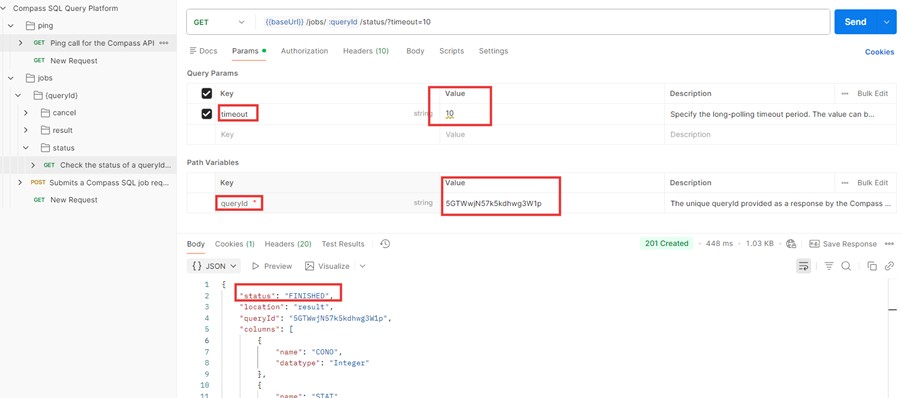
In the Compass collection, select the "GET /jobs/{queryId}/status" endpoint.
Pas the query ID form the previous step.
The timeout value should be between [0-25]
Click send. The response will indicate if the job is running, finished, or failed.
8
Retrieve Query Results
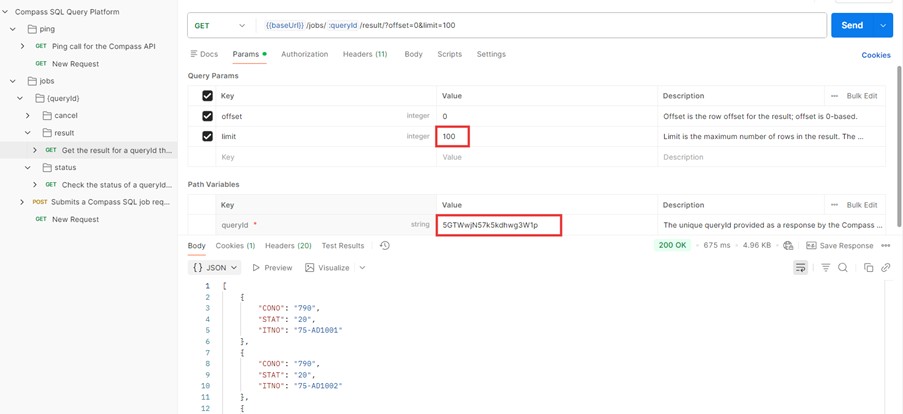
Select the "GET /jobs/{queryId}/results" endpoint.
Enter the query ID.
Set paramaters such as “imit” (e.g. 100) and “offset” as needed. Click send. The response will contain the query results.
9
Troubleshooting & Tips
- If you cannot add an authorized app, verify your admin rights.
- If you cannot import the API collection, ensure you are signed in to Postman.
- If you encounter errors with result limits or offsets, adjust the parameters as required.
On this page
- External access to Data Lake APIs