Overview
Tutorials are designed to offer a guide to complete common objectives, while also acknowledging that individual developers need to respond to individual needs of their own solutions. Tutorial frameworks provide blueprints for these solutions and should be adapted to fit individual needs.
Analytics with Birst
API Gateway
Application Development with Mongoose
Artificial Intelligence
Data Fabric
Digitical Assistant
Document Management
Integration with ION
Robotic Process Automation
Add description here
Security & User Management
Add description here
What made this section unhelpful for you?
On this page
- Overview
Analytics with Birst
On this page
- Analytics with Birst
API Gateway
API Gateway is a software system for brokering requests from API consumers, such as web and mobile applications, and API providers, such as Infor enterprise or third-party services. As a broker sits between consumers and providers (technically it is a reverse proxy), it can provide many benefits to both consumers and providers.
On this page
- API Gateway
Application Development with Mongoose
Go beyond basic fit and customize your cloud experience with extensibility tools that leverage no-code, low-code, and full-code frameworks.
On this page
- Application Development with Mongoose
Artificial Intelligence
Use Machine Learning to build an AI into your business processes.
On this page
- Artificial Intelligence
Analytics & Reporting in CloudSuite Service Industries
What made this section unhelpful for you?
On this page
- Analytics & Reporting in CloudSuite Service Industries
Analytics & Reporting in M3 Cloudsuites
What made this section unhelpful for you?
On this page
- Analytics & Reporting in M3 Cloudsuites
Backend as a Service (BaaS)
What made this section unhelpful for you?
On this page
- Backend as a Service (BaaS)
Data Fabric
Manage data on the platform so that humans and systems can securely access information from anywhere.
On this page
- Data Fabric
Digital Assistant
Streamline the user experience with a digital assistant that helps your employees navigate and access information by voice or chat.
On this page
- Digital Assistant
Document Management
Leverage Infor's central document repository to manage your enterprise document in the cloud.
Infor Document Management (IDM) is a digital cloud-based document repository offered by Infor that delivers extensibility and business process integration throughout Infor OS. IDM offers comprehensive lifecycle management of documents including archiving, security, collaboration, and versioning.
IDM has the capability to scale vertically, horizontally, and globally, making it possible to manage millions of documents. Documents can be stored either locally on a database server or in the cloud. Furthermore, IDM’s Related Information contextual app provides context-aware information to Infor products, presenting IDM documents that are related to the selected asset.
IDM Capture streamlines the process of extracting, separating, and classifying important content by facilitating the automatic uploading of documents. Additionally, Document Output enables users to easily create templates, distribute emails, and print using Infor’s new Enterprise Print.
Key Concepts & Definitions
IDM | Shorthand for Infor Document Management IDM is a full-fledged document management system within Infor OS that can manage the entire document lifecycle of business documents, including creation , versioning, storage, retrieval, distribution, archiving, and purging. |
Document Output Management | IDM’s ability to create templates for document creation, the distribution of documents through email, and the ability to cloud print with IDM’s Enterprise Print feature. |
Output Management Templates | The capability to combine application data with customized templates to produce business documents. Templates can be created or modified using the Microsoft word add-in included with IDM. |
Contextual Applications | The related information contextual application provides the ability to display relevant documents stored within IDM alongside their corresponding business records. This is not limited to read-only access. Users can download, print, email, sign, or upload documents to IDM via the related information contextual application. |
IDM Capture | An optional add-on component, IDM capture provides optical character recognition (OCR) to transform unstructured content into meaningful data. Typically used for automating the AP invoice process but must be certified with the ERP. |
Document Type | An envelope for a document file and its metadata/attributes. Users can create any custom document type with any attributes needed such as height, weight, approval status, color. Flexible enough to cover all possible customer needs, a document cannot exist outside of a document type. Some applications provide default document types mapped specifically to their application record types. |
Attributes | Defined by the creator of a document type to store a characteristic. Can be used to create a reference between a document in IDM and a record in an Infor application. Can store: metadata, values, properties. Ex: item ID, supplier number, invoice number, purchase order number |
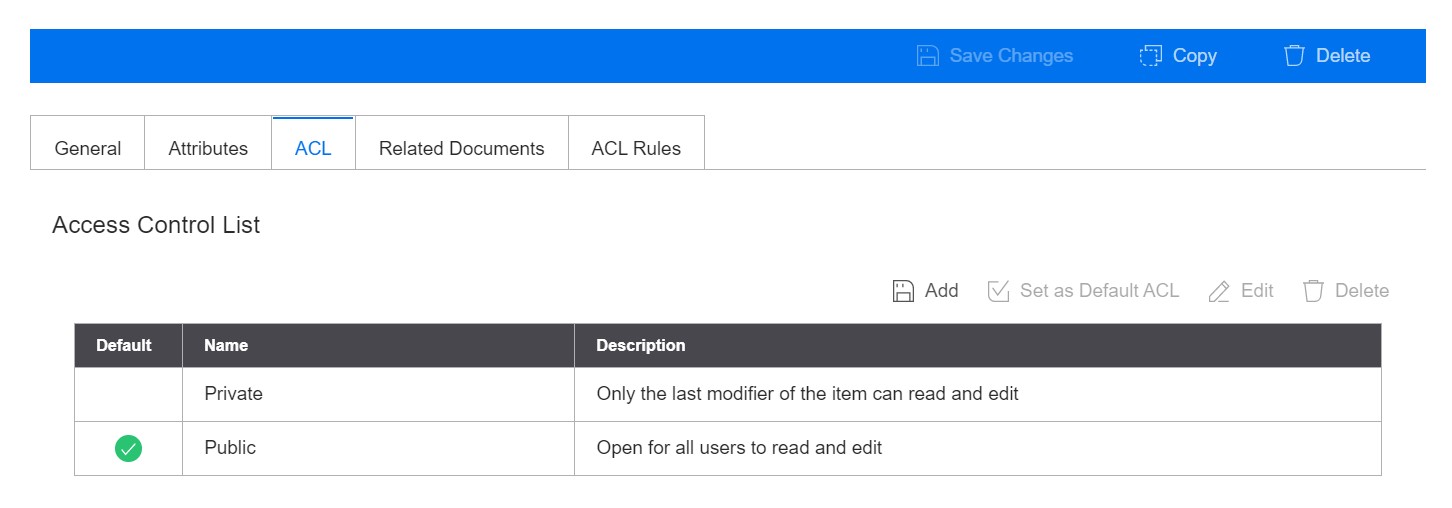
ACL | Shorthand for access control list. Consists of users, user groups, and privileges associated with each. These are applied to document types, permitting and restricting users’ actions on them. By default there are 2 types of ACL, public and private. Public is visible to everyone, private only to the last modifier of that document. Custom ACLs can also be created. |
Infor ION | Infor ION is an enterprise messaging system that integrates Infor products with each other and with non-Infor products. Transactional and master data is passed between products as business object documents (BODs) that are routed through Infor ION. Infor ION also enables customers to set up workflows, design and activate business event monitors, and manage tasks and alerts across products. |
Query Builder | Infor’s search tool for documents which uses Xquery. Can search for document attributes and properties, search for text within a document, and make your own advanced queries. Searches can also be saved by the user for quick access later. |
IDM Tools
IDM Utilities | The IDM Utilities tool is a self-contained executable JAR file containing multiple functions allowing you to import, export, and update data in IDM. Very useful for tech savvy users and for handling large amounts of documents. |
Microsoft Outlook Add In | Users can upload email attachments directly into IDM from Outlook. |
Microsoft Word Add In | Users can develop a template in Microsoft Word to be used in IDM Output Management. Can also search for images in IDM and insert into templates. |
Infor Mobile App | Utilize IDM capabilities on a mobile device, allowing the user to view, upload, search, and manage documents. |
DocuSign | Combines DocuSign’s capabilities with IDM, allowing users to lock documents, create DocuSign templates, and distribute documents to be signed and sent back. |
Enterprise Print | Users can register locations and associated printers to send IDM documents to be printed In that location. Allows you to print over the cloud. |

Want to learn more?
Quick Reference:
There is a lot to learn in the Infor Platform. A quick reference sheet is always helpful. Check out the IDM Cheat Sheet.
Topical Videos
Need information on a specific feature or function? Or how about a quick overview? Then short videos may be just what you are looking for. Check out our playlist on YouTube.
Guides
Product documentation is the go-to reference for how specific parts of the product work. For online, searchable, easy to understand guides, see the following:
Community
Collaborating with others in your industry is a great way to learn and help others. Start participating in this component’s online community today!
Courses
Infor U Campus offers learning tracks that combine video-based and instructor-led teaching. If you are an Infor customer, then check out courses on Campus. We recommend the following courses specifically for this component:
What made this section unhelpful for you?
On this page
- Document Management
Batch Update from IDM Utilities Tool
What made this section unhelpful for you?
On this page
- Batch Update from IDM Utilities Tool
Employee approval of new documents
Business Problem
A new document has been added to Infor Document Management and you would like to send to a reviewer for approval and have that approval reflected on the document. This should be an automated process every time a new document of this type is added.
Components
Requirements
- IDM-User and IONDeskAdmin roles needed
Tutorial
Difficulty: Medium
Estimated completion time: 25 minutes
Infor Document Management (IDM) and ION allow you to configure a workflow to automate this process. For a more simplified version of this guide, the Infor Marketplace has this.
1. Creating a Document Type
First is creating or choosing a document type. Here, we’ll create one with a specific attribute to keep track of its approval status. Navigate to the Control Center in IDM. From there click Document Type - > + New Document Type -> Input a Display Name -> Next -> + Add Attribute . Configure the Attribute as you please, for example purposes it’ll be named Simple_PO_Status for this tutorial. Click Next, then Done. These are the bare minimum steps, you can certainly go and add other important details for your document type.

2. (Optional) Import Configuration and Workflow
If you’d like to skip the above step, you can import the document type instead. Go to the Control Center - > Import/Export -> Import Tab -> Upload the XML file -> Import. The Infor Marketplace guide linked before has instructions on importing and setting up the workflow.

3. Adding a Workflow
At the navigation menu, click on ION. Click Monitors & Workflows -> Workflows -> + Add .

4. Configuring the Workflow Properties
After clicking on Add, you can fill in the name of the workflow. Let us put the name "Send_for_Approval".
There is a Start and End to a default workflow. Drag one of the orange Task panes down and connect it to Start. Clicking on Start, you’ll open up the Workflow Properties.

Here you’ll set what attributes from the document you’d like to receive and what you’d like to output. If configured as below it will receive data regarding the document and who created it, and we’ll output later the status of its approval.

Click on the Drill Backs tab.
Here we can configure the ability to link back to the document. This will give the recipient of this workflow the ability to click on a link and be shown the document. For Application and View, choose these values. For LogicalID, we will put “lid://infor.daf.daf” and then scroll down and for pid, you’ll click Parameter and choose the pid attribute.

5. Configuring the Approval Task
Click on the Approval task and set up the message that we want the recipient to receive.

Click on the Content tab.
Here we decide which of the parameters are to be showcased to the recipient of this message. We decided to show who created the document, the document type and filename, along with a drillback link to the document for them to peruse and gain more info.

Click on the Actions tab.
Here we’ll set up some custom buttons that will affect the Simple_PO_Status attribute. The button labels are set to Approve and Reject and it’ll change the document attribute to the values we set for each button.

Click on the Distribution tab.
Here we will decide who gets this approval task. You can set a User or a group. I’ve decided to keep it simple and set a user, in which case you’ll just type in the email address of the user or search for them. This will also send them an email notification should you choose to keep that option enabled.

After these steps, all you have to do is save the workflow and then activate it.
6. Enabling ION Configuration
Go to IDM - > Control Center -> Configuration -> ION Configuration , and make sure that ION Connection and your document type are both toggled on like so.

After you click on your document type, at the right click the + button to add a new workflow configuration. This allows you to configure how the ION Workflow and BODs will communicate with IDM, making sure that values line up. Here we’re just setting up the parameters and attributes that we set up in the Workflow Properties step.

7. Triggering the Worfklow
Next is triggering the workflow manually. Upload a document, and at the top right click the drop down arrow for “Start Workflow” and select the workflow you created.

After the document has been sent out, a notification will appear in IDM like this.

And if you’ve kept the option enabled, an email will also be sent out along with the IDM notification.

Now all that’s left is to hit Approve or Reject, and the document attribute will reflect that decision accordingly.
What made this section unhelpful for you?
On this page
- Employee approval of new documents
Export via IDM Utilities Tool
What made this section unhelpful for you?
On this page
- Export via IDM Utilities Tool
File Import from IDM Utilities Tool
What made this section unhelpful for you?
On this page
- File Import from IDM Utilities Tool
Generating Templates to use with Digital Signatures
Business Problem
Your business creates many digital documents, but you want to streamline the process of digitally signing common documents. How can you create a DocuSign template to use with Infor Document Management?
Components
Requirements
- IDM-SignatureUser role * DocuSign account
Tutorial
Difficulty: Medium
Estimated completion time: 20 minutes
Infor Document Management allows you to use DocuSign templates connected to your DocuSign account and combine it with documents sent from IDM.
https://youtu.be/hfkNHHViaUA?si=hZRZ_2-UUUs77LP2
Follow along in this brief tutorial on configuring DocuSign in your environment and how to use it.
1. Navigating to DocuSign
Navigate to DocuSign's website, and log in to your account, and click on Templates at the top.

2. Create a Template
From there, click on Create a Template and you'll be shown this screen. The name of the template will be shown in IDM when you're selecting one so choose a name that's easy to understand and upload the document(s) that'll correspond with that template. In this example, I'll be using the hospital contract that I use in the DocuSign in IDM video.

3. Filling out Signature Fields
Next is filling out the information of this contract and where you'd like the recipient to sign. A lot of the data can be auto filled such as "Date Signed" and you can even put some formulas down like the picture below shows. This allows you to have the document easily customized for your customer, including dates, duration of the contract, company name, and more.

4. Using Template
When you upload a document and click Signature you'll be shown this screen. The drop down arrow below "Choose Template" allows you to choose from the templates under your DocuSign account.

Edit Envelope is checked here but for best business practices you'll want that unchecked almost always. The reason for that is because it allows the recipient of the document the ability to change the documents prefilled data that you set up earlier. It would allow them the ability to sign anywhere, change the dates, change the duration of the contract, or add whatever they please to the document.
Troubleshooting
For additional info on how to send a document or enable DocuSign integration in your environment, please refer to the DocuSign in IDM video linked at the beginning of this tutorial.
For a more in-depth guide on making templates in DocuSign, please refer to DocuSign's own advanced template guide here.
What made this section unhelpful for you?
On this page
- Generating Templates to use with Digital Signatures
How to use IDM’s APIs
What made this section unhelpful for you?
On this page
- How to use IDM’s APIs
Printing from the Cloud
Business Problem
While your business might be running mostly in the cloud you may still need to print locally. Being able to connect your cloud-based applications with your on-premise printers is essential to achieve that. This need for printer connectivity applies whether you access the applications from a desktop browser or a mobile device. In this tutorial, we will guide you on how to print from the cloud and establish a connection with your on-premise printers.
Components
Requirements
- Access to an Infor Cloudsuite * Knowledge of command line basics * IDM-Administrator role * User privileges to ION Desk (IONDeskAdmin) * Postgres or SQL Server installed * Amazon Corretto 8 64x
Tutorial
Difficulty: Medium Estimated completion time: 25 minutes
1. Enable Enterprise Print
From the Infor OS Home Portal, click on Document Management (IDM), and click on the icon to the right of Add Document to access the Control Center, and underneath Document Output click on Print.
Enabling IDM Enterprise Print
Make sure that IDM Enterprise Print is toggled on.
If you have Enterprise Connector and the Enterprise Location already installed and ready, skip to Step 3.
2. Install Enterprise Connector
The Enterprise Connector will provide a secure communication bridge between the Infor Document Management component in the Infor Cloud and your on-premise printer hardware. For this part, see the Infor ION Desk User Guide (Cloud). If you run into any issues during the installation, check out the Troubleshooting section at the end of this guide for some common issues.
3. Add Print Location
Navigate back to the Control Center in IDM, go to Print underneath Document Output. For IDM Enterprise Print, click on Manage Service. Look for the Enterprise Location you just created, if it’s not found then Refresh the list. After you find it, click Enable.
Enabling print location
Status will change to OK after you Enable. You may need to hit Refresh for it to reflect the Status clearly.
4. Add a Printer
All that’s left now is to add a printer local to your network. Click on the Printer tab, hit the + Add button, and choose your Location and the Printer you want from the first 2 drop down menus. Printer ID will be automatically generated. Then just hit Save.

5. Test Print
To the right of the printer you just added, you can click Print underneath the Test Print column.

Print Troubleshooting
If your printer page does not appear, as an admin you can do these steps.
- If you or nobody else are near the printer to confirm, you can navigate to Job Management under Document Output and search for the print job that was sent to see if it was successful. *
* The status shown here may say InProgress. Give it some time and it will change to OK, but for now copy and paste the ID. 2. On the Enterprise Connector server, navigate back to the directory where you installed Enterprise Print and go the bin folder. There you will find a series of .cmd files. *
* Double click the AdminUI.cmd to open it up. 3. You will be presented with a screen like this. *
* At the top click Applications, then at the top right I recommend clicking the option to display the applications as cards instead of a list. 4. Click on the application to open it up then hit Log. *
5. At the top, paste the ID into Filter and here you’re looking for Job Success. * 
Additional Troubleshooting
- Amazon Corretto needs to be a version of 1.8.0_272 or later. An error will be given later during the installation process if you don’t meet this requirement. If you downloaded the most recent one via the link given, this should not be an issue. * For the “Grid Connection Configuration” step when installing Enterprise Connector, you may get an error saying bootstrap service could not start. This is because the ports are taken, maybe by another instance of Enterprise Connector setup for another tenant. Changing the port values should fix this. * When running the jar file, you may get an error stating that Java does not exist or some file location indicating an error with Java. * This is most likely caused by the PATH variable not being set correctly for it. * Running Repair on the Amazon Corretto installer can fix this * You can also follow these steps given by Java. * You may find that in Job Management that the Job never changes to OK and seems stuck on InProgress. In a situation like this, the Logs in the local Admin UI could give you more information. * A common problem is that the printer was not found. Maybe it’s not on or maybe you added the wrong printer. Confirm that the printer you added is the one that is available.
What made this section unhelpful for you?
On this page
- Printing from the Cloud
Best practices
What made this section unhelpful for you?
On this page
- Best practices
Governance, Risk and Compliance
What made this section unhelpful for you?
On this page
- Governance, Risk and Compliance
Integration with ION
Create a unified application topology using the integration hub in the Infor Platform.
On this page
- Integration with ION
Portal and Workspaces
On this page
- Portal and Workspaces
Robotic Process Automation
RPA automates repetitive tasks and empowers your team to focus on what they do best.
On this page
- Robotic Process Automation
Security & User Management
Tutorials that help you leverage Infor's cloud security and user management capabilities.
On this page
- Security & User Management