Overview
Tutorials are designed to offer a guide to complete common objectives, while also acknowledging that individual developers need to respond to individual needs of their own solutions. Tutorial frameworks provide blueprints for these solutions and should be adapted to fit individual needs.
Analytics with Birst
API Gateway
Application Development with Mongoose
Artificial Intelligence
Data Fabric
Digitical Assistant
Document Management
Integration with ION
Robotic Process Automation
Add description here
Security & User Management
Add description here
What made this section unhelpful for you?
On this page
- Overview
Analytics with Birst
On this page
- Analytics with Birst
API Gateway
API Gateway is a software system for brokering requests from API consumers, such as web and mobile applications, and API providers, such as Infor enterprise or third-party services. As a broker sits between consumers and providers (technically it is a reverse proxy), it can provide many benefits to both consumers and providers.
On this page
- API Gateway
Application Development with Mongoose
Go beyond basic fit and customize your cloud experience with extensibility tools that leverage no-code, low-code, and full-code frameworks.
On this page
- Application Development with Mongoose
Artificial Intelligence
Use Machine Learning to build an AI into your business processes.
On this page
- Artificial Intelligence
Analytics & Reporting in CloudSuite Service Industries
What made this section unhelpful for you?
On this page
- Analytics & Reporting in CloudSuite Service Industries
Analytics & Reporting in M3 Cloudsuites
What made this section unhelpful for you?
On this page
- Analytics & Reporting in M3 Cloudsuites
Backend as a Service (BaaS)
What made this section unhelpful for you?
On this page
- Backend as a Service (BaaS)
Data Fabric
Manage data on the platform so that humans and systems can securely access information from anywhere.
On this page
- Data Fabric
Digital Assistant
Streamline the user experience with a digital assistant that helps your employees navigate and access information by voice or chat.
Coleman Digital Assistant (DA) is the Natural Language Processing (NLP) based chat agent of Infor Cloud and third-party applications.
It works based on “Skills”, which represent a given ability to get essential information, perform a business task or navigate to specific screen. You can invoke a skill either by chatting or speaking with Coleman from a variety of interfaces, like Infor OS Portal, MS teams, mobile application.
A single skill consists of utterances, prompts, and responses. Utterances are your questions to Coleman. Prompts and responses are provided by Coleman in response to your utterances.
Key Concepts & Definitions
Before diving into building your own skills, the following table provides you with Coleman DA key concepts for better understanding each component of a Coleman skill.
Coleman DA | Natural Language Processing (NLP) based chat agent of Infor Cloud and third-party applications. |
Skill | A question or a series of questions that define the interaction between Coleman and the user to perform a business task. |
Intent | Represents an action that a user would like to perform using chatbot. |
Utterance | The phrase(s) provided by the user to invoke a particular skill. |
Slot/Requirement | User input variable(s) required to fulfill the skill. Can also be represented as a dynamic variable, which changes with every skill invocation. |
Fulfillment | Determines how your skill is executed and the end results are accomplished. |
Skill Chaining | Invocation of a second related skill after the first skill is completed. You can pass values from the first skill to the second skill. |
API Endpoint | API Endpoints deployed on API Gateway are used by Coleman DA skills as a means to communicate with the application either to perform a transaction or get specific information. |
API Flow | A composite API build by chaining many APIs which can be used in an API Fulfilment. |
Basic Skill | Basic skills are used to create the FAQ interaction. Those skills don’t require any back-end communication with other applications, which means that the fulfillment won’t call any API. |
API Based Skill | Advanced skills are used when Coleman-User interaction requires the communication with a particular application. In order to communicate with an application, Coleman will use the API endpoint deployed on API Gateway either to get application specific information or perform a transaction. |
Drill-Back Skill | Drill-back skills can take you to a particular screen either within the Infor OS portal using the drill back links or navigate to a particular website just by defining its address within a skill. |
Coleman DA Channels | |
Infor OS Portal | The Coleman chat window is part of the Infor OS Portal that can be access in context of any application within the portal. It has both the text chat and voice interaction feature. |
Infor Go | Coleman DA chat agent is accessible from the mobile application, Infor Go. It supports both text chat or voice interaction. |
Microsoft Teams | The Coleman DA application can be download and installed to have a conversation in your Teams application like you would with a live user. You can converse with Coleman though MS Teams in context of a particular tenant. |
API | Coleman DA exposes a set of APIs which can be used to interact with Coleman programmatically. |
Infor OS Portal | The Coleman chat window is part of the Infor OS Portal that can be access in context of any application within the portal. It has both the text chat and voice interaction feature. |
Infor Go | Coleman DA chat agent is accessible from the mobile application, Infor Go. It supports both text chat or voice interaction. |
Microsoft Teams | The Coleman DA application can be download and installed to have a conversation in your Teams application like you would with a live user. You can converse with Coleman though MS Teams in context of a particular tenant. |
API | Coleman DA exposes a set of APIs which can be used to interact with Coleman programmatically. |
Skill Flow Example


The diagram demonstrates the standard Coleman conversation flow from User skill invocation to Coleman’s final response. For better understanding of each component in the flow review the Table “
Best Practices
The table below presents the set of skill building ‘best-practices’ which helps in defining a high quality skills with desired UX:
Prompts | – For high-impact requests, consider a Confirmation Prompt before executing the Skill Fulfillment. – Define multiple prompts to help clarify whenever the user provides an invalid input. – Make sure all your requirement prompts are contextual for the user to know what Coleman is asking for. |
Requirements | – Define up to 3 requirements. – Give an example of the certain format expected in the requirement prompt. – Limit the usage of string or alphanumeric requirement types. – Use the Multiple Choice or Restricted custom requirement type if the expected prompt is a set of static values. |
Responses | – Do not respond with raw API payload details unless they provide sufficient information. – Include multiple responses for handling different types of errors. This can help the user understand the reason for the error. – Handle error gracefully. – Ensure there aren’t any holes in your conditions. – Ensure your response contains enough information to be useful. |
Security | – In case your skill requires restriction to a specific set of users/IFS security roles, define it on the skill level. |
Skill Basics | – Define a clear intent for your skill. – Any user-facing text should be grammatically correct. – The language used in your text should sound polite. |
Utterances | – In an utterance, do not include the word Coleman or reserved words such as: Help, Cancel, or Stop. – Consider unexpected ways a user might ask for a skill. – Have a variety of utterances to account for different invocation verbiage. – Consider regional dialects. For example, depending on where your user is located, paid time off may be referred as PTO, Vacation, Holiday, or Leave. – Use product or industry-specific lingo or acronyms. |
Want to learn more?
Topical videos
Need information on a specific feature, function or a quick overview? These short videos may be just what you are looking for. Check out our playlist on YouTube.
Product Documentation
Product documentation is the go-to reference for how specific parts of the product work. For online, searchable, easy to understand docs see the:
Coleman Digital Assistant User Guide
Community
Collaborating with others in your industry is a great way to learn and help others. Start participating in this component’s User Community today!
Courses
Infor U Campus offers Learning Paths that combine video-based and instructor-led training. If you are an Infor customer, then check out courses on Infor U Campus. We recommend the following courses specifically for this component:
What made this section unhelpful for you?
On this page
- Digital Assistant
Building a Skill for Navigating Documentation
Overview
Resolve the business challenge of assisting employees in effectively navigating systems by implementing a Digital Assistant solution tailored to your organization. Consider the scenario where users require quick access to a pre-defined list of documents. By deploying a Digital Assistant, your employees can effortlessly find the necessary information, fostering a streamlined workflow and boosting productivity within your company. In this demonstration we will focus on Infor documentation but you can tailor this to any doc outside of Infor.
Components
- Digital Assistant * System Integration: API Gateway
Requirements
- Access to an Infor CloudSuite * Coleman DA Security Roles: * COLEMANDA-User * COLEMANDA-Advanced
Tutorial
https://youtu.be/YbEtL1IoLc8?si=6yhsNSyLUA2iXtn8
Accessing Application
- From the Navigation Menu in Infor OS Portal, go to OS then select Digital Assistant. 2. Locate and select the '+' symbol positioned above the data grid containing the list of skills in order to proceed with the 'Add Skill' operation.

Building Skill
Each of the section below represent the wizard steps on the UI.
Basic Information
- Specify the basic information: * Skill ID: NavigationDemo * Name: NavigationDemo * Description: This skill will demonstrate how a navigation skill flows for various documentation resources. * Language: English.
Click “Next” button
Fulfillment
Fulfillment Type: Basic
Click “Next” button
Requirements
Requirements
You will be creating one (1) requirement as pictured below. There is an “Add Requirement” button to increase the quantity displayed. Name and Prompt are user defined and Type will be the Dynamic selection from the drop down.

Parameters
There are no Parameters necessary for this skill.
Click “Next” button
Utterances and Confirmation
Utterances
Specify a collection of user prompts that initiate the skill when requested. It is advisable to establish a minimum of three user-defined utterances. To expand the displayed options, utilize the "Add Utterance" button.

Click “Next” button
Response
Response
Create Variables
Not required for this skill.
Update Variables
Not required for this skill.
Response condition
In this skill, we will establish three Response Conditions. You have the flexibility to determine the desired quantity. Each response condition will correspond to a distinct document, with a numerical value assigned to each in the Value field. To expand the displayed options, utilize the "Add Response" button.

Default Response
Not required for this skill.
Click “Next” button
Summary
The summary view will give you a detailed look at everything you have entered.
Text View

Flow View

Click Save
Test Skill
Your skill is now in “Draft” mode. By selecting the skill you just created and then clicking the “Build to Test” button you will be able to test it.
Deploy Skill
Once you are ready to deploy your skill, select it and click “Deploy Skill”
What made this section unhelpful for you?
On this page
- Building a Skill for Navigating Documentation
Building and Testing a Digital Assistant Skill
Overview
The development of a new skill by a Digital Assistant admin, specifically designed to address a a business requirement, is an important undertaking. Before implementing this skill, it is vital to conduct proper testing to ensure its effectiveness. Specifically, to take the skill from its initial "draft" phase to a test-ready state, and have it ready for comprehensive evaluation by Advanced Users and Coleman Digital Assistant Admins.
Components
- Digital Assistant * System Integration: API Gateway
Requirements
- Access to an Infor CloudSuite * Coleman DA Security Roles: * COLEMANDA-User * COLEMANDA-Advanced
Tutorial
This tutorial will walk you through how to incorporate a new skill into the AI Digital Assistant. You'll learn how to take a skill that is in draft mode and put it into testing mode. Next, it will show you how to test the skill for any issues so you can make any necessary changes.
Topics Covered:
- How to select and build a skill * What the build process looks like * Navigating and filtering existing skills * Reviewing the utterances of the skill to be tested * Testing the skill
What made this section unhelpful for you?
On this page
- Building and Testing a Digital Assistant Skill
Get Inventory Item by Description Skill
Overview
Your employees have a frequent action of looking up inventory items by using the item description. You would like to reduce time to access this information.
By adding a skill to the Infor Digital Assistant to retrieve the items by description your employees can access the information quickly via chat or voice on desktop or mobile.
Components
- Digital Assistant * System Integration: API Gateway
Requirements
Tutorial
1. Accessing the Application
- In your Coleman-enabled tenant in Application Navigation Menu Select Infor OS > Digital Assistant . After you will be transfer to the Skill page within Digital Assistant. * Click the + icon above the data grid with the skill list to Add Skill.
2. Building Skill
Each of the section below represent the wizard steps on the UI. Follow the manual to complete the skill building process.
3. Basic Information
Specify the following information :
- Skill ID: GetItemByDescription. * Name: Get Item By Description. * Description: Optionally, specify that this skill will accept an item description to provide the user with an item number. * Language: English.
4. Fulfillment
Select API in the Fulfillment Type field.
Specify the fulfillment information :
- API Suite: _FSM _ * Product: Infor Financials and Supply Management * Select API: Generic List Service. You can use the search bar to locate the API * Path: This field is defined based on the API selected. This value is displayed: _FSM/fsm/soap/classes/Item/lists/generic * Method Type: This field is auto-filled based on the API selected * Parameters: This field is auto-filled based on the API selected . This value is displayed: GET. * Request Body: This field is auto-filled based on the API selected * Response Body: This field is auto-filled based on the API selected
5. Requirements
- Create first Requirement by defining the followinginformation: * Name: Description. * Type: Select String. * Prompt: Specify the question that Coleman presents to the user for the requirement information. For example, "What is the description of the item you would like to see?" 2. Add the Requirement Fulfillment 1. Click the gear icon on requirement tile 2. From drop-down select _Add Fulfillment. _The dialog window will pop up. 3. Navigate to the _Fulfillment _tab and input values as shown below (for reference see the screenshot) * Fulfillment Type: API * API Suite: _FSM _ * Product: Infor Financials and Supply Management * Select API: Generic List Service. You can use the search bar to locate the API * Path: This field is defined based on the API selected. This value is displayed: _FSM/fsm/soap/classes/Item/lists/generic * Method Type: This field is auto-filled based on the API selected * Parameters:
Parameter Name| Parameter Type| Variable Source| Variable ---|---|---|--- _fields| Query String| Other| Item,ItemGroup,Description _filter| Query String| Other| Description::{Description} _limit| Query String| Other| 100 Parameters for Fulfilment tab
Fulfillment Settings
- Navigate to the Response tab and define Variables and Response Conditions (for reference see the screenshots) * Create Variable
Variable Name| Type| JSON Path* ---|---|--- ItemID| Json Path| $[]._fields.item ItemGrp| Json Path| $[1]._fields.itemGroup ItemCount| Json Path| $[0]._counr ItemDescriptions| Json Path| $[]._fields.Description * You can define the JSON Path by clicking the "Look Up" icon in the input filed and selecting a desire property from the payload.

Response Conditions
- Variable: Select Item ID * Operator : Select Is Empty * Value: Leave empty * Action: Select Repeat Prompt * Response: Item with the description '{Description}' does not exist. Enter a valid item description

- Click Save
6. Utterances and Confirmation
- Define a set of utterances that start the skill when asked by the user. * What is the item number by description? * Get the item number by description. * Find me an item number by description.
7. Response
Specify these Response Conditions . Note: Leave the variable section empty
- Define Response Condition 1 * Variable: ItemID * Operator: Is Not Empty. * Value: Leave this box empty. * Click Add Condition . * Variable: ItemCount * Operator: Greater Than * Value: 1 * Action: Table * Message: There are {ItemCount} Items similar to {Description} in {ItemGrp} * Table Title: _Item Description _ * Column Label1: _Item _ * Column Value1: _ {ItemID} _ * Column Label2: Description * Column Value2: _{ItemDescriptions} _

- Click Add response to add the next Response Condition (2) : * Variable: ItemID * Operator: Is Not Empty. * Value: Leave this box empty. * Click Add Condition . * Variable: ItemCount. * Operator: Equals * Value: 1 * Action: Message * Response: Item with description {Description} in {ItemGrp} is {ItemID}

- Click Add response to add the next Response Condition (3) : * Variable: ItemID * Operator: Is Empty * Value: Leave this box empty * Action: Message * Response: Unable to find an item ID for this Description

- Click Next. Review the skill on the summary page in the text view or flow view.
8. Summary
Review the skill on the summary page in the text view or flow view.
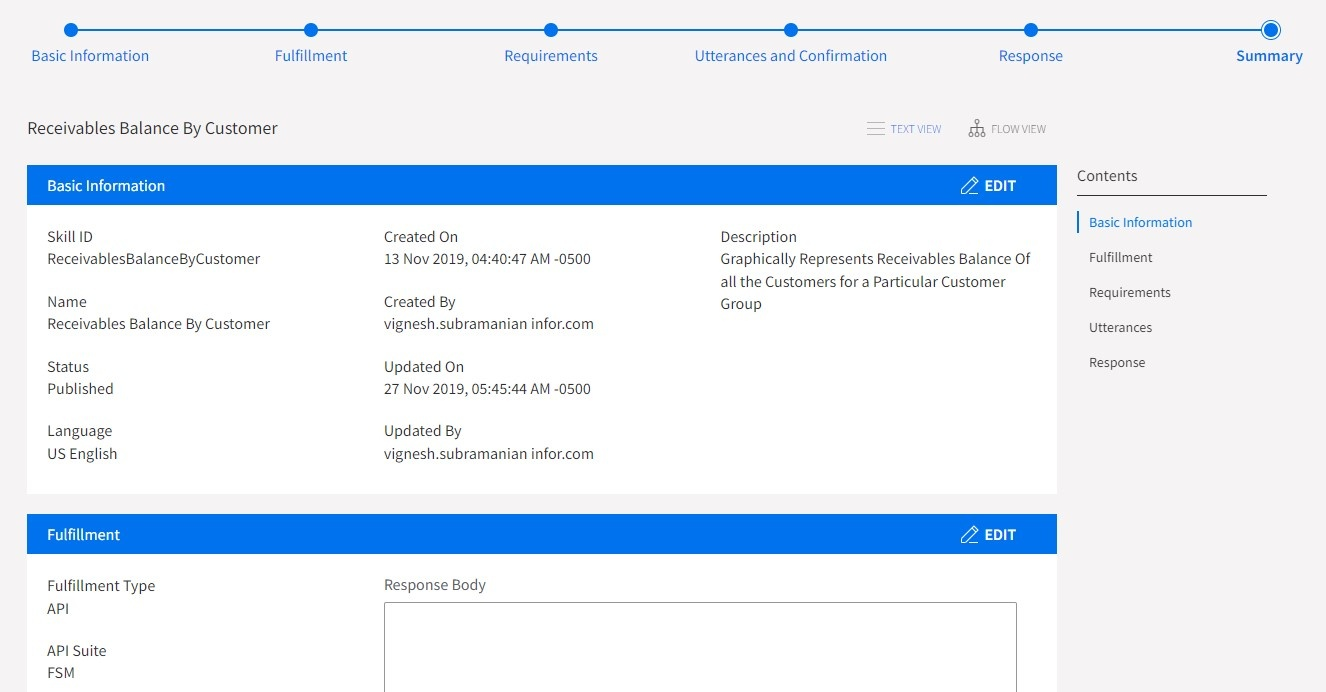
9. Activating the Skill
- Select the skill in the data grid.

- Click the _Build to test _button above the data grid. The chatbot for testing is being build. Once the chatbot build is finished you can access the skill in the Try It Out panel.

- Select the skill in the data gird and click Deploy Skill. You can now converse with Coleman to look up an item by description.
Resources
You can check our Infor Market Place to get more skills for the FSM Cloud Suite and import it to your tenant see: Coleman DA - FSM CloudSuite Skills package
You can also try the Global HR skills by importing the skills from Market Place see: Coleman DA - GHR CloudSuite Skills package
What made this section unhelpful for you?
On this page
- Get Inventory Item by Description Skill
Publishing a Skill in Digital Assistant
Overview
With meticulous design, a Digital Assistant admin has created a new skill tailored to meet a unique business requirement. After extensive testing to ensure optimal performance, the skill is now ready for deployment. The immediate challenge lies in transitioning this skill from its tested state to a "live" stage, where it can be used in real-world scenarios. This progression necessitates the skill's publication on the platform by a Coleman Admin, allowing authorized users to access it and fully exploit its capabilities.
Components
- Digital Assistant * System Integration: API Gateway
Requirements
- Access to an Infor CloudSuite * Coleman DA Security Roles: * COLEMANDA-User * COLEMANDA-Advanced
Tutorial
This tutorial will demonstrate how to move the refined skill from its tested state to a live, operational status, making it accessible to authorized users within the platform. This marks the final stage of the skill integration process, as it becomes a fully functional tool within the AI Digital Assistant.
Topics Covered:
- How to select and deploy a skill * What the deployment process looks like * How and where to access the published skill
What made this section unhelpful for you?
On this page
- Publishing a Skill in Digital Assistant
Receivables Balance & Graph Skill
What made this section unhelpful for you?
On this page
- Receivables Balance & Graph Skill
Retrieve a Customer Credit Profile
Overview
A recurring challenge within your business lies in your employees' frequent need to retrieve customers' credit profiles to facilitate credit decisions during the customer order approval process. By integrating a specialized skill into the Infor Digital Assistant, your team can swiftly assess customer credit histories, enabling faster and more informed decision-making.
This skill, initially developed using Infor SXe, can seamlessly be tailored to integrate with your specific ERP system.
Components
- Digital Assistant * System Integration: API Gateway
Requirements
- Access to an Infor CloudSuite * Coleman DA Security Roles: * COLEMANDA-User * COLEMANDA-Advanced
Tutorial
https://youtu.be/ujaG93GzUtA?si=JyZnzYsmQ0KHaoo5
Accessing Application
- From the Navigation Menu in Infor OS Portal, go to OS then select Digital Assistant. 2. Locate and select the '+' symbol positioned above the data grid containing the list of skills in order to proceed with the 'Add Skill' operation.

Building Skill
Each of the section below represent the wizard steps on the UI.
Basic Information
- Specify the basic information: * Skill ID: CustCreditProfile * Name: CustCreditProfile * Description: This skill will return the customer's credit profile * Language: English.
Click “Next” button
Fulfillment
- Fulfillment Type: API 2. API Suite: SX 3. Product: Infor Distribution SX.e * API: Search for and select: sxapiargetcustomerbalance 1. Method: Post 1. Path: /sxapiargetcustomerbalance 4. Path: This field is populated by the previous step. * Path: SX/rest/sxapirestservice/sxapiargetcustomerdatacredit * Method Type: GET 5. Parameters Name: This field is defined based on the API selected. Ensure that the following query parameters are defined:
companyNumber | Query String ---|--- operatorInit | Query String customerNumber | Query String 6. Response Body: This field is generated automatically defined based on the API and fields selected above.
7. Click “Next” button
Requirements
Requirements
You will be creating three (3) requirements as pictured below. There is an “Add Requirement” button to increase the quantity displayed.

Parameters
You will be creating three (3) parameters as pictured below. There is an “Add Parameter” button to increase the quantity displayed.

Click “Next” button
Utterances and Confirmation
Utterances
Define a set of utterances that start the skill when asked by the user. We recommend a minimum of three. There is an “Add Utterance” button to increase the quantity displayed.

Click “Next” button
Response
Response
Create Variables
Define the following variables. The “Variable Name” is user defined and must be unique to each other. There is an “Create Variable” button to increase the quantity displayed.

Update Variable s
Response condition
Your will create a response condition for an invalid value entered by the user. This condition will prompt the user to retry. Select from the drop down and enter the “Response” wording manually. There is an “Add Response” button to increase the quantity displayed.

Default Response
The default response will be the information you wish to provide the user for their query. This information has verbiage created by you and within the {} will be the variable that is available for the API you are calling. When you type in the opening curly bracket { a leasy of variable will be displayed. As you type in the ones from the example below, select it as it becomes available. This can be better understood by viewing the provided video.

Click “Next” button
Summary
The summary view will give you a detailed look at everything you have entered.
Text View

Flow View

Click Save
Test Skill
Your skill is now in “Draft” mode. By selecting the skill you just created and then clicking the “Build to Test” button you will be able to test it.
Deploy Skill
Once you are ready to deploy your skill, select it and click “Deploy Skill”
What made this section unhelpful for you?
On this page
- Retrieve a Customer Credit Profile
Document Management
Leverage Infor's central document repository to manage your enterprise document in the cloud.
On this page
- Document Management
Governance, Risk and Compliance
What made this section unhelpful for you?
On this page
- Governance, Risk and Compliance
Integration with ION
Create a unified application topology using the integration hub in the Infor Platform.
On this page
- Integration with ION
Portal and Workspaces
On this page
- Portal and Workspaces
Robotic Process Automation
RPA automates repetitive tasks and empowers your team to focus on what they do best.
On this page
- Robotic Process Automation
Security & User Management
Tutorials that help you leverage Infor's cloud security and user management capabilities.
On this page
- Security & User Management