
Starting a workflow from an API
Intermediate | 30 Minutes
API Gateway Enterprise Integration
Overview
Infor OS Platform features a robust API Gateway, which includes the powerful ION API Suite, complete with workflow endpoints. This functionality enables seamless integration of your applications, allowing you to trigger workflows effortlessly. By leveraging these capabilities, you can enhance your system's interoperability, streamline business processes, and achieve greater efficiency across your enterprise solutions. Join us as we uncover the potential of Infor OS Platform and its API-driven approach to modern workflow management.
📋 Requirements
|
Tutorial
In this tutorial, we'll explore the powerful capabilities of Infor OS's API Gateway. You'll see how its robust ION API Suite, complete with workflow endpoints, enables seamless application integration to easily trigger workflows. Discover how to enhance interoperability and streamline processes with Infor OS.
1
Build a Test Workflow
We need to create a test workflow to execute and validate the workflow API.
Log in to the Infor OS Portal and from the navigation menu select the OS application.
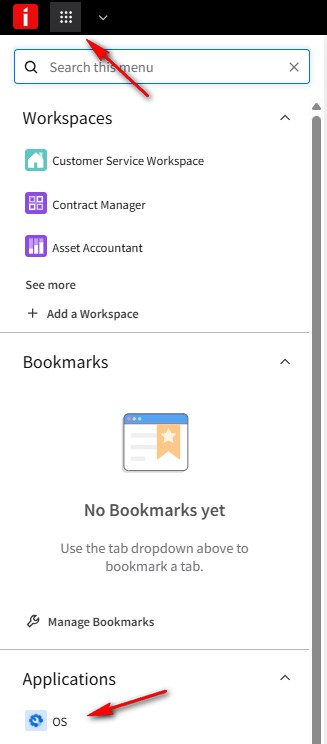
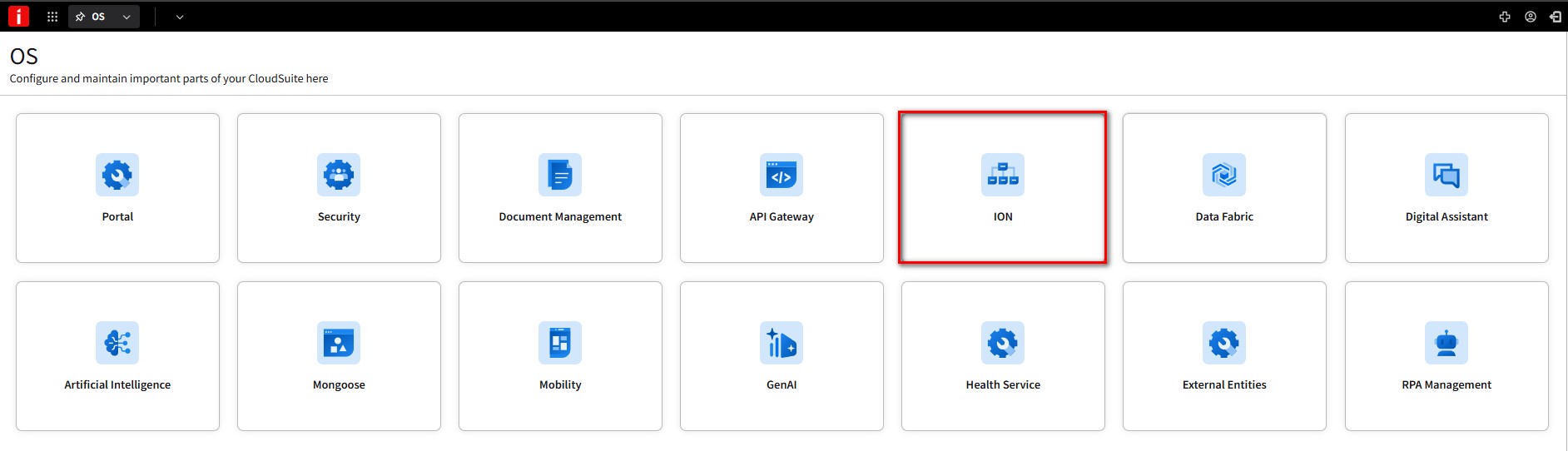
Select the ION card displayed on the homepage.
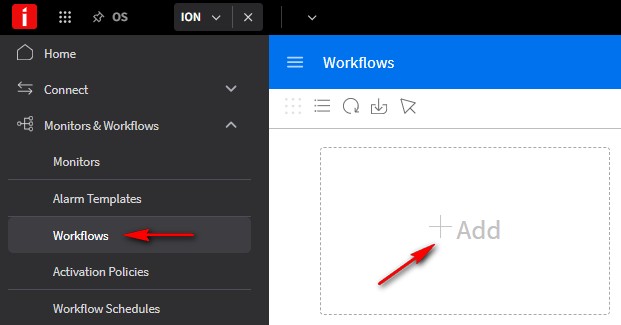
Expand the navigation menu and under Monitors & Workflows, Click on Workflows and then click on the +Add icon.
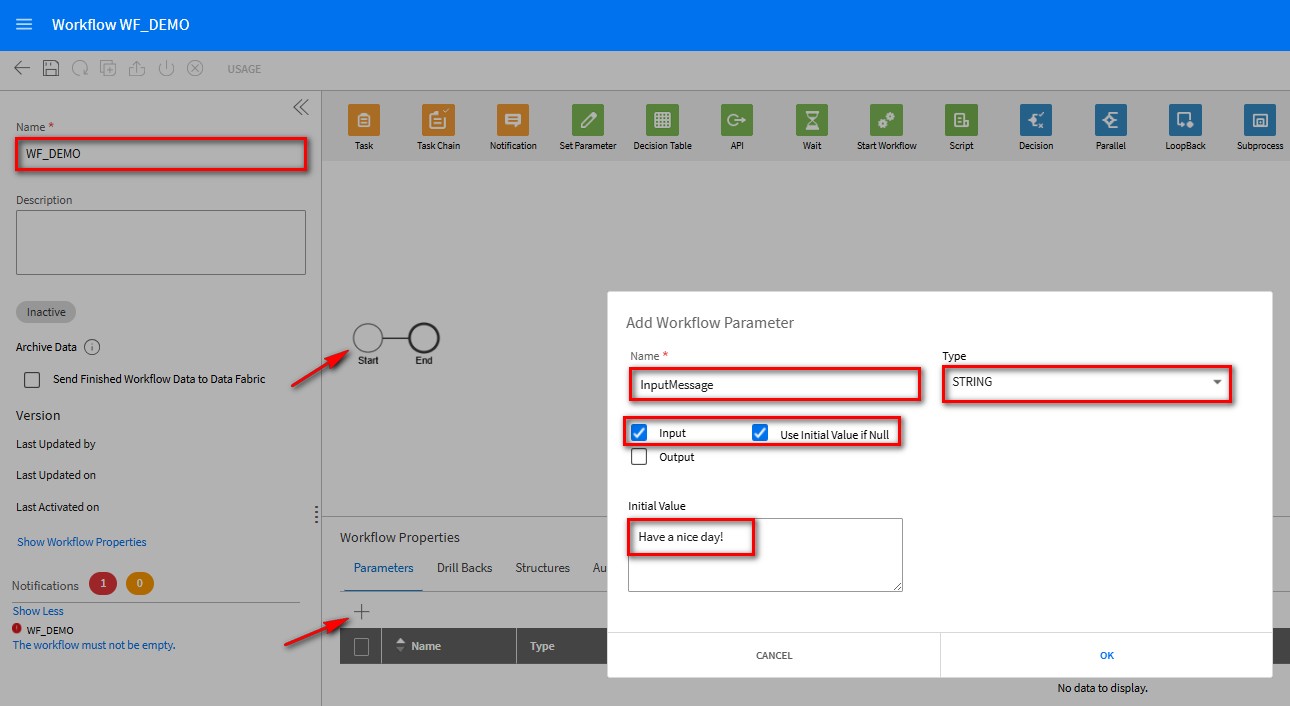
Give the Workflow a Name of WF_DEMO. Click the Start event of the workflow and under Parameters click the + sign. On the Add Workflow Parameter screen, fill in the following values and options.
- Name - InputMessage
- Type - STRING
- Select the Input check box
- Select the Use Initial Value if Null check box
- Initial Value - Have a nice day!
Click OK.
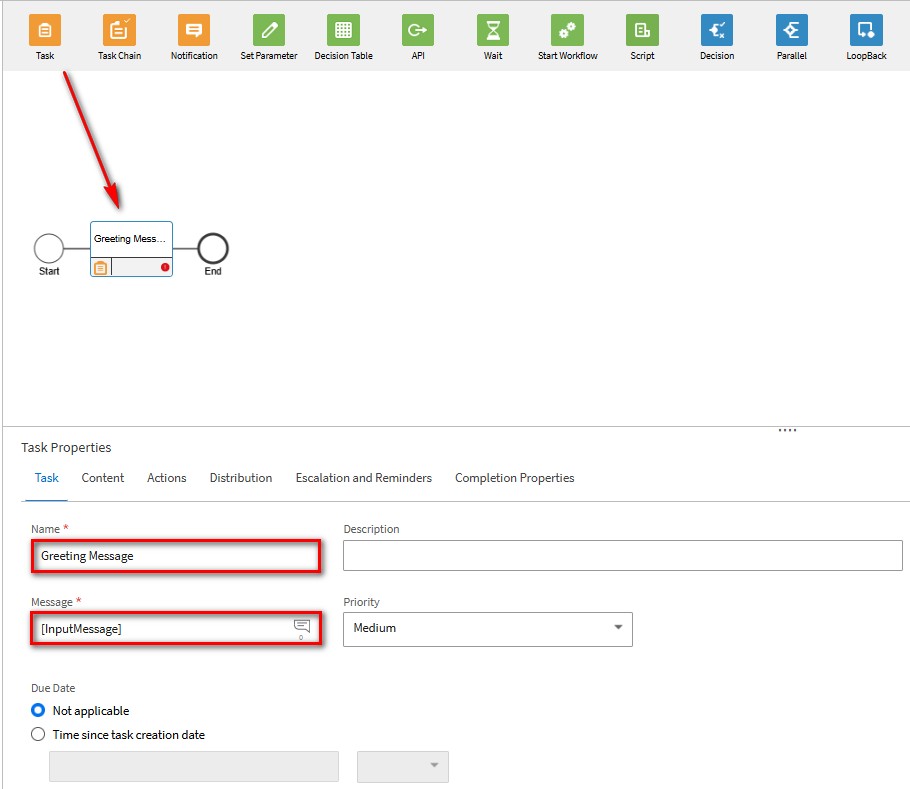
Drag and drop a Task activity and fill in the following fields.
- Name - Greeting Message
- Message - [InputMessage] (This setting with pass the Input message from the Start event to the Task Message)
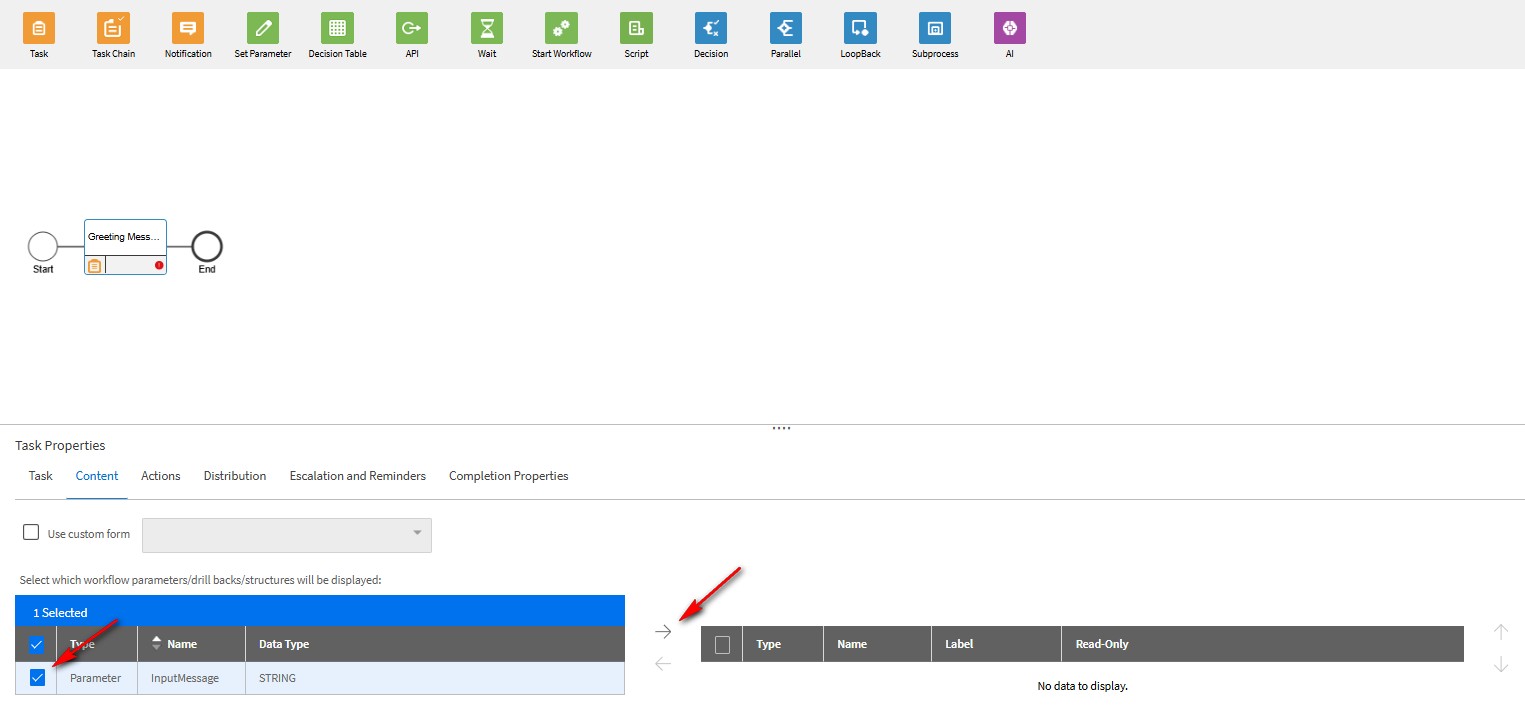
Under the Content tab, select the InputMessage Parameter and use the → symbol to move the Parameter to be displayed.
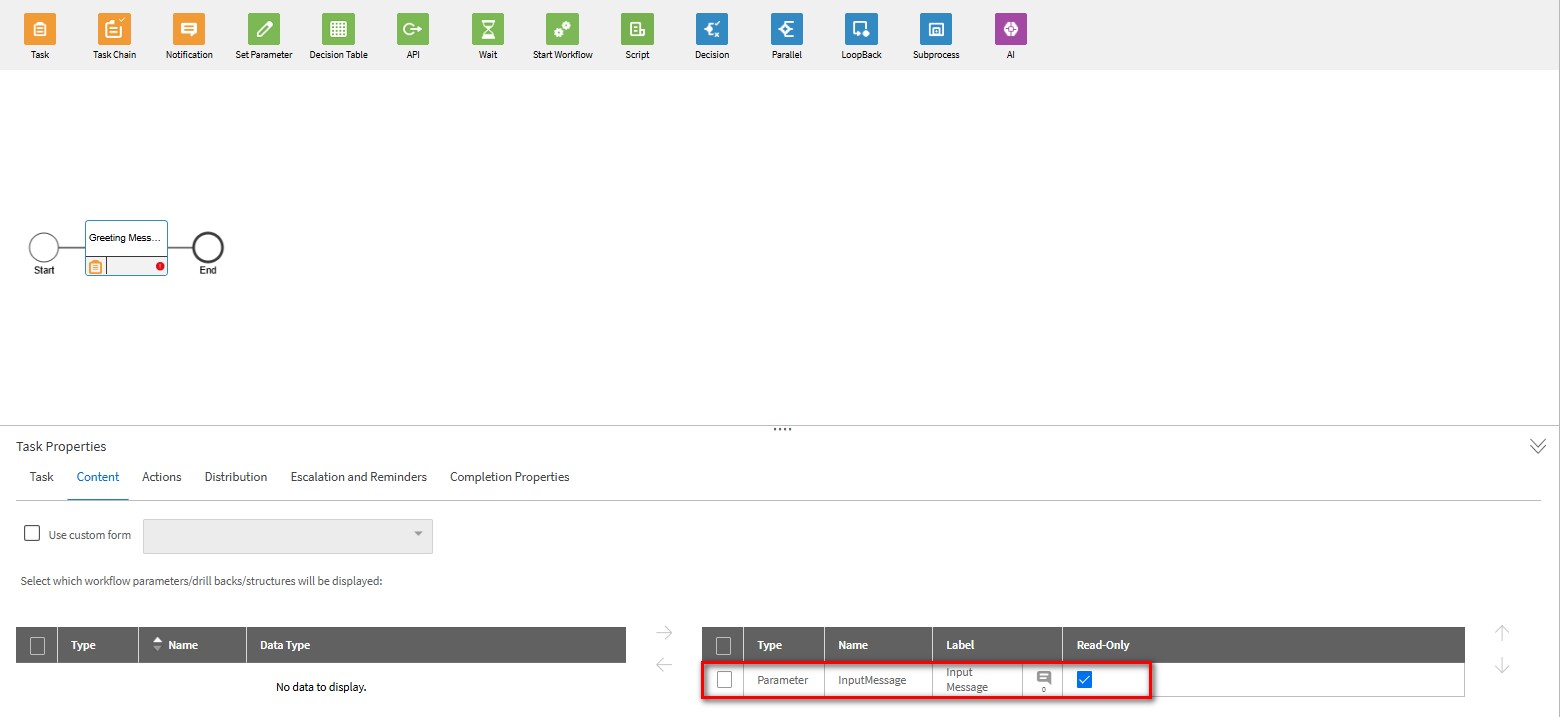
Once the Parameter is moved, check the Read-Only box on the InputMessage parameter.
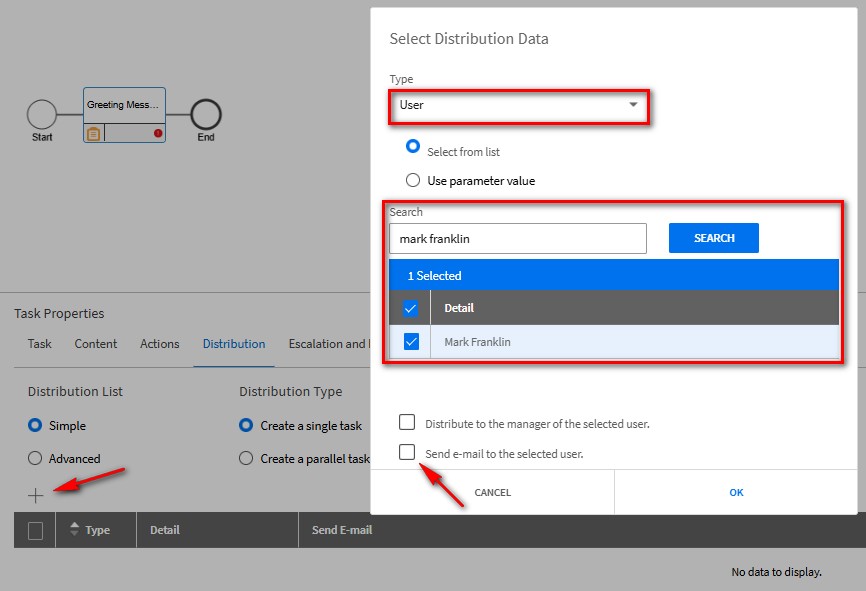
Under the Distribution tab, click the + sign and set Type to User. In the Search field, search for your use account and select it. Uncheck the Send e-mail to the selected user option. Click OK.
Click Save.
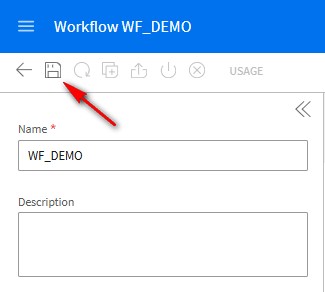
Click the Activate icon to activate the workflow.

2
Navigating the API Gateway
From the OS Application page select the API Gateway card.
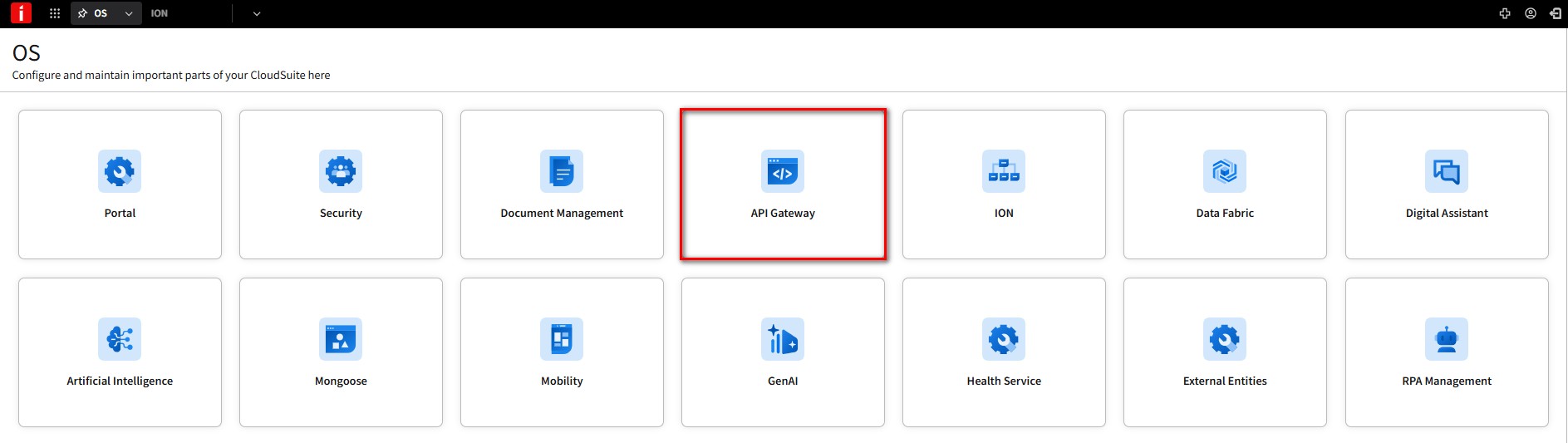
The Available APIs option is in the navigation menu in the upper left corner. Clicking this will take you to the menu where all the accessible APIs are listed.

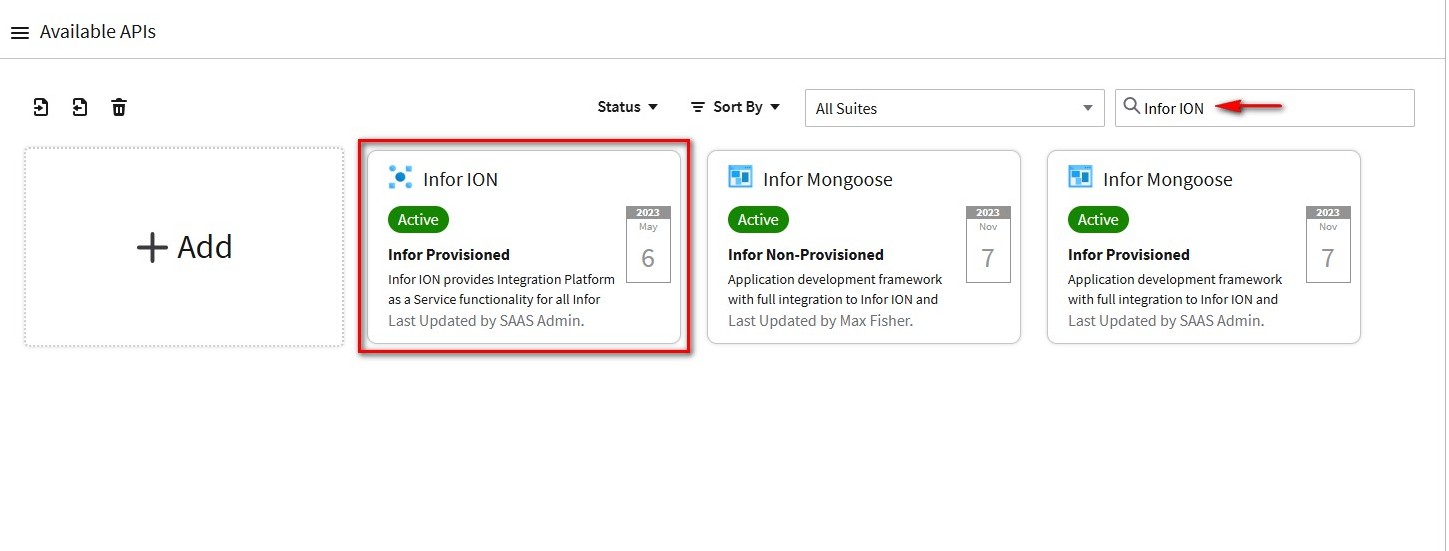
Using the search function at the top, type in Infor ION and double-click the Infor ION Suite.
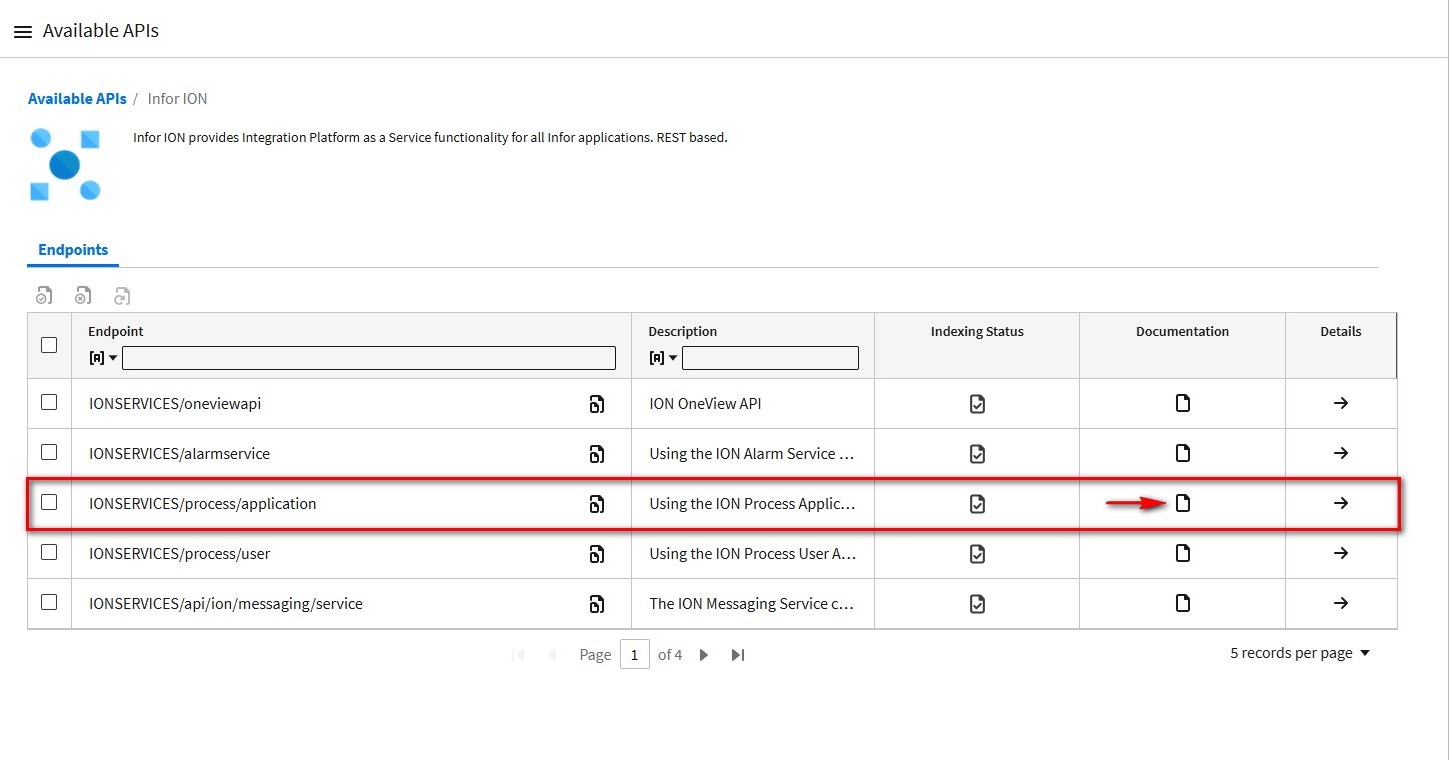
It reveals a comprehensive list of endpoints, including two workflow-specific ION process endpoints. Our focus is on the IONSERVICES/process/application endpoint; proceed by clicking on its documentation Icon.
3
Exploring Swagger UI
The Swagger UI interface for this endpoint is displayed.
NOTE: Swagger is a standardized UI developed by an industry group that ensures consistency across various API gateways and connection points.
What’s excellent about Swagger is its Dynamic documentation, which allows users to test the API directly from this page.
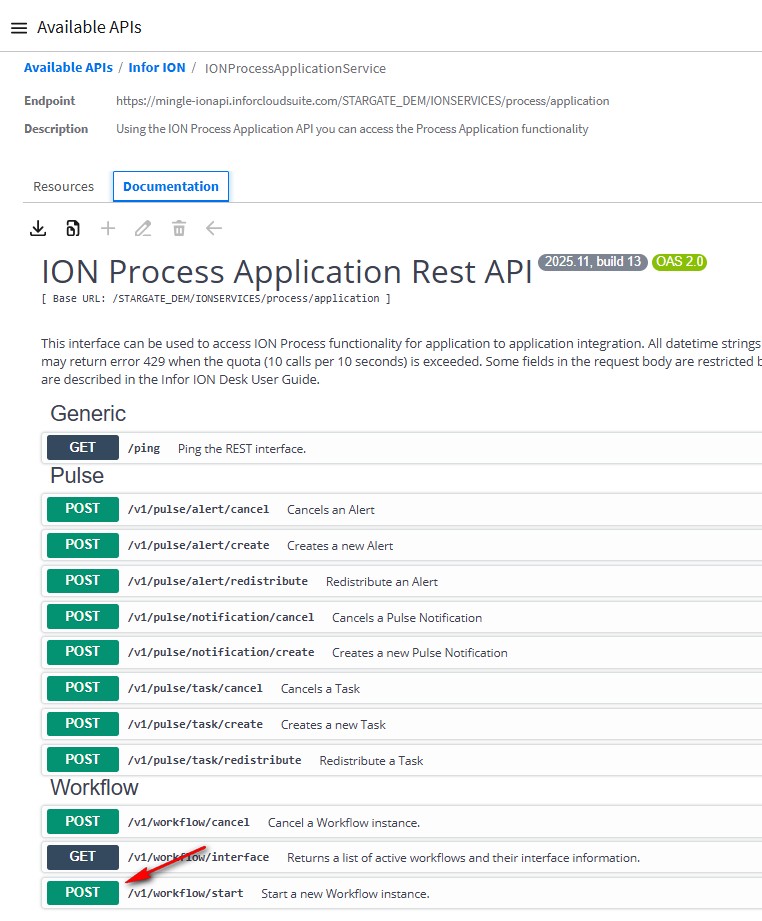
Scroll down to find the workflow /v1/workflow/start API listed among the available methods. Click on it.
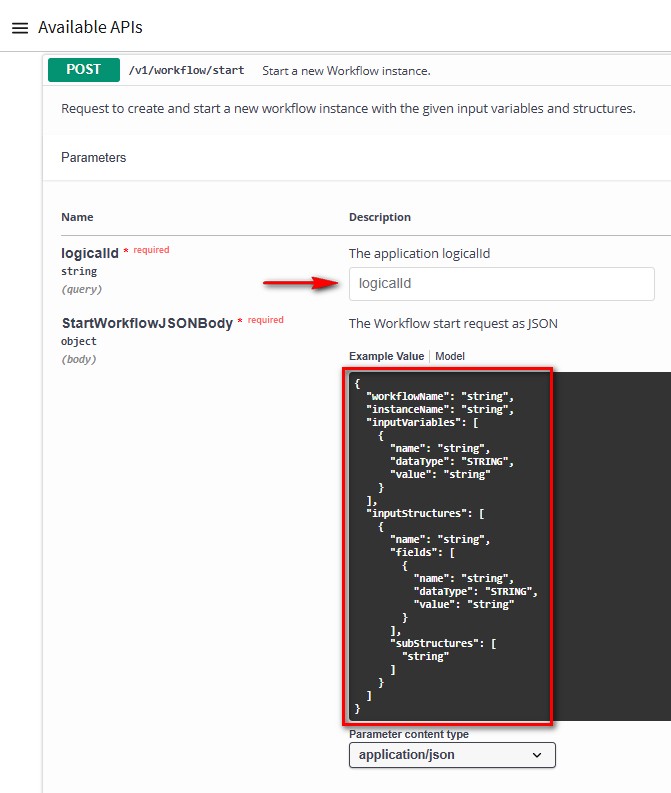
Expanding the details reveals essential information such as required inputs, including a logical ID and a JSON body. It also provides a helpful example demonstrating how to structure the JSON.
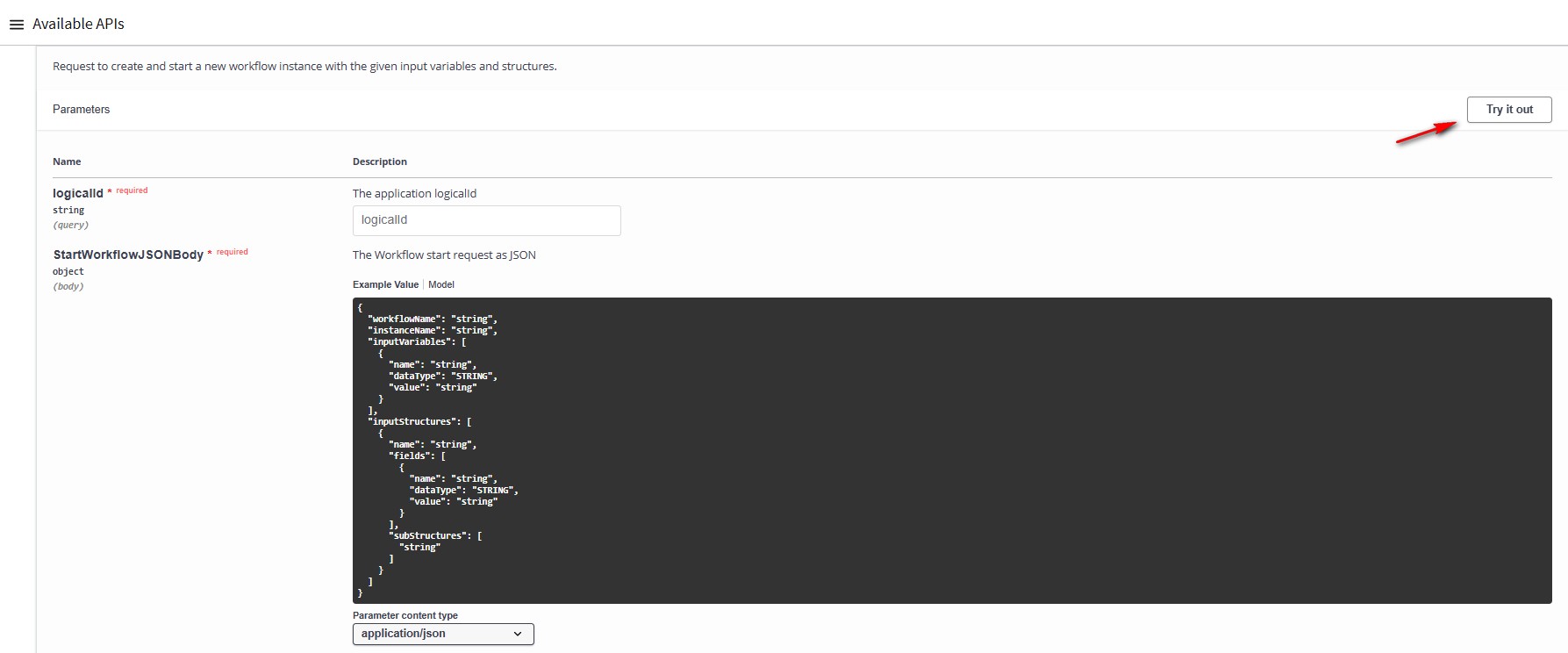
Click the Try it out button.
4
Executing the API
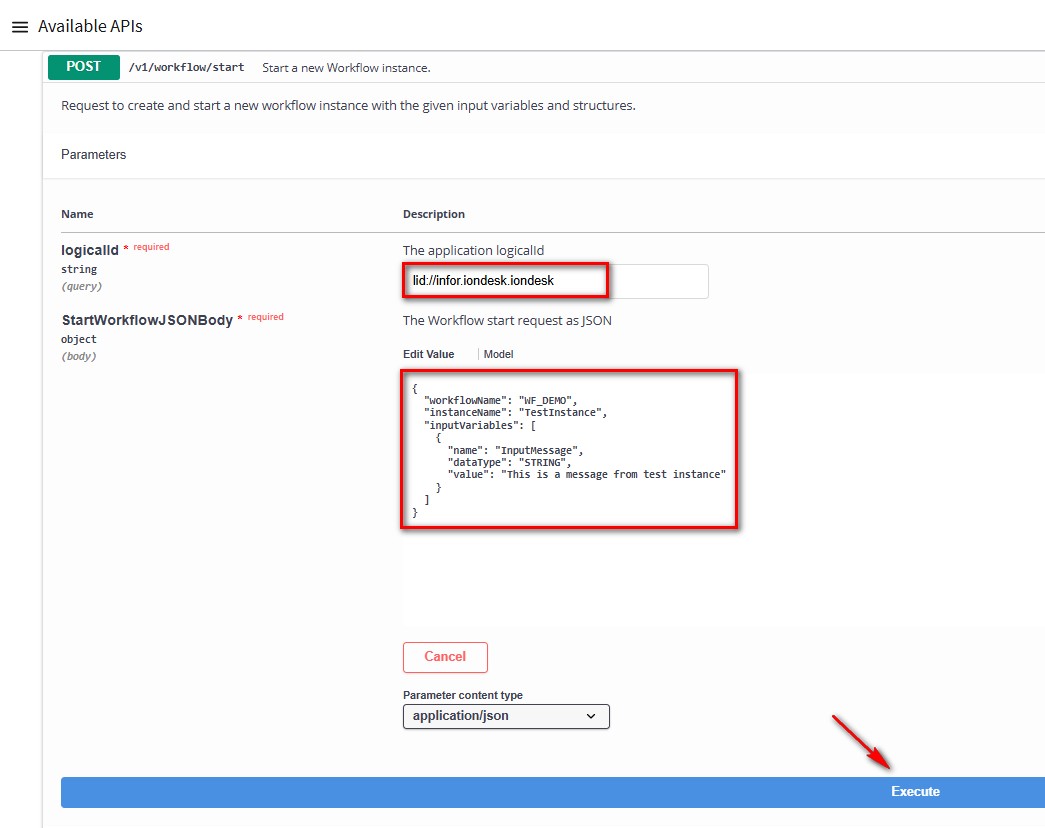
To execute this API, input the Logical ID following this format: lid://infor.iondesk.iondesk.
NOTE: It's important to consult your system administrator to confirm your environment setup.
Input the JSON body.
NOTE: A generic JSON is displayed below as a default example or guide.
Insert the JSON format based on the following information.
- workflowName - WF_DEMO
- instanceName - TestInstance
- inputVariables:
- name - InputMessage
- dataType - STRING
- value - This is a message from test instance
NOTE: Even though this workflow doesn’t require any inputs, we’ll include one for this demonstration.
{
"workflowName": "WF_DEMO",
"instanceName": "TestInstance",
"inputVariables": [
{
"name": "InputMessage",
"dataType": "STRING",
"value": "This is a message from test instance"
}
]
}
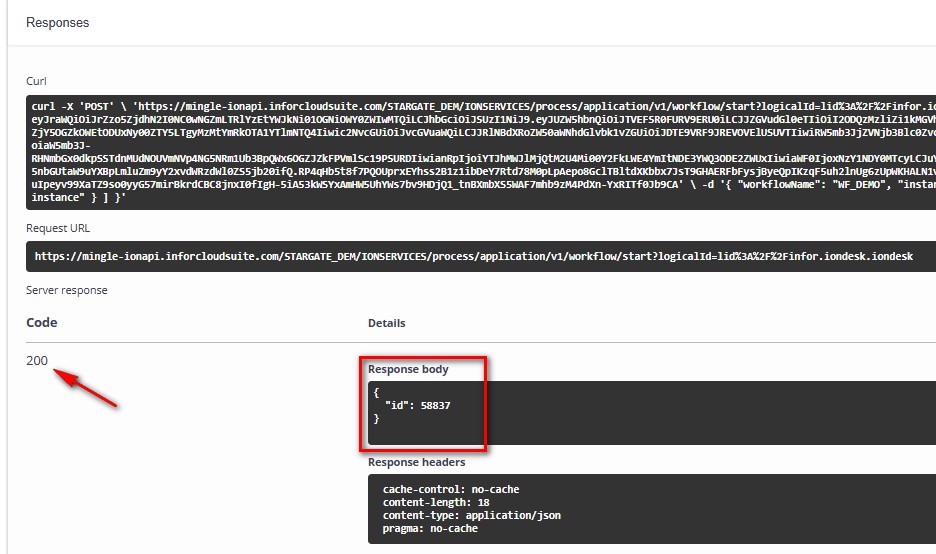
Click the Execute button.
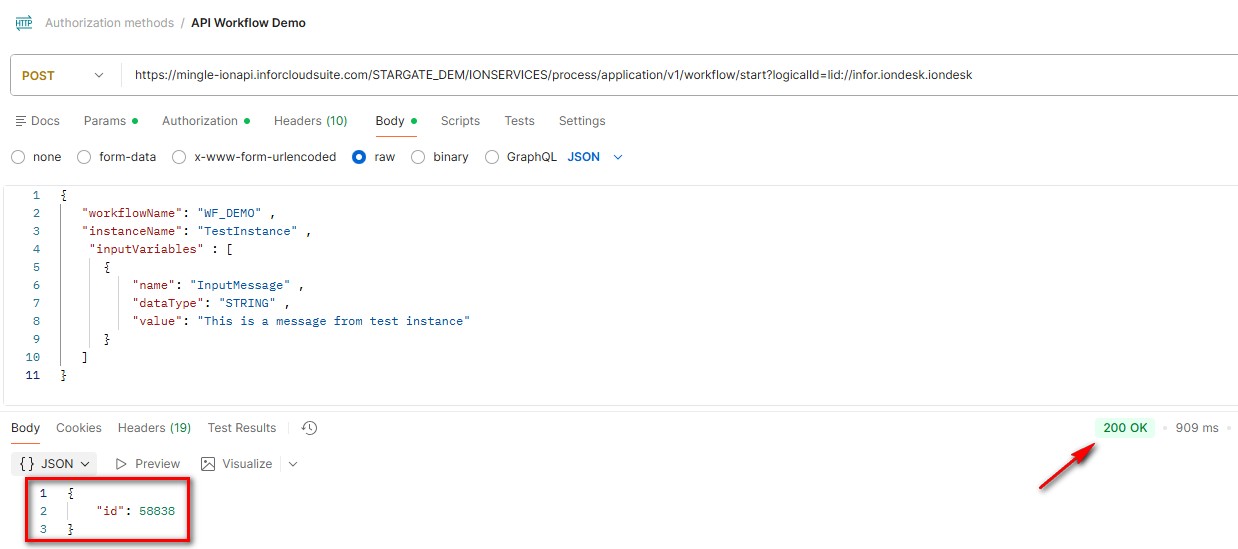
Below in the Server Response section, we’ve achieved a Code 200, signifying a successful execution. The response body reveals the ID of the workflow that’s up and running.
5
Using Postman
We’ll be using Postman to make a request call.
NOTE: Postman is a popular and freely available API client that can be found online.
First, on the OS portal, we must build an Authorized App using the Web Application type for the request in Postman’s OAuth2 Authentication setup. In this case, the application has not yet been authenticated within the Gateway. The user must authorize the mobile application to call the ION API on their behalf. This type of interaction uses the OAuth2 Authorization Code Grant, as the following diagram illustrates.

On the navigation menu select Authorized Apps, then select the + button to create a new authorized app.

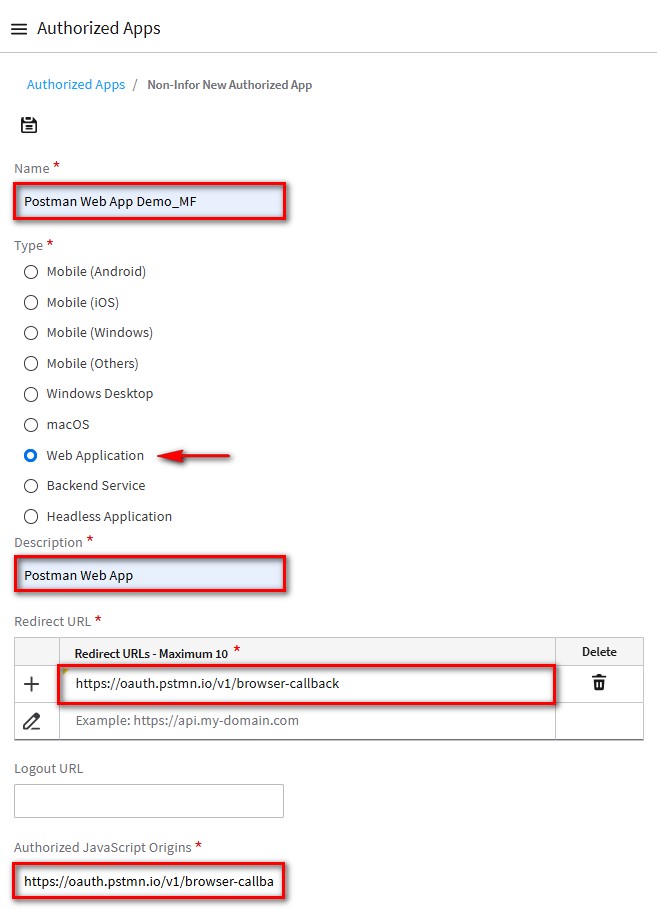
On the Non-Infor New Authorized App screen, enter the following information.
- Name - Postman Web App Demo_[INITIALS]
- Type - Web Application
- Description - Postman Web App
- Redirect URL - We will use this callback URL https://oauth.pstmn.io/v1/browser-callback
- Authorized JavaScript Origins - Same callback URL https://oauth.pstmn.io/v1/browser-callback.
NOTE: The Postman Callback URL is located in the Postman request’s Authorization tab under Auth Type (OAuth 2.0) → Configure New Token.
NOTE: In this tutorial, we signed in and configured Postman through the browser. https://web.postman.co/
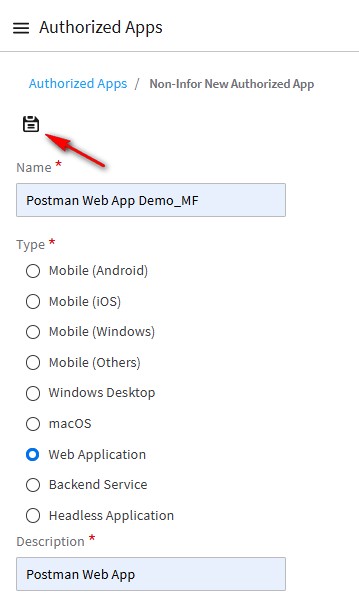
Click Save.
The Gateway will generate your Client ID and Client Secret, click the Download Credentials button to download the credentials file.
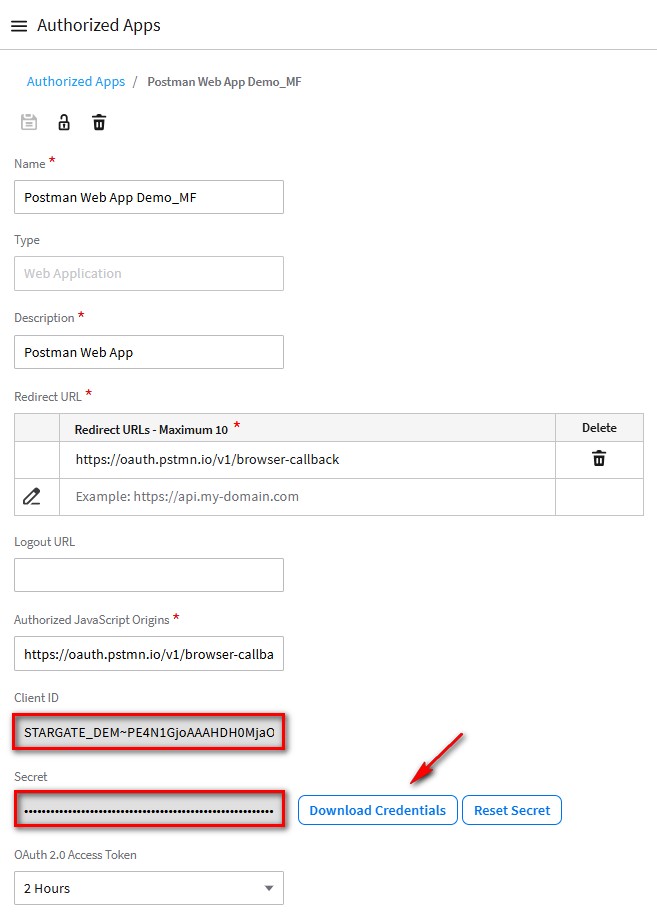
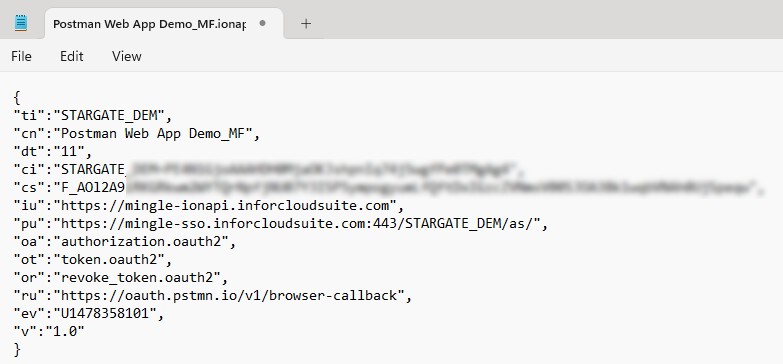
Open and view the Postman Web App Demo_INITIALS.ionapi credentials file, which will look something like this.
NOTE: The file holds the details to call the API from Postman.
Log into Postman and create a new request collection using the Authorization methods template; click the + sign in the top left corner and select the View more templates link, or you can click the + sign in the tab section.
NOTE: Again, in this tutorial, we signed in and configured Postman through the browser. https://web.postman.co/. You can use the Postman desktop version but the callback URL will be different.

Click the Authorization methods button.

Click the Use Template button.

On the Authorization methods collection, click on the eclipsis and select Add request.

On the New Request collection, click on the ellipsis and select Rename. Give the Collection a new name.

We will name it API Workflow Demo.

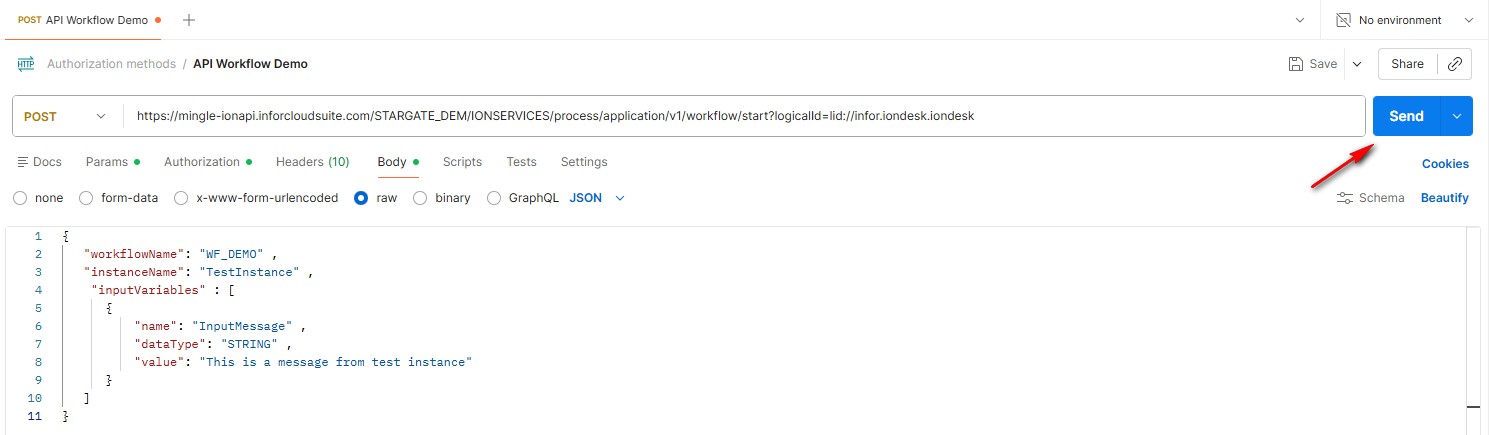
Click on the Params tab, enter the IFS Service /application/V1/workflow/start ION API URL in the POST parameters field.
In this example we will enter https://mingle-ionapi.inforcloudsuite.com/STARGATE_DEM/IONSERVICES/process/application/v1/workflow/start?logicalId=lid://infor.iondesk.iondesk
NOTE: You will enter your /application/V1/workflow/start ION API URL that is associated with your tenant.
NOTE: We’ve chosen the POST operation because the API Gateway specifies that the workflow start method is a POST method.
The key named logicalId will be filled in with the required value for our API. lid://infor.iondesk.iondesk

Select the Authorization tab, and in the Auth Type field, choose OAuth 2.0.

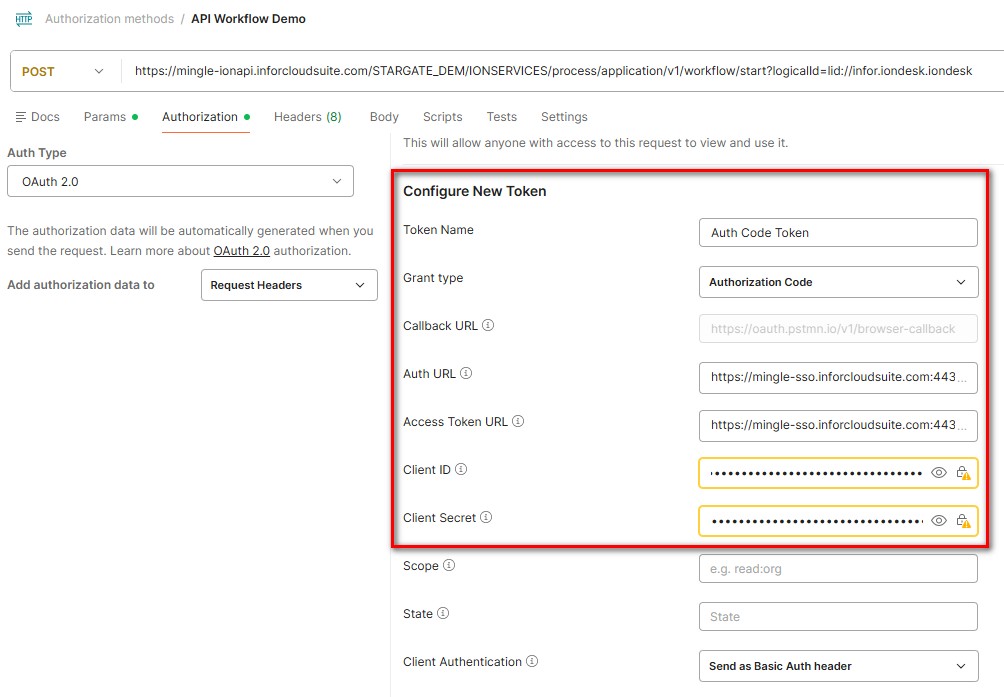
We need to acquire a new access token, scroll down to the Configure New Token section and enter the following Postman Mapping information from the downloaded Postman Web App Demo_INITIALS.ionapi credentials file performed in the previous steps.

Enter the relevant credentials into the required input parameter.
NOTE: When concatenating values, ensure there are no spaces between them.
NOTE: Yellow outlines around the Client ID and Client Secret indicate that these values contain sensitive data.
- Token Name - Auth Code Token
- Grant type - Authorization Code
- Callback URL - Embedded Postman link (https://oauth.pstmn.io/v1/browser-callback)
- Auth URL - Is a concatenation of values pu + oa
- Access Token URL - Is a concatenation of values pu + ot
- Client ID - Is value ci
- Client Secret - Is value cs
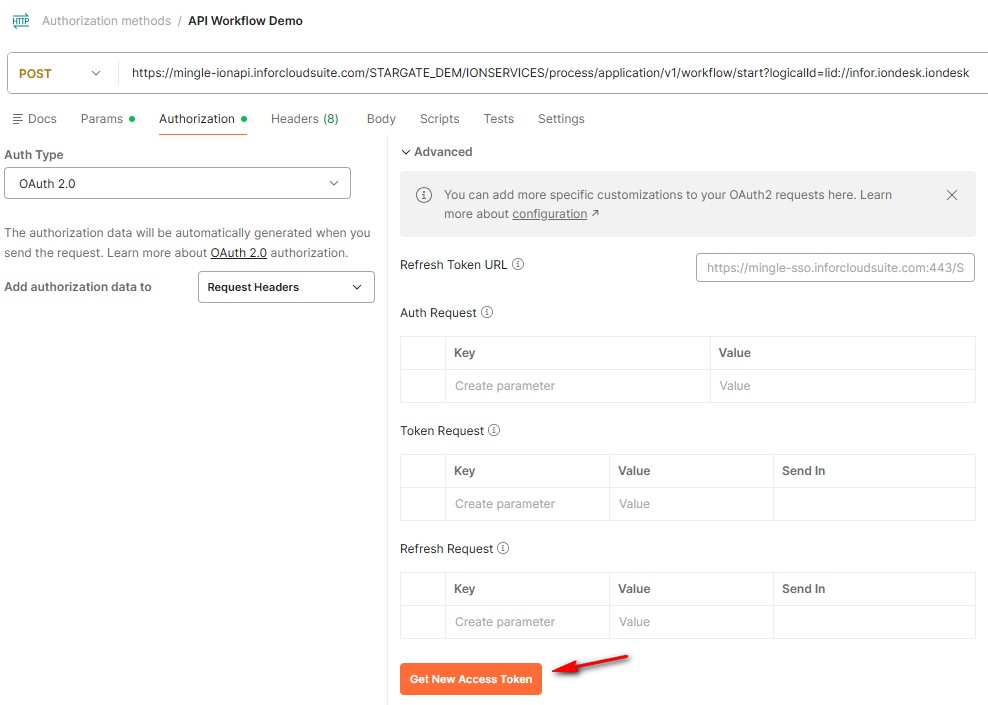
Scroll to the bottom of the page and click the Get New Access Token button.
Postman will initiate a handshake with Infor’s Cloud OAuth authentication and take you to a login screen, where you must sign in.
NOTE: Remember this is an activity in which the user must be present. The sign on must be performed, and the user is required to authorize the application I.E Postman, to call the API.
Once signed in you can see infor OS is prompting the Request For Approval regarding Postman using our credentials. Click the Allow button.

You will get the following message. You can click the Proceed button or wait a few seconds. The Manage Access Token screen will then appear.

This will provide a new token within the Postman application. On the Manage Access Tokens screen, click the Use Token button.
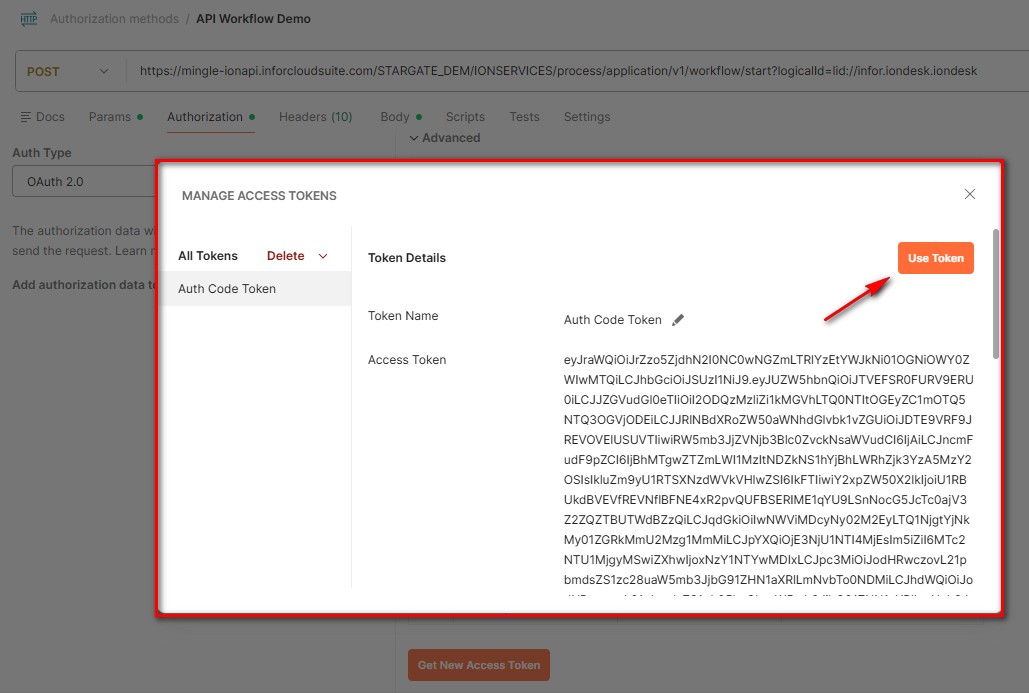
NOTE: When you click the Use Token button, a message will appear in the lower right hand corner saying that the Token was added.

Click on the Body tab where we’ll enter our JSON to call the API and kick off the workflow. Ensure the format is set to raw and JSON is selected from the dropdown.
Paste in the script we successfully tested previously when we did the “Try it out” in the ION API section of this tutorial.
{
"workflowName": "WF_DEMO" ,
"instanceName": "TestInstance" ,
"inputVariables" : [
{
"name": "InputMessage" ,
"dataType": "STRING" ,
"value": "This is a message from test instance"
}
]
}

Click the Send button, to trigger the chain of events we’ve set up.
You can see that the call was successful. Error Code 200 and a job ID of 58838.
Go back to the OS Portal, and view Active Workflows in ION.
Click the ION tab, and in the navigation menu expand Monitors and Workflows and select Active Workflows.
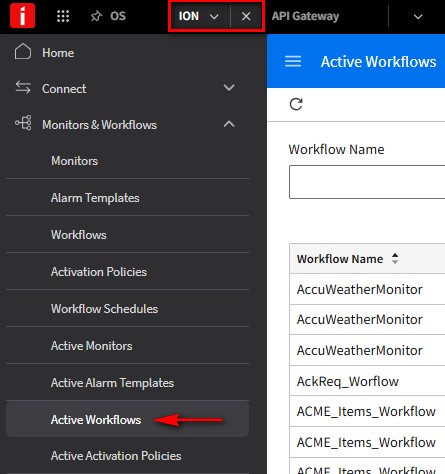
Search for the WF_DEMO workflow. You can see the last one has a status of Running.

Let’s confirm it’s the one we executed in Postman by clicking on Workflow Instances.

There’s the matching job ID of 58838 we got from Postman.

This Concludes this Tutorial on how to Start a workflow from an API.
Conclusion
This concludes the tutorial on starting a workflow from an API. Watch the following video for a complete walkthrough:
Resources
Help Documents and User Guides
On this page
- Starting a workflow from an API