
Get Inventory Item by Description Skill
Overview
Digital Assistant Enterprise Integration
Your employees have a frequent action of looking up inventory items by using the item description. You would like to reduce time to access this information.
By adding a skill to the Infor Digital Assistant to retrieve the items by description your employees can access the information quickly via chat or voice on desktop or mobile.
Tutorial
1
Accessing the Application
In your Coleman-enabled tenant, navigate to the Application Navigation Menu and select Infor OS > Digital Assistant. You will be transferred to the Skill page within Digital Assistant.
- Click the
+icon above the data grid with the skill list to Add Skill.
2
Building Skill
Each of the section below represent the wizard steps on the UI. Follow the manual to complete the skill building process.
3
Basic Information
Specify the following information :
- Skill ID: GetItemByDescription
- Name: Get Item By Description
- Description: Optionally, specify that this skill will accept an item description to provide the user with an item number.
- Language: English
4
Fulfillment
Select API in the Fulfillment Type field.
Specify the fulfillment information :
- API Suite: FSM
- Product: Infor Financials and Supply Management
- Select API: Generic List Service (Use the search bar to locate the API)
- Path: FSM/fsm/soap/classes/Item/lists/generic
- Method Type: Auto-filled based on the API selected
- Parameters: Auto-filled based on the API selected (GET)
- Request Body: Auto-filled based on the API selected
- Response Body: Auto-filled based on the API selected
5
Requirements
Creating the First Requirement
- Define the Requirement Information:
- Name: Description
- Type: Select String
- Prompt: Specify the question that Coleman presents to the user.
Example: "What is the description of the item you would like to see?"
2. Add the Requirement Fulfillment:
- Click the gear icon on the requirement tile.
- From the drop-down, select Add Fulfillment (A dialog window will pop up).
- Navigate to the Fulfillment tab and input the following values:
- Fulfillment Type: API
- API Suite: FSM
- Product: Infor Financials and Supply Management
- Select API: Generic List Service (Use the search bar to locate the API)
- Path: FSM/fsm/soap/classes/Item/lists/generic
- Method Type: Auto-filled based on the API selected
- Parameters: Auto-filled based on the API selected
Fulfillment Tab – Parameters
_fields | Query String | Other | Item, ItemGroup, Description |
_filter | Query String | Other | Description::{Description} |
_limit | Query String | Other | 100 |
Fulfillment Settings
Navigate to the Response tab and define Variables and Response Conditions (refer to the screenshots for details).
Create Variable
ItemID | Json Path |
|
ItemGrp | Json Path |
|
ItemCount | Json Path |
|
ItemDescriptions | Json Path |
|
💡 You can define the JSON Path by clicking the "Look Up" icon in the input field and selecting the desired property from the payload.

Response Conditions
- Variable: Select Item ID
- Operator: Select Is Empty
- Value: Leave empty
- Action: Select Repeat Prompt
- Response: Item with the description '{Description}' does not exist. Enter a valid item description.

3. Click Save
6
Utterances and Confirmation
Define a set of utterances that start the skill when asked by the user:
- What is the item number by description?
- Get the item number by description.
- Find me an item number by description.
7
Response
Specify these Response Conditions . Note: Leave the variable section empty
Define the following conditions:
- Variable: ItemID
Operator: Is Not Empty
Value: Leave this box empty.
Action: Click Add Condition. - Variable: ItemCount
Operator: Greater Than
Value: 1
Action: Table - Message: There are {ItemCount} Items similar to {Description} in {ItemGrp}
- Table Title: Item Description
- Column Label 1: Item
- Column Value 1: {ItemID}
- Column Label 2: Description
- Column Value 2: {ItemDescriptions}

Click Add response to add the next Response Condition (2):
- Variable: ItemID
- Operator: Is Not Empty.
- Value: Leave this box empty.
- Click Add Condition.
- Variable: ItemCount.
- Operator: Equals
- Value: 1
- Action: Message
- Response: Item with description {Description} in {ItemGrp} is {ItemID}

Click Add response to add the next Response Condition (3):
- Variable: ItemID
- Operator: Is Empty
- Value: Leave this box empty
- Action: Message
- Response: Unable to find an item ID for this Description

- Click Next. Review the skill on the summary page in the text view or flow view.
8
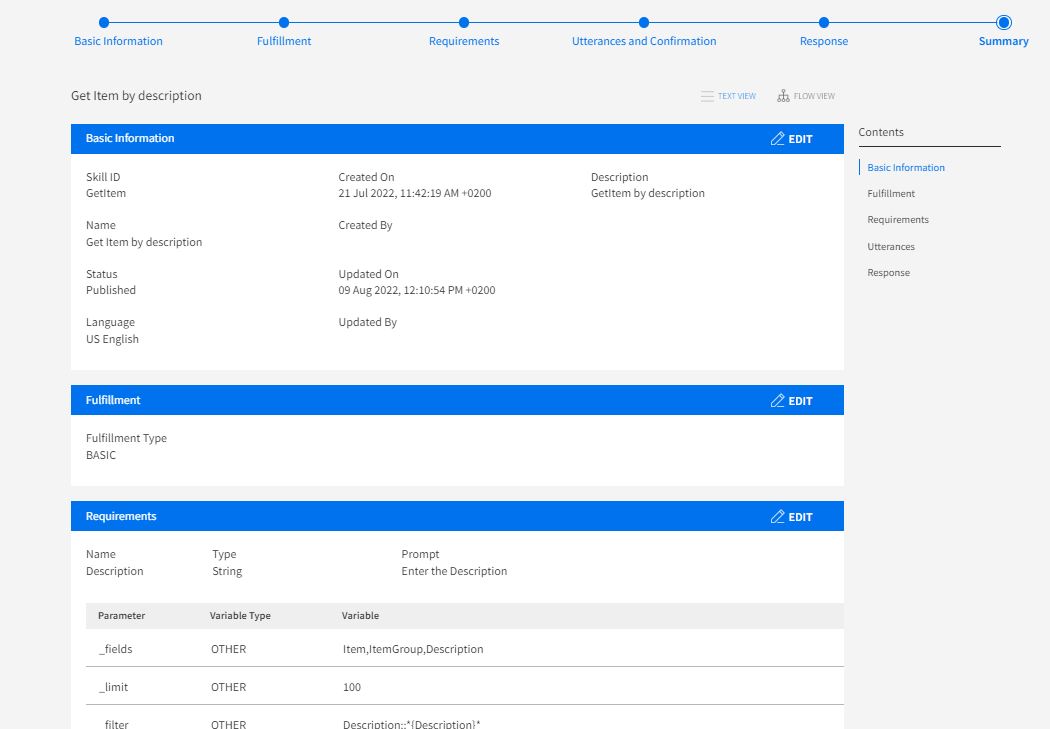
Summary
Review the skill on the summary page in the text view or flow view.
9
Activating the Skill
- Select the skill in the data grid.

2. Click the _Build to test _button above the data grid. The chatbot for testing is being build. Once the chatbot build is finished you can access the skill in the Try It Out panel.

3. Select the skill in the data gird and click Deploy Skill. You can now converse with Coleman to look up an item by description.
Resources
You can check our Infor Market Place to get more skills for the FSM Cloud Suite and import it to your tenant see: Coleman DA - FSM CloudSuite Skills package
On this page
- Get Inventory Item by Description Skill