
Build a workflow using notifications, APIs, workspaces, and ERP
Intermediate | 90 Minutes
Enterprise Integration API Gateway M3 Cloudsuite Workspaces
Overview
Building an Infor ION workflow that integrates notifications, APIs, workspaces, and ERP systems can address several business problems by streamlining processes, improving communication, and enhancing productivity. Here’s a structured approach to tackling a common business problem using this integration.
📋 Requirements
|
Tutorial
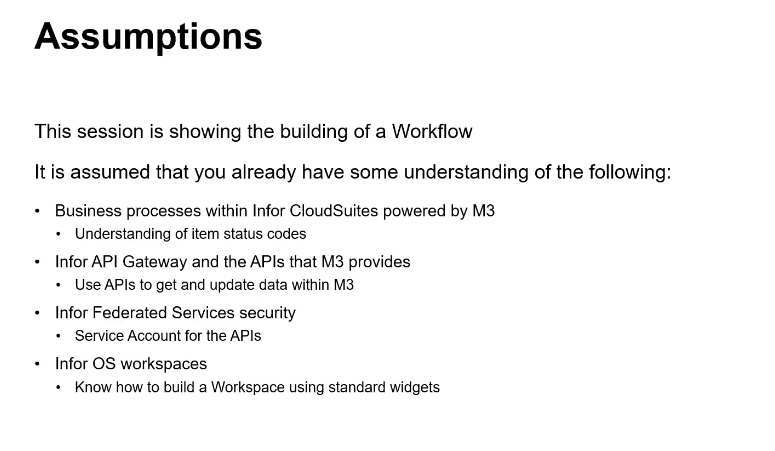
A workflow comprises multiple components. This tutorial will focus on an item approval process, which requires familiarity with how items operate within the ERP system. In this tutorial, we will use M3. However, other ERP applications can be used. We’ll use APIs to obtain and update information in the ERP, assuming some knowledge of the Infor API Gateway and the APIs available in M3. API execution requires security credentials, so we’ll set up and use a service account via IFS or Infor Federated Services. We will also utilize an Infor OS workspace to test and manage the workflow.
Overview of what we will Build
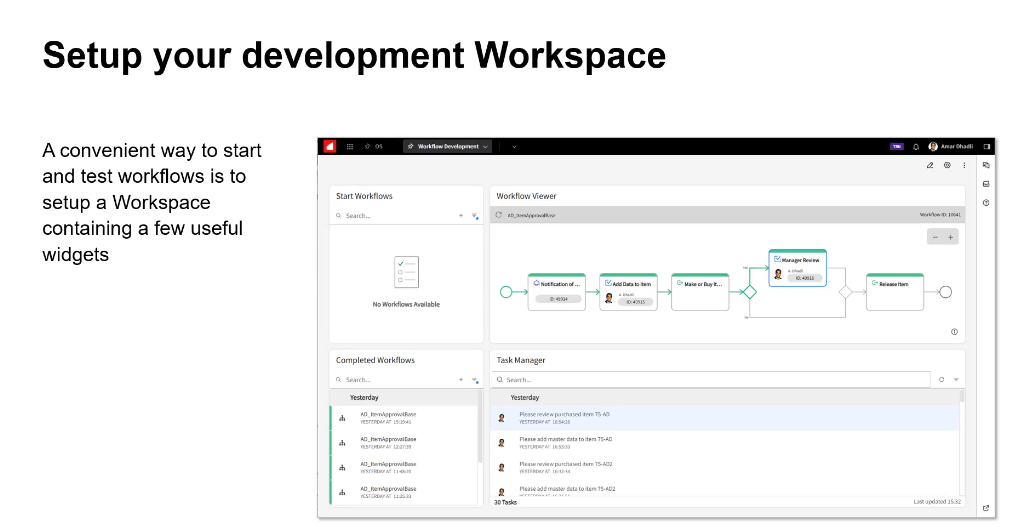
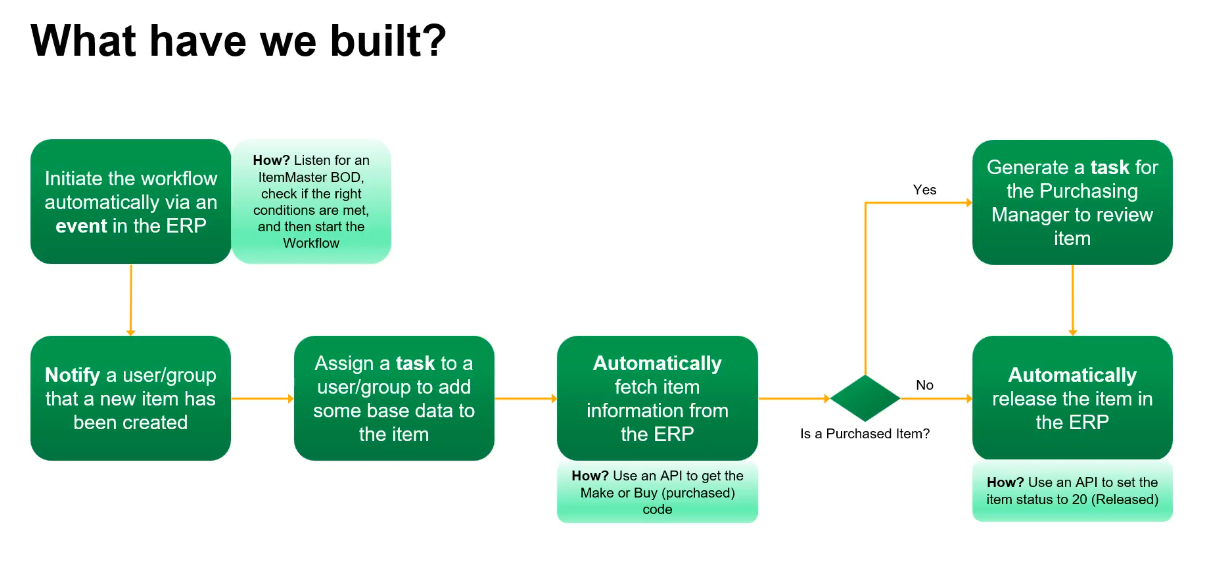
We’ll construct a multi-action workflow incrementally, starting with a basic manual item approval workflow involving notifications and tasks. We’ll then call an API to update ERP information and another to retrieve information for approval via a decision tree. Once the manual process is confirmed, we’ll automate the workflow to initiate through an ERP event, utilizing a simple workspace to launch, monitor, andmanage the workflow, as shown below.
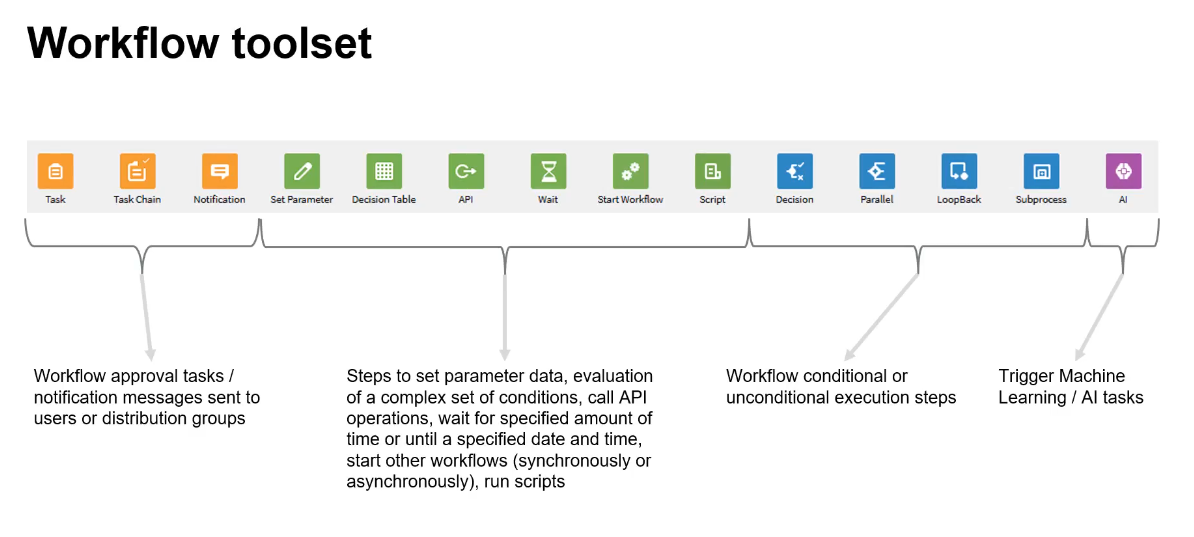
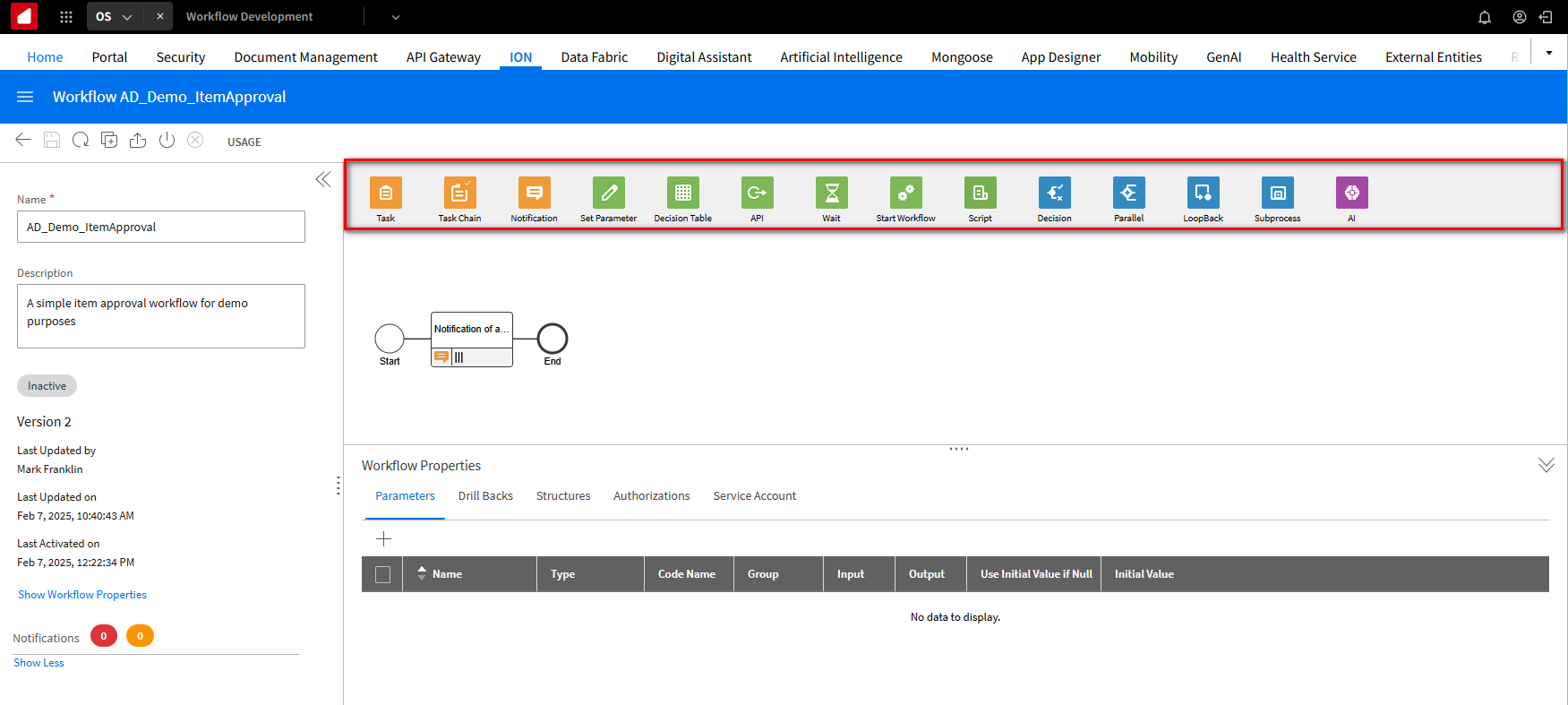
We will use the workflow toolset which contains various components within the workflow; in this tutorial, we’ll focus on elements from the three main sections: Tasks, Notifications, APIs, and the Decision tree.
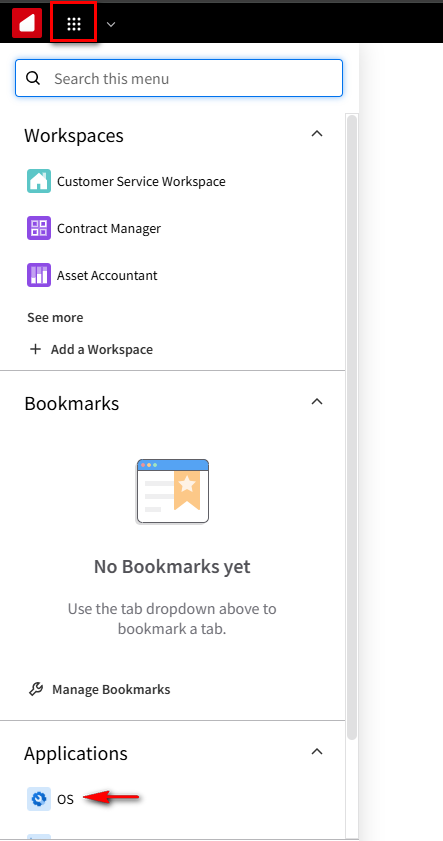
Let’s start by verifying or adding the correct security roles to your account. Log into the OS portal. Click on the navigation menu icon in the upper left-hand corner. In the Applications section, select the OS application.
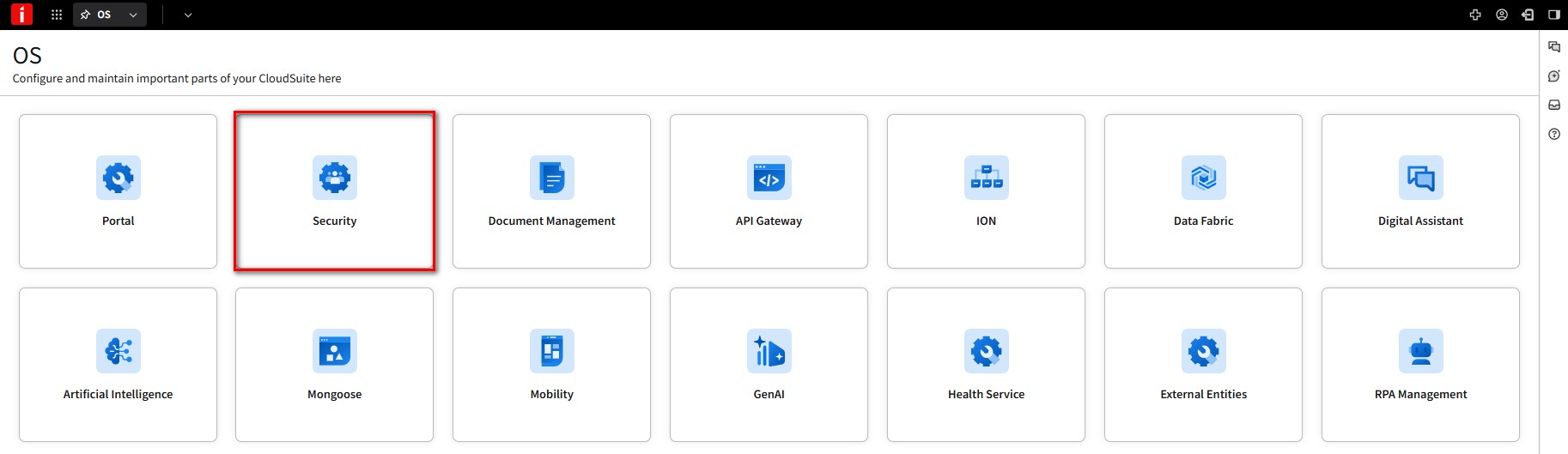
Click the Security card.
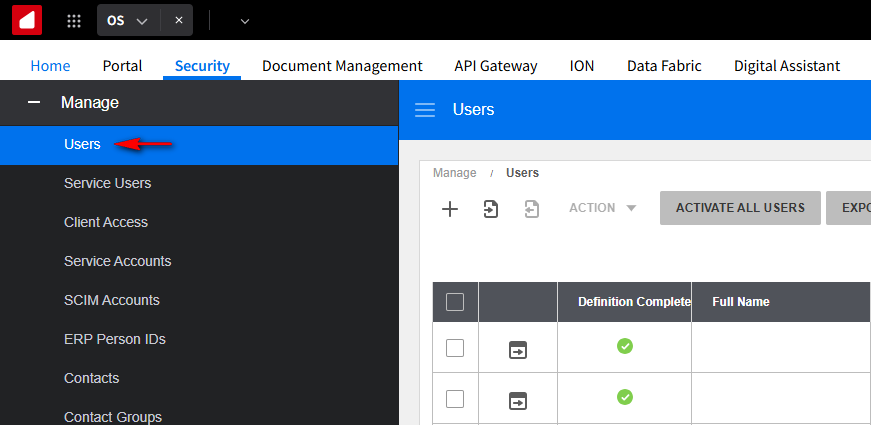
On the Security navigation menu, expand Manage and select the Users option.
In the Users Search section, search for your user account and click the User Details Icon.

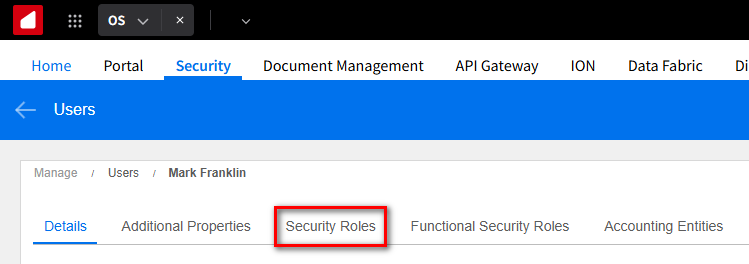
Select the Security Roles tab.
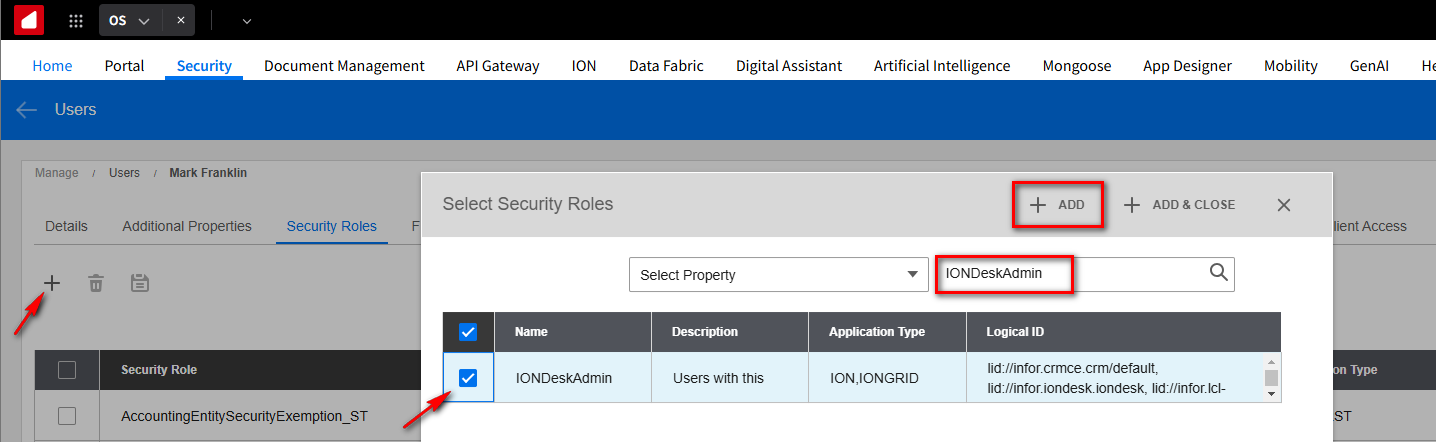
Click the + button to add a security role. In the Search section, type in IONDeskAdmin and hit enter. Select the security role and hit the +Add option.
If the security roles do not display on the search, this means you already have them assigned to your user account.
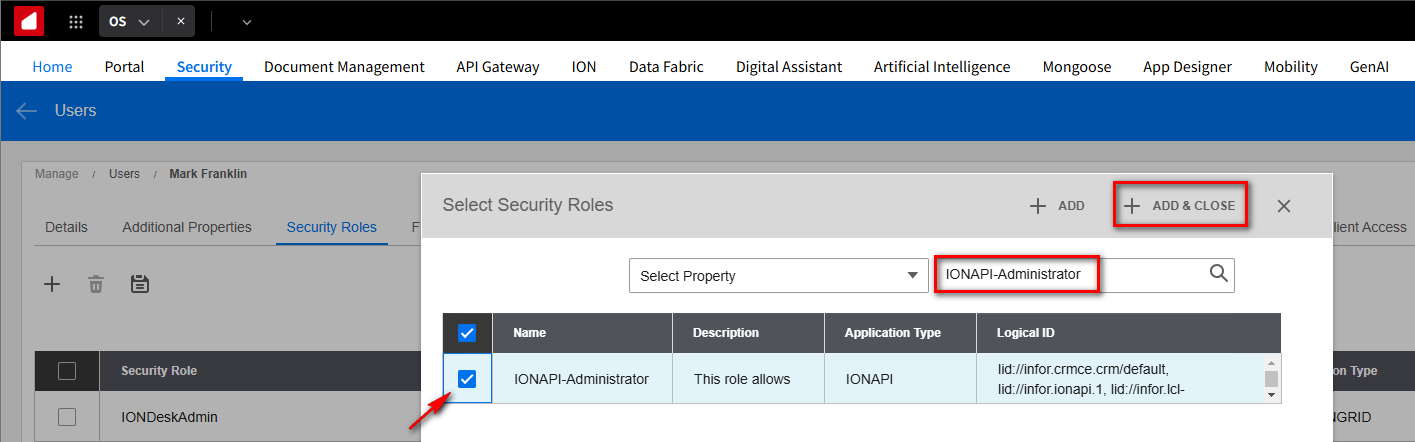
In the Search section type IONAPI-Administrator and hit enter. Select the security role and click the + Add & Close option.
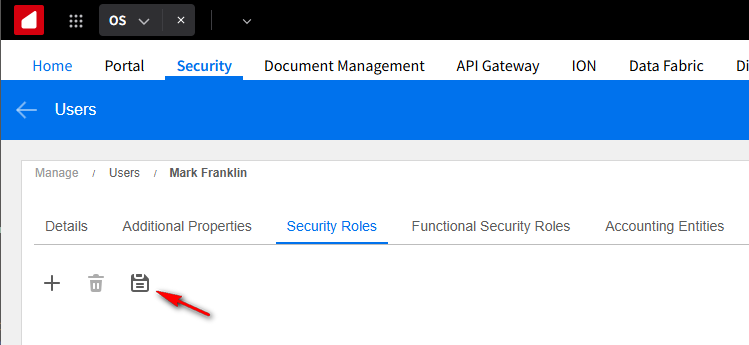
Click Save.
You should now have the correct security roles to perform the tasks for this tutorial.
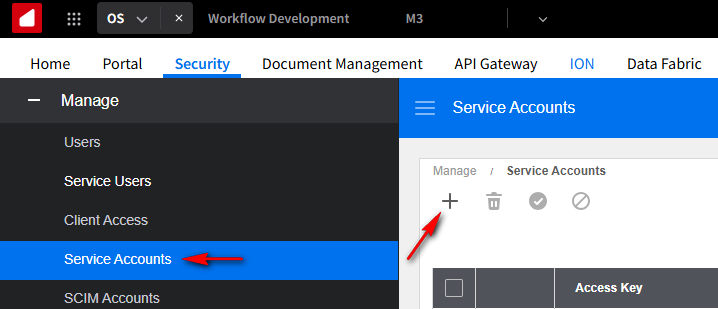
We must also create a Service Account in IFS or Infor Federation Services. Which will be used for the M3 API module setup. On the Security navigation menu, expand "Manage" and select the "Service Accounts" option. Click the + icon to add a new services account.
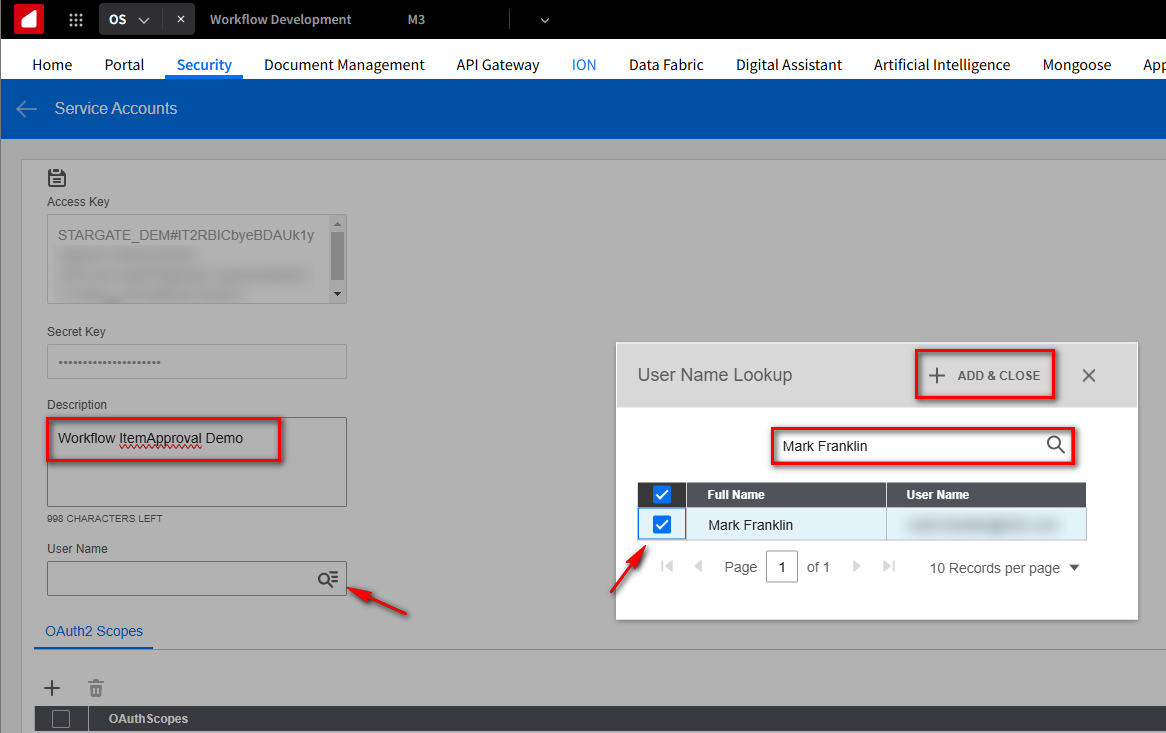
Give the Service Account a description, we will use Workflow ItemApproval Demo, and in the User Name field, click on the Search icon and on the User Name Lookup screen, search and select your account to be associated with the services account. Click + Add & Close.
On the OAuth2 Scopes section, click the + button and select the Infor-M3 Option. Click + Add & Close.
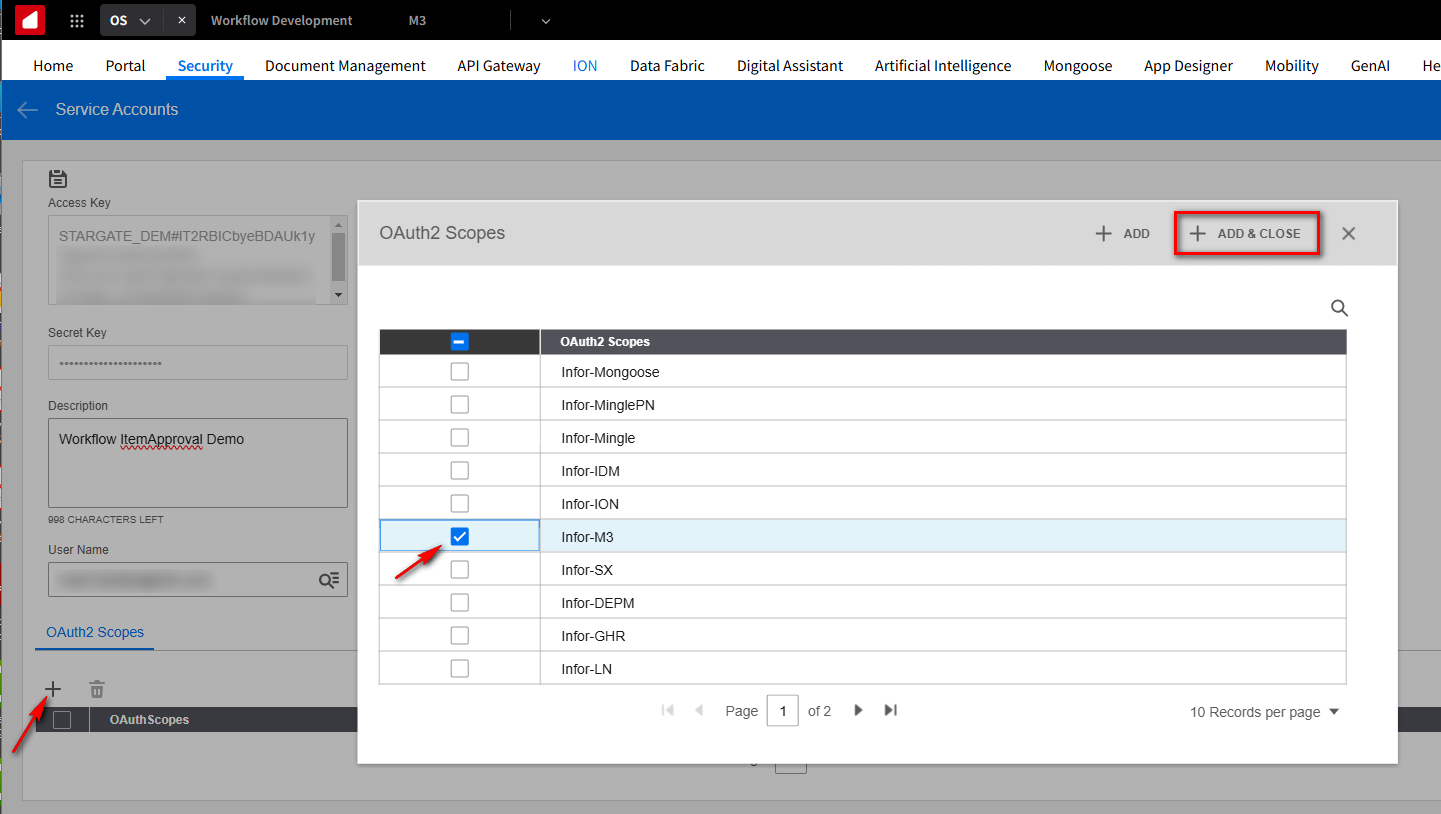
Click Save.
You will receive this message to download your credentials. Click Download.
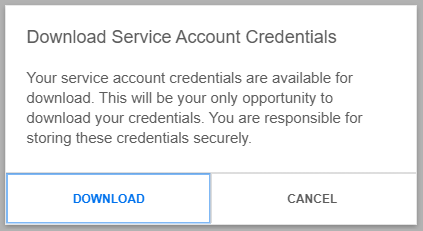
Save the file to your local machine.
Create the workflow
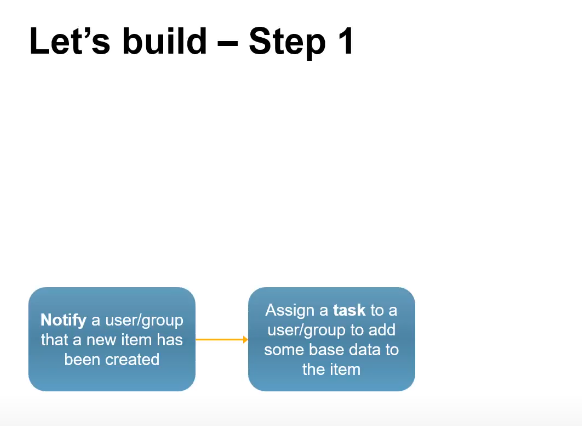
Let’s start building the workflow. The first step in building the workflow is to send a simple notification to a user group indicating that a new item has been created in the ERP. Then, we want to assign somebody a task to update some base data within that item.
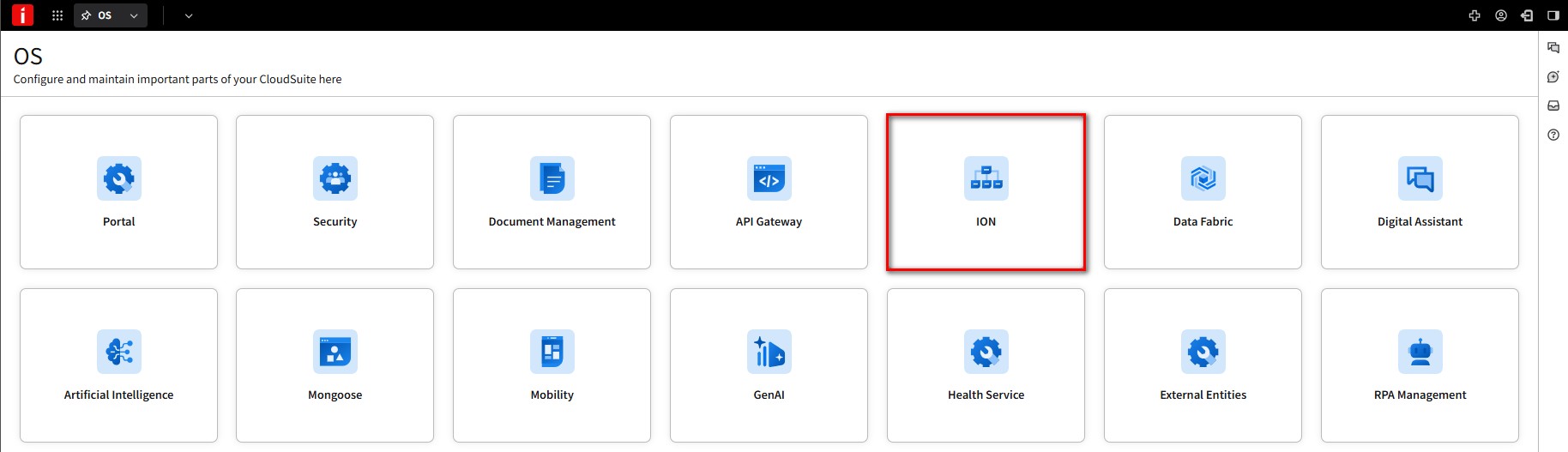
Click on the ION card.
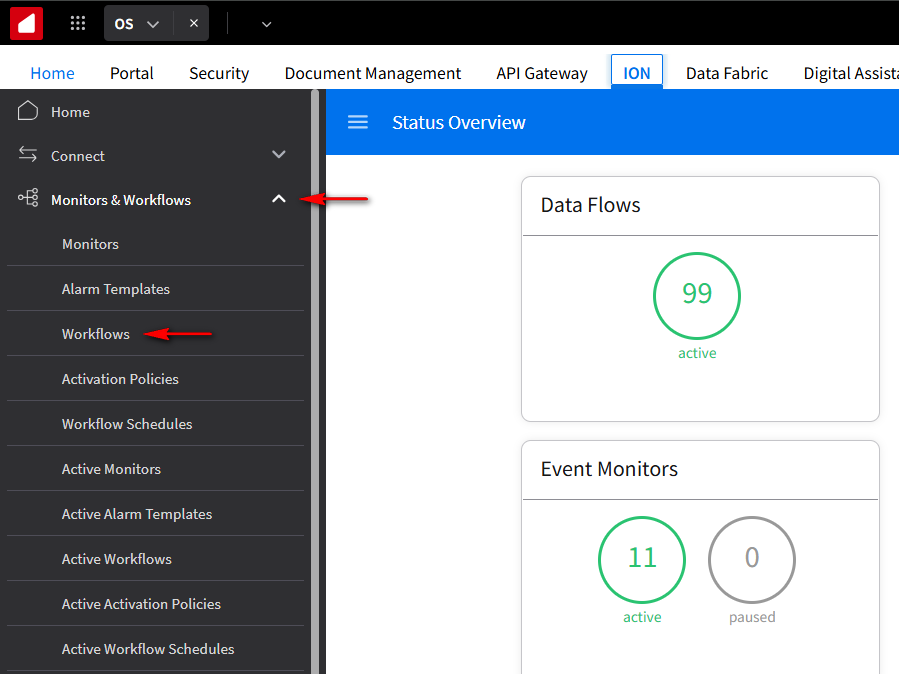
On the navigation menu in the upper left corner, expand Monitors & Workflows and select Workflows.
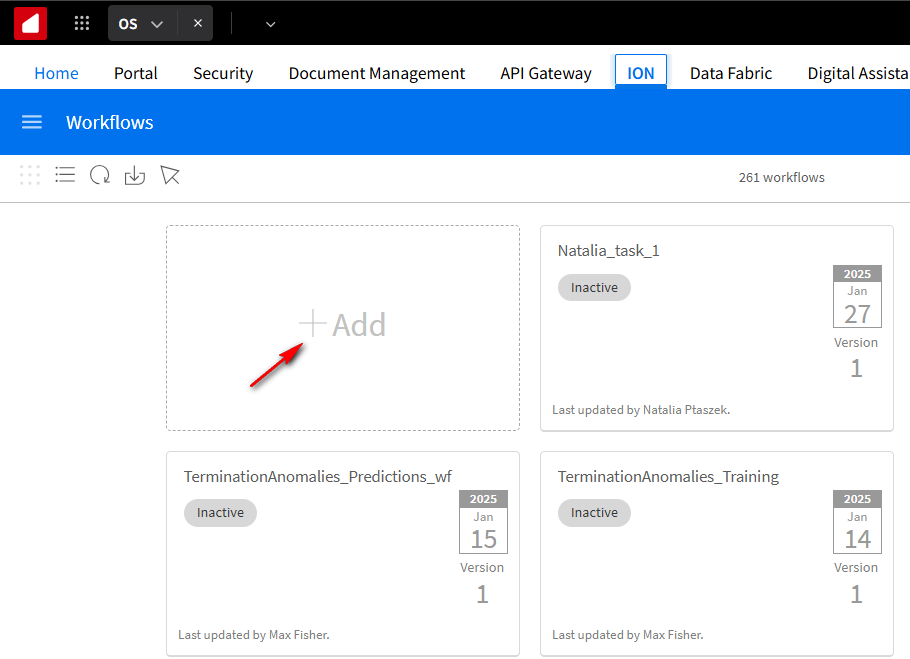
Click the +Add button to add a new workflow.
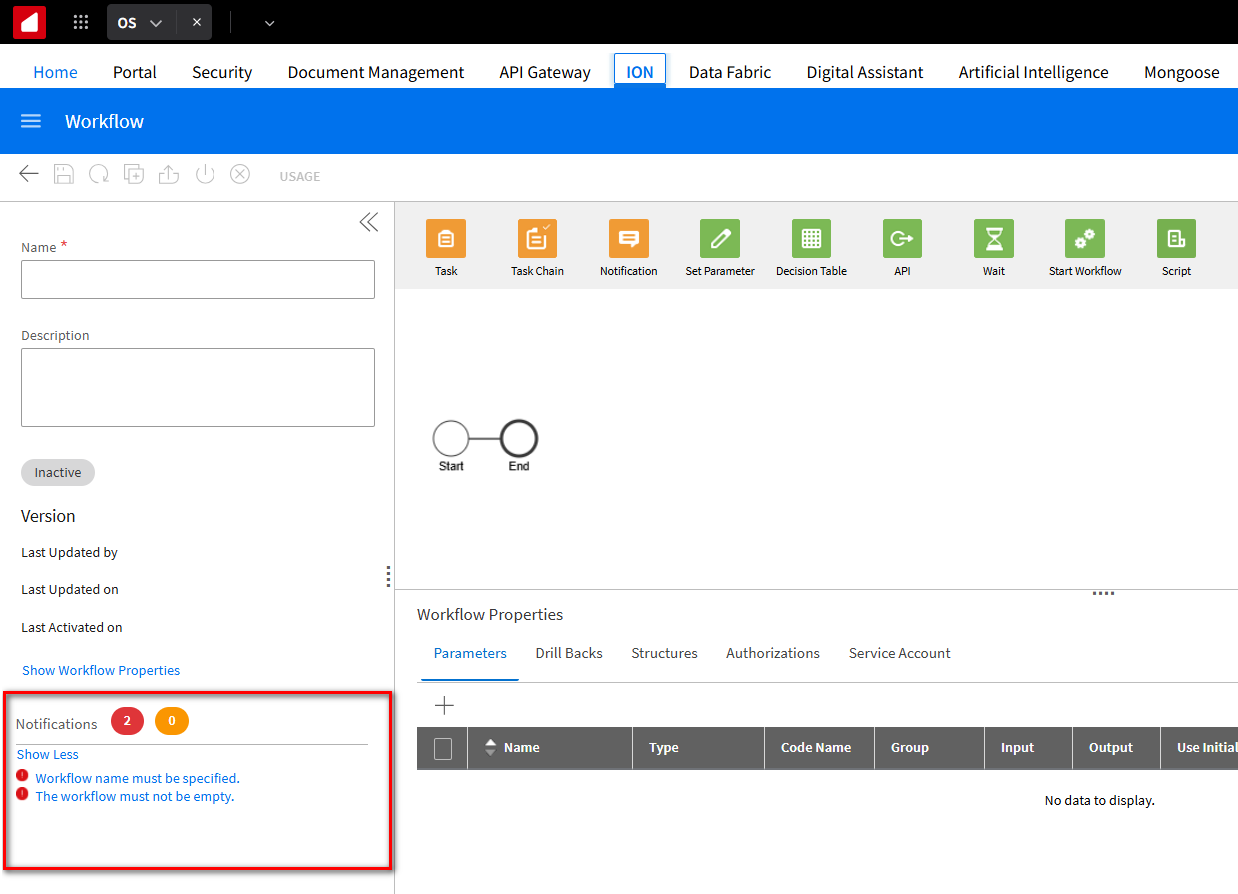
Always pay attention to what’s happening in the Notifications section on the Workflow page. This section will display errors and warnings that you may need to be aware of in the workflow you’re building. Clear this section every time you save and run your workflow or add a new workflow.
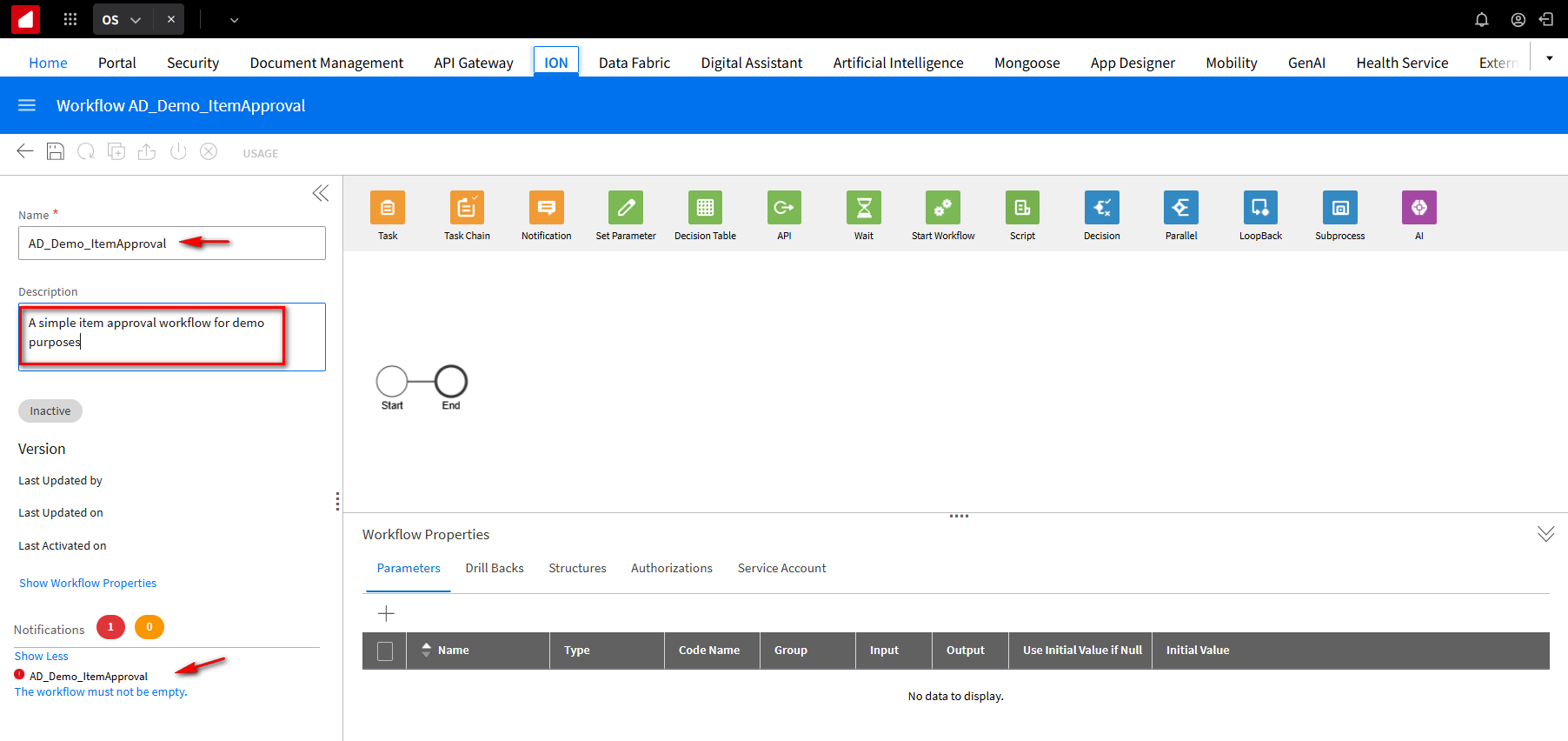
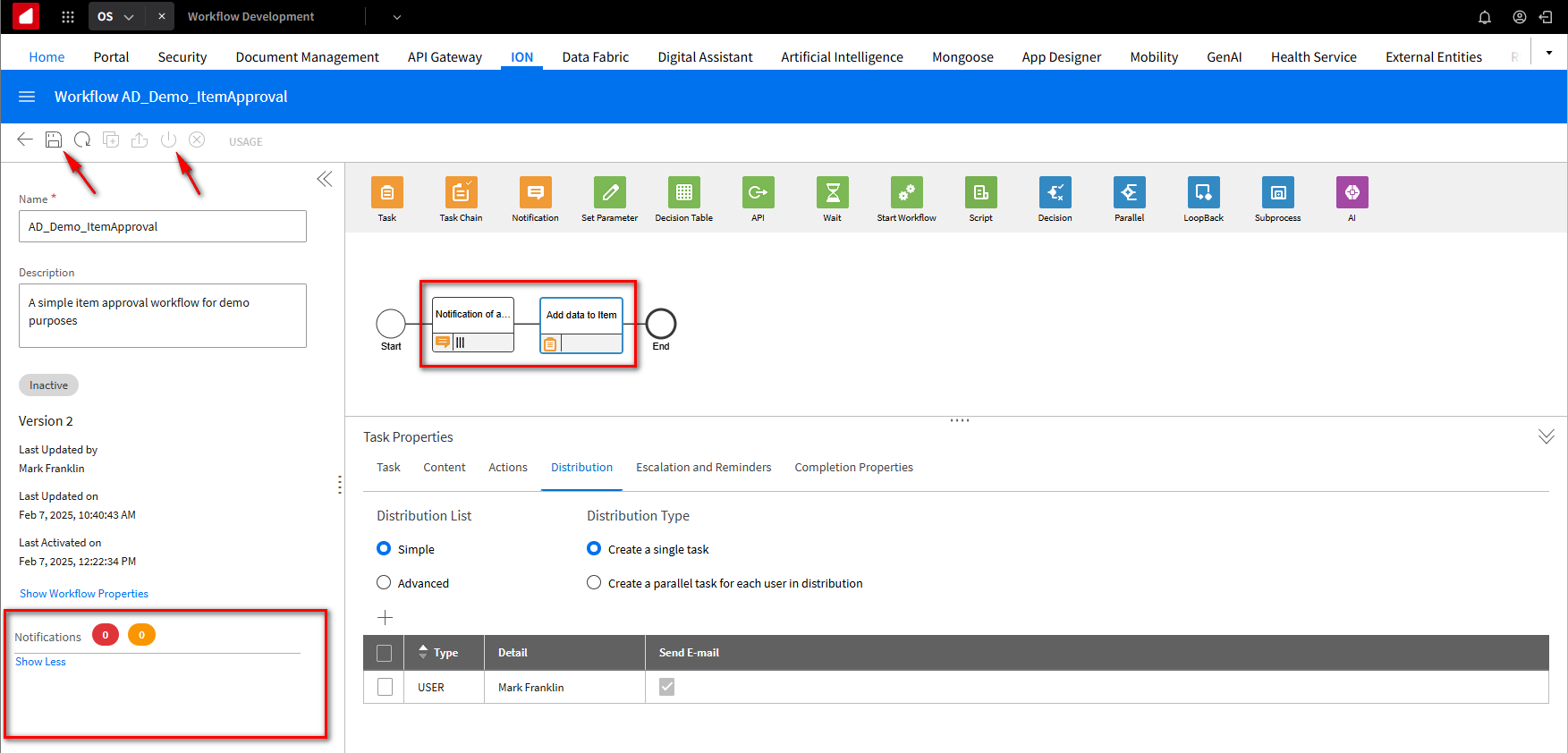
On the new workflow page, add AD_Demo_ItemApproval in the Name field. In the Description field, add a description of a simple itemapproval workflow for demo purposes.
We will add the notification step. From the top icons, drag the Notification icon onto the model. In the Notification Properties section, wewill give it a descriptive Name and change it to “Notification of a new item“. In the Messages field, we will send what message we want tosend to the group of people or person. We will add “A new item has been added”.
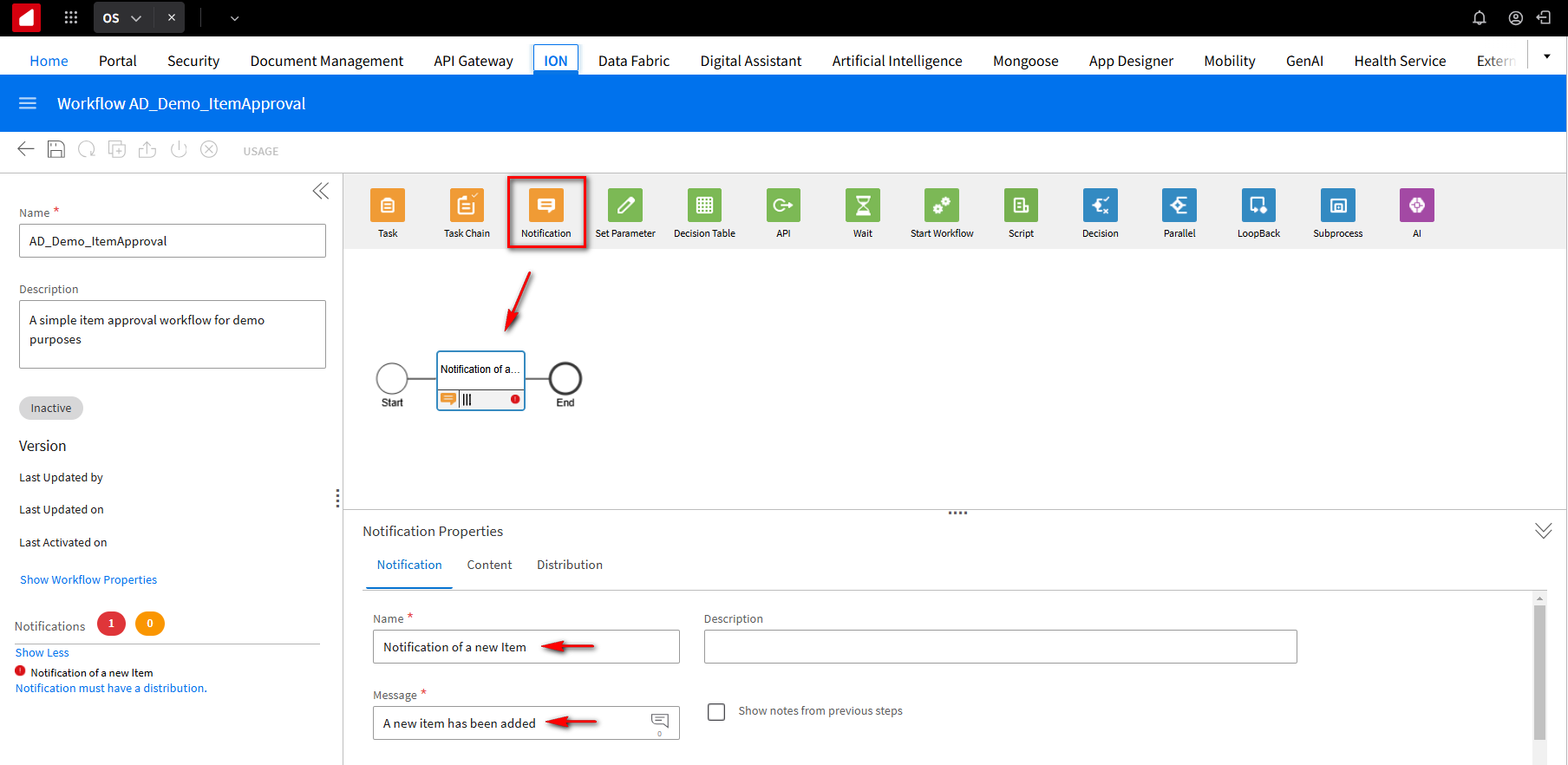
The Icon in the Message field allows you to translate messages so that the user who’s receiving the message has their locale set. If you clickon the Icon, in the Select language field dropdown, select the language you want translated. In the example, we will select French. Click the Add button.
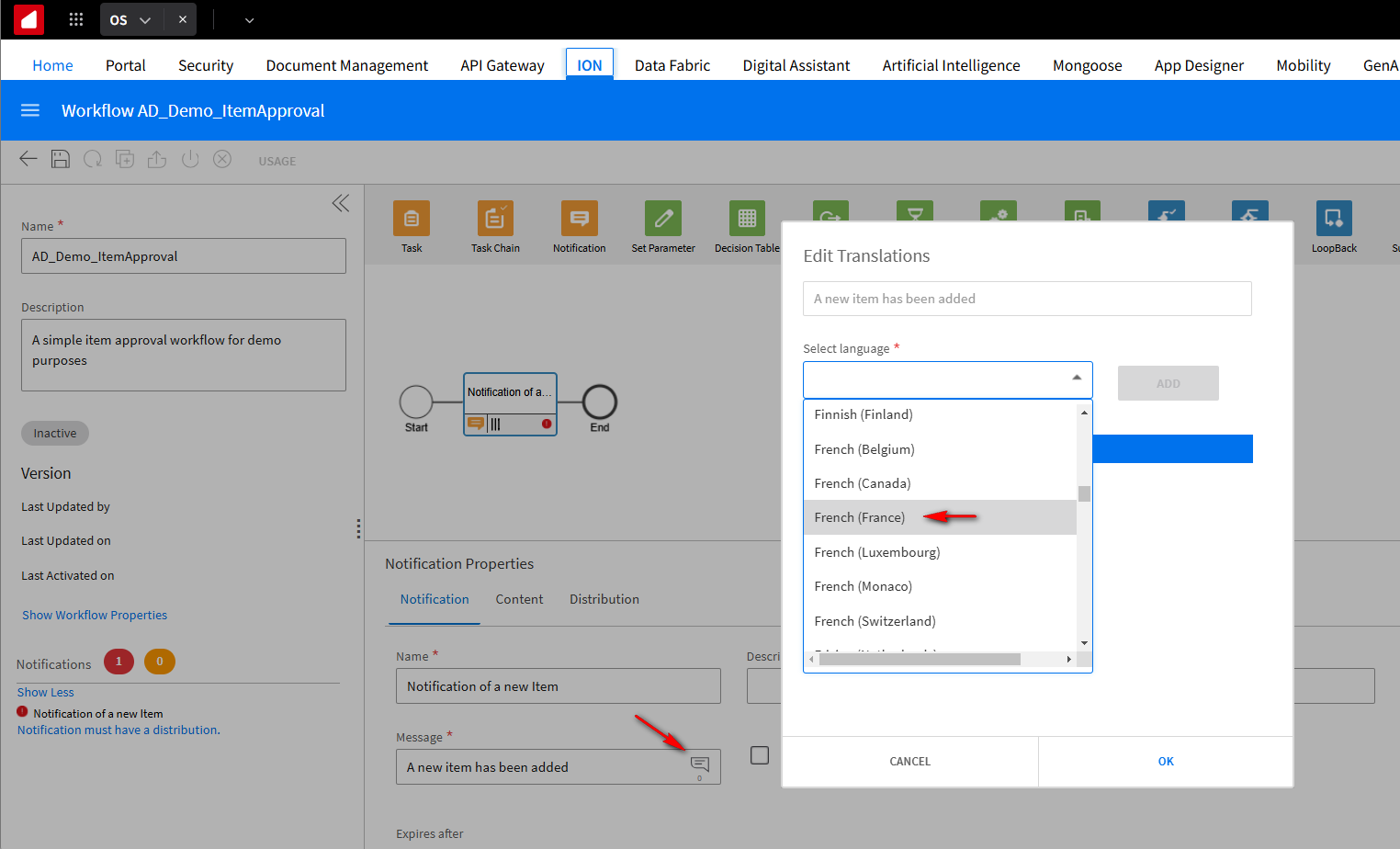
They will see the translated message for “A new item has been added” in French. If the locale doesn’t match anything in the list because you can have as many languages as you want, it will default to the English version. Or whatever you typed in the default box. Click OK.
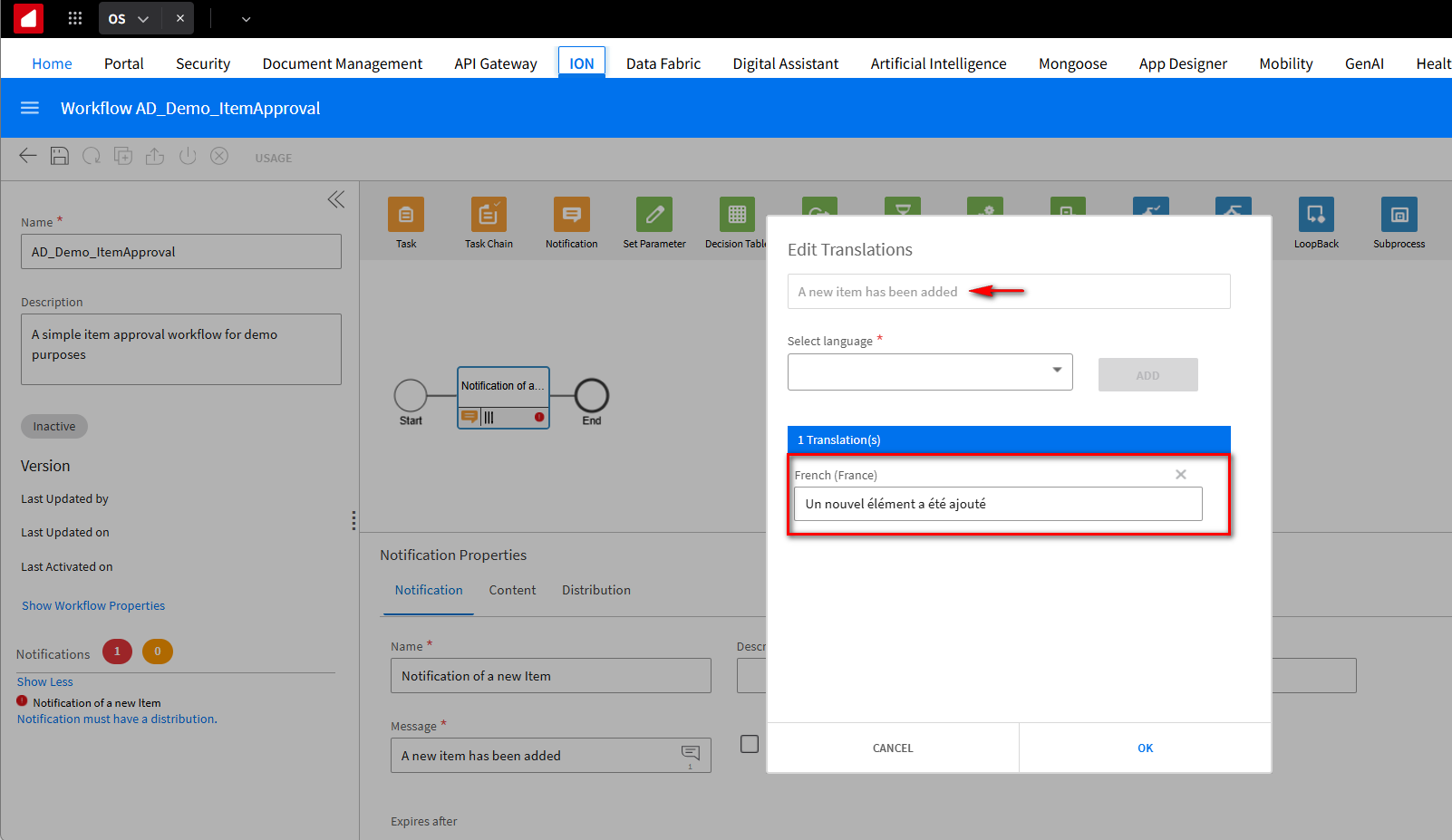
We want to send this to somebody. Click the Distribution tab.
We will select Simple and click the + button. We can send it to a group of people, which you would typically do. In this tutorial, we will send it to ourselves. From the Type field dropdown, select User. In the Search field, type your name. Click the Search button. Your name should be displayed. You can also have an email sent to your Outlook. Click OK.
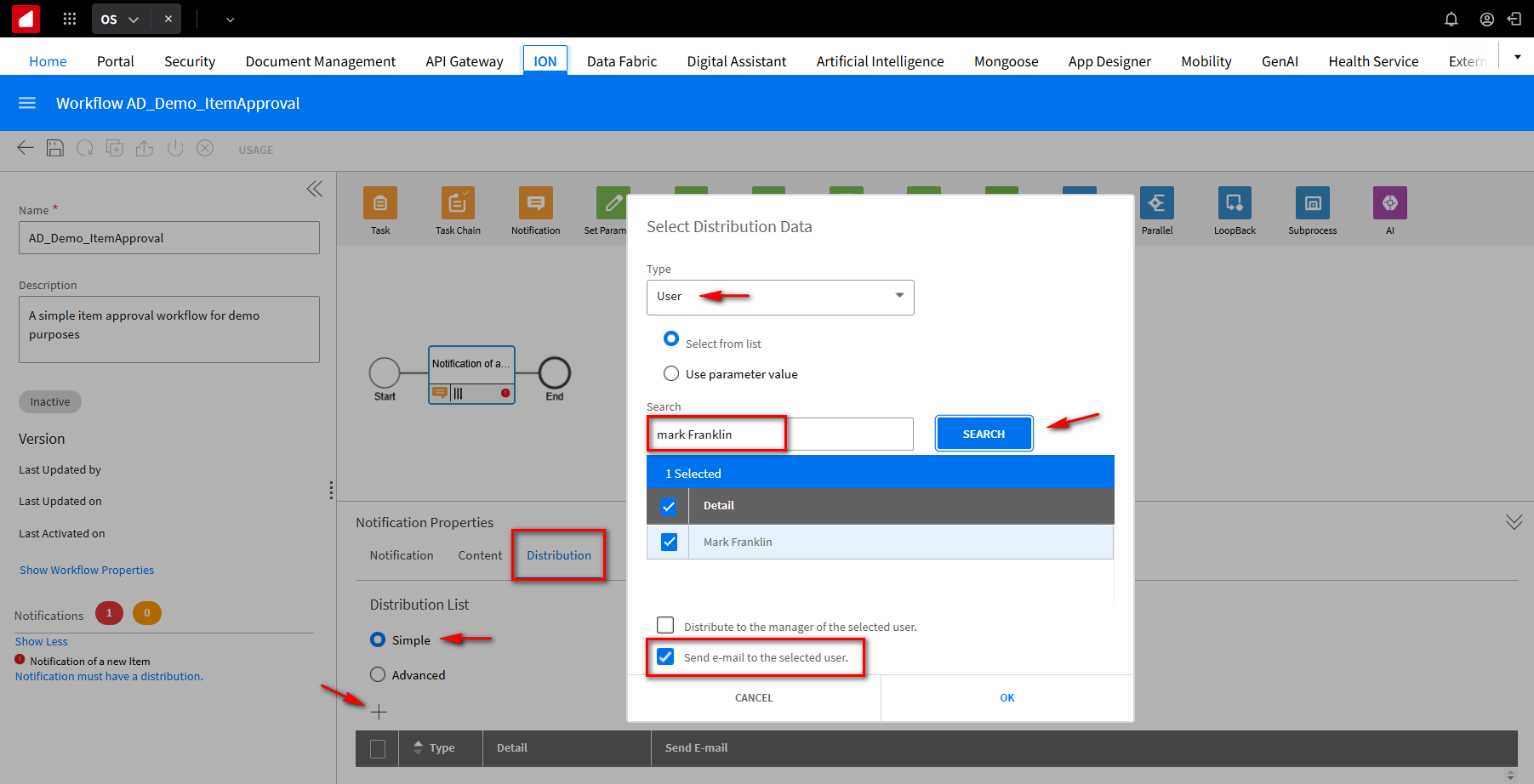
Notice that there are no errors, which is good. Click Save.
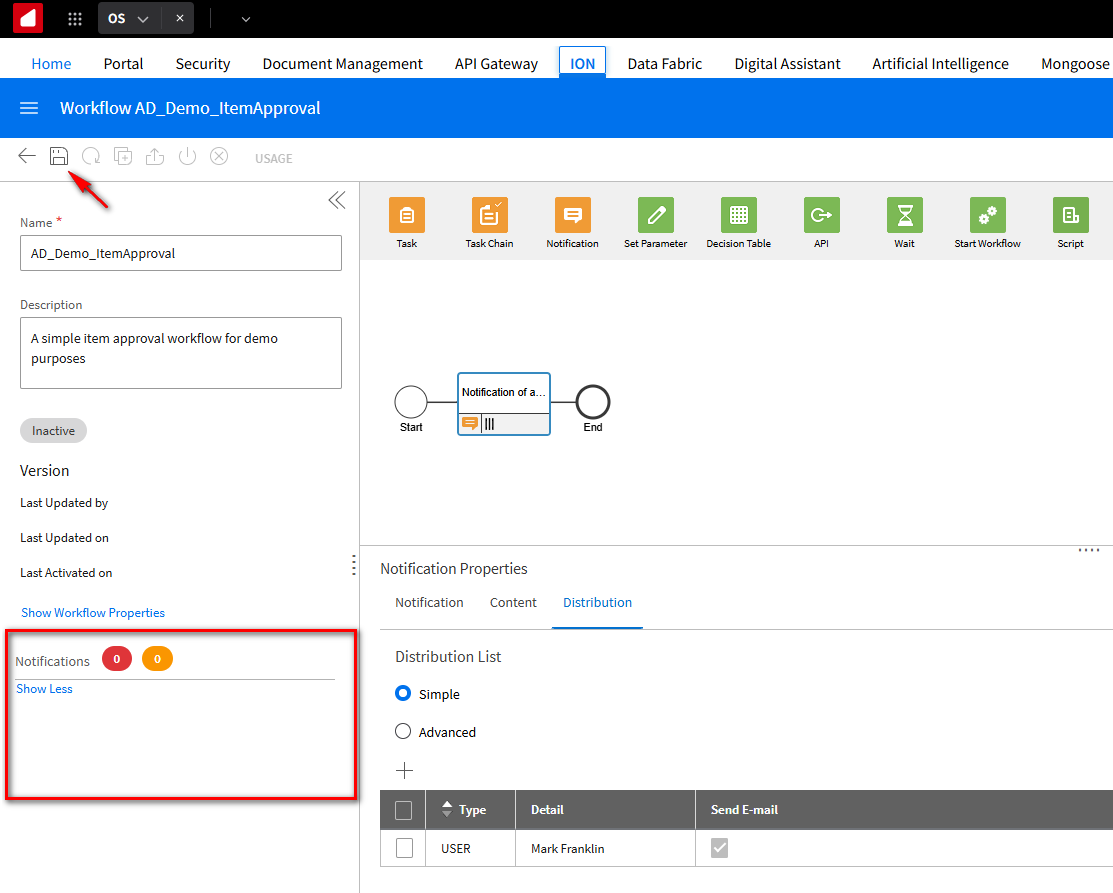
We will test the workflow to see if it works.
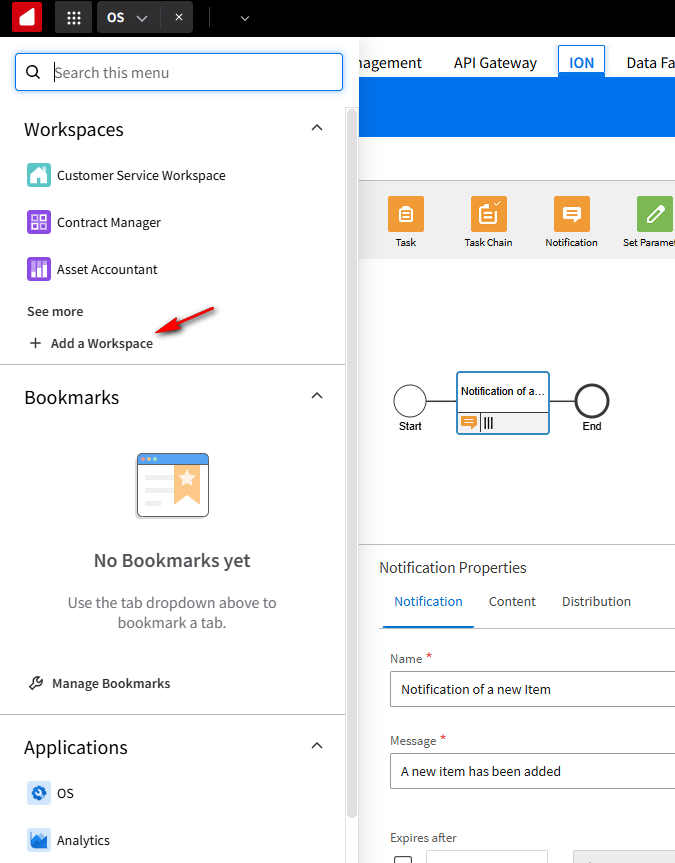
Add a Workspace. Expand the Navigation menu and select + Add a Workspace.
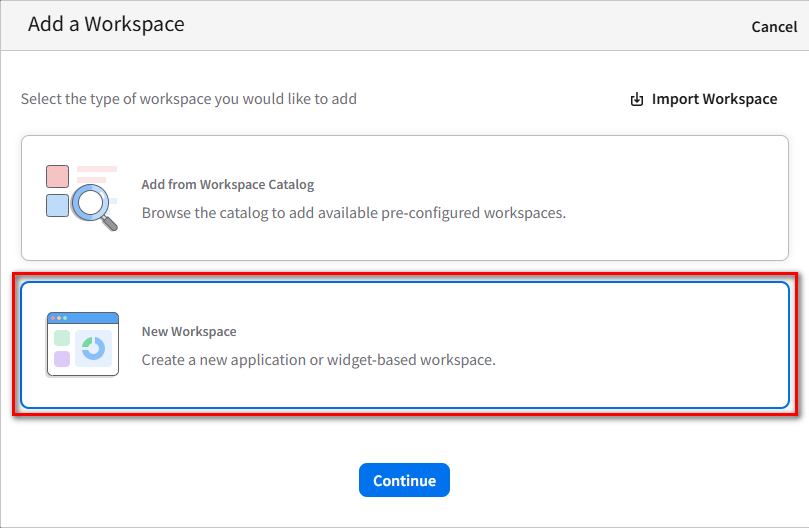
Select the New Workspace option and click Continue.
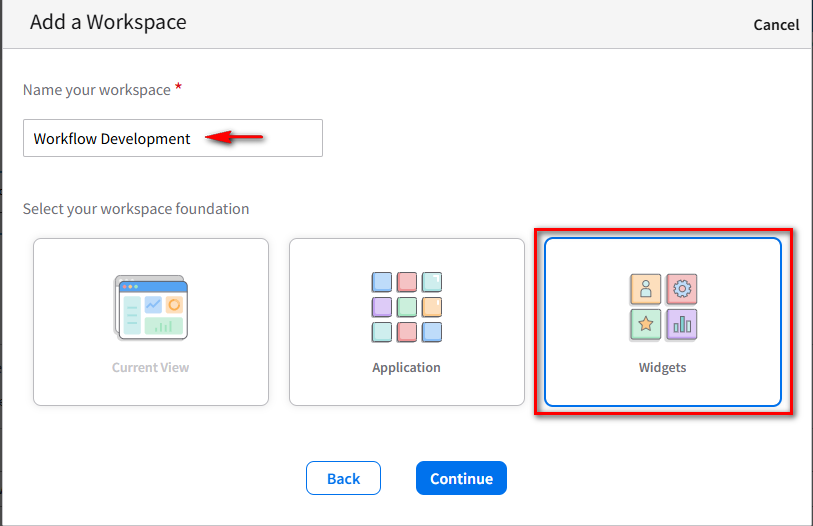
Give your new workspace the name ” Workflow Development,” and select the Widgets workspace foundation. Click Continue.
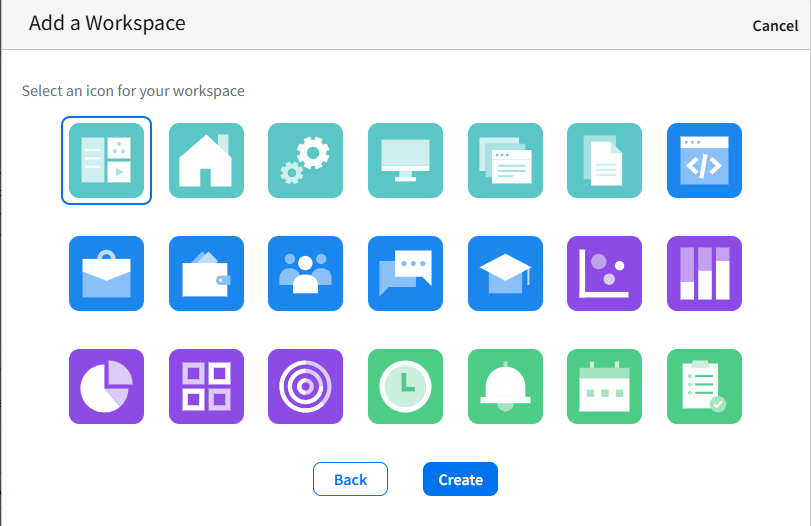
Select an Icon for your workspace. Click Create.
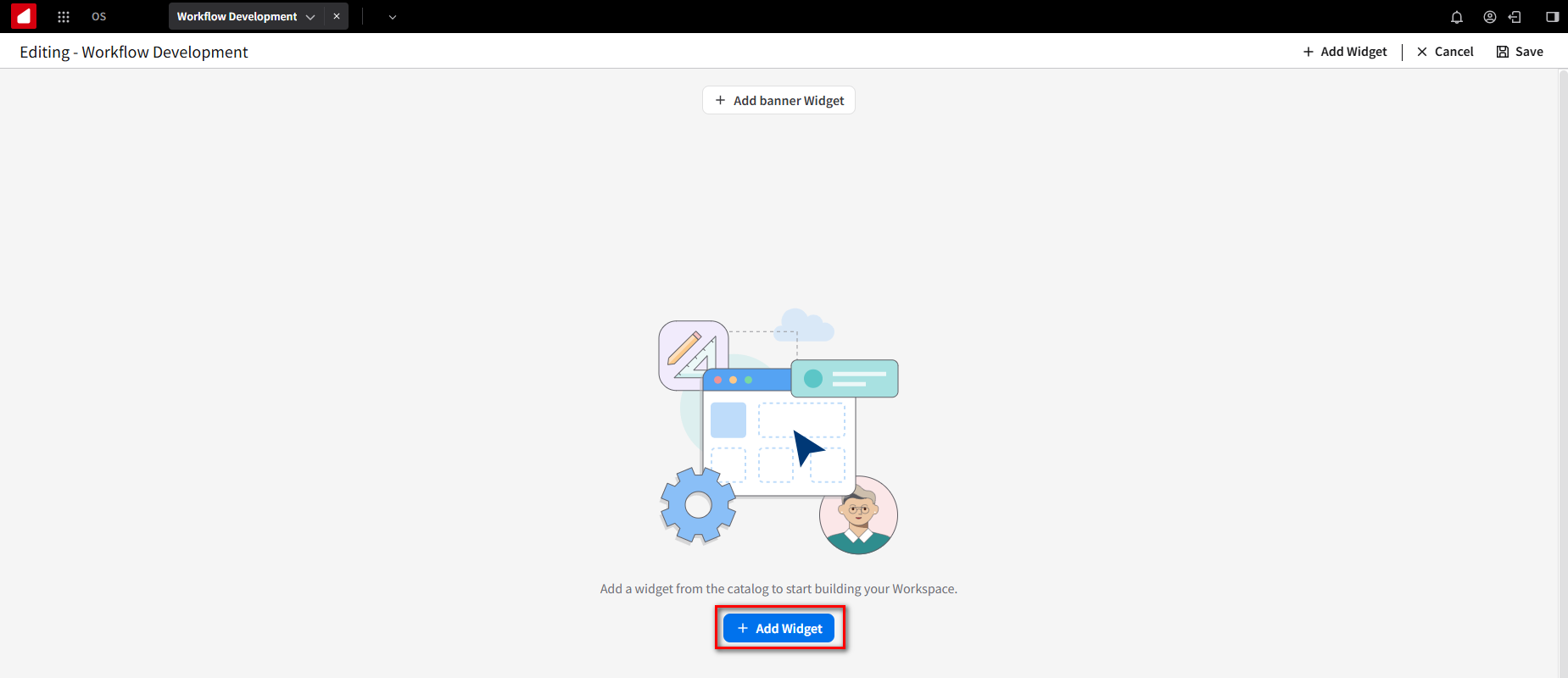
Click the + Add Widget button.
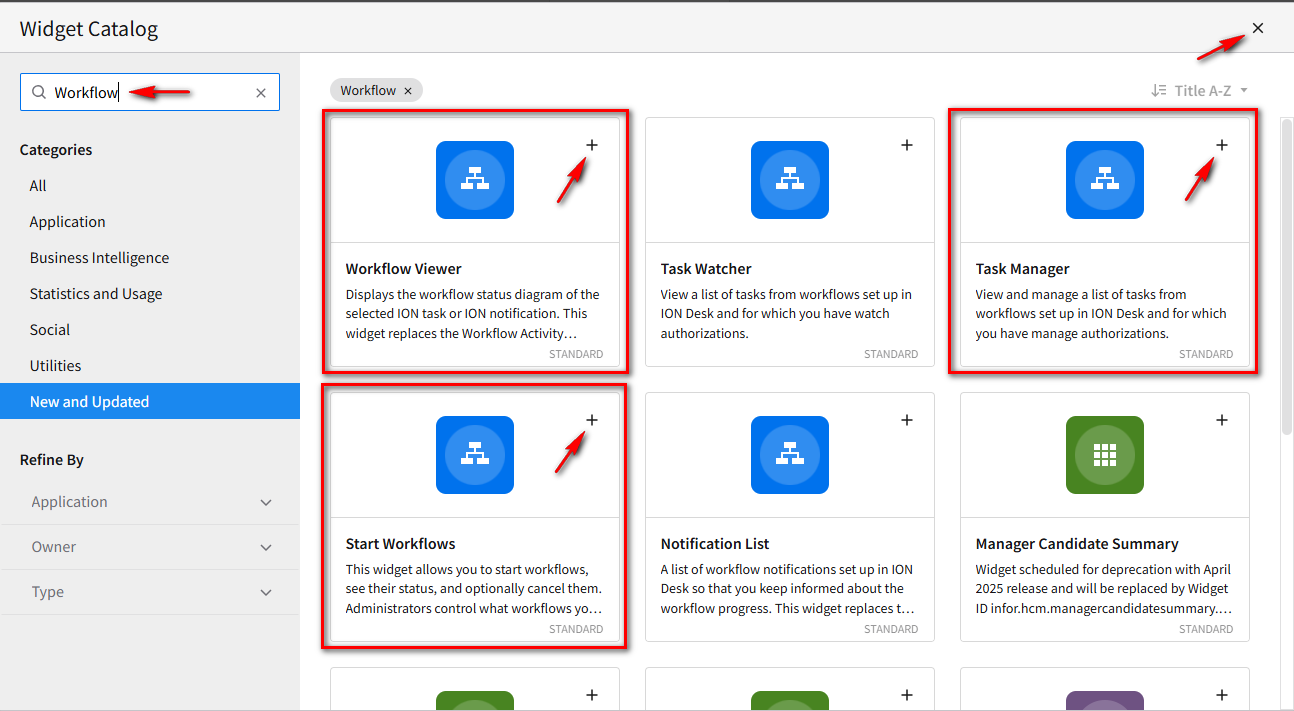
In the Search bar, type in Workflow and click Enter. Select the Start Workflows, Workflow Viewer, and Task Manager widgets from the catalog list by clicking the + sign on each widget. Click the X in the upper right corner to close the screen.
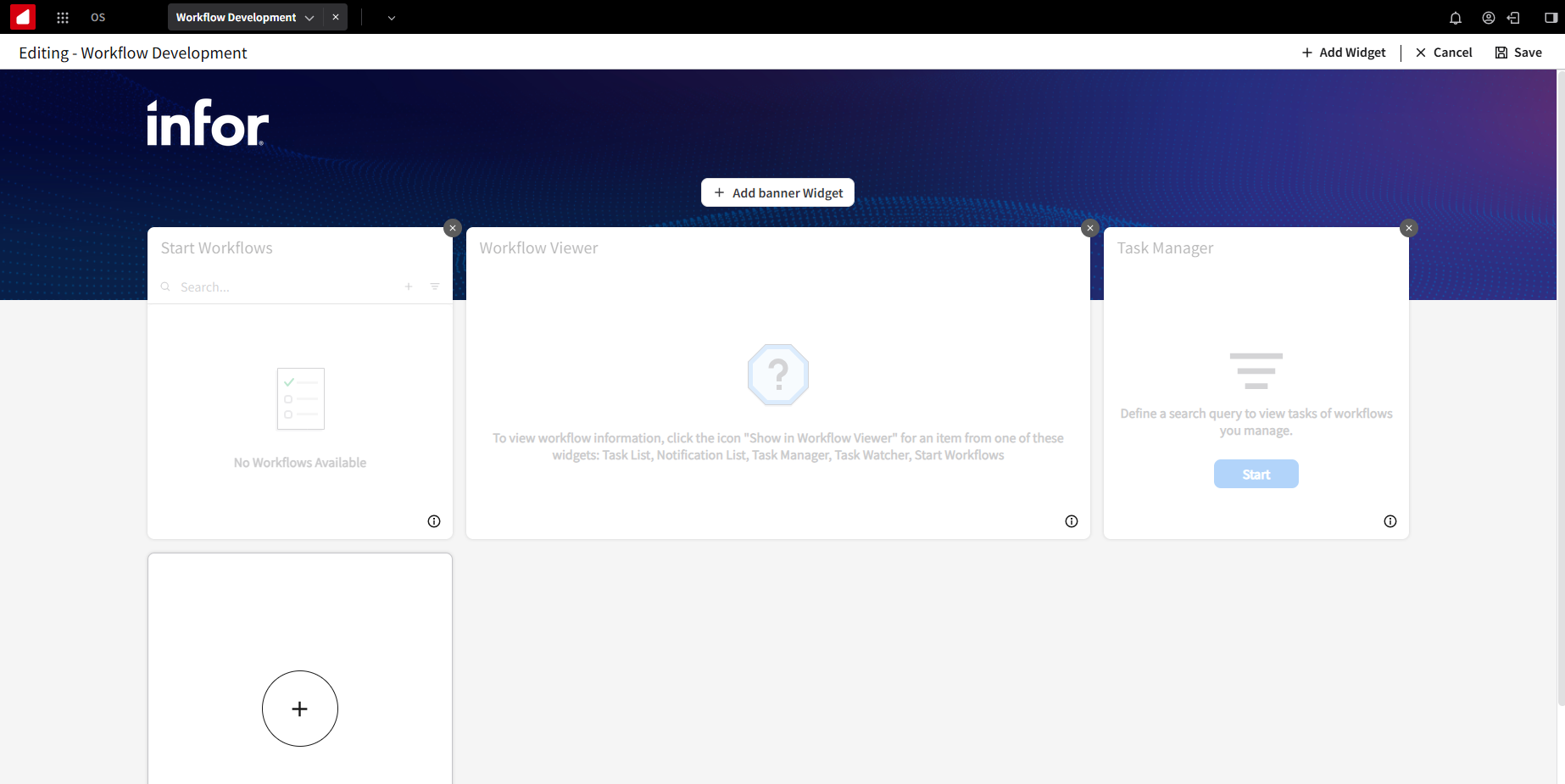
Click the Save button.
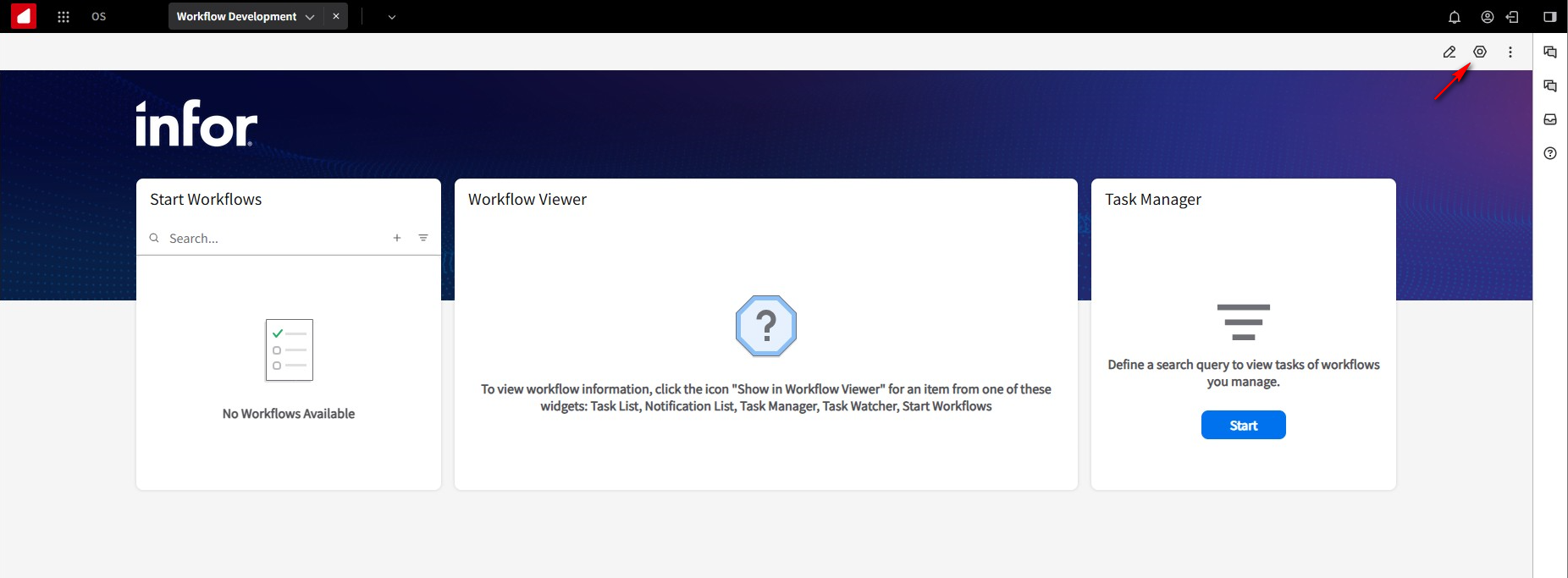
If you want to change the look of your workspace, click on the settings icon.
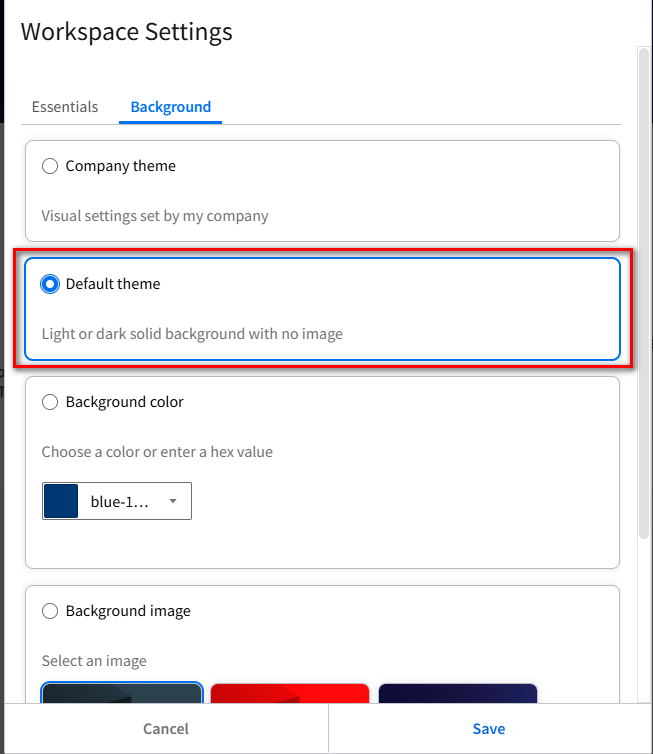
We will change it to the Default background theme. Click Save.
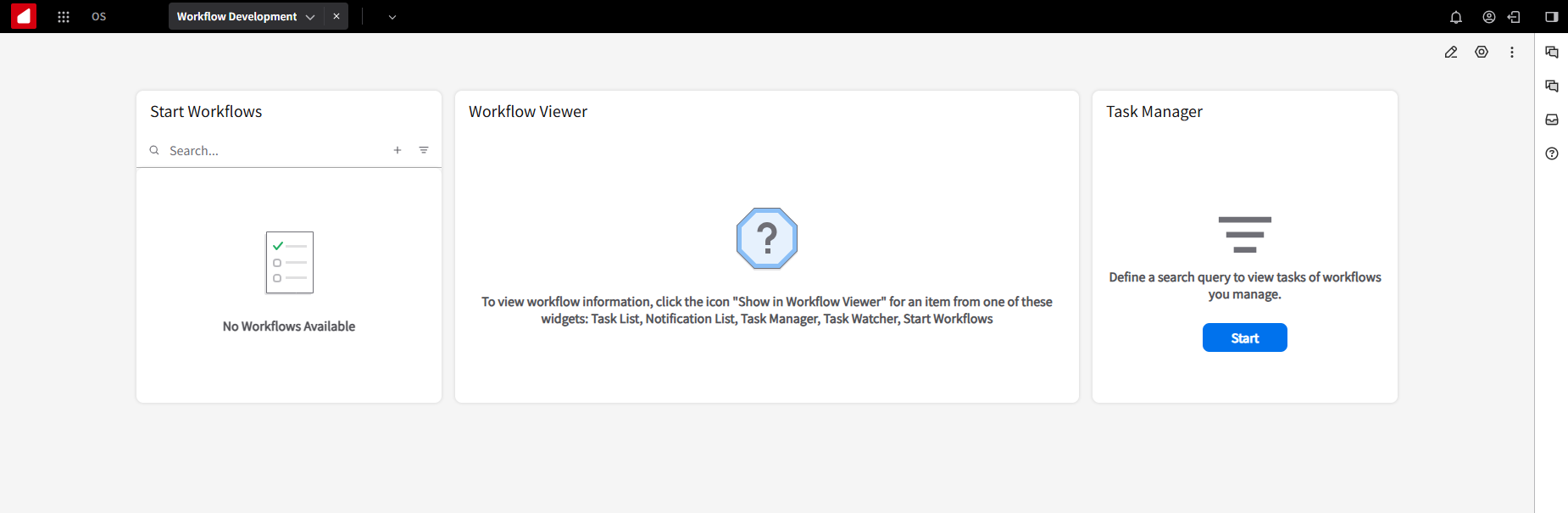
Here are the results after the background theme change.
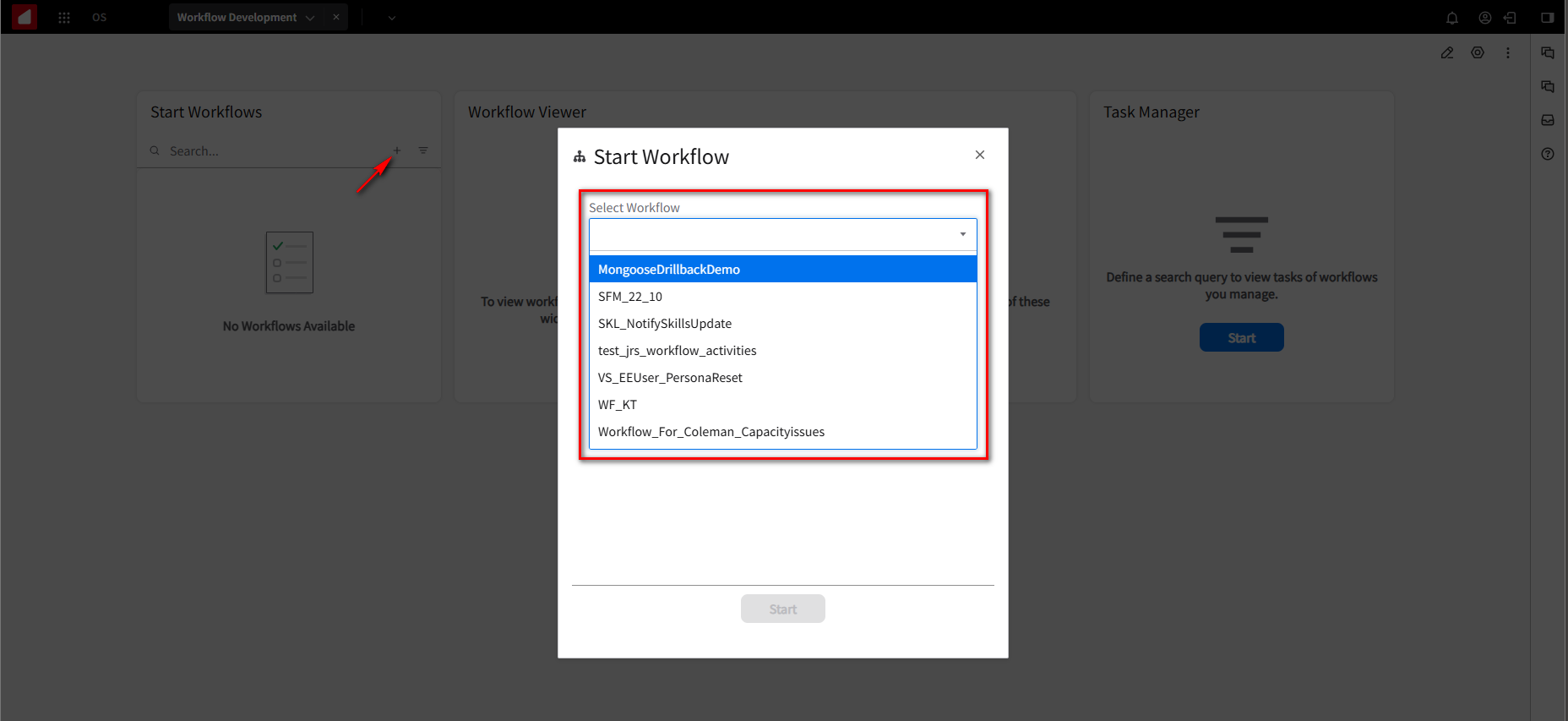
From the Start Workflow widget, click on the + button. This will give me a list of workflows that we can run. But you see, our workflow is not in the list yet. That’s because we have not given authorization for it to be started. We need to do that first.
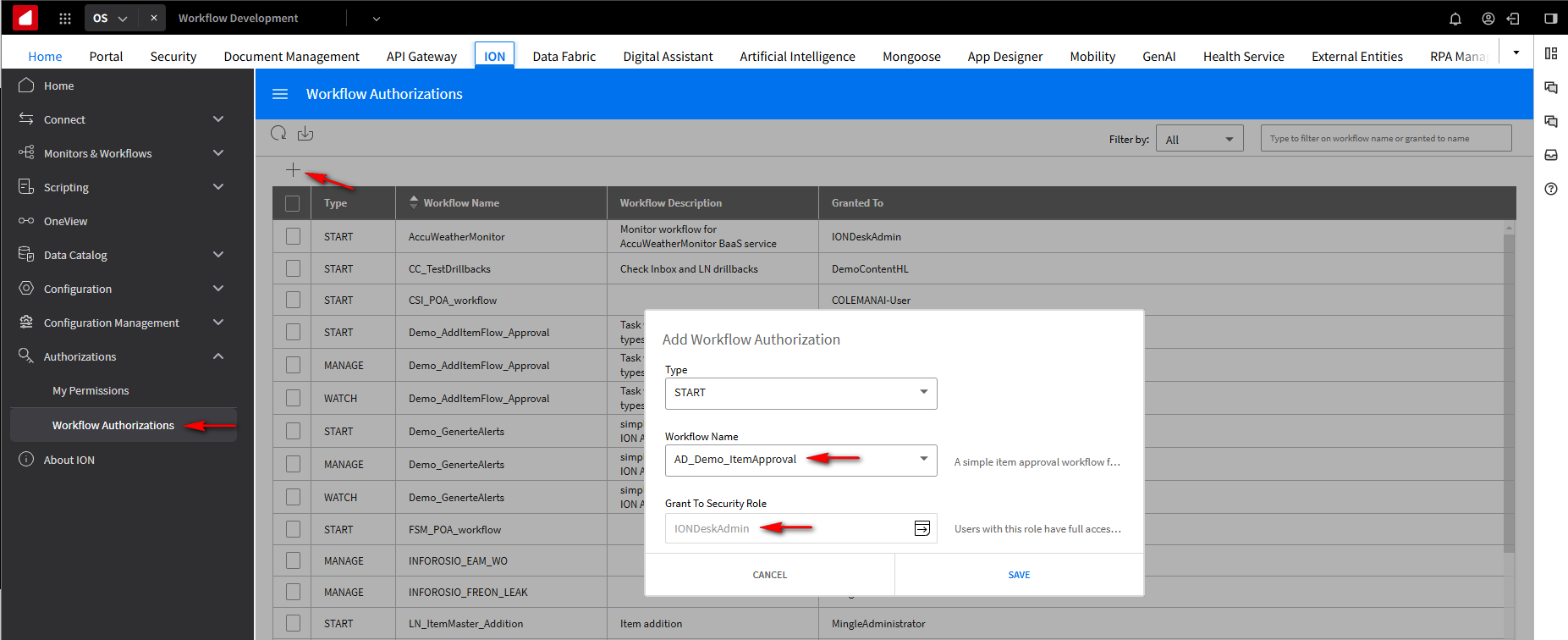
Go back to the OS tab and the navigation menu. Expand Authorizations and select Workflow Authorizations. On the Add Workflow Authorization screen, keep the Type field as START. In the Workflow Name field, select our workflow AD_Demo_ItemApproval from the dropdown. In the Grant To Security Role field, select a security role that matches a user’s role that can run the flow. In this case, we will use IONDeskAdmin since this is a role we should have. Click Save.
We also want to manage the workflow. Click the + button on the Add Workflow Authorization screen, and change the Type field to MANAGE. In the Workflow Name, select our workflow AD_Demo_ItemApproval, and in the Grant To Security Role field, use the same role as the START Type, IONDeskAdmin. Click Save.
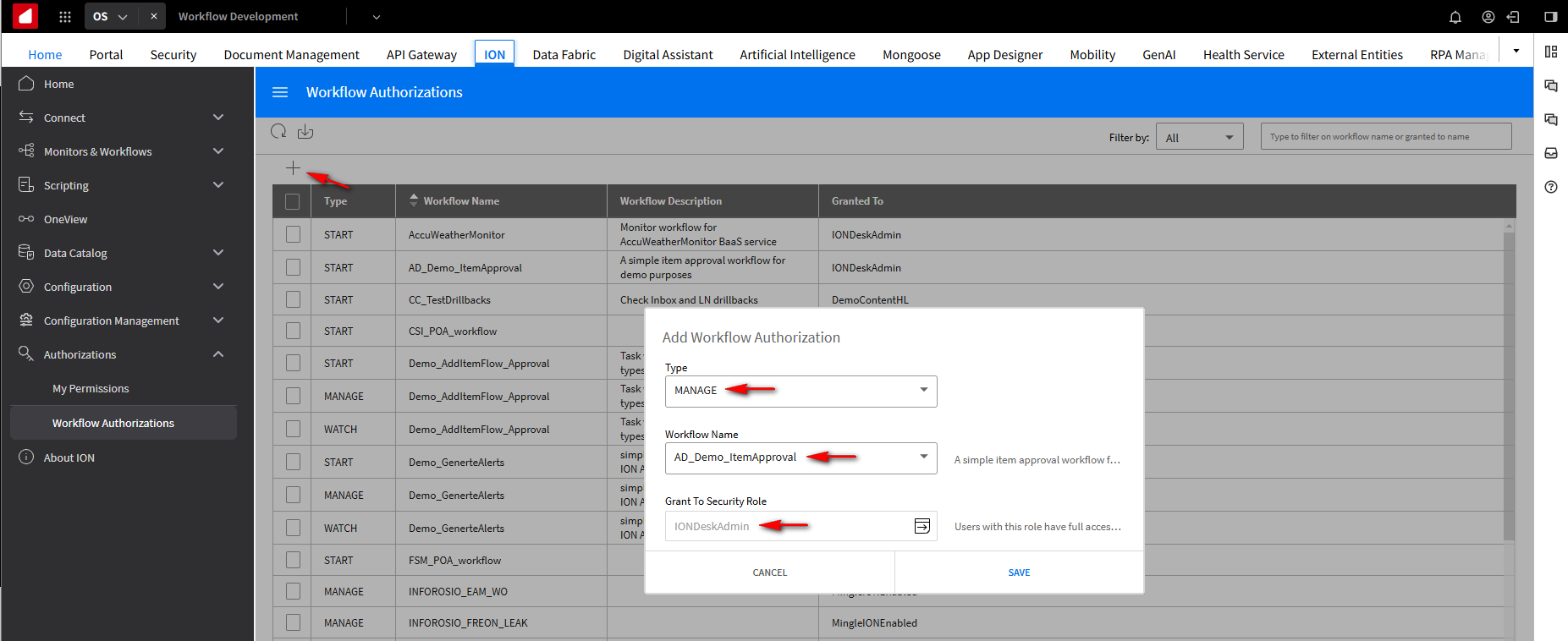
We can now Start and Manage the workflow.
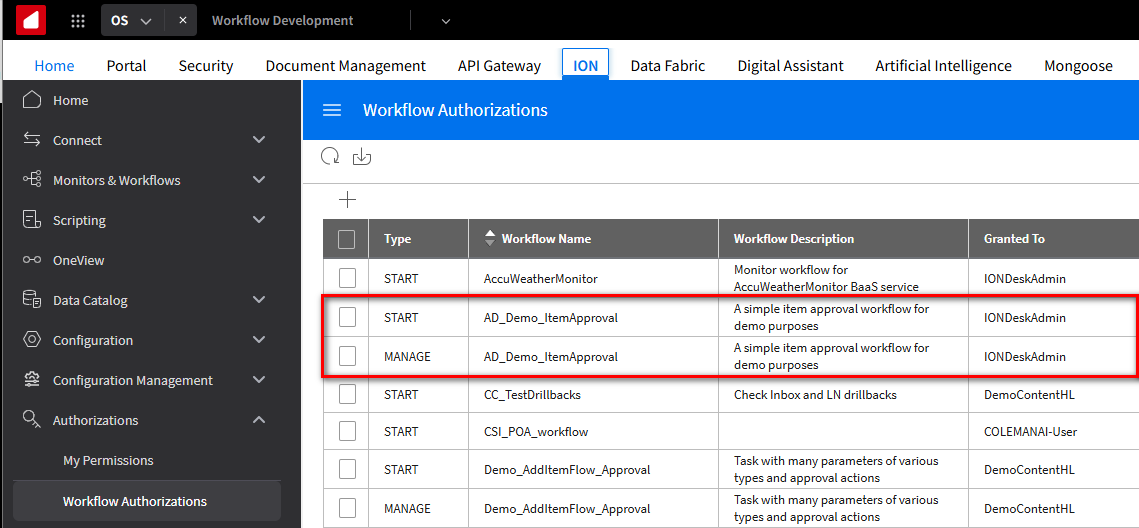
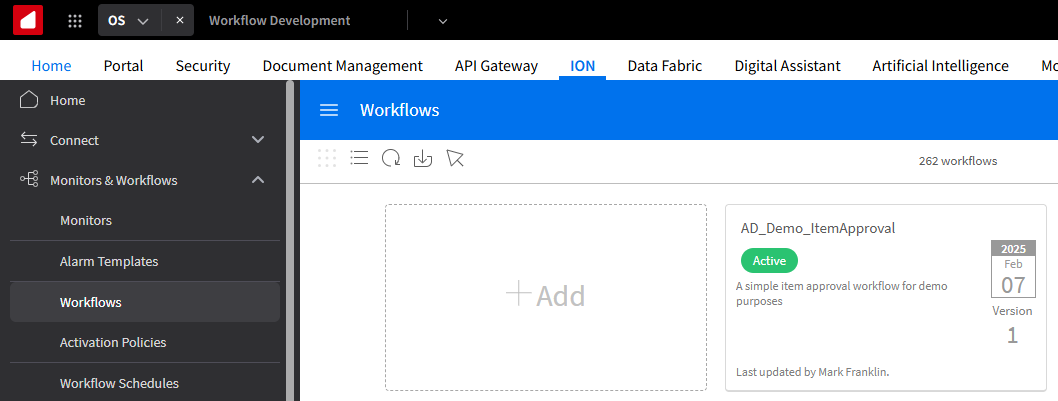
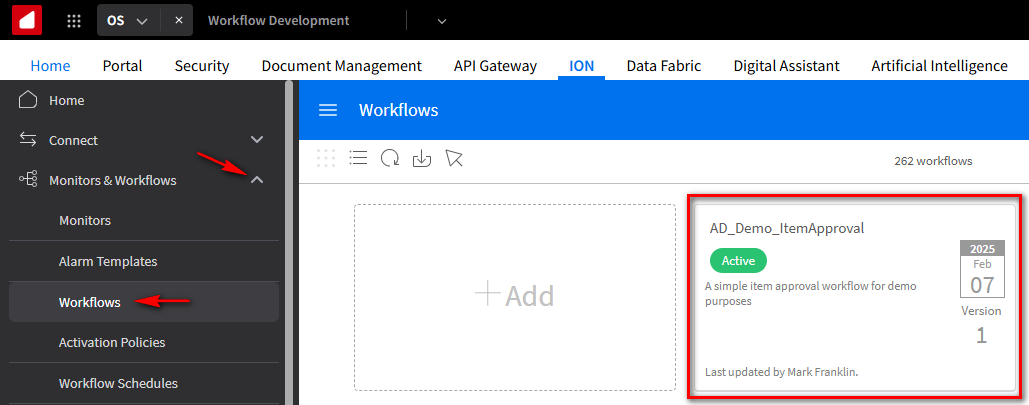
Activate your AD_Demo_ItemApproval workflow. On the OS navigation menu, expand Monitors & Workflows and select Workflows. You will notice the workflow is Inactive. Select the Activate button to activate it.
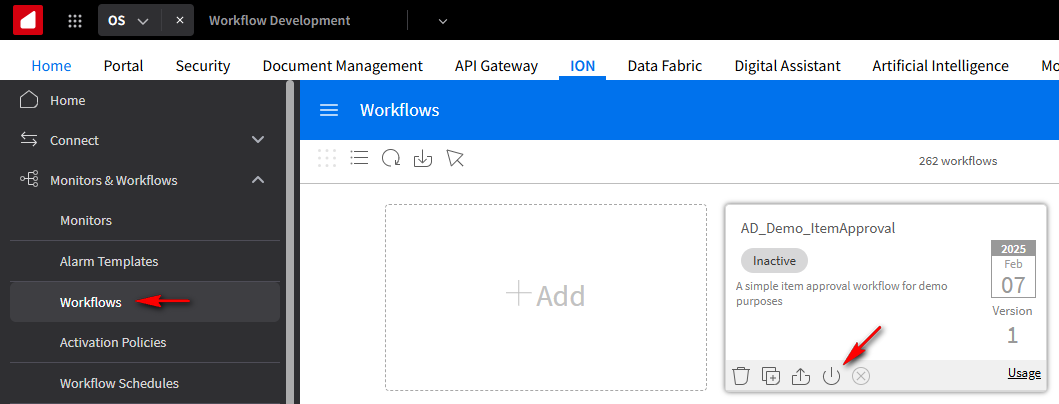
The Workflow is now Active.
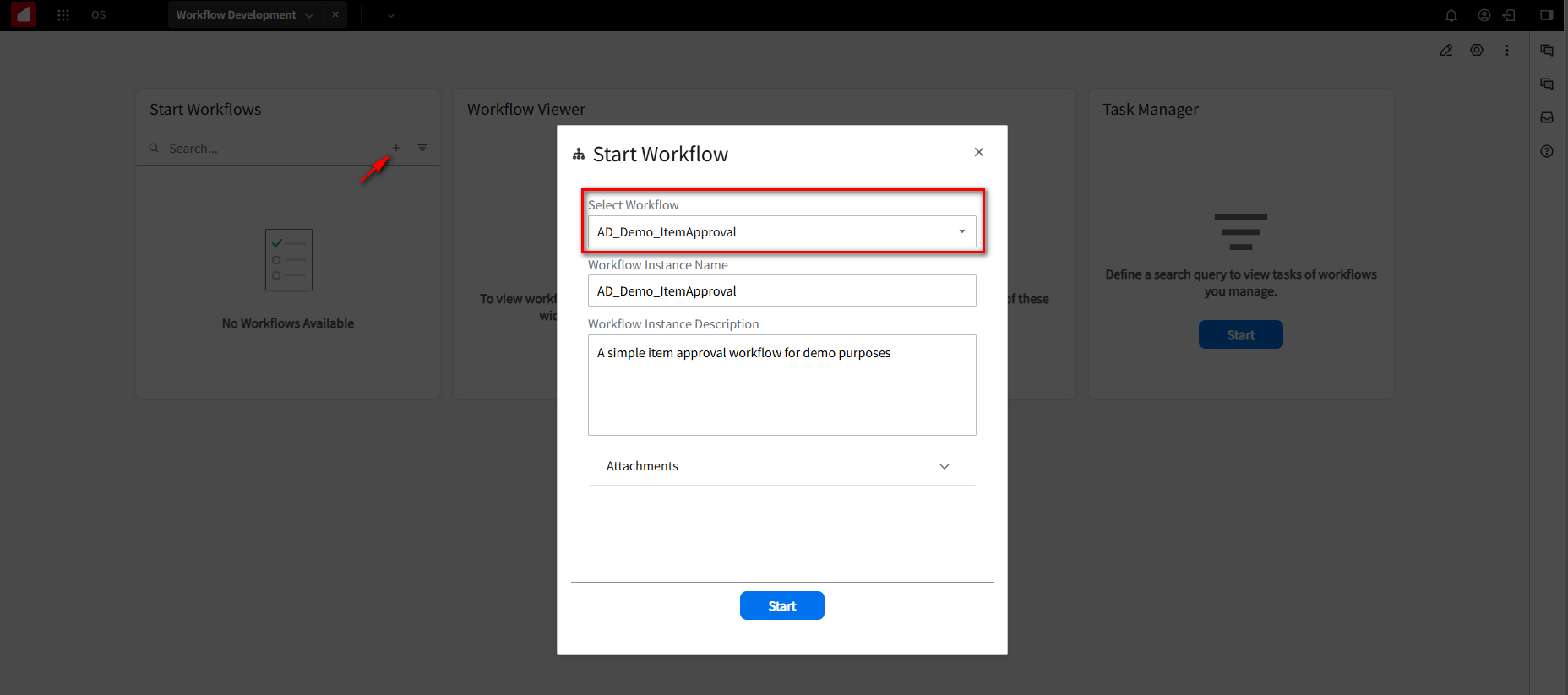
Go to your Workflow Development workspace, and from the Start Workflow widget, click on the + button. This will give you a list of workflows that we can run. You will now see the AD_Demo_ItemApproval workflow. Select the AD_Demo_ItemApproval workflow and click the Start button.
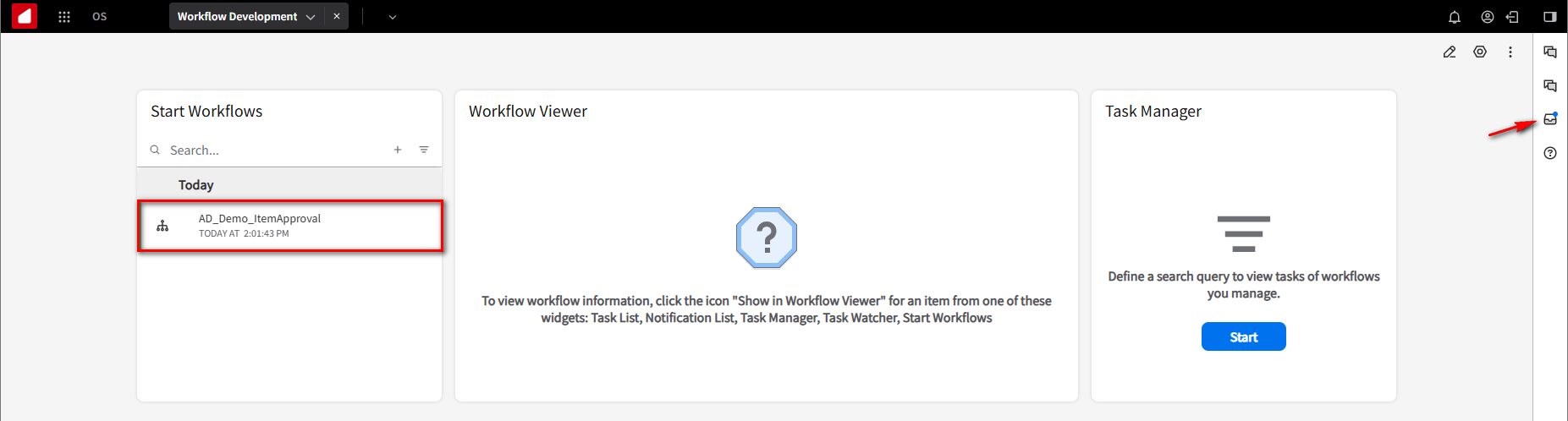
This message tells us the workflow notification is already here. You’ll see a little blue dot indicating we have a message now.
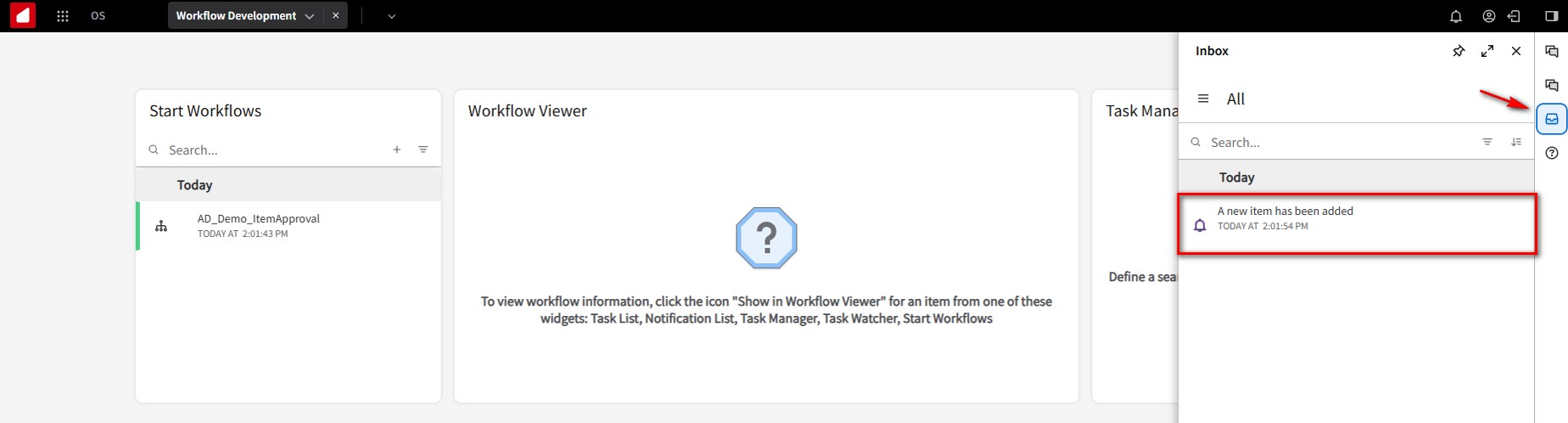
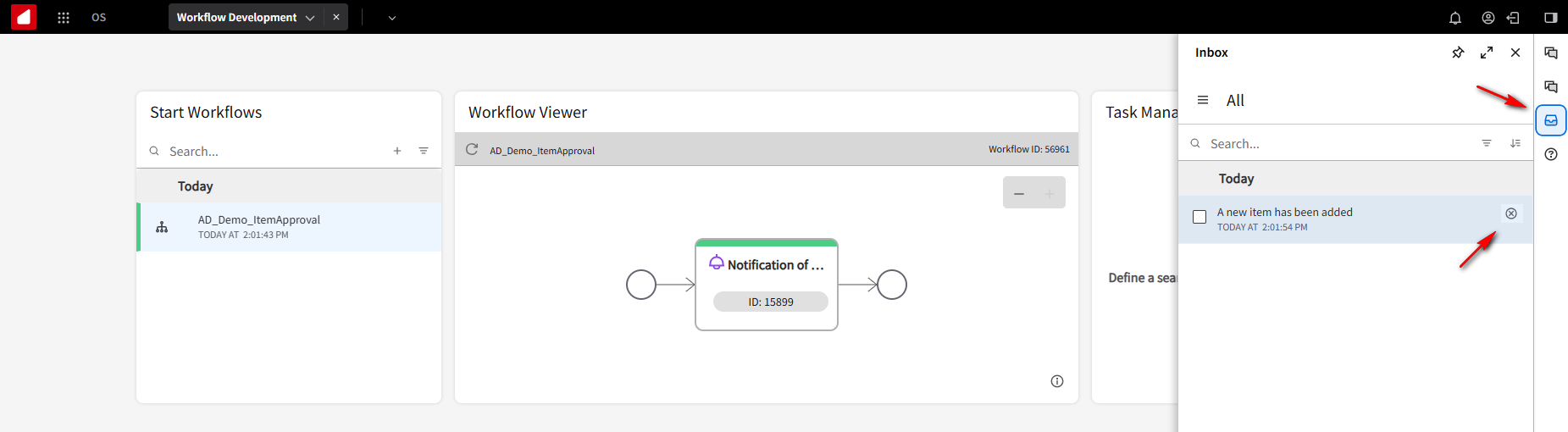
Click on the Inbox, and you should see the message that “A new item has been added”. So, simple notification is working.
If we click on the Hide in Workflow View Icon, it shows the notification step, which is Green, meaning it’s done.
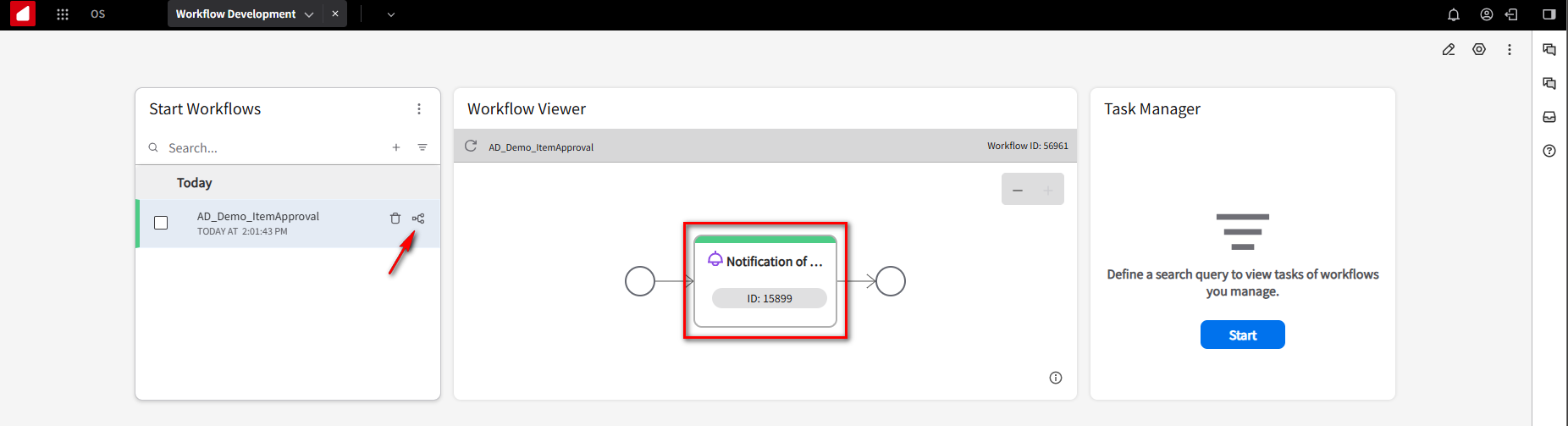
To keep things neat and organized, we will clean up the notifications from the inbox as we go through the tutorial. Click on the Inbox again and click the Icon to remove the notification.
So we know the notification step is working. Let’s go back into our workflow. On the OS navigation menu, expand Monitors & Workflows and select Workflows. Select the AD_Demo_ItemApproval workflow.
You will notice the top icons do not appear because the workflow is currently active. To make the icons reappear, we will deactivate the workflow by clicking the deactivate Icon.
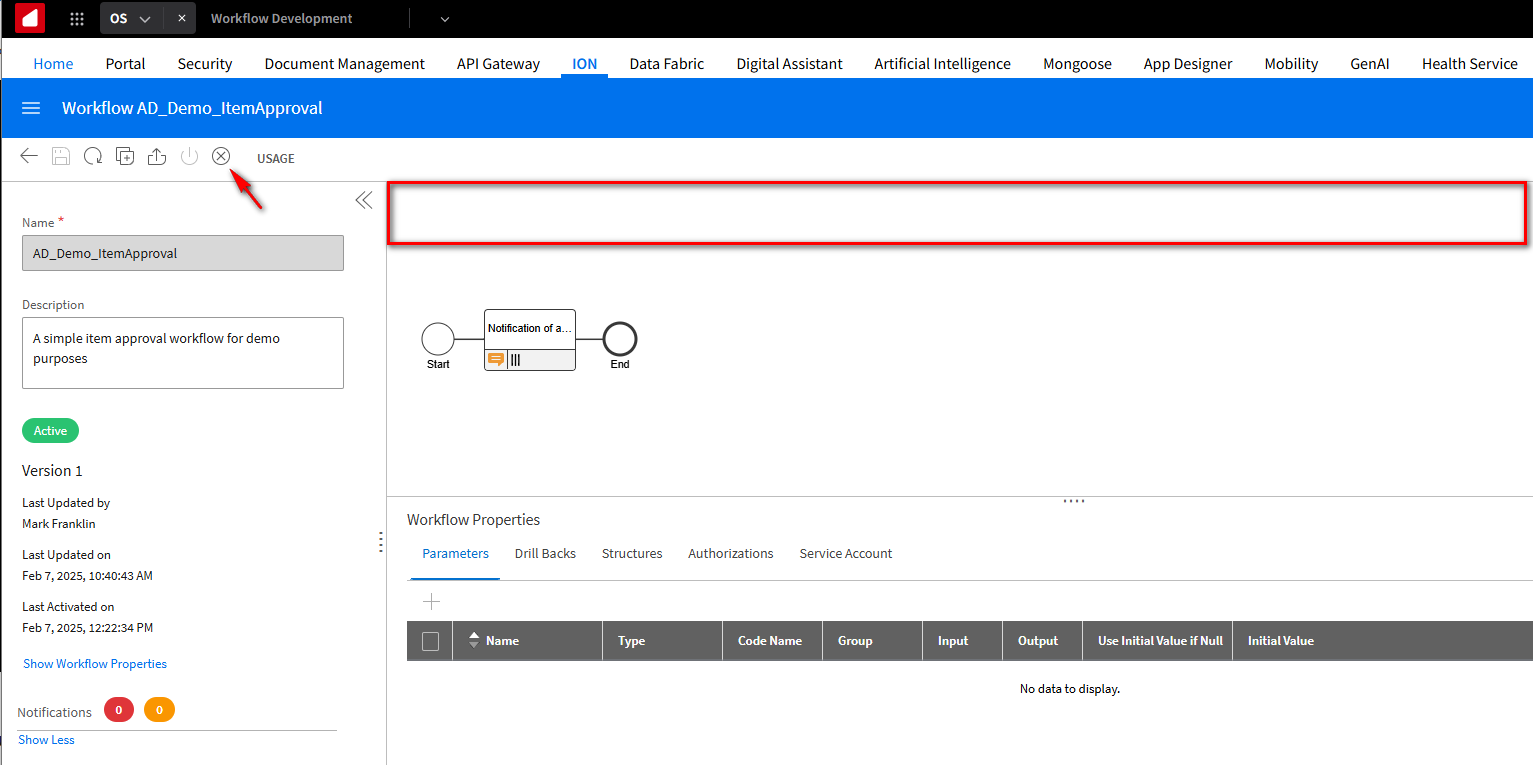
This is what it looks like after the deactivation.
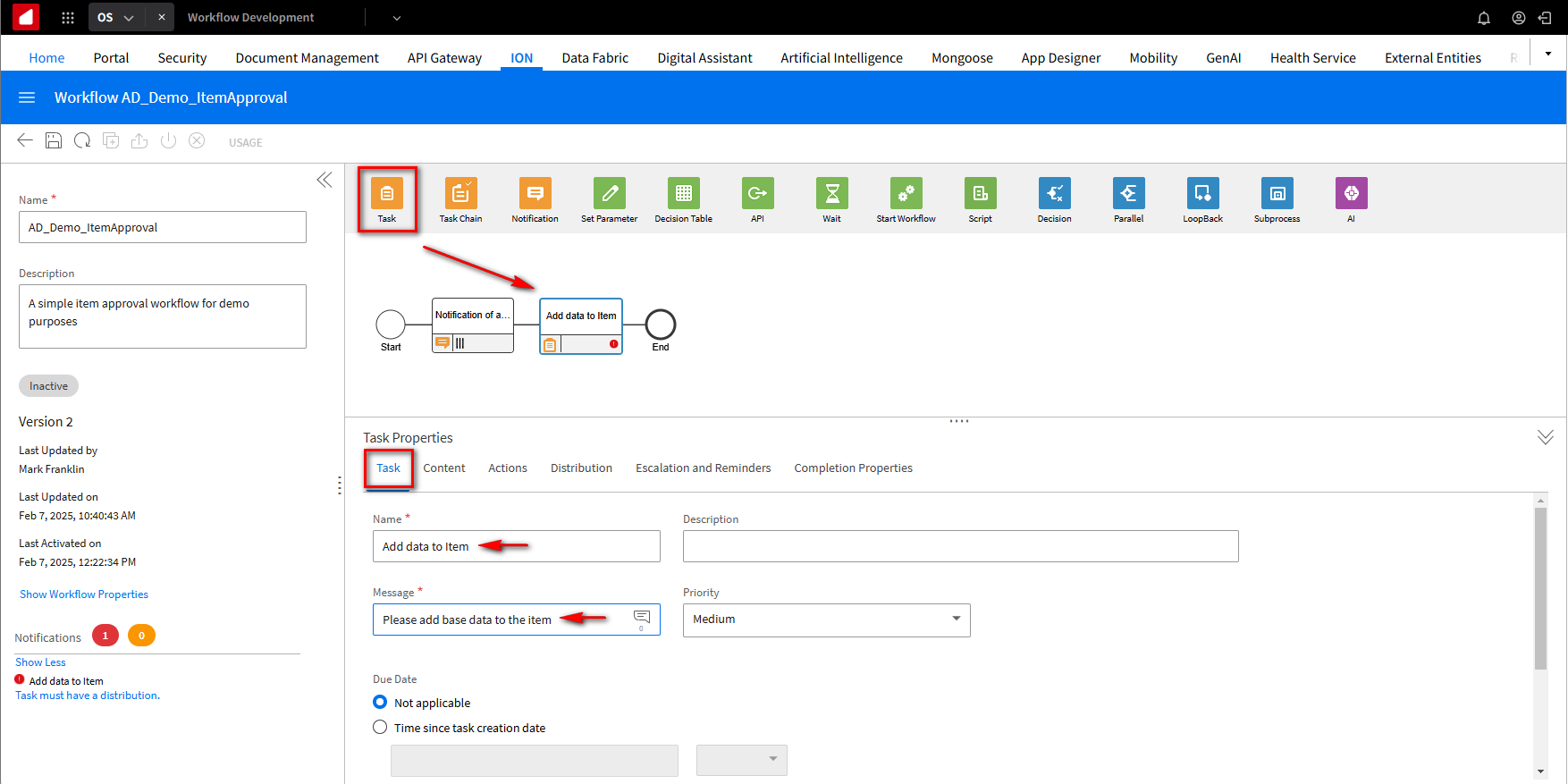
The next step in the workflow is for someone to do something. From the top icons, drag the Task icon onto the model. In the Task Properties section, we will assign a descriptive Name to the Task. Under the Task tab, change it to “Add data to item.” In the Messages field, we will send what message we want to send to the group of people or a single person. We will add “Please add base data to the item.”
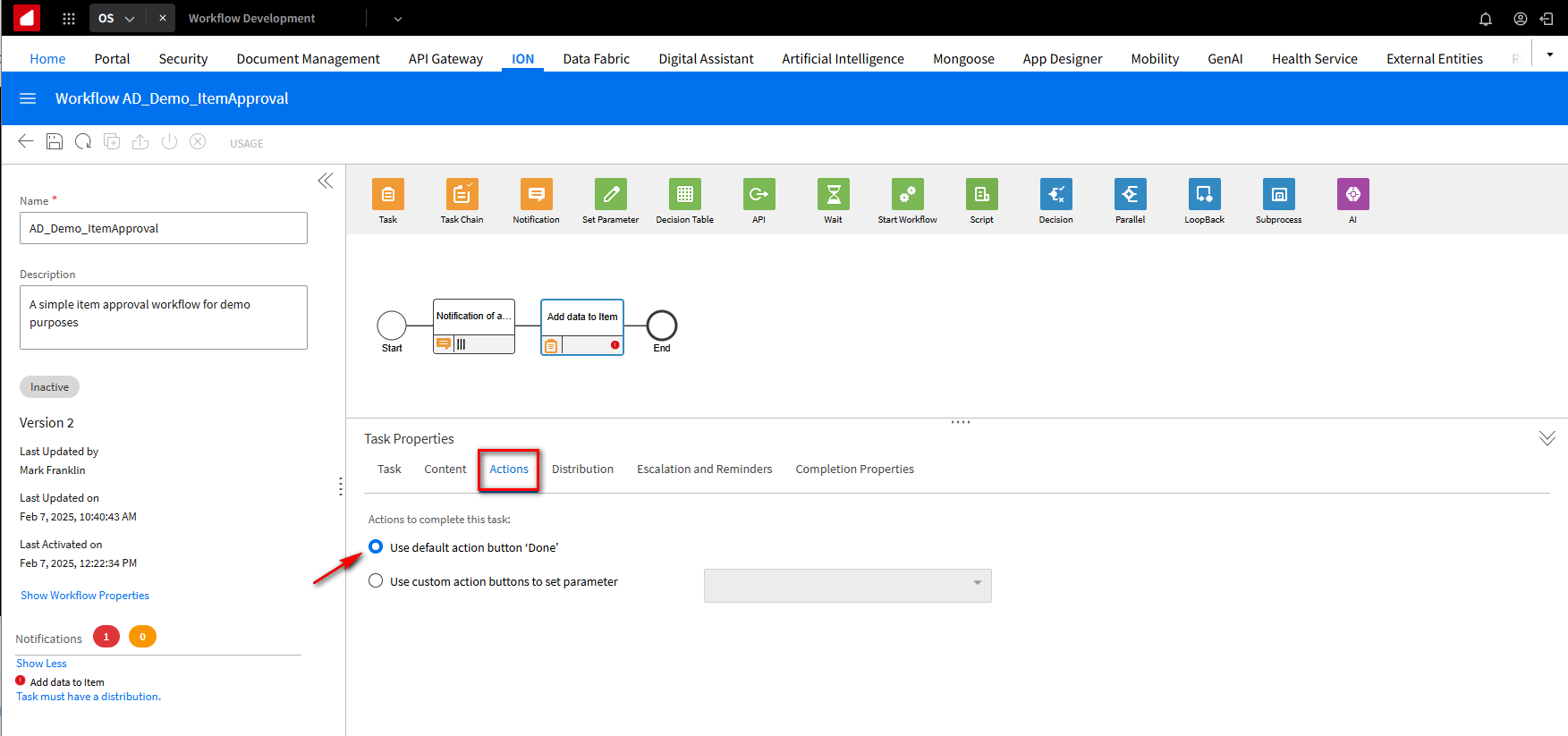
Click the Actions tab and select the Use default action button ‘Done’ option. This indicates that something has been done.
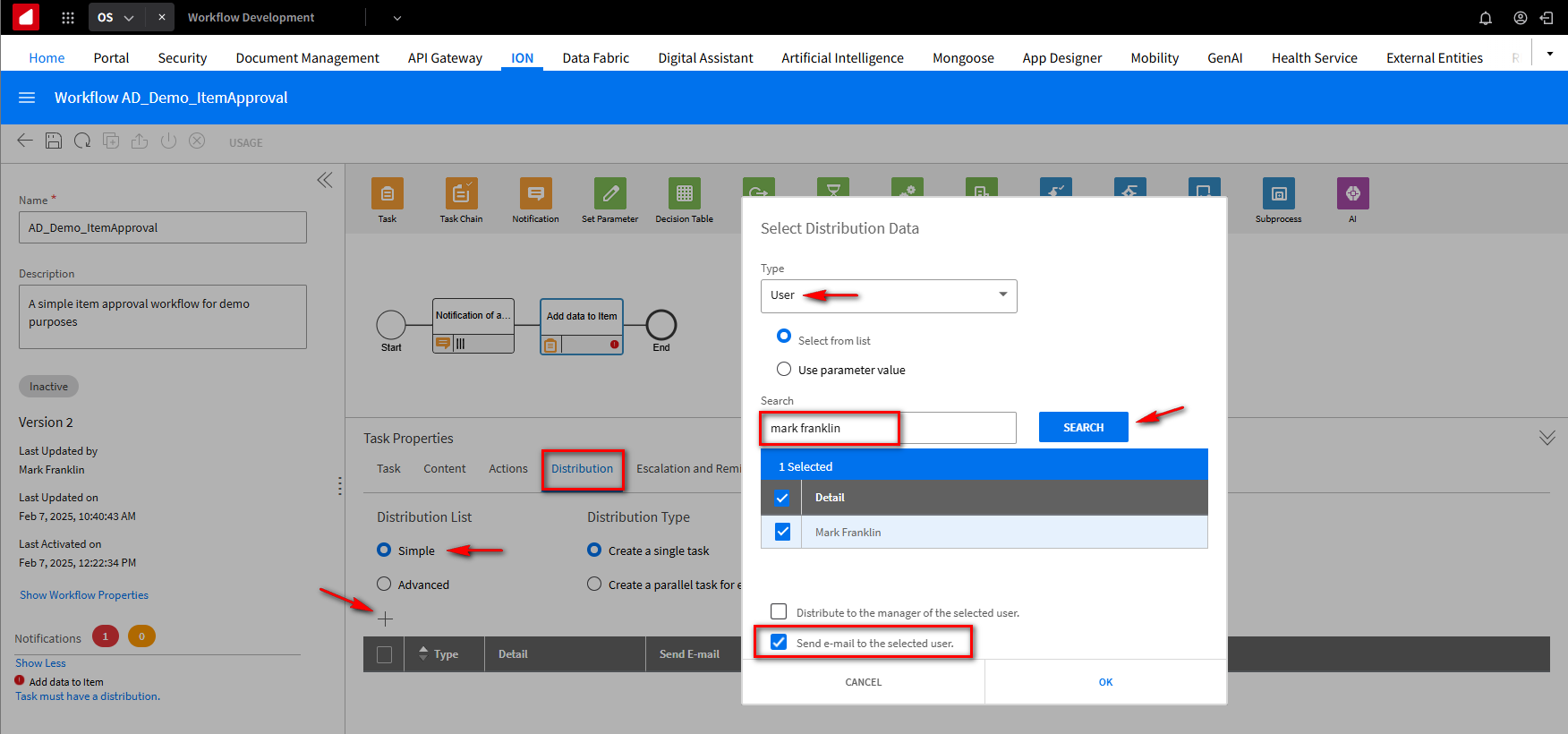
We want to send this to somebody. Click the Distribution tab.
We will select Simple and click the + button. We can send it to a group of people, which you would typically do. In this tutorial, we will send it to ourselves. From the Type field dropdown, select User. In the Search field, type your name. Click the Search button, your name should be displayed. Select your name. You can also have an email sent to your Outlook. Click OK.
We now have a notification that goes out. And a task for you to do something. Notice that there are no errors, which is good. Click Save and Activate.
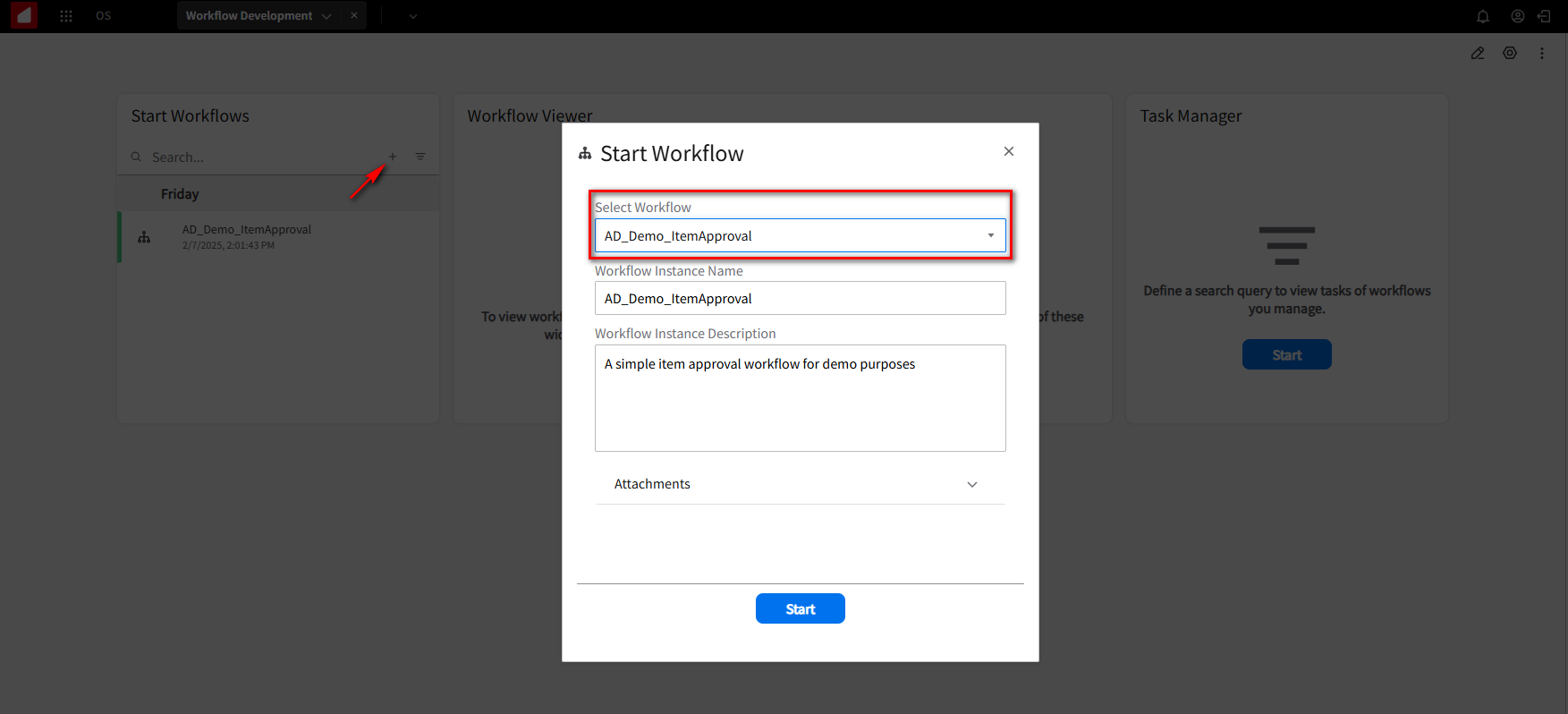
Let’s go back into our Workflow Development workspace. From the Start Workflow widget, click on the + button. This will provide you with a list of workflows that we can execute. Select the AD_Demo_ItemApproval workflow and click the Start button.
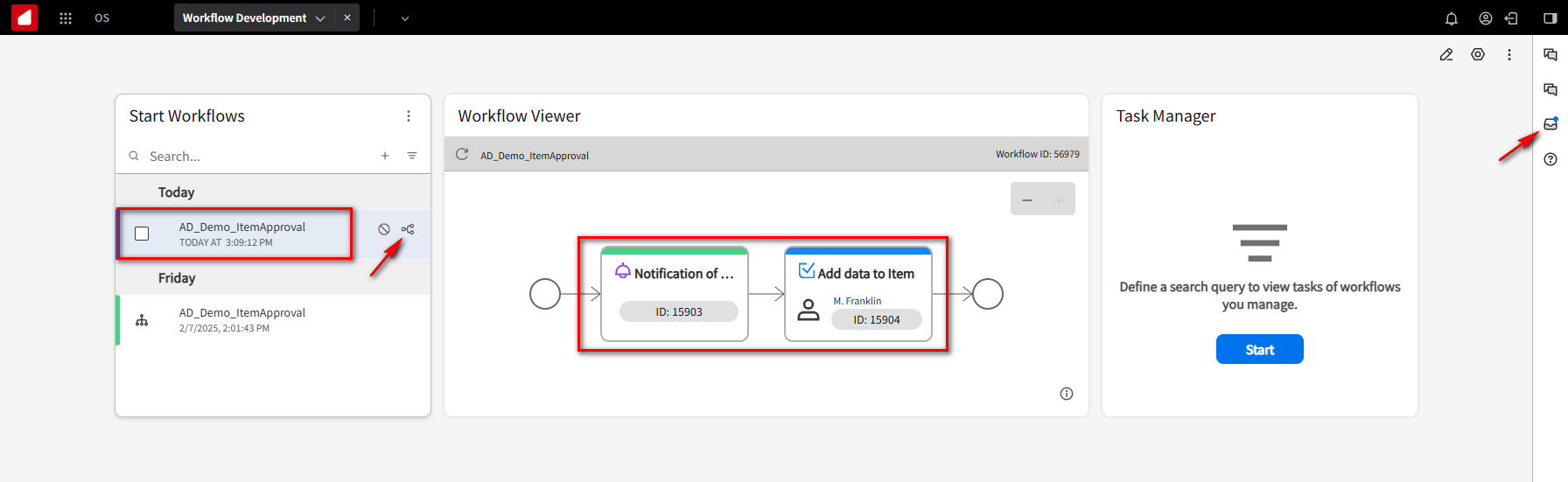
You will notice a new notification. If you click on the Hide in Workflow View Icon, you will see a notification of a new item step displayed in green, indicating that the step has already been completed. You should also see an 'Add data to Item' step set to blue, which indicates that this will be the next step. The Inbox will display a little blue dot indicating that we have a message. Click on the Inbox.
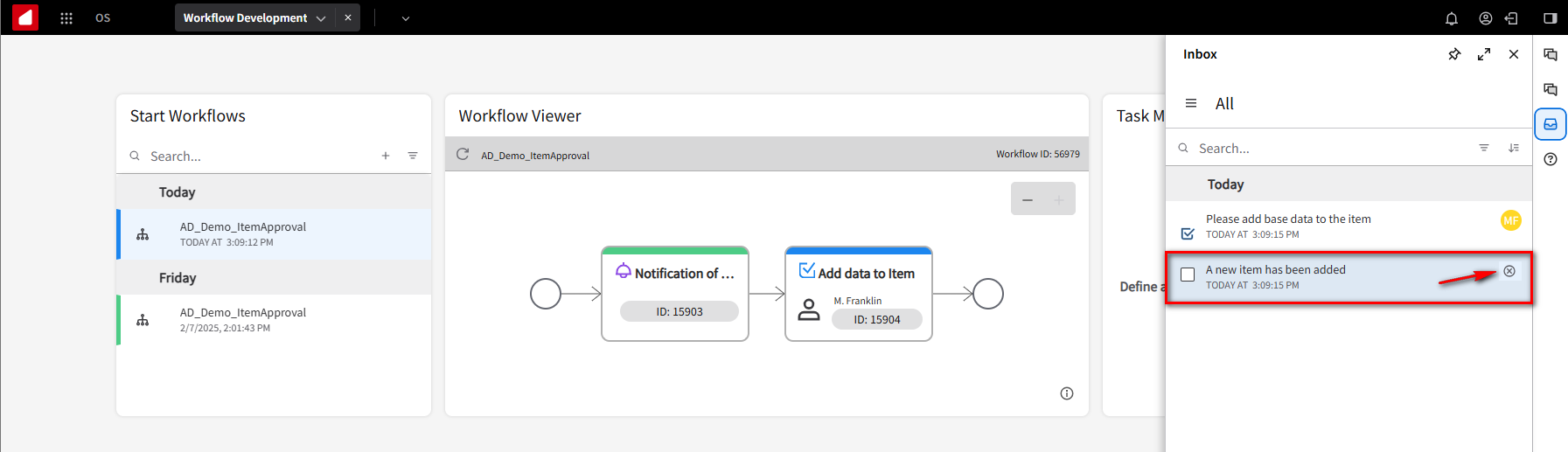
The notification message is fine, so to keep things nice and simple, we will remove it from our list.
Open the “Please add base data to the item” message.
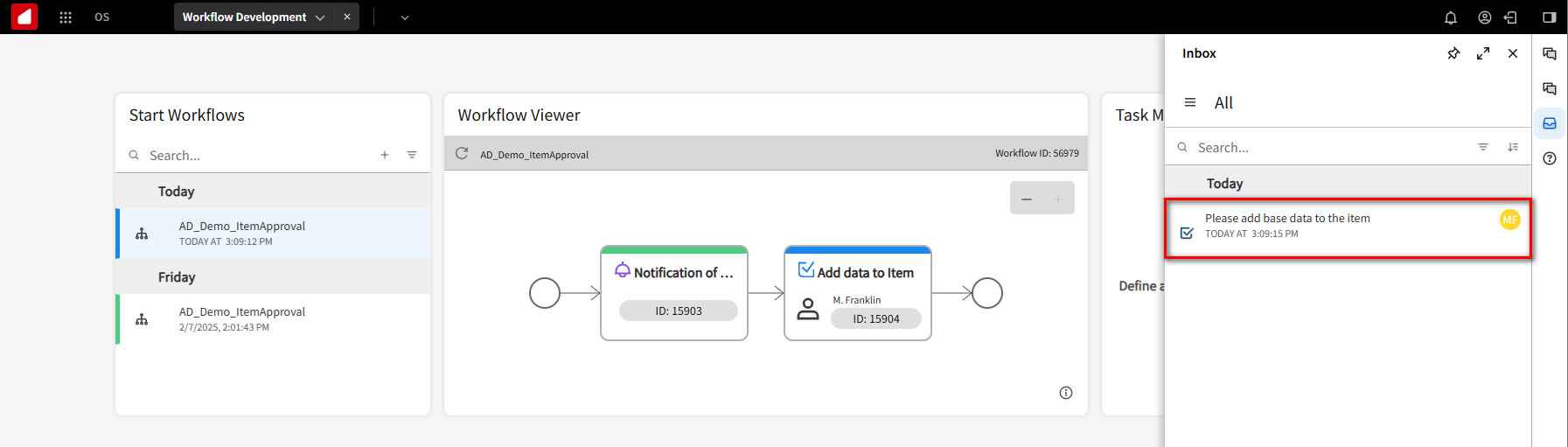
If not assigned to you. From the Assign dropdown button, select your name, then click Done.
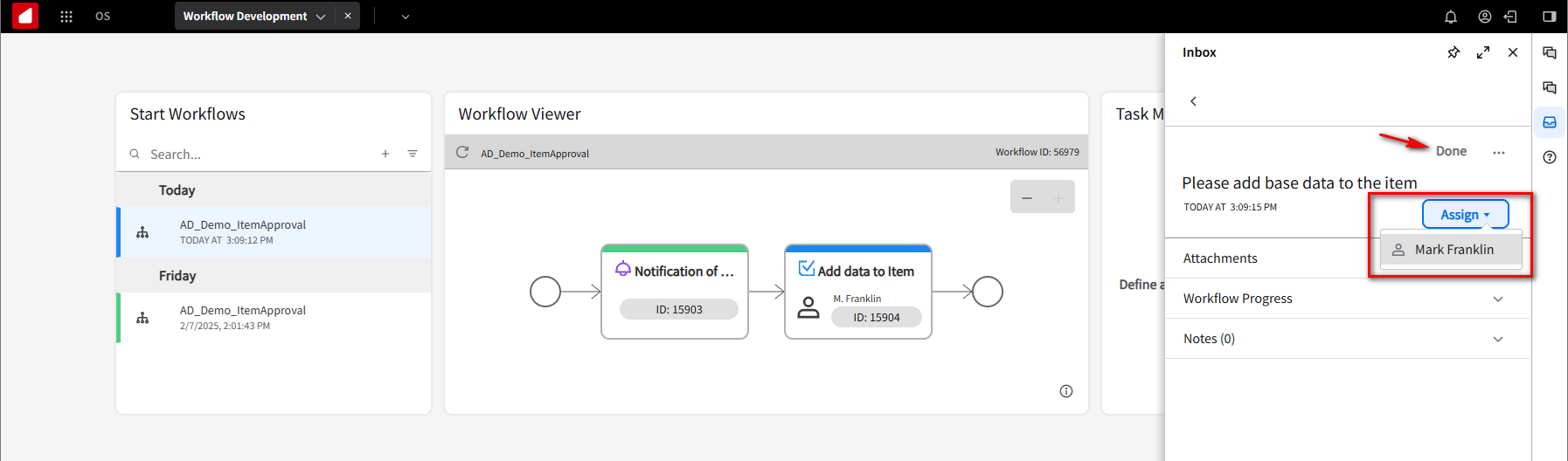
Close your Inbox window and click on the Hide in Workflow View Icon in the Start Workflows widget notification.
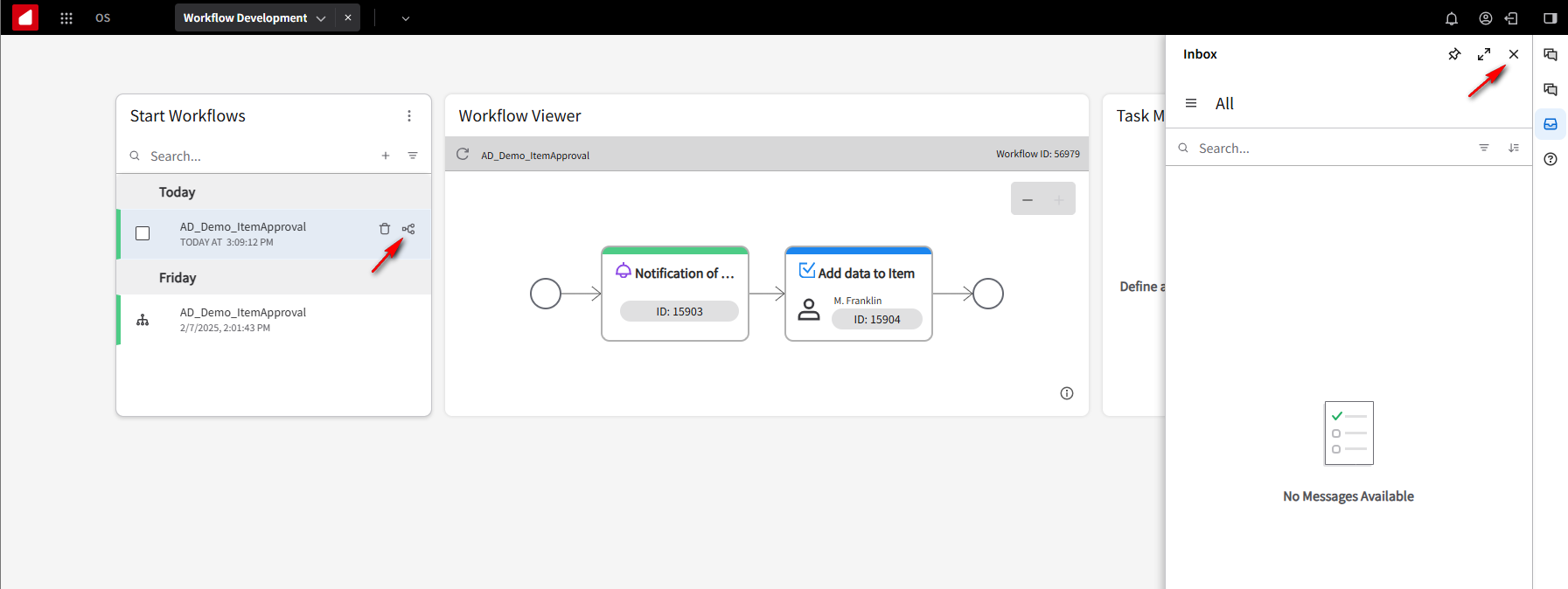
You should see both steps set to green. This tells us both steps have been done.
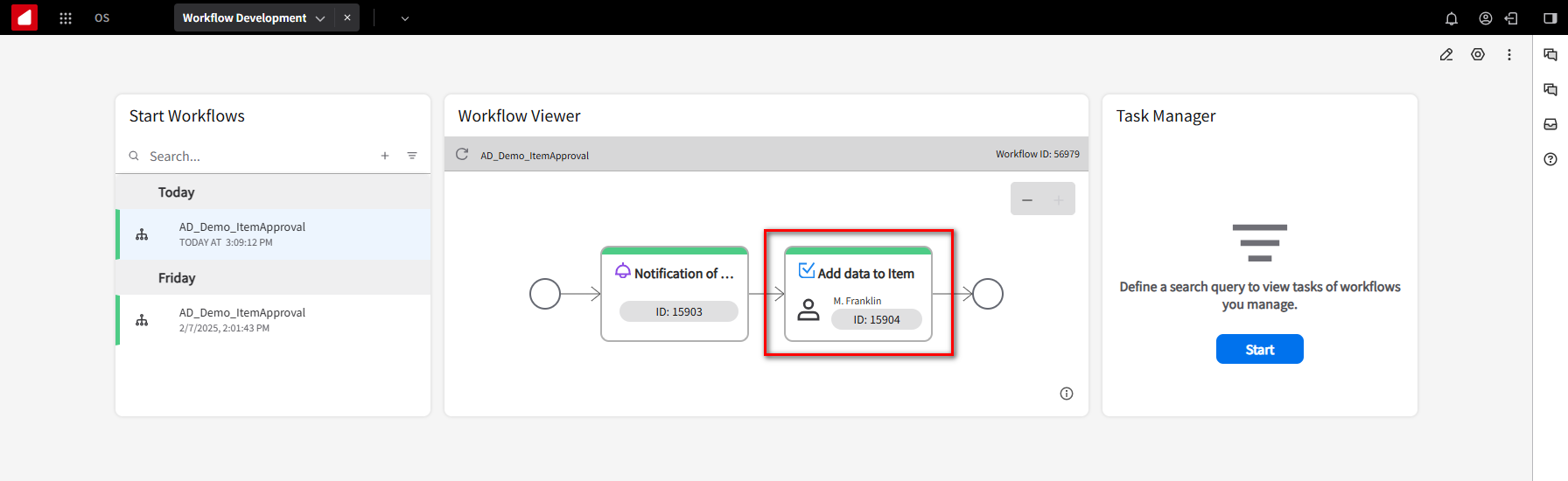
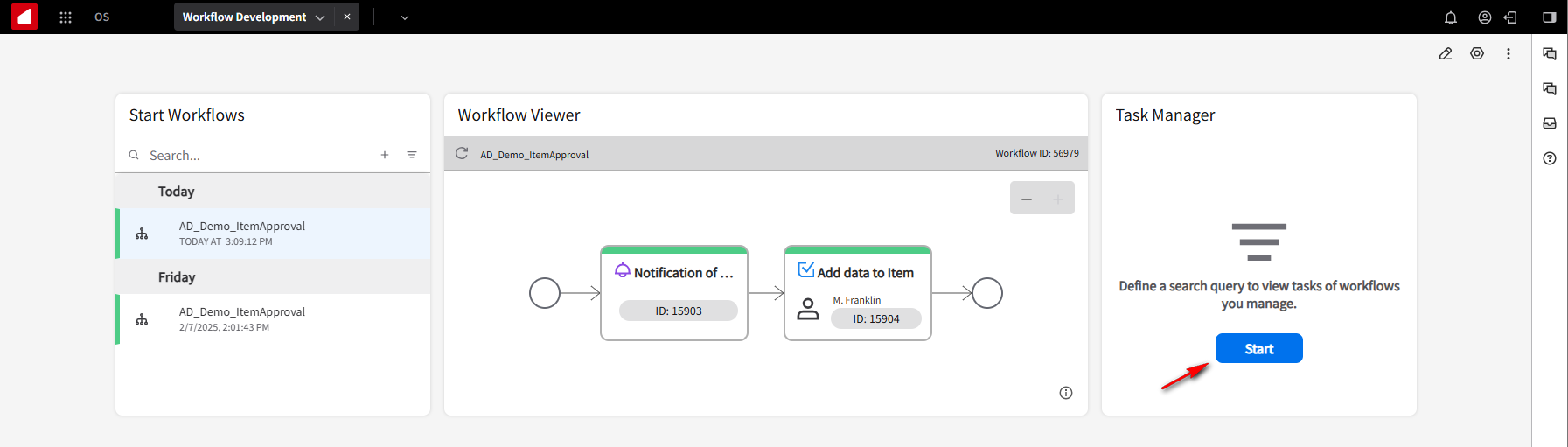
We will add filters to the Task Manager. Click the Start button on the Task Manager widget.
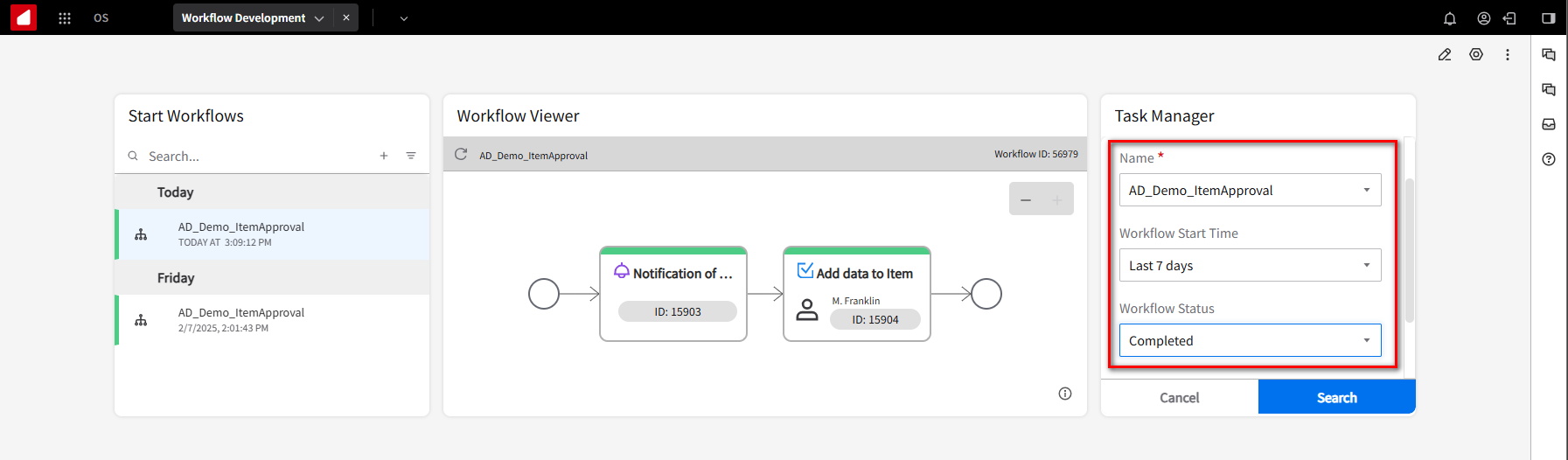
In the Name drop-down field, select the AD_Demo_ItemApproval workflow. In the Workflow Start Time field, use the Last 7 days, and in the Workflow Status field, set it to Completed. Click the Search button.
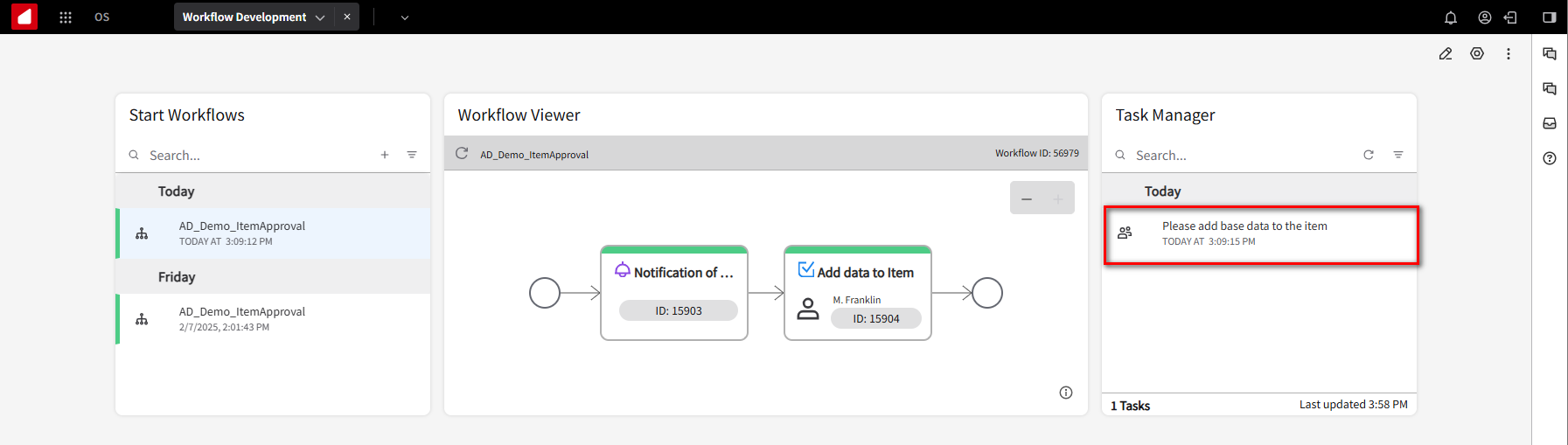
You should see the record in the Task Manager widget. This is a simple way to ensure that everything is running properly.
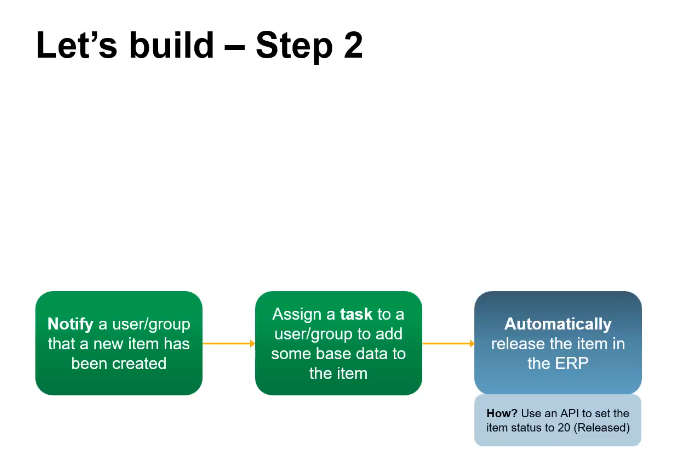
To recap what we have done. We sent a notification to the user and assigned a task to them. The next step is to release the updated items. To do that, we use an API to set the item status to 20, which is the Release status in M3.
Relase the updated items
You will need to set up an Item in M3. In this case, we created a 75-AD1001 Item. We will use the following steps to create the simple Normal Item.
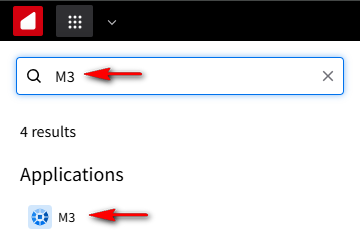
Click on the navigation menu, and in the search bar, type M3. Then, select the M3 application from the Applications section.
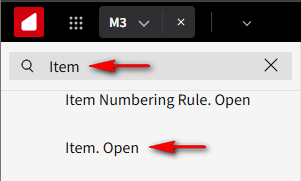
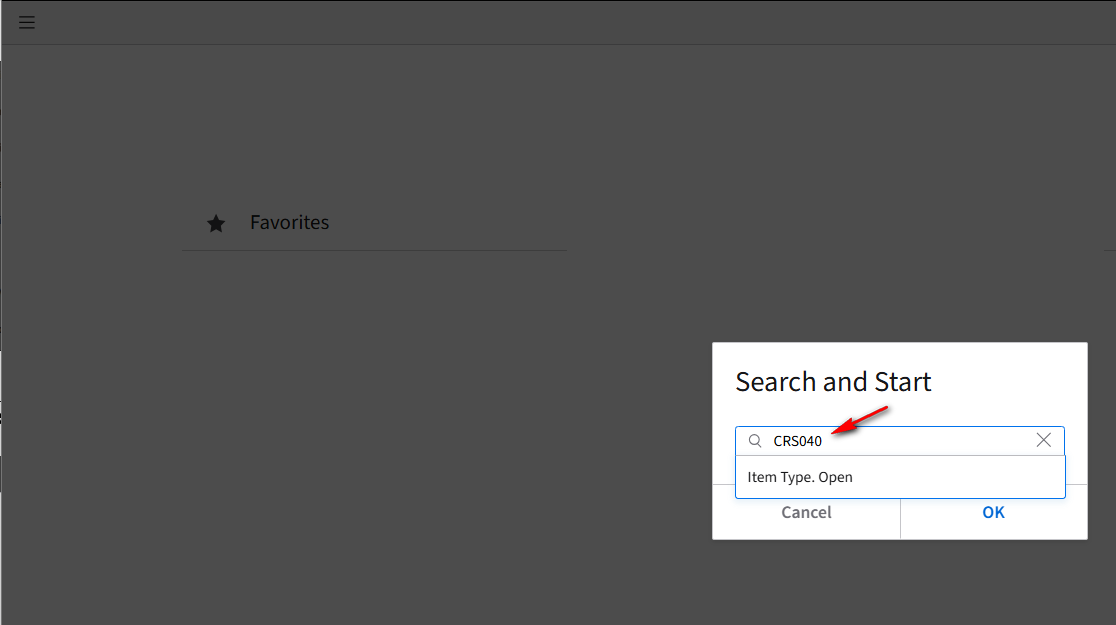
From the M3 Item. Open main page, hit the CNTL R keys, and in the Search and Start section, type CRS040. Select the Item Type.Open option. Click OK.
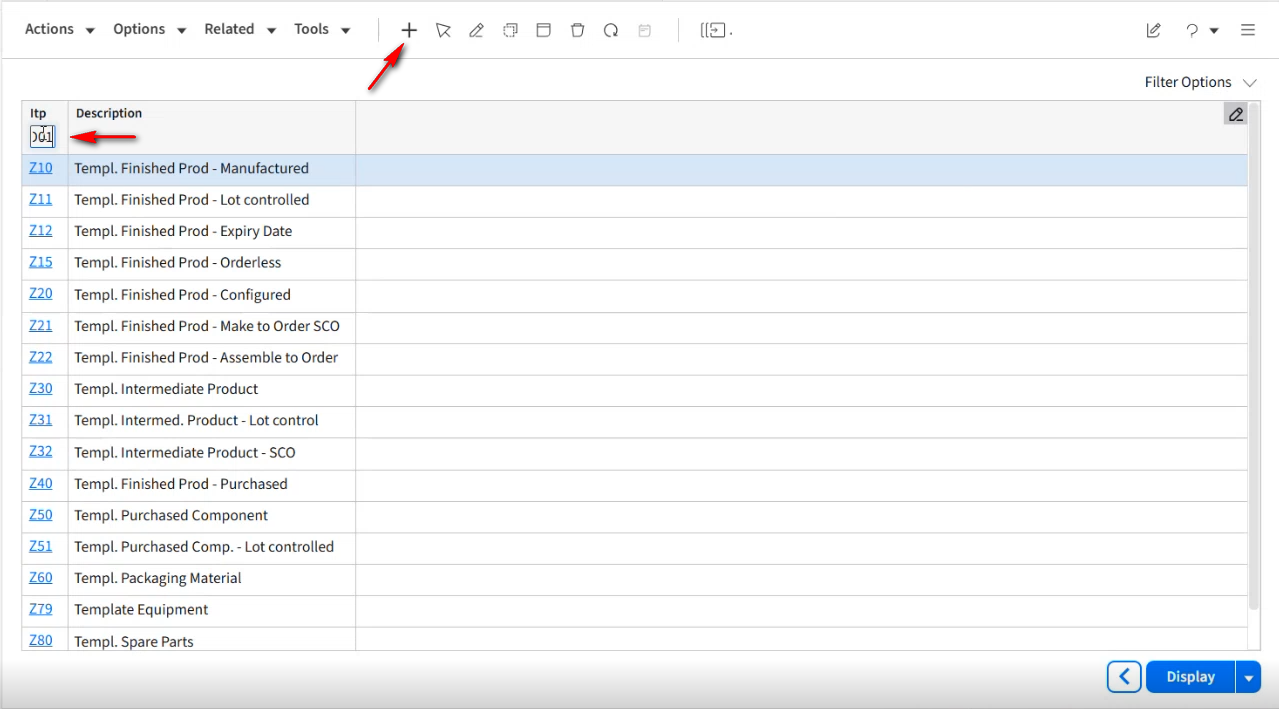
On the Item Type.Open page, in the Itp field, type D01, and click the + button to create the Item Type.
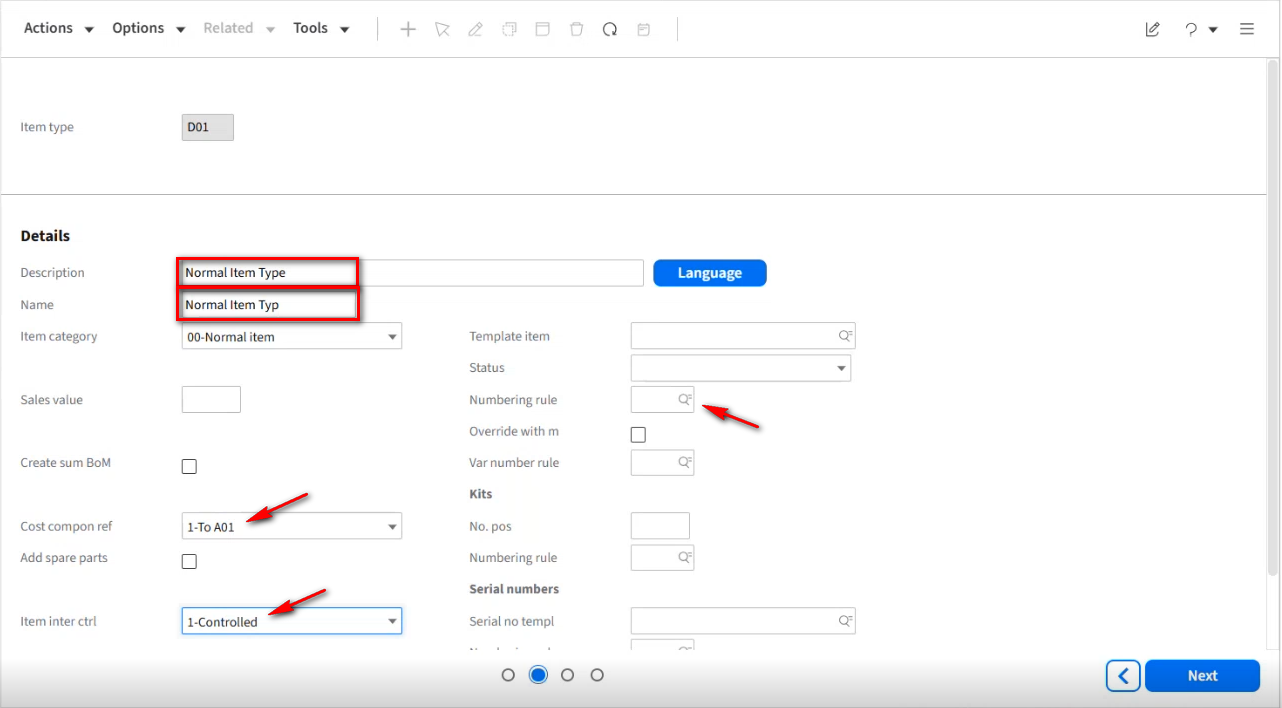
On the D01 Item Type page, fill in the Description and Name fields with “Normal Item Type“. Note the Name field has limited characters. From the drop-down, select 1-To A01 for the Cost compon ref field and 1-Controlled for the Item inter ctrl field. Click the search icon in the Numbering rule field.
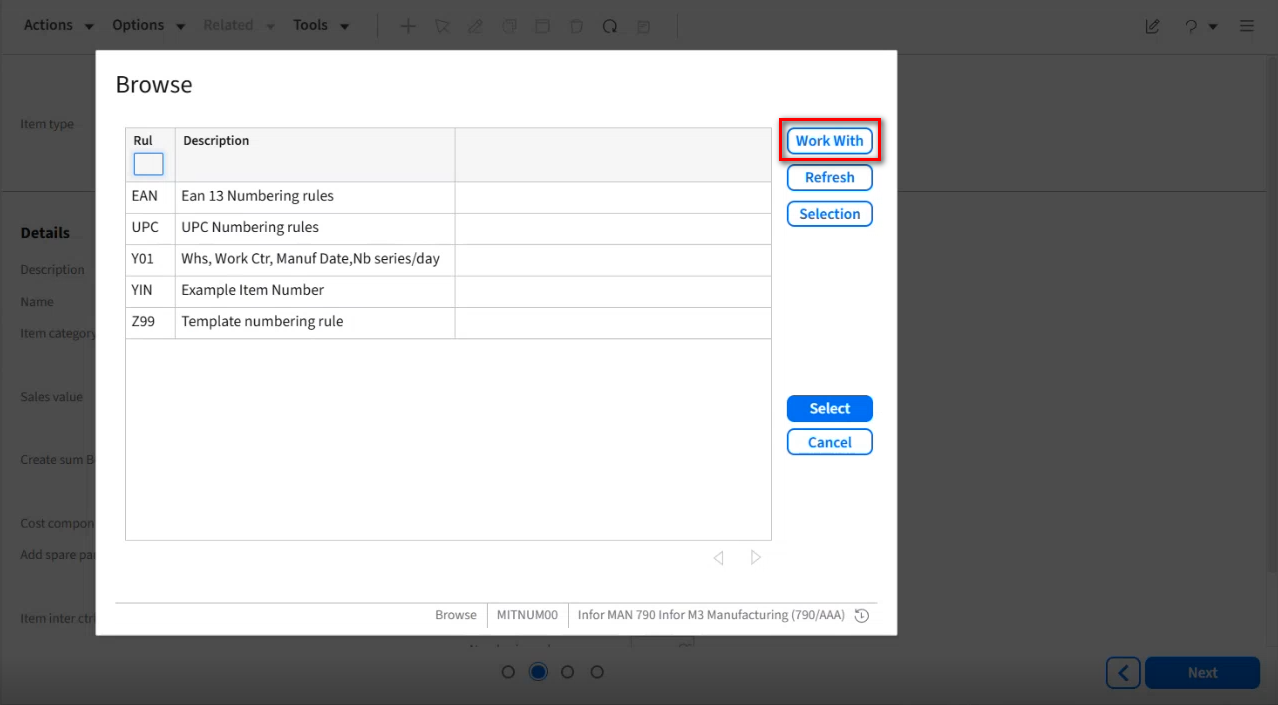
On the Browse page, click the Work With Button.
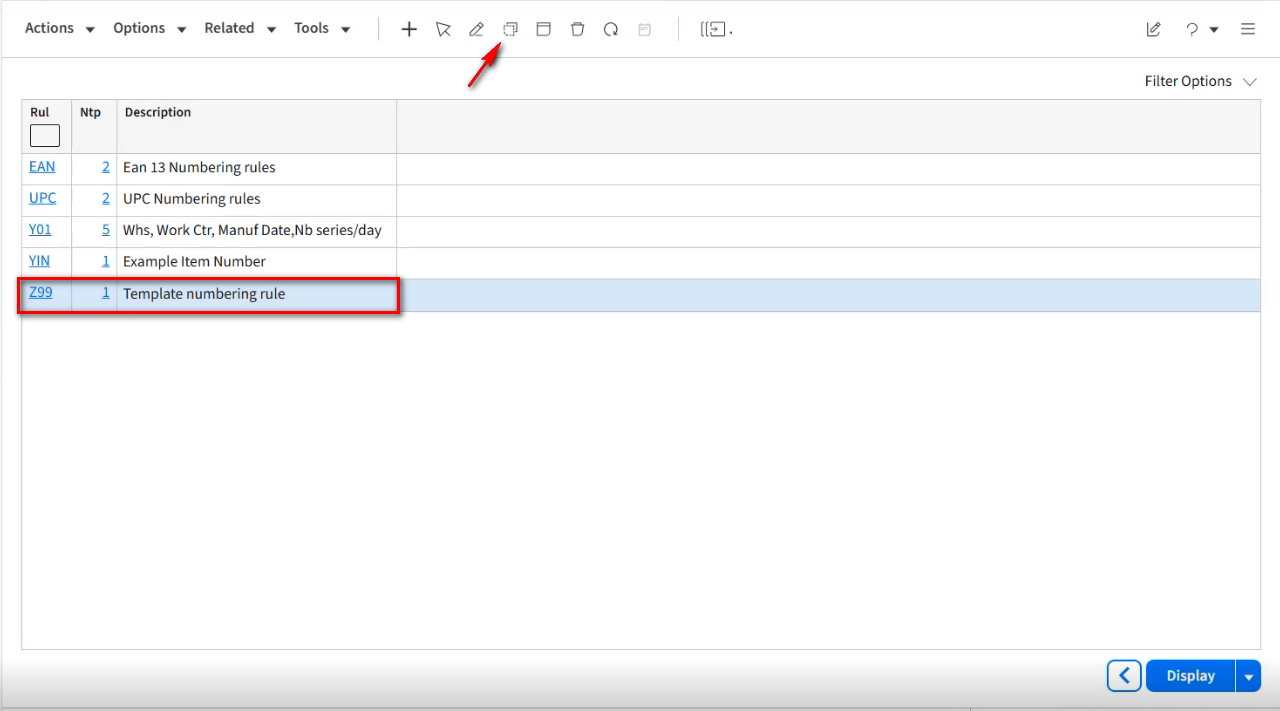
On the Item Numbering Rule.Open page, select the Z99 Template numbering rule, and click the Copy button.
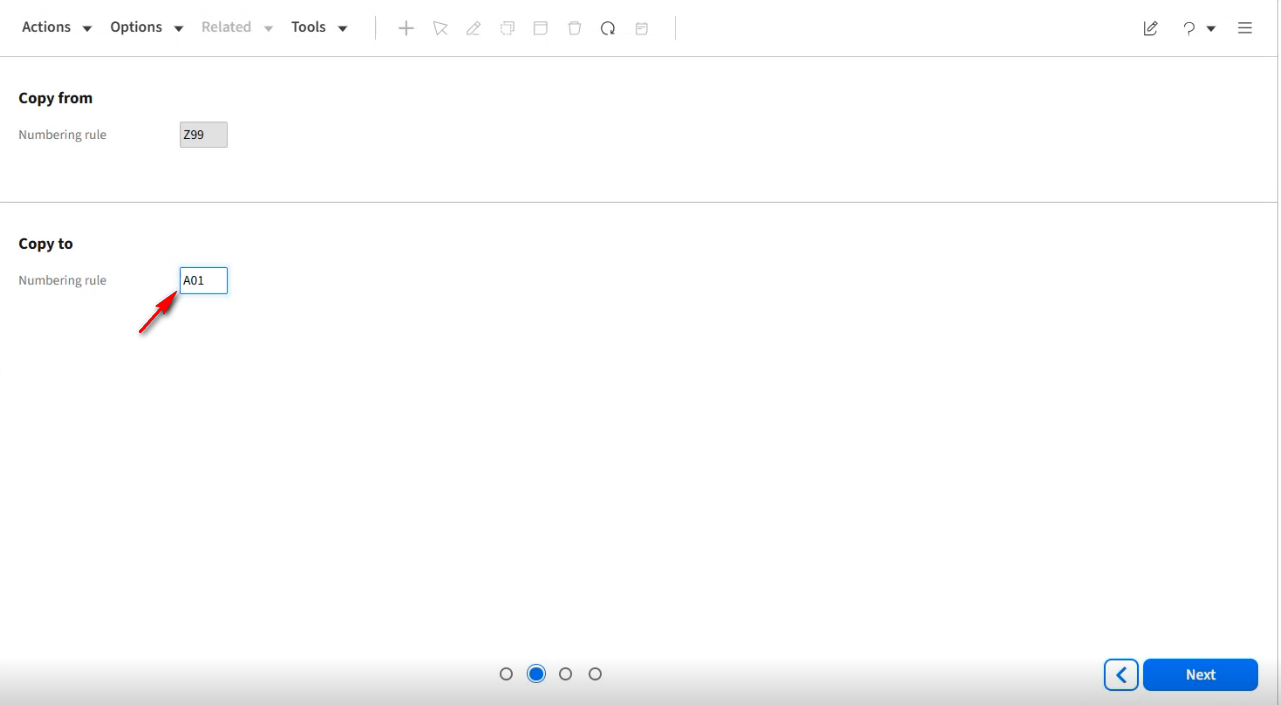
In the Copy To section, change the Numbering rule to A01. Click Next.
Change the Description to Normal numbering rule. Click Next.
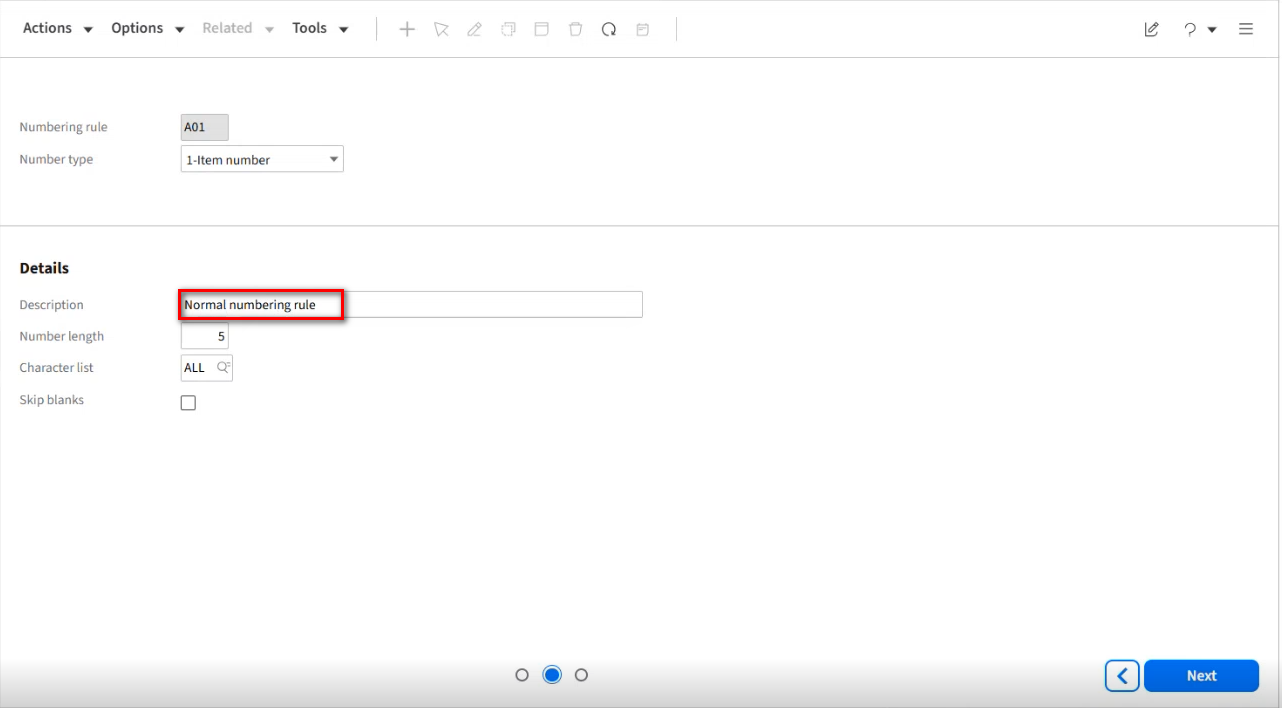
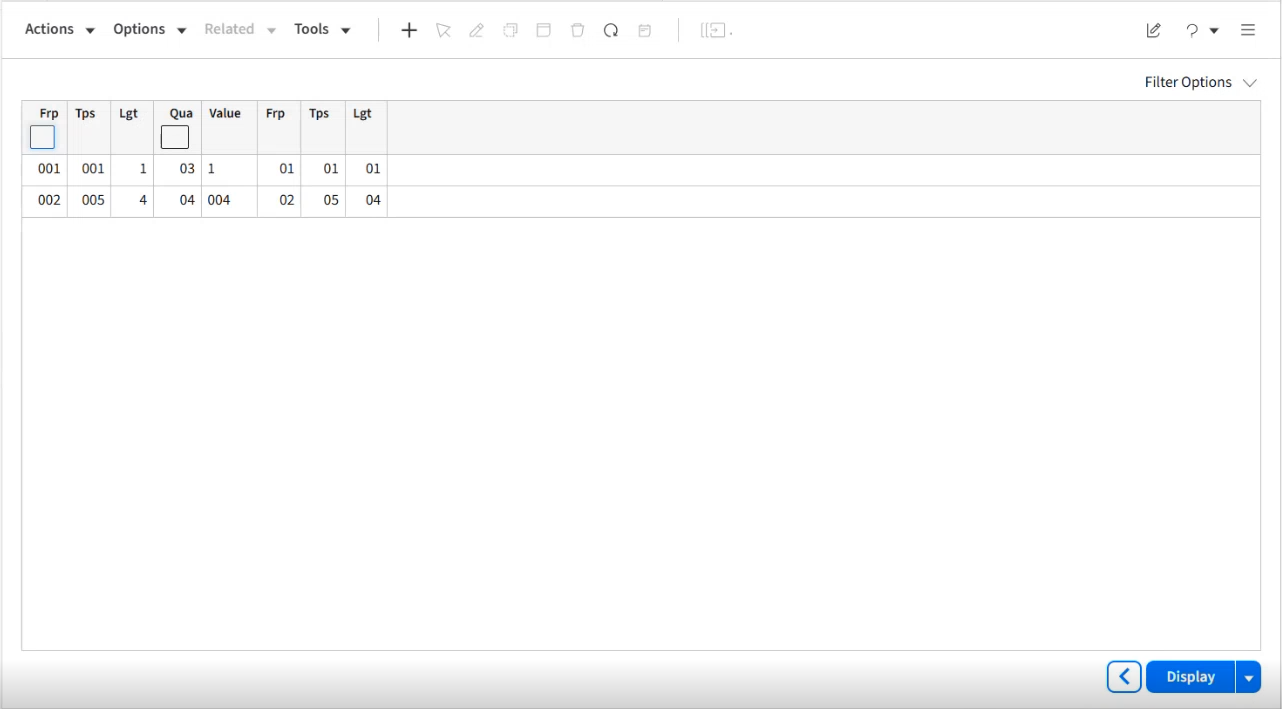
Leave this page as is. Click the F3 key to return to the Item Numbering Rule.Open page.
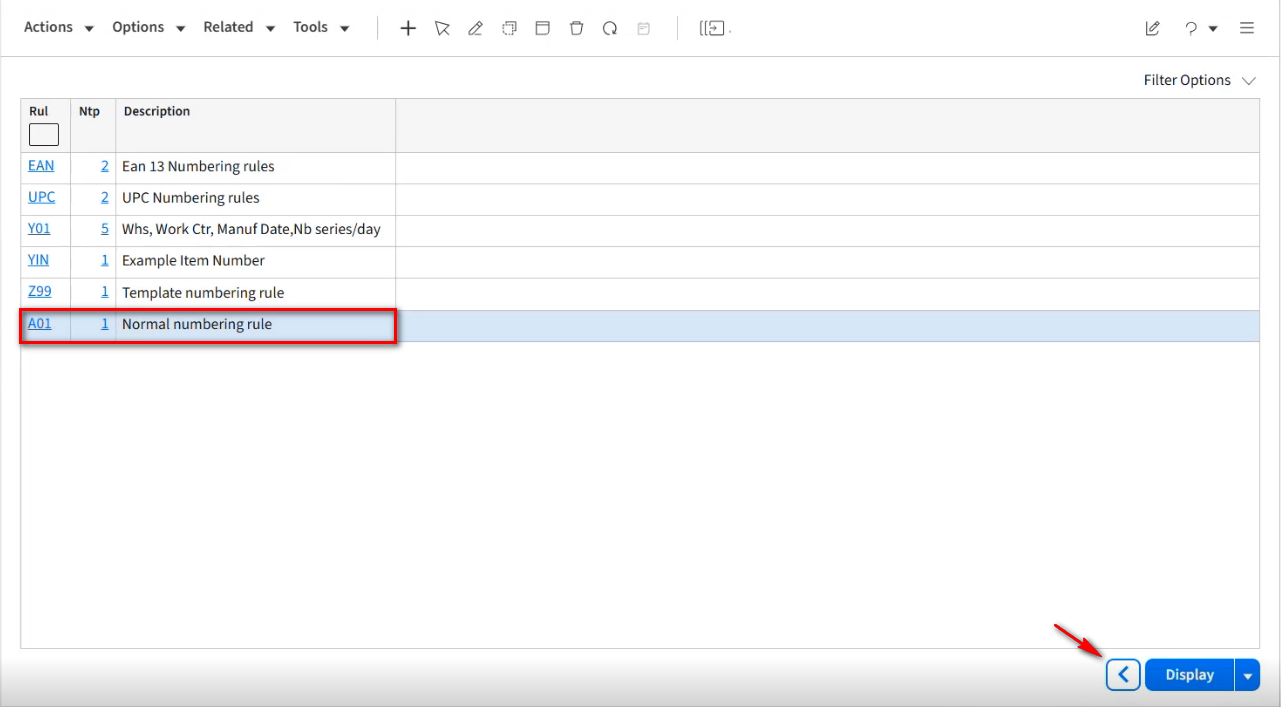
You will notice that the A01 Normal numbering rule has been created. Click the back arrow on the bottom of the screen.
Click on the search icon again in the Numbering rule field.
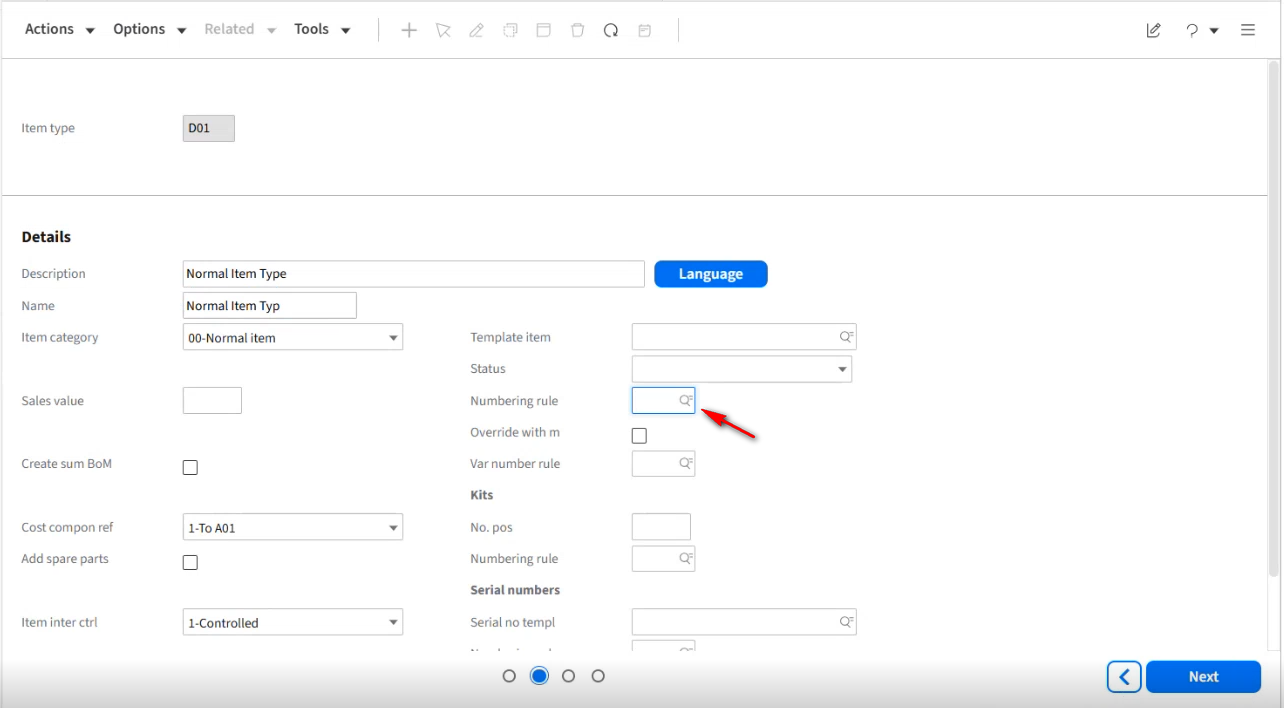
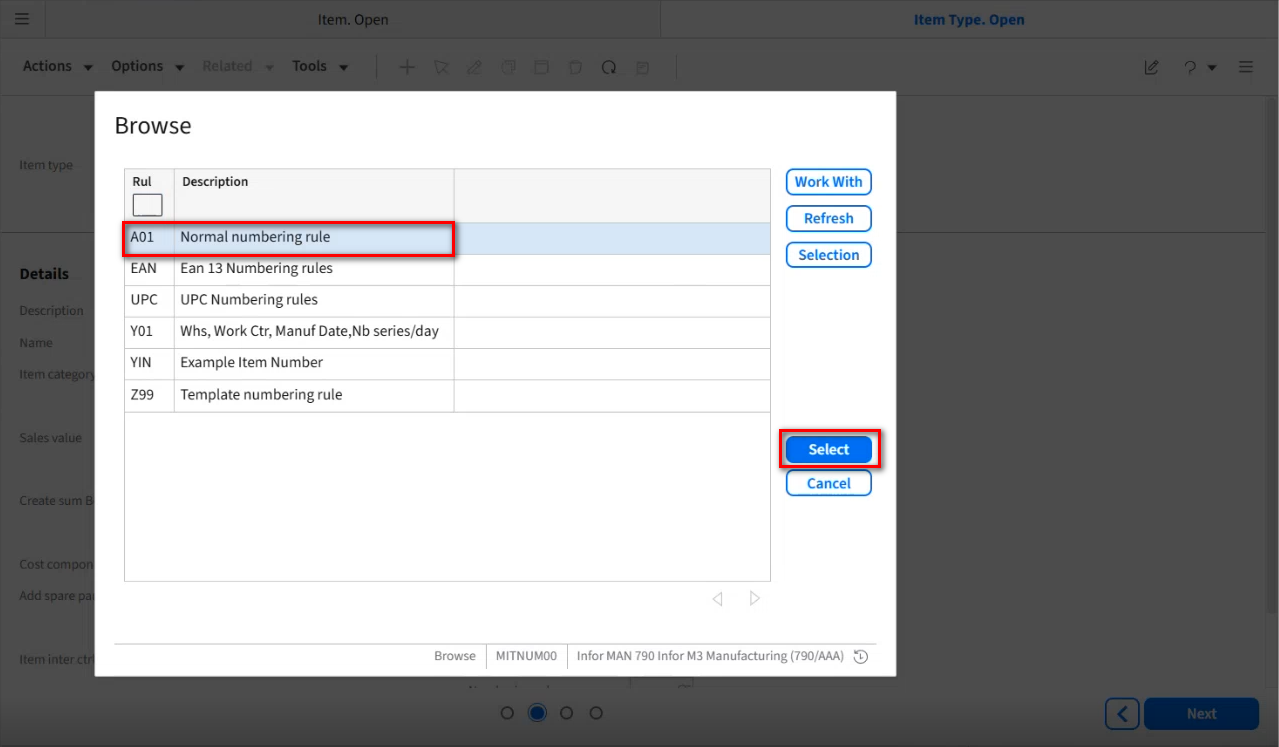
Click on the A01 Normal numbering rule option and then the Select button.
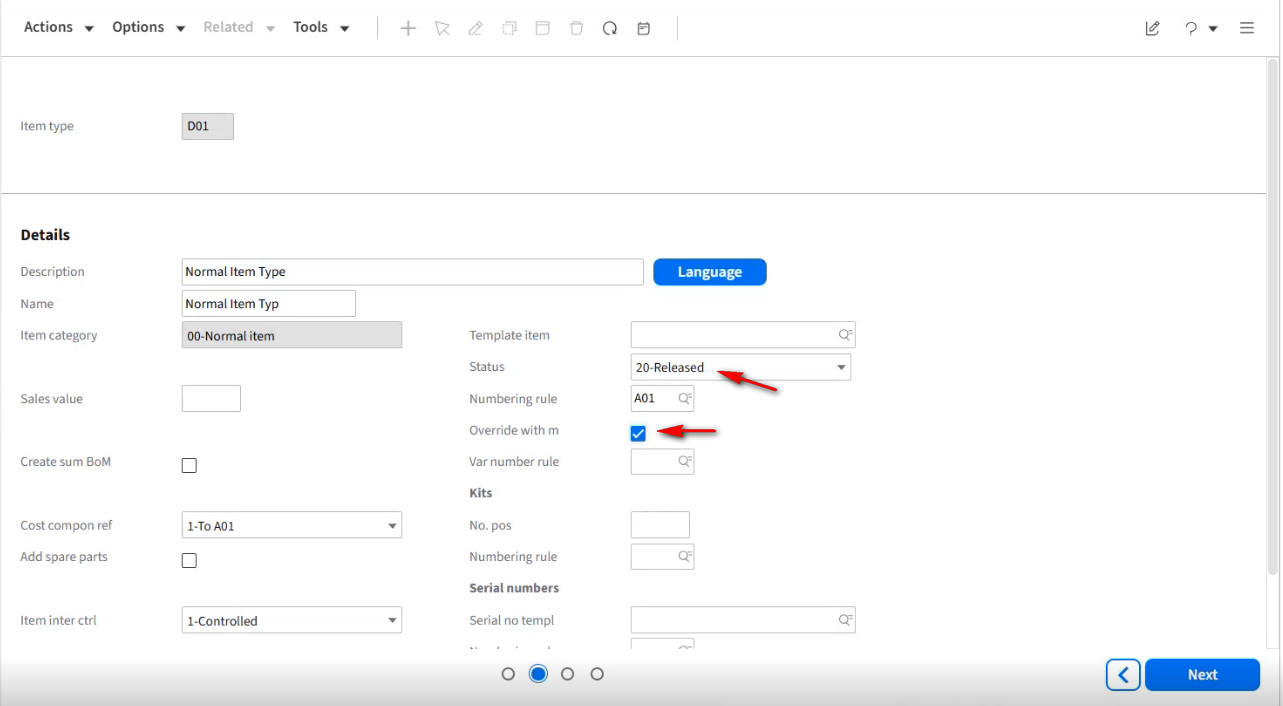
From the Status field drop-down, select 20-Released and check the Override with m option. Click Next.
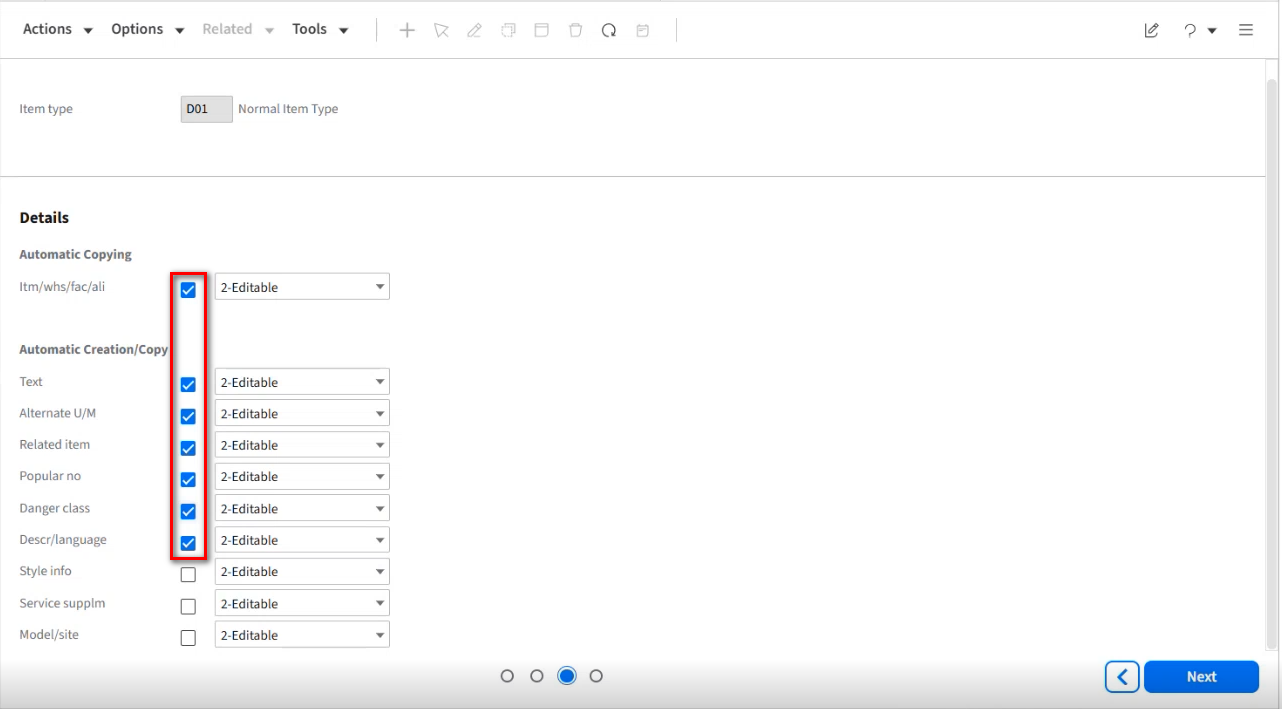
Select the following option, Click Next.
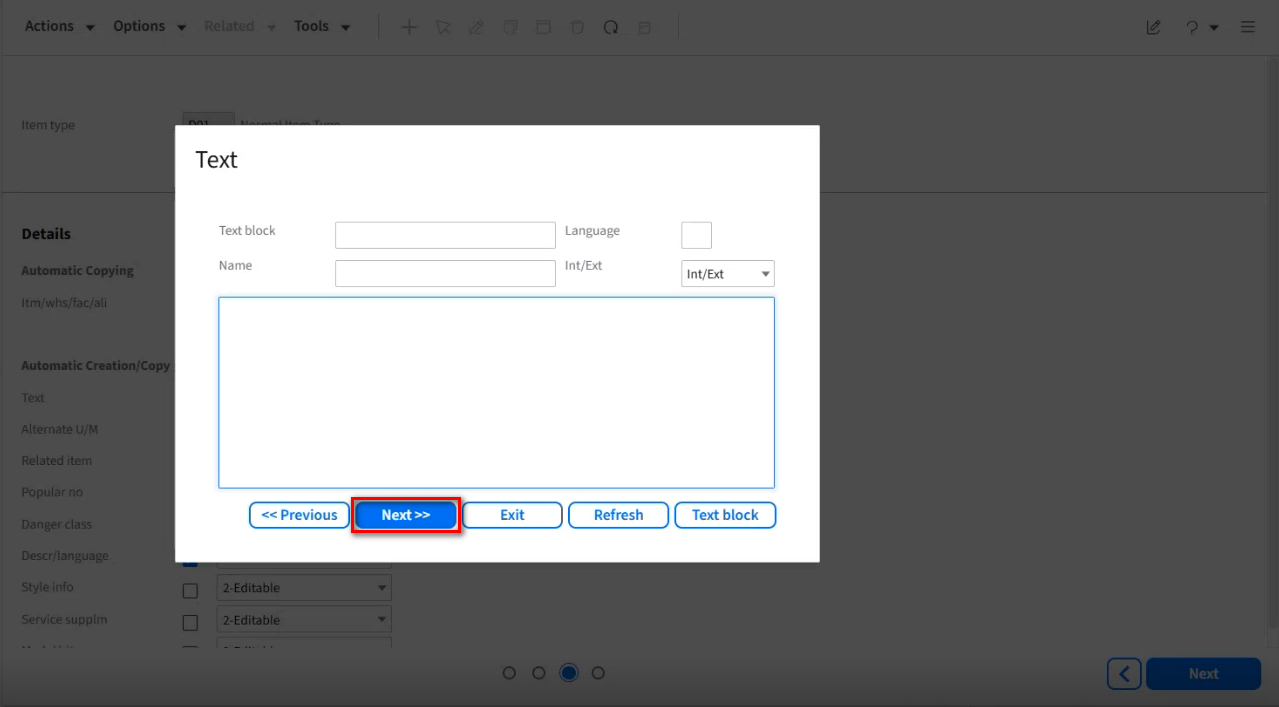
On the Text screen, Click Next.
Close the Item Type.Open screen, by highlighting the top of the page and clicking the X icon in the upper right hand corner.

Hit the CNTL R keys again, and in the Search and Start section, type MMS001. Select the Item.Open option. Click OK.
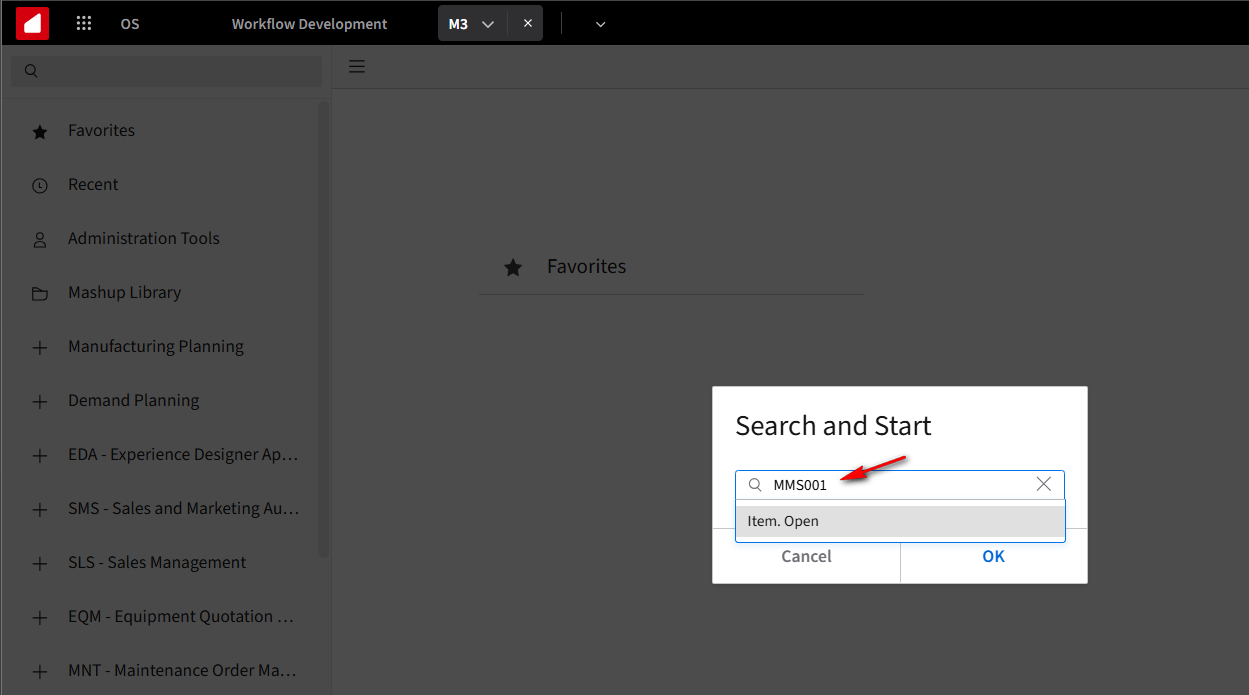
Fill in the Item Number field with the Item you want to create. In our example, we will use 75-AD1001. Click the + button to create the Item.
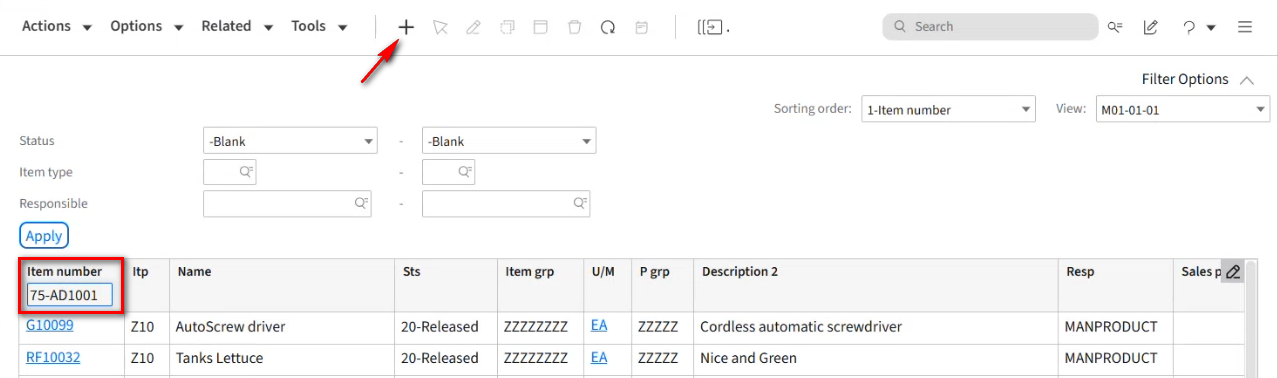
In the Item type field click on the Search icon.
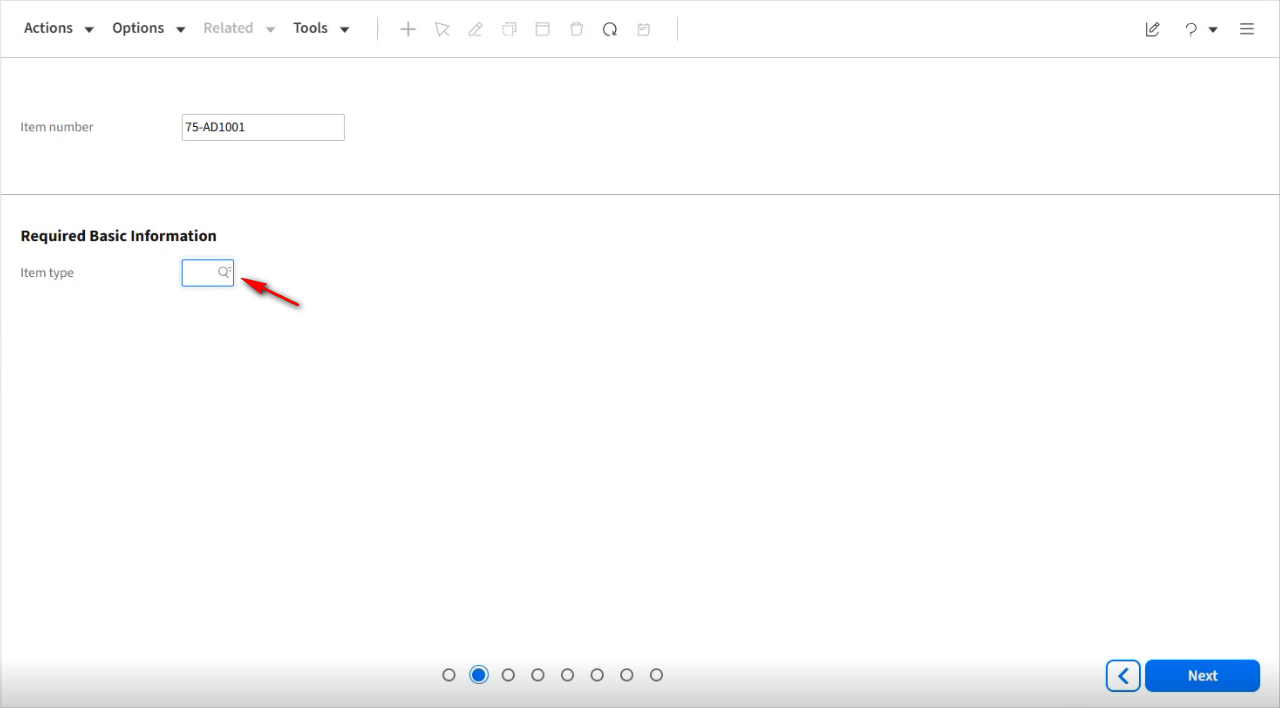
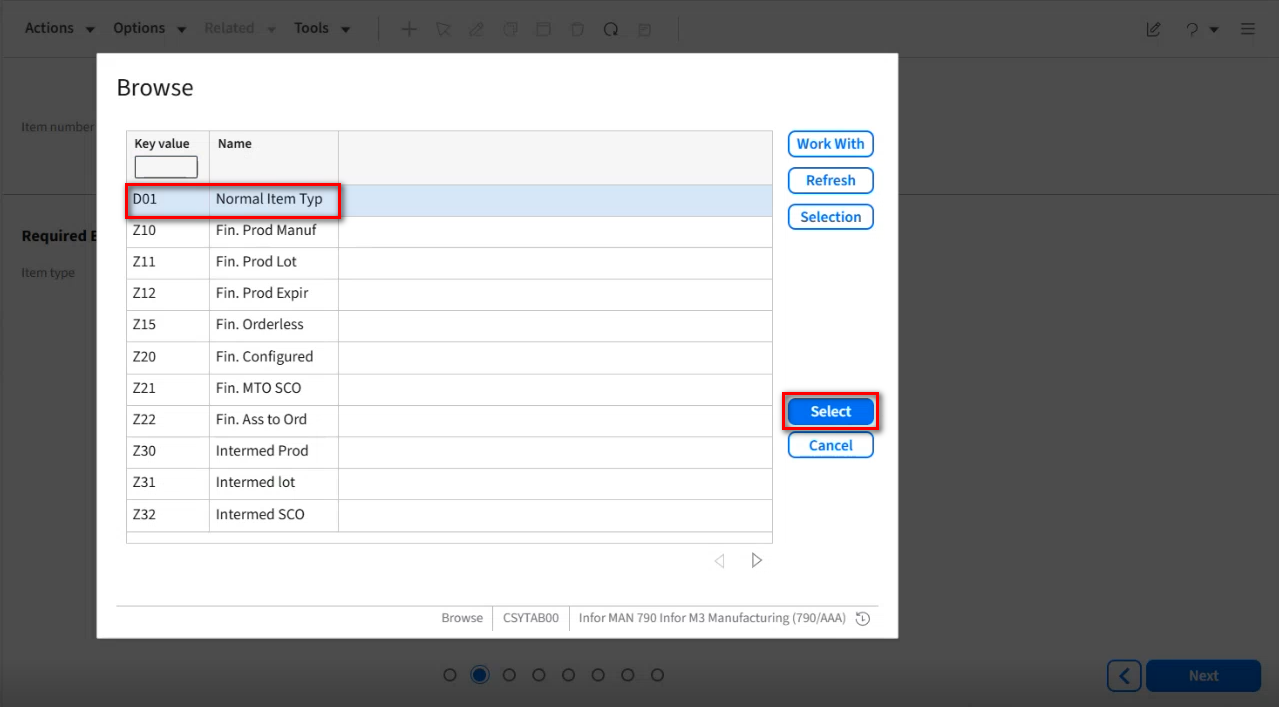
Select the D01 Normal Item Type option and click the Select button.
Click Next.
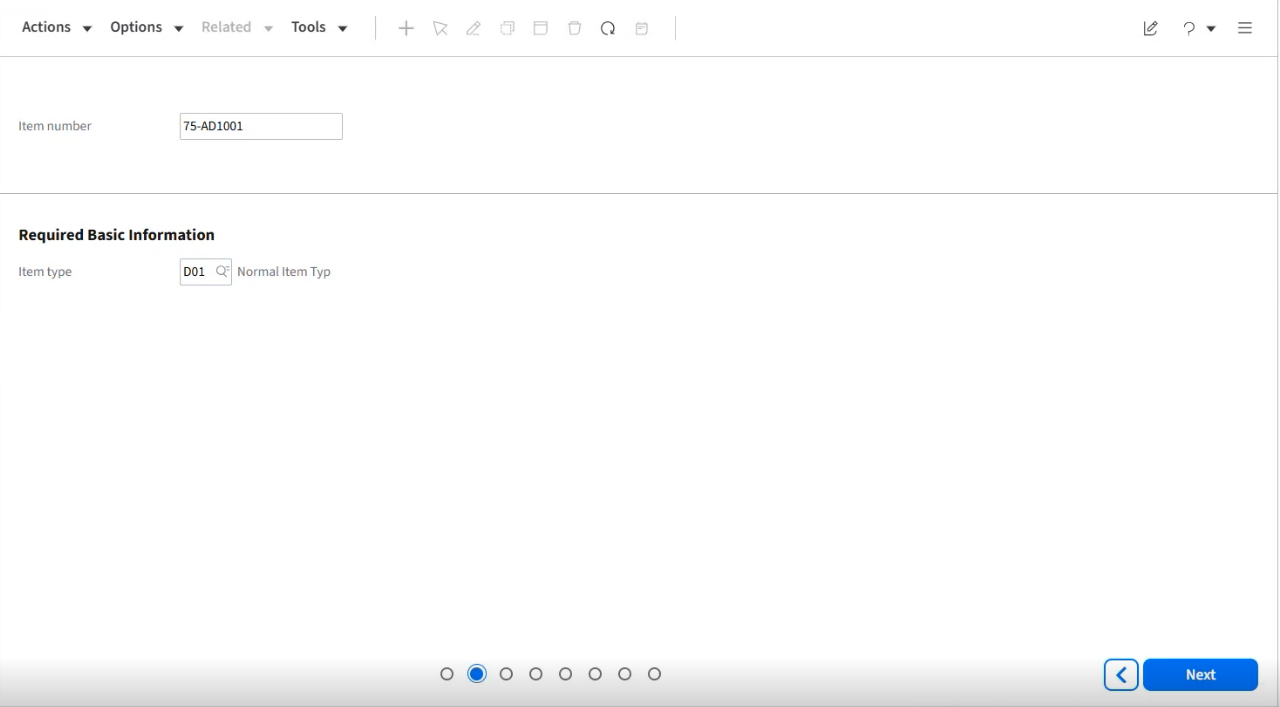
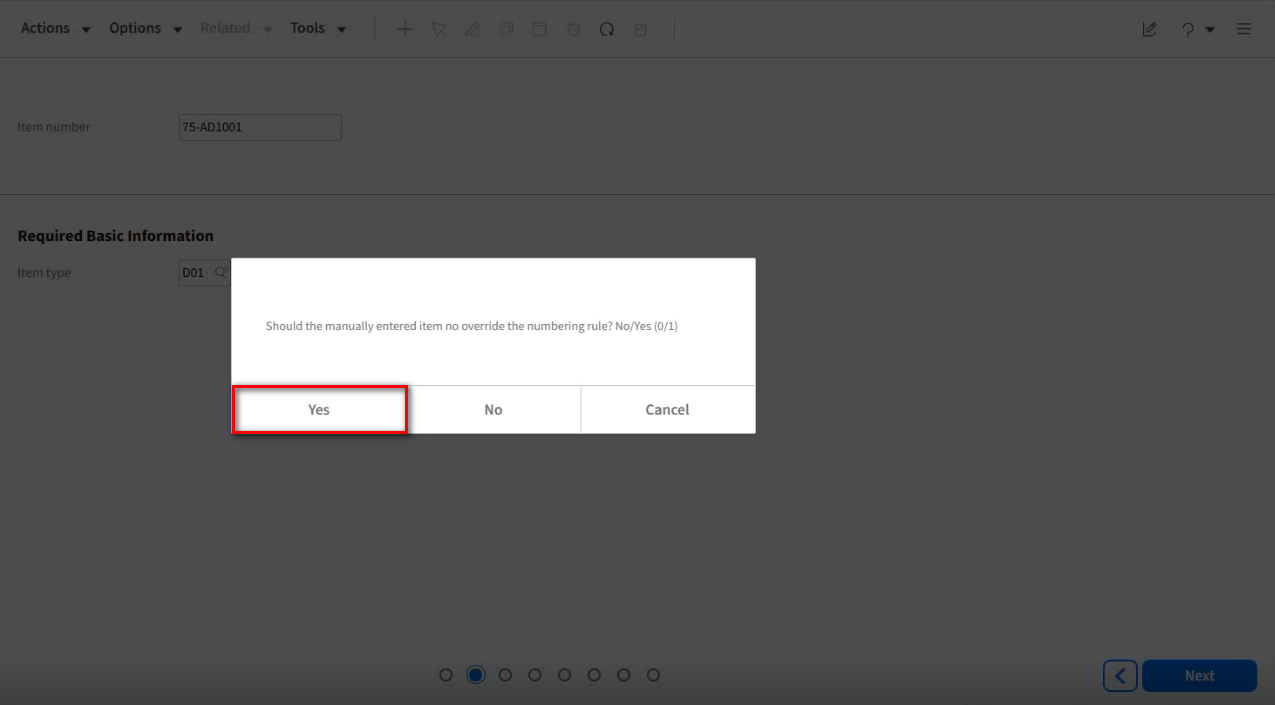
Click Yes on the “Should the manually entered item no override the numbering rule” question.
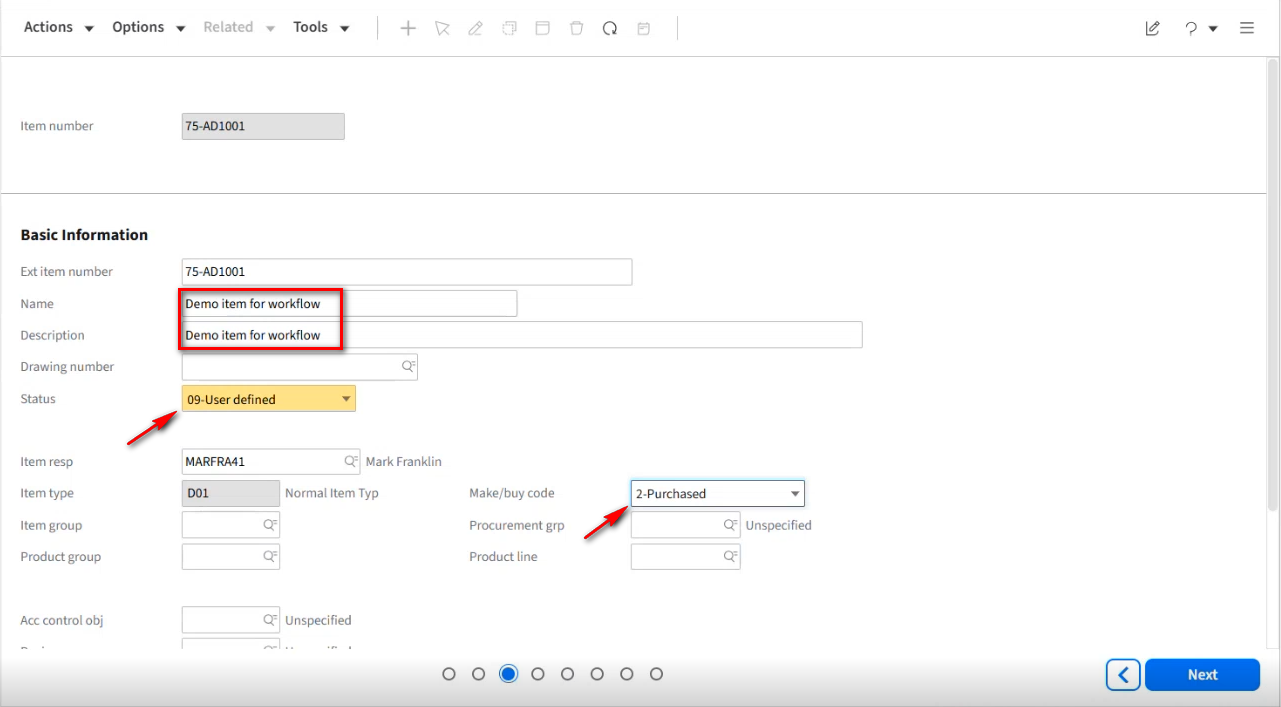
Fill in the Name and Description fields with Demo item for workflow. From the Status field drop-down, select the 09-User defined option, and in the Make/buy code drop-down field, select 2-Purchased.
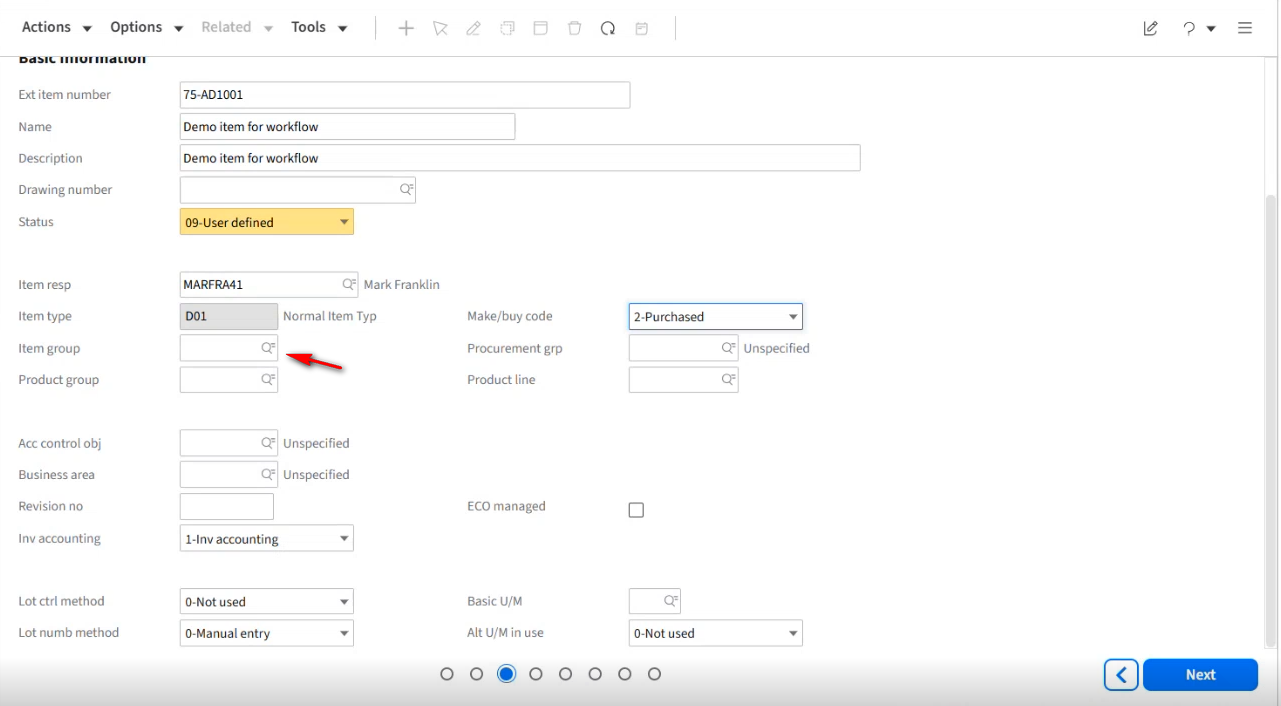
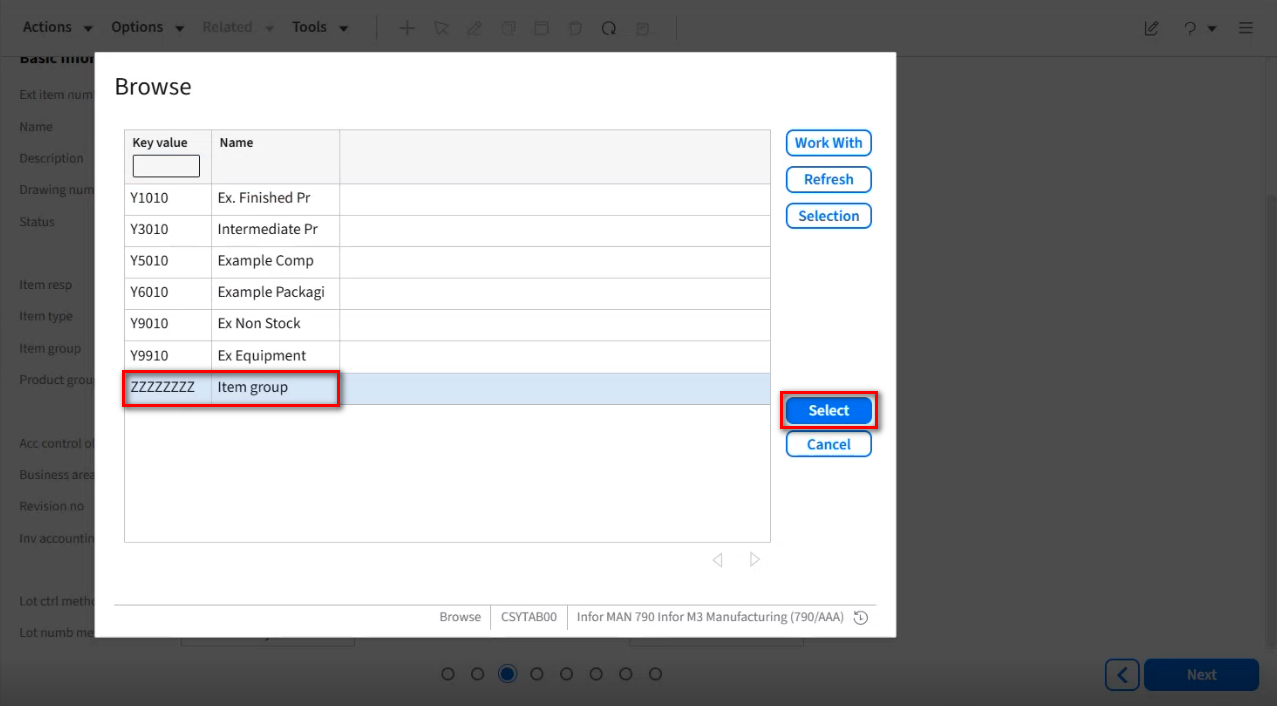
Scroll down on the page and Click the Search icon in the Item group field.
On the Browse window, select the ZZZZZZZZ Item group option and click the Select button.
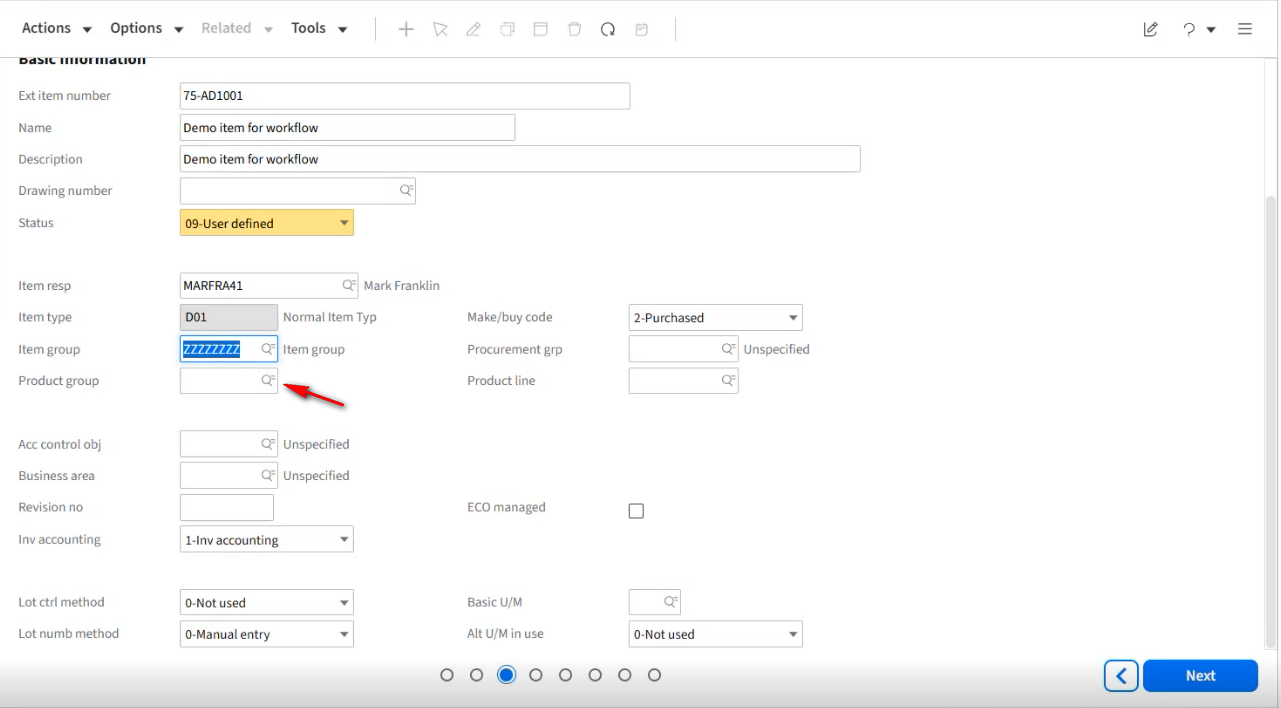
Click the Search icon in the Product group field.
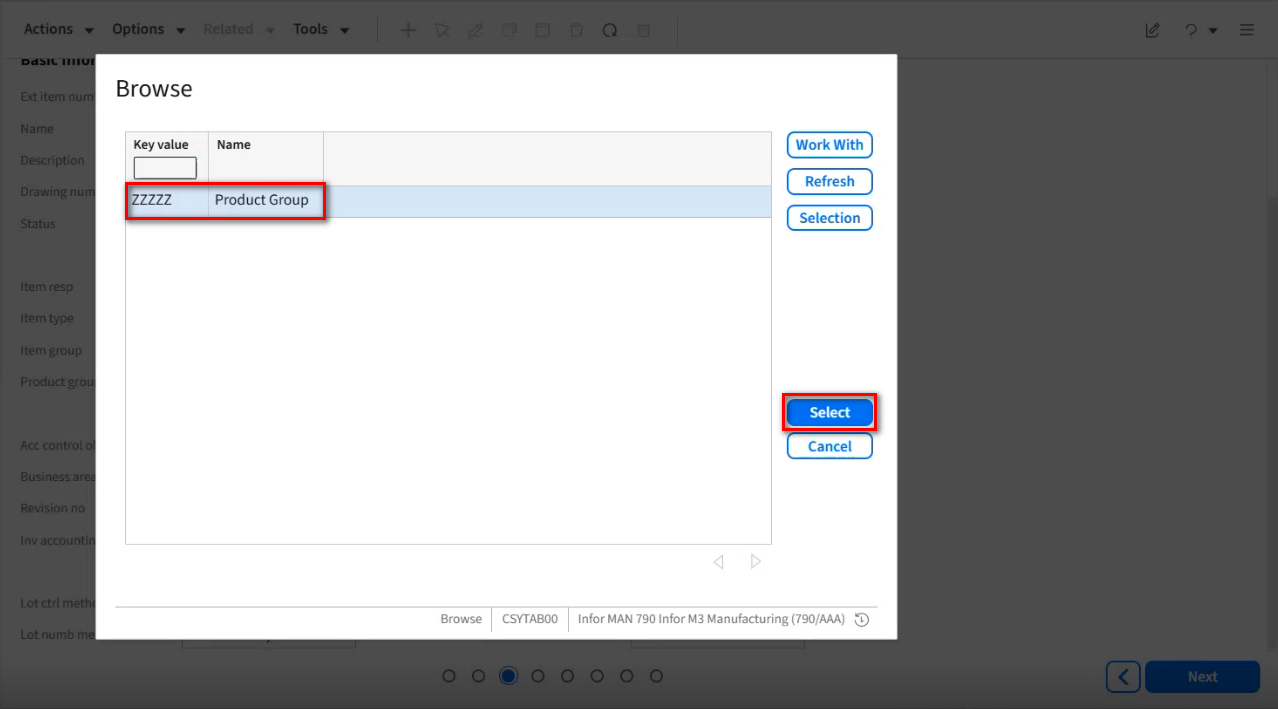
On the Browse window, select the ZZZZ Product group option and click the Select button.
Click the Search icon in the Basic U/M field.
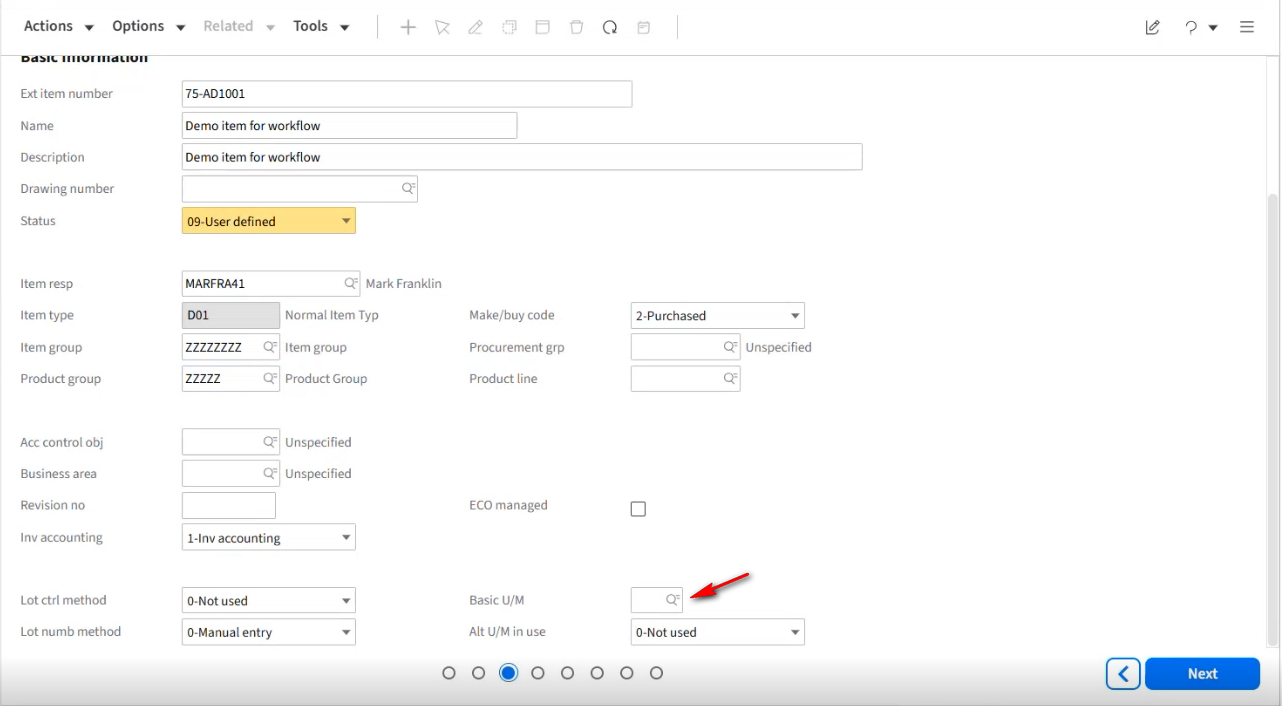
On the Browse window, select the EA Each option and click the Select button.
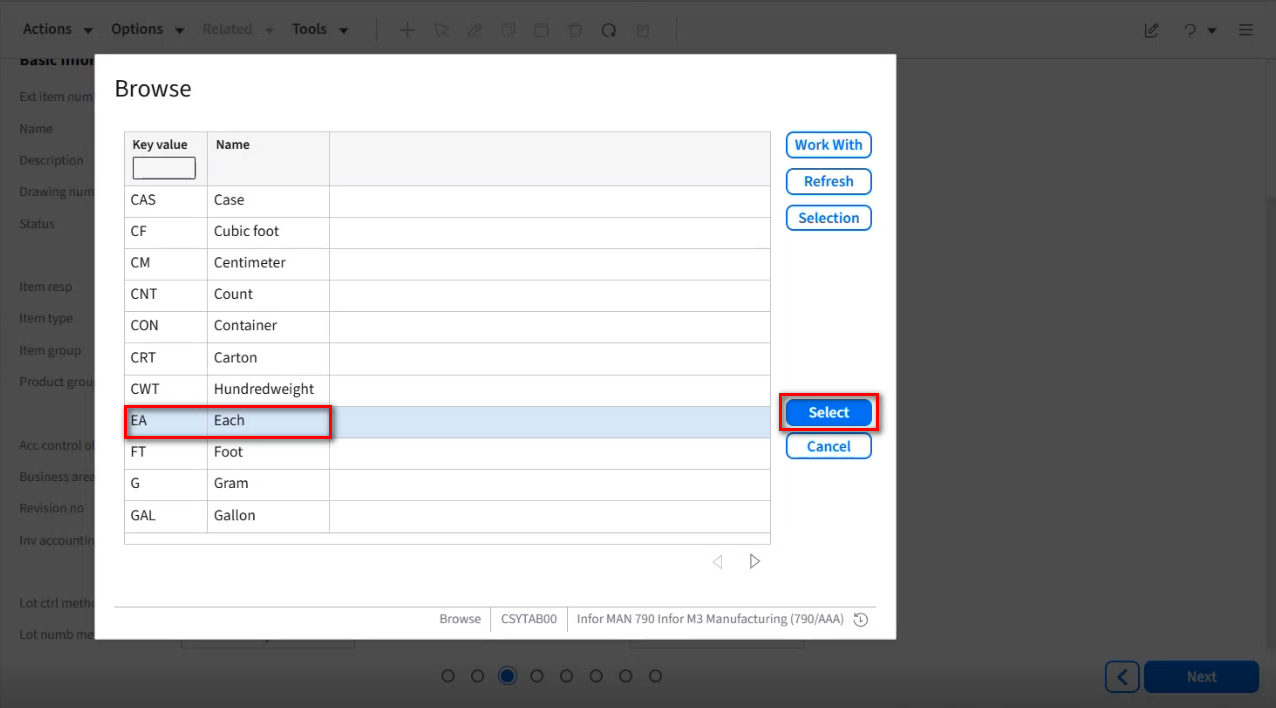
Click Next.
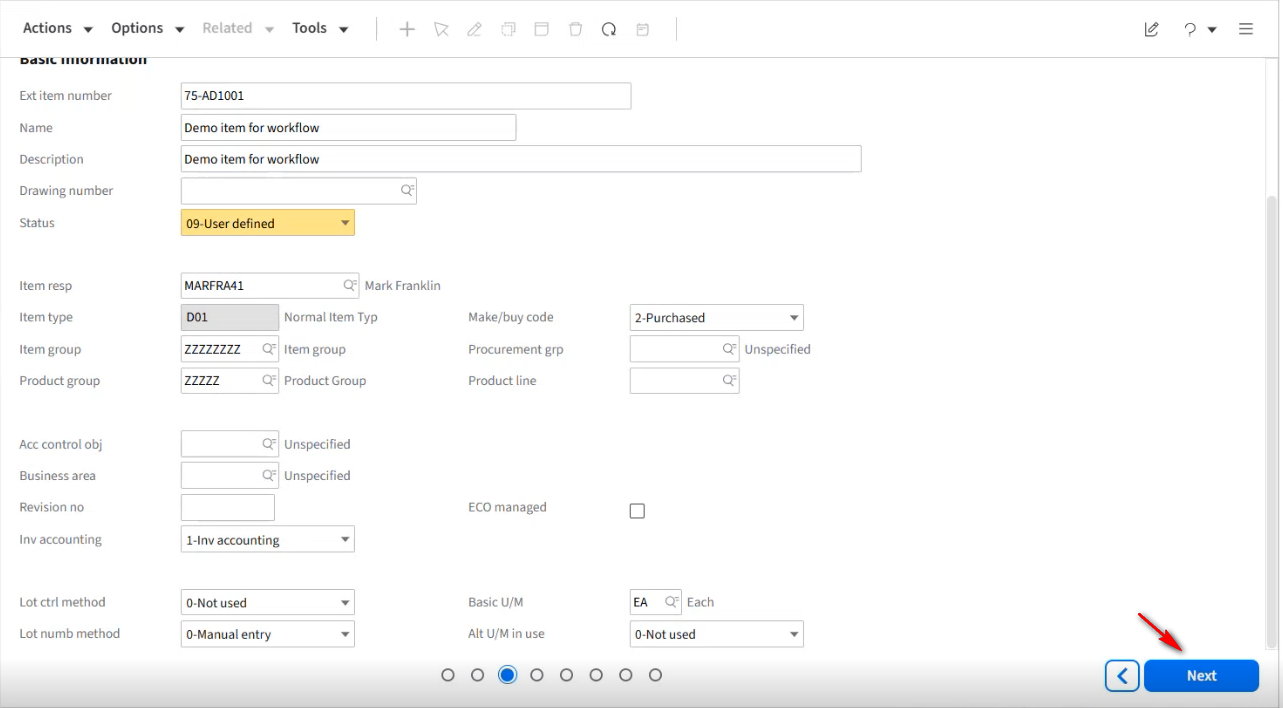
We will keep the default values through the remaining Item setup. Click Next.
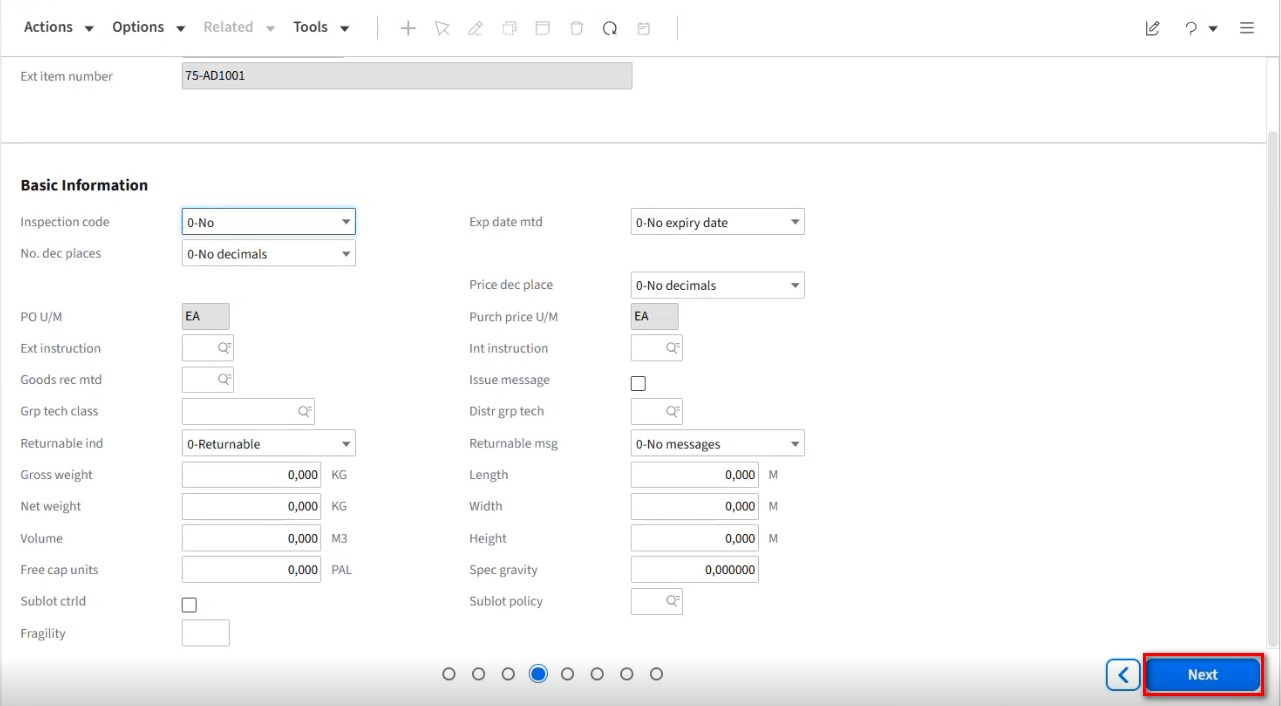
Click Next.
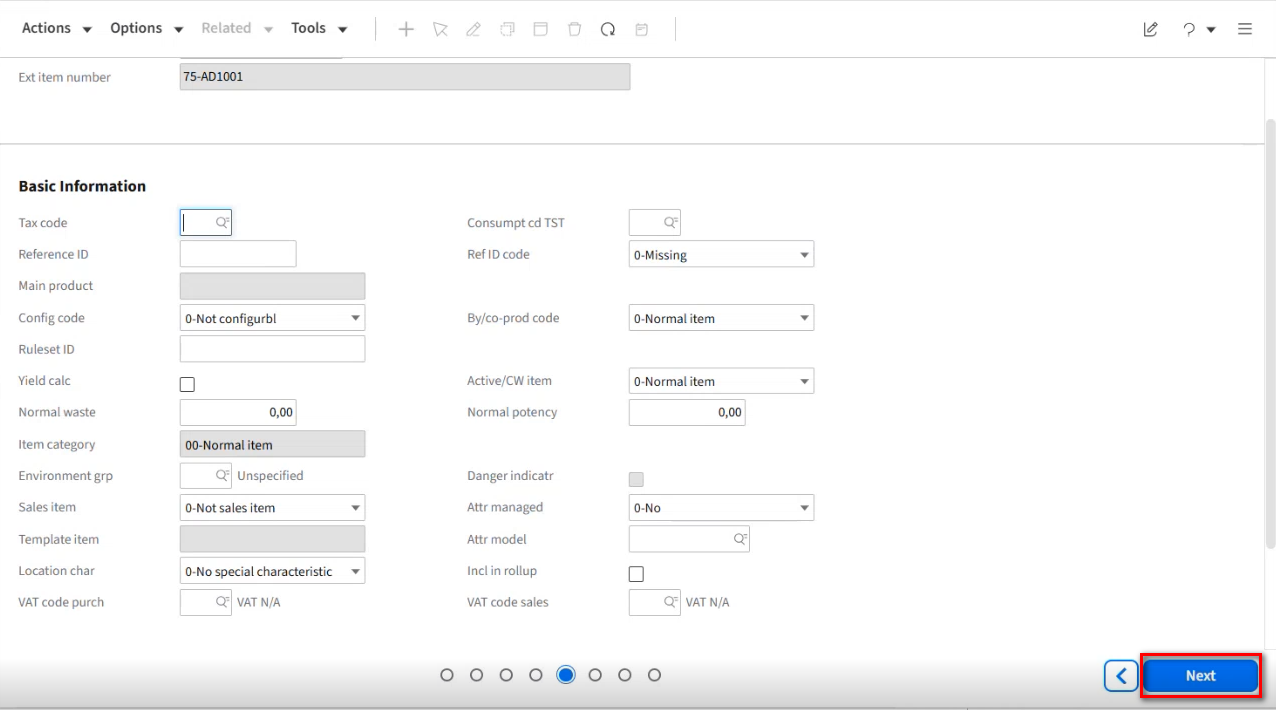
Click Next.
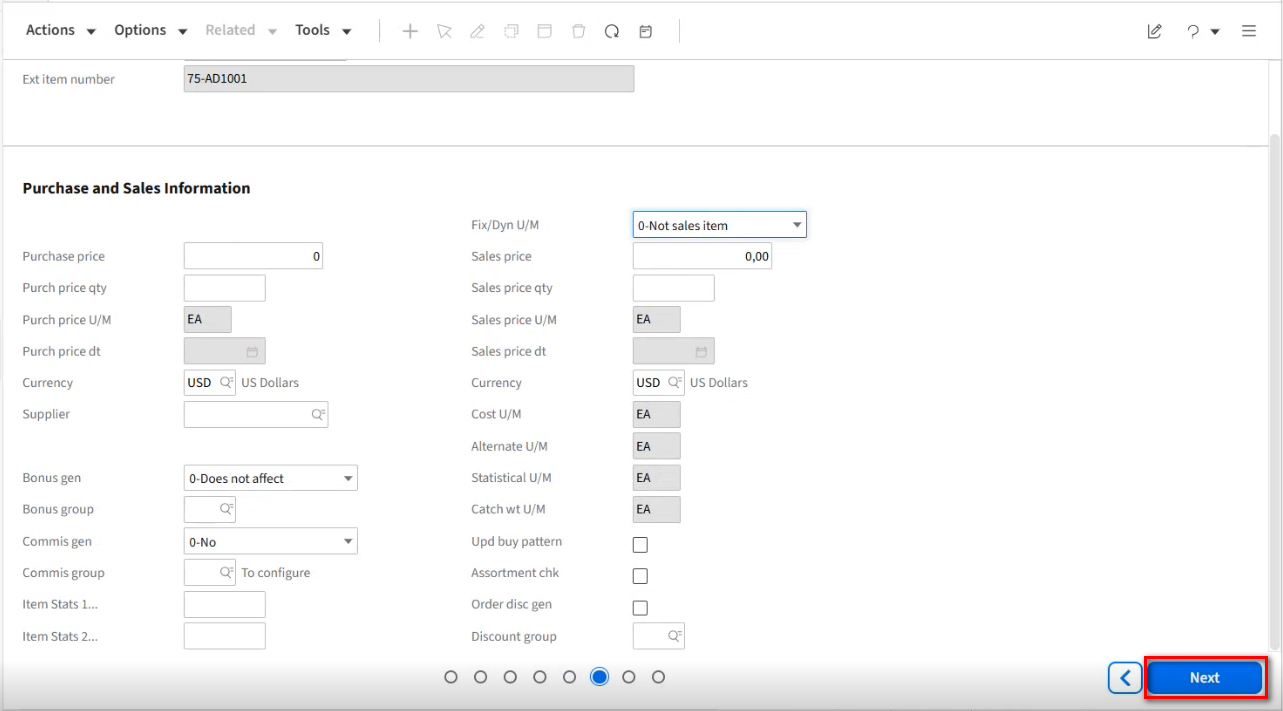
Click Next.
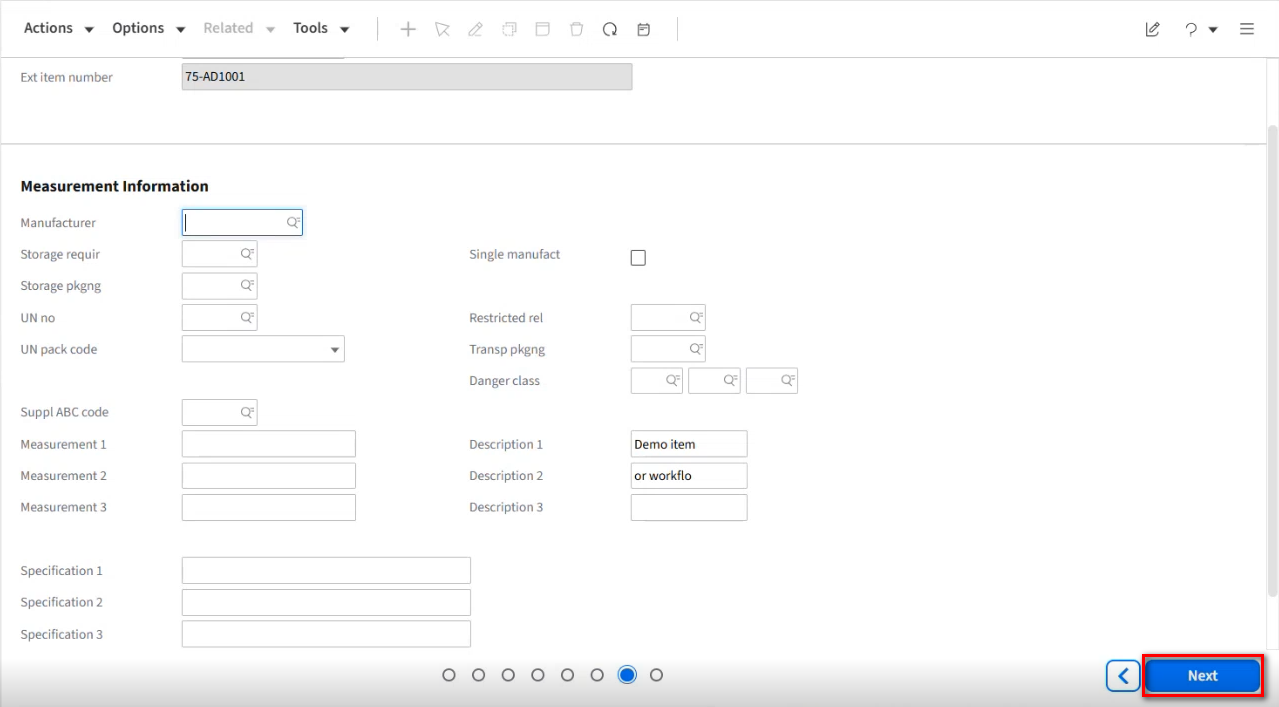
Click Next.
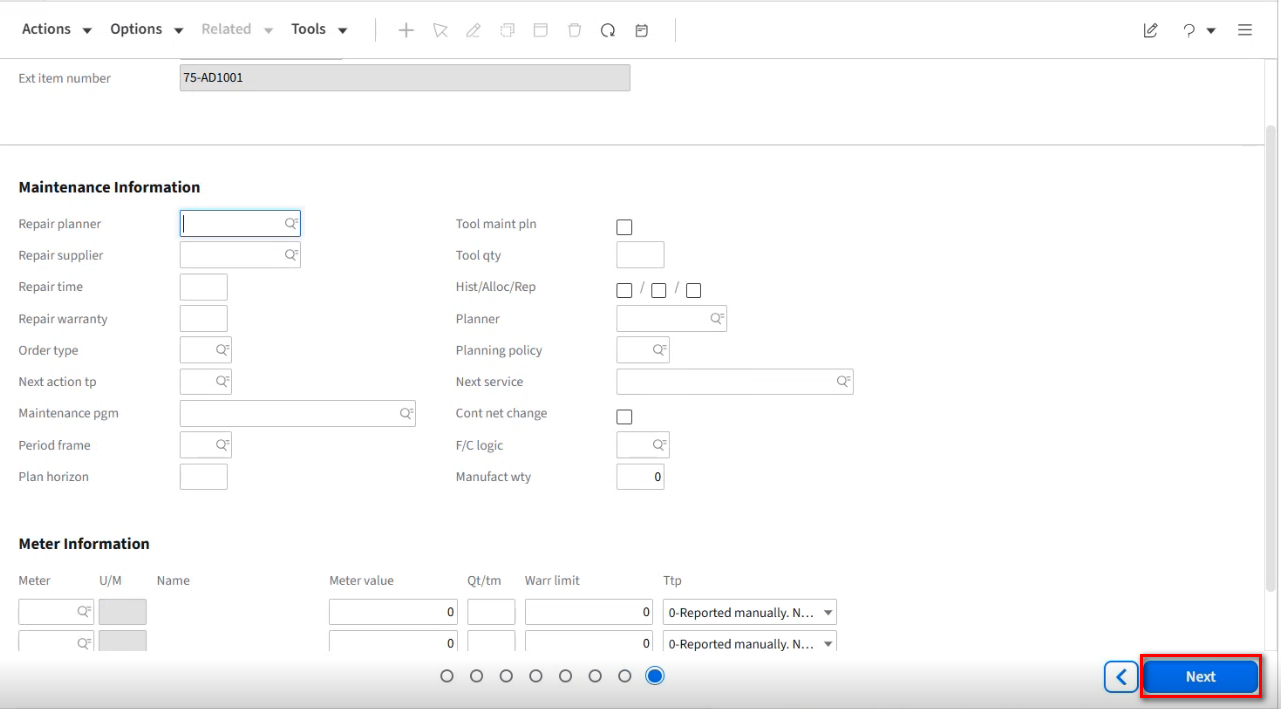
You will notice the 75-AD1001 Item has been created.
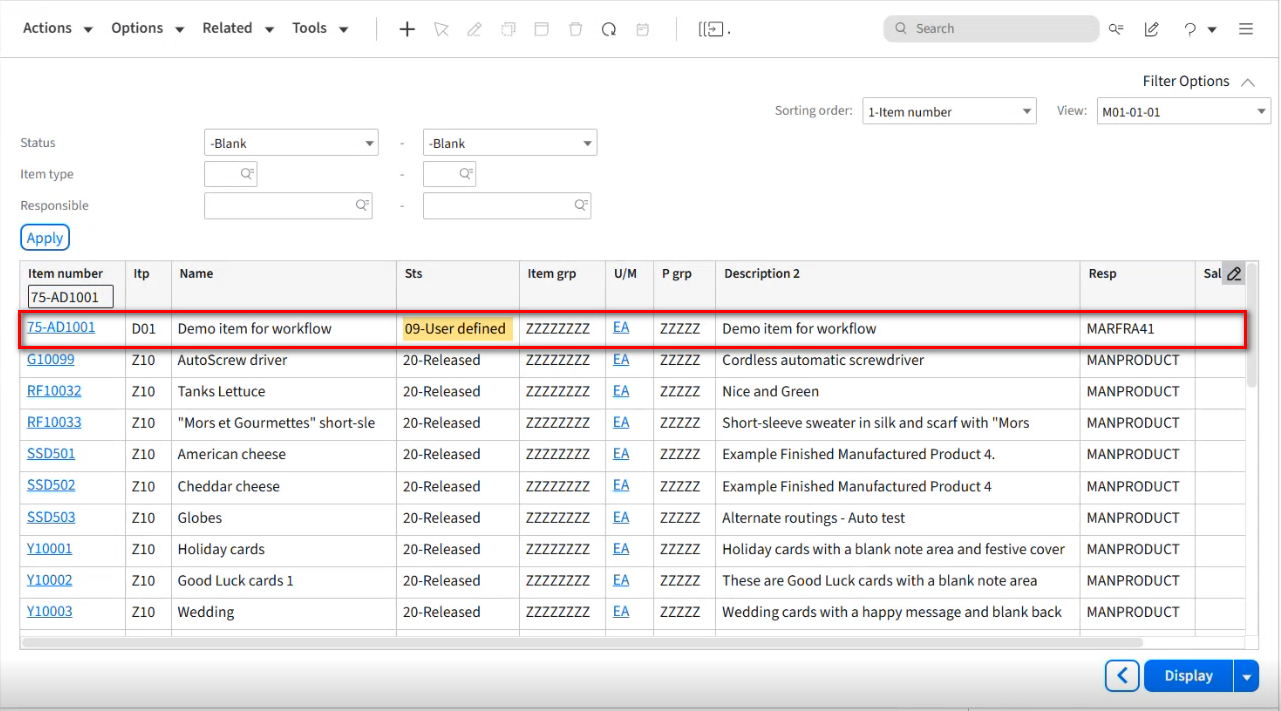
You can apply a filter to only see the Items you created. Fill in the Responsible fields and click the Apply button.
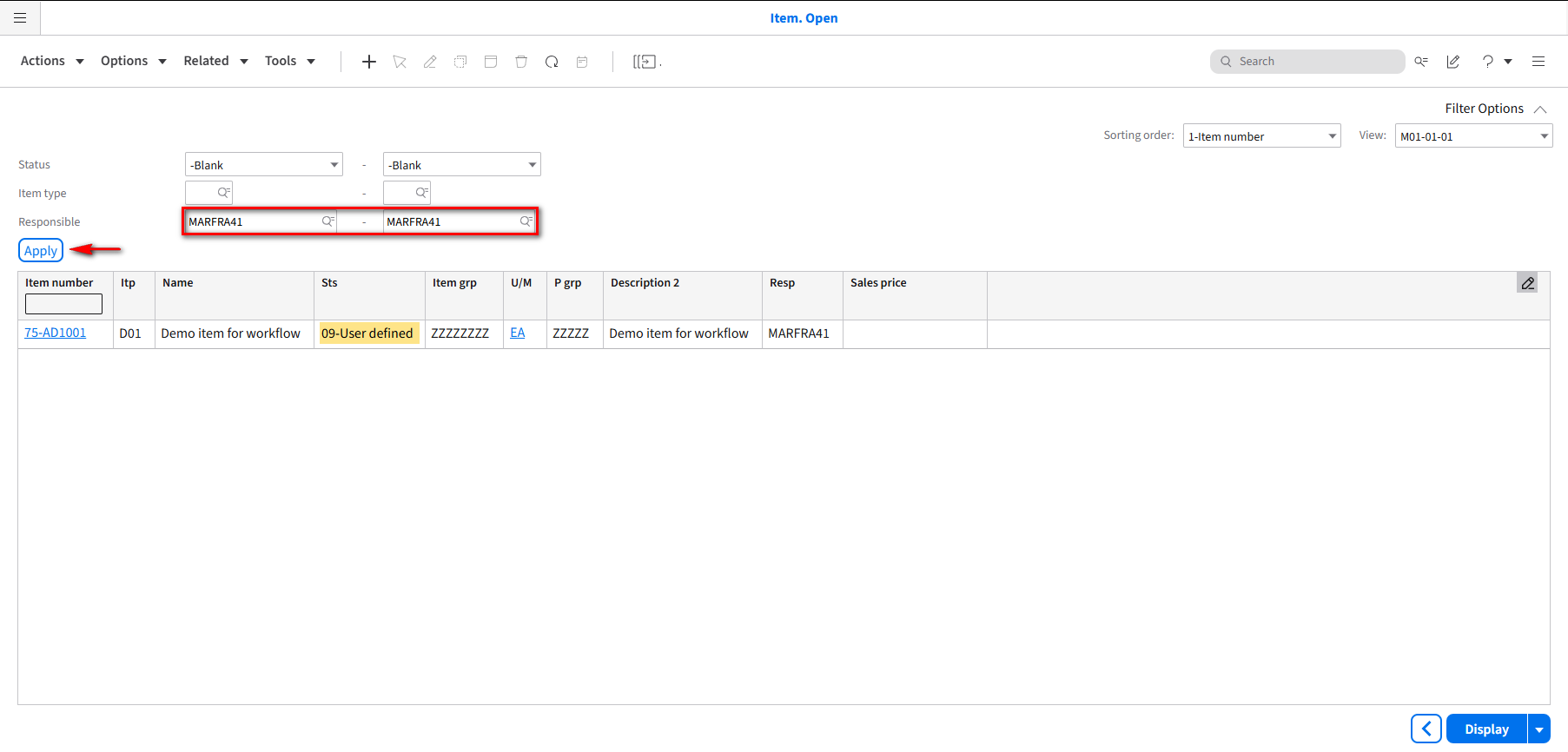
We also want to display the Make/Buy code column, if it is not already displayed, click the pencil icon to edit the columns.
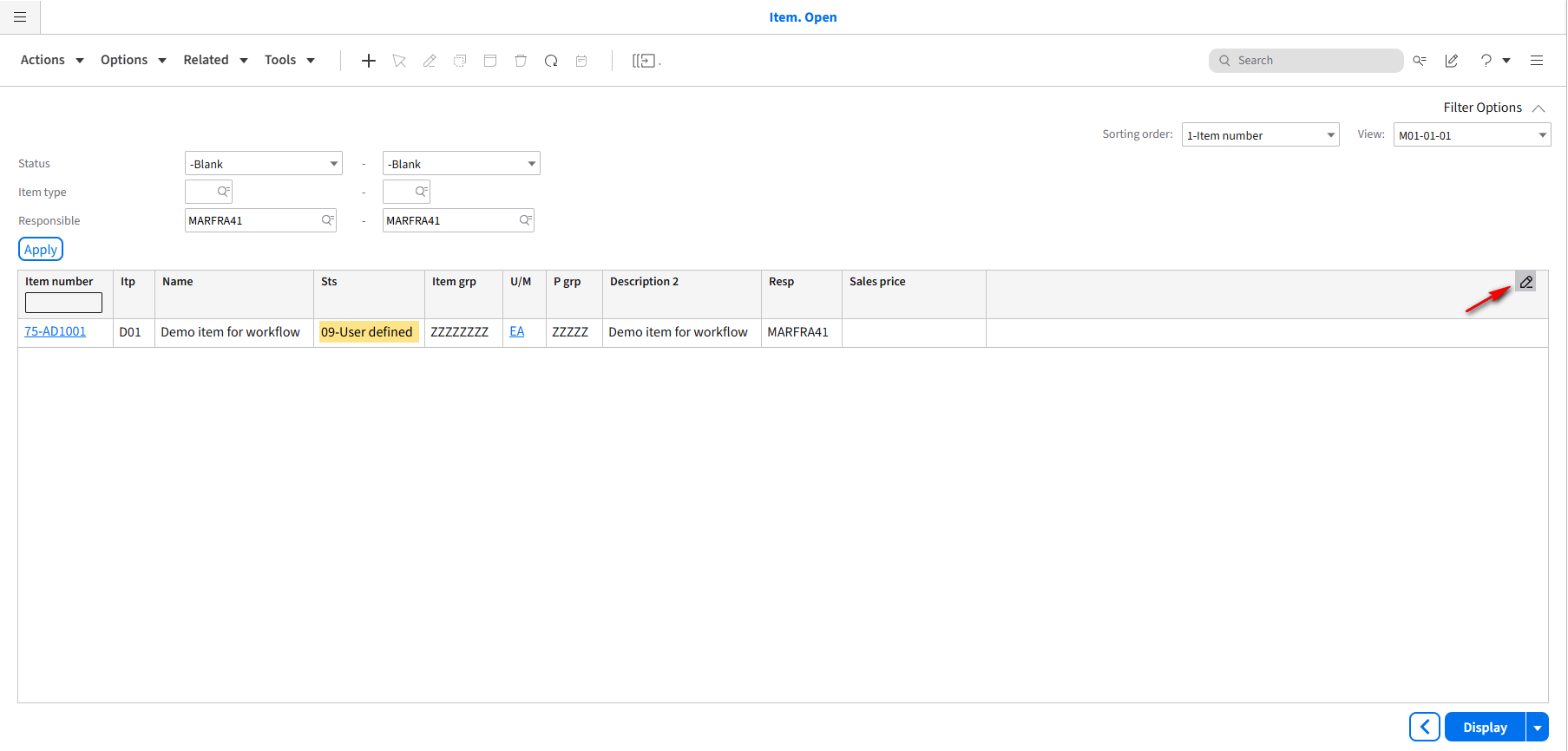
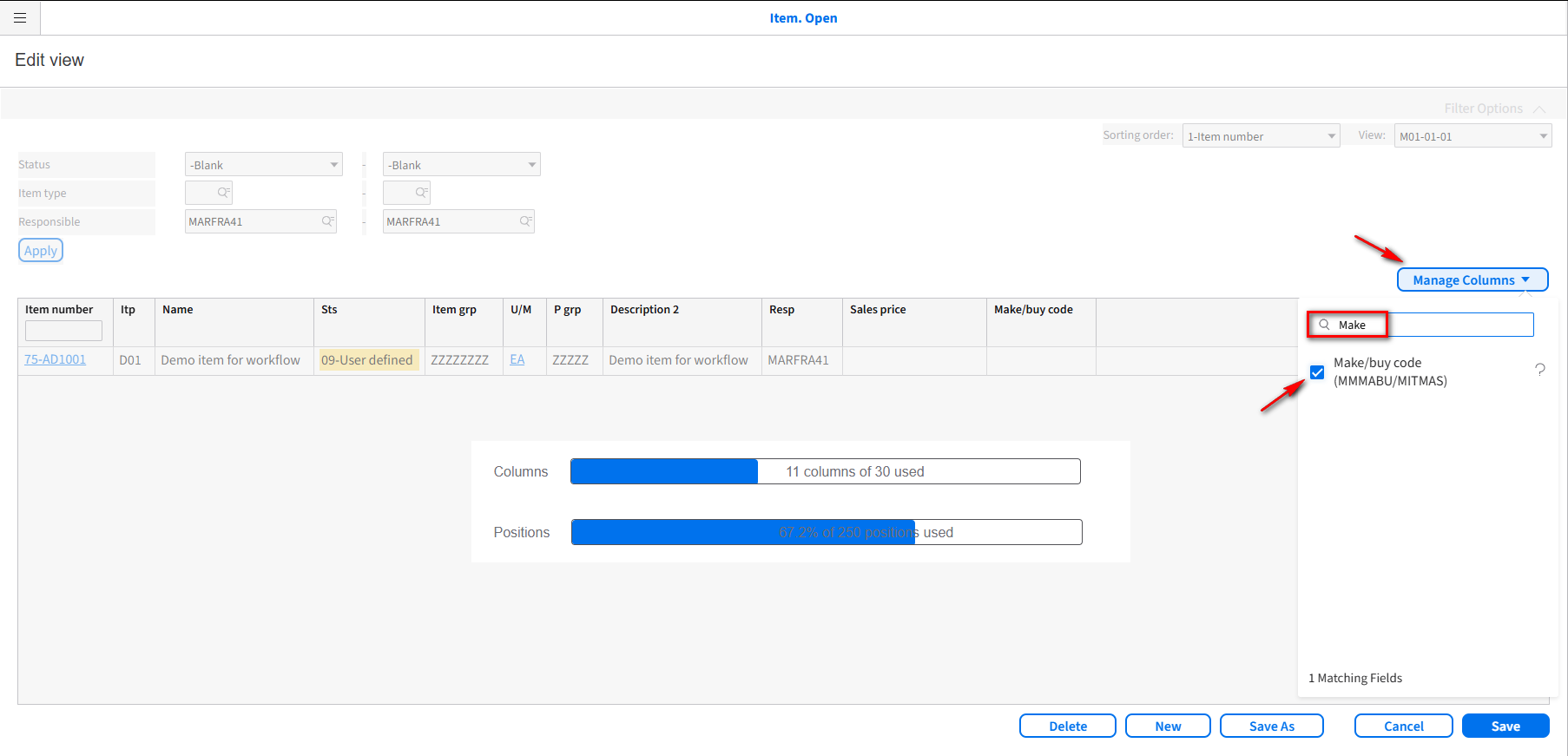
Click on the Manage Columns drop-down and search for Make. Select the Make/Buy code option. Click Save.
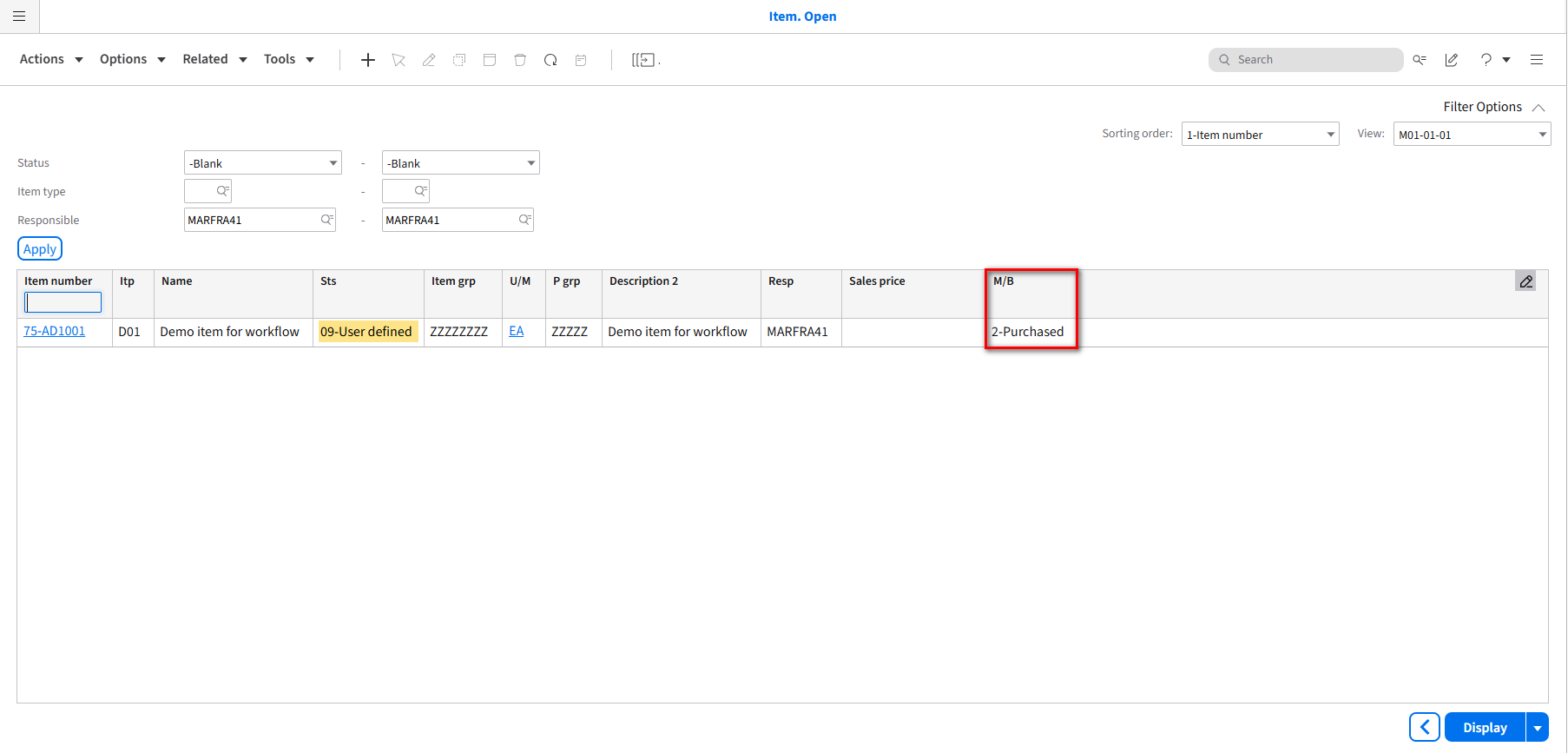
You should now see the Make/Buy code columns displayed.
What we want to accomplish now is to change the status of the M3 75-AD1001 Item we just created from 09 User defined to 20 Released. Go back into your AD_Demo_ItemApproval workflow and click the deactivate Icon to make the Icons appear.
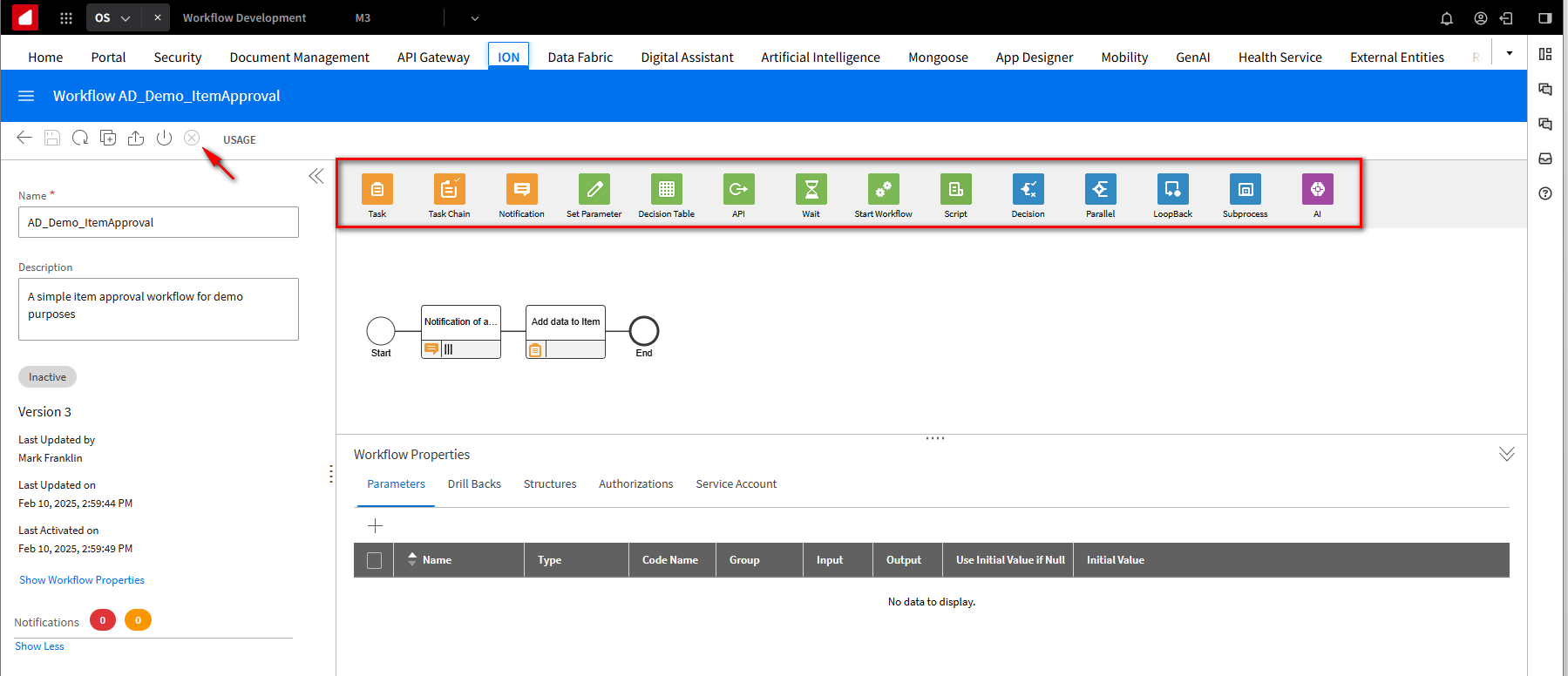
The next step in the workflow is to call an M3 API that releases the Item. From the top icons, drag the API icon onto the model. In the ION API Properties section, under the ION API tab, give it a descriptive Name of Release Item.
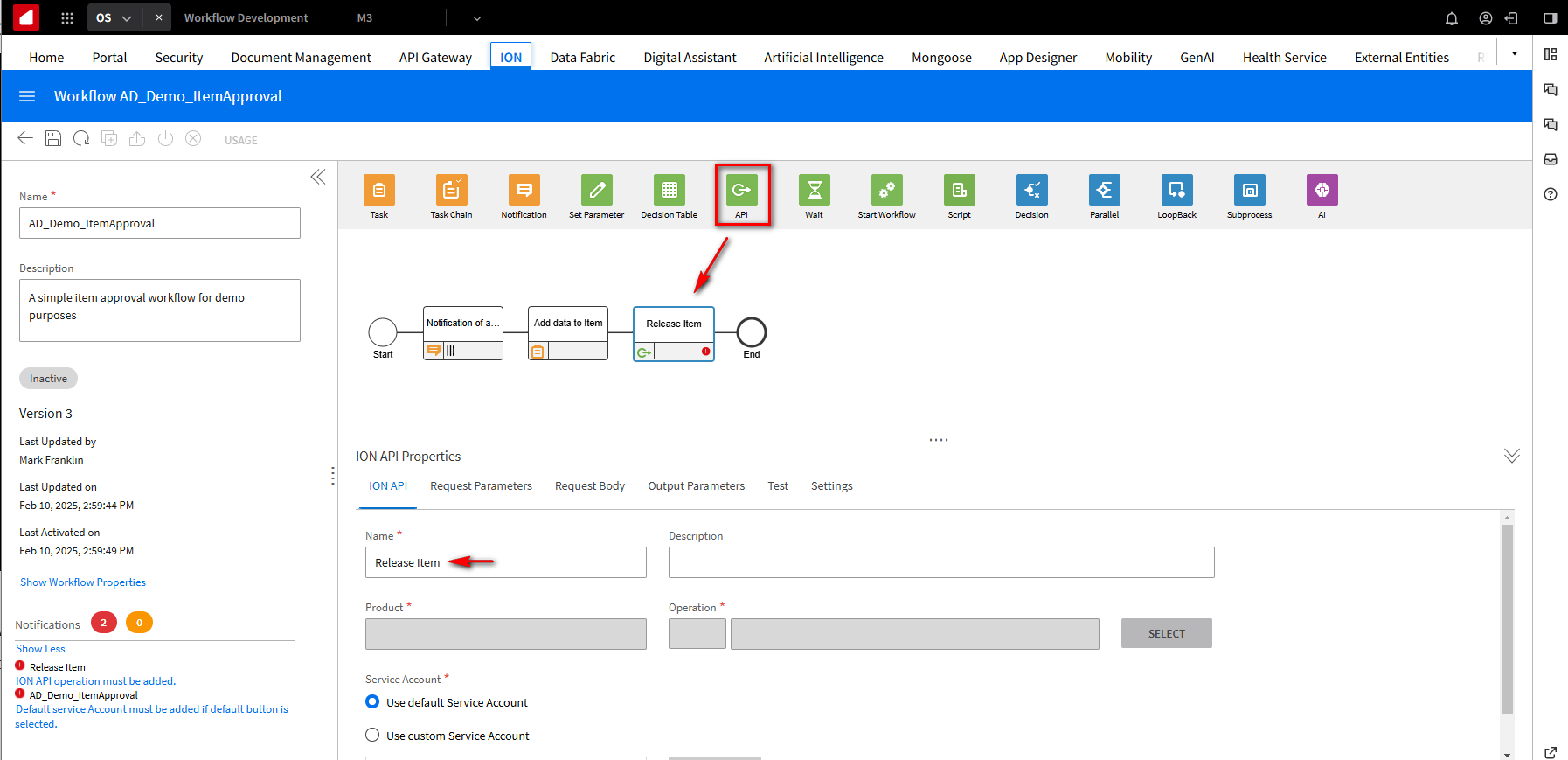
In the Product field, click the Select button to select the API you want to call. On the Search ION API Operation screen, In the Product field from the dropdown list, choose Infor M3, and in the Search by name or description field, type MMS200MI and click the search Icon. Scroll down until you find the M3/m3api-rest/v2/execute/MMS200MI/UpdItmBasic API and select it. Click OK.
While scrolling down through the list of APIs, you may need to click on the Show More Icon to view additional APIs.
The M3/m3api-rest/v2/execute/MMS200MI/UpdItmBasic API will update item basic information.
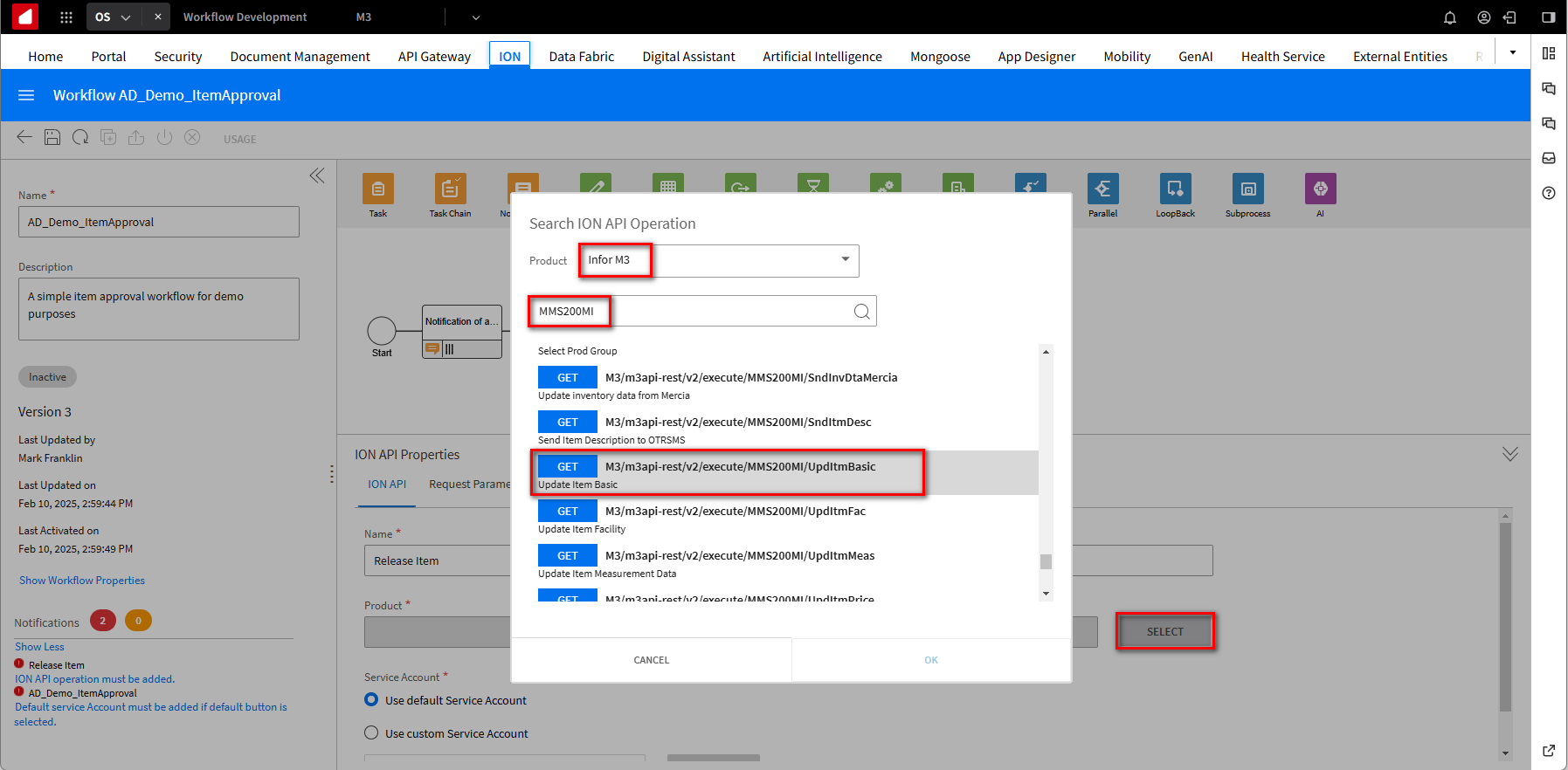
In order to run the API, we need to tell it which credentials will be used. You will notice the errors below.
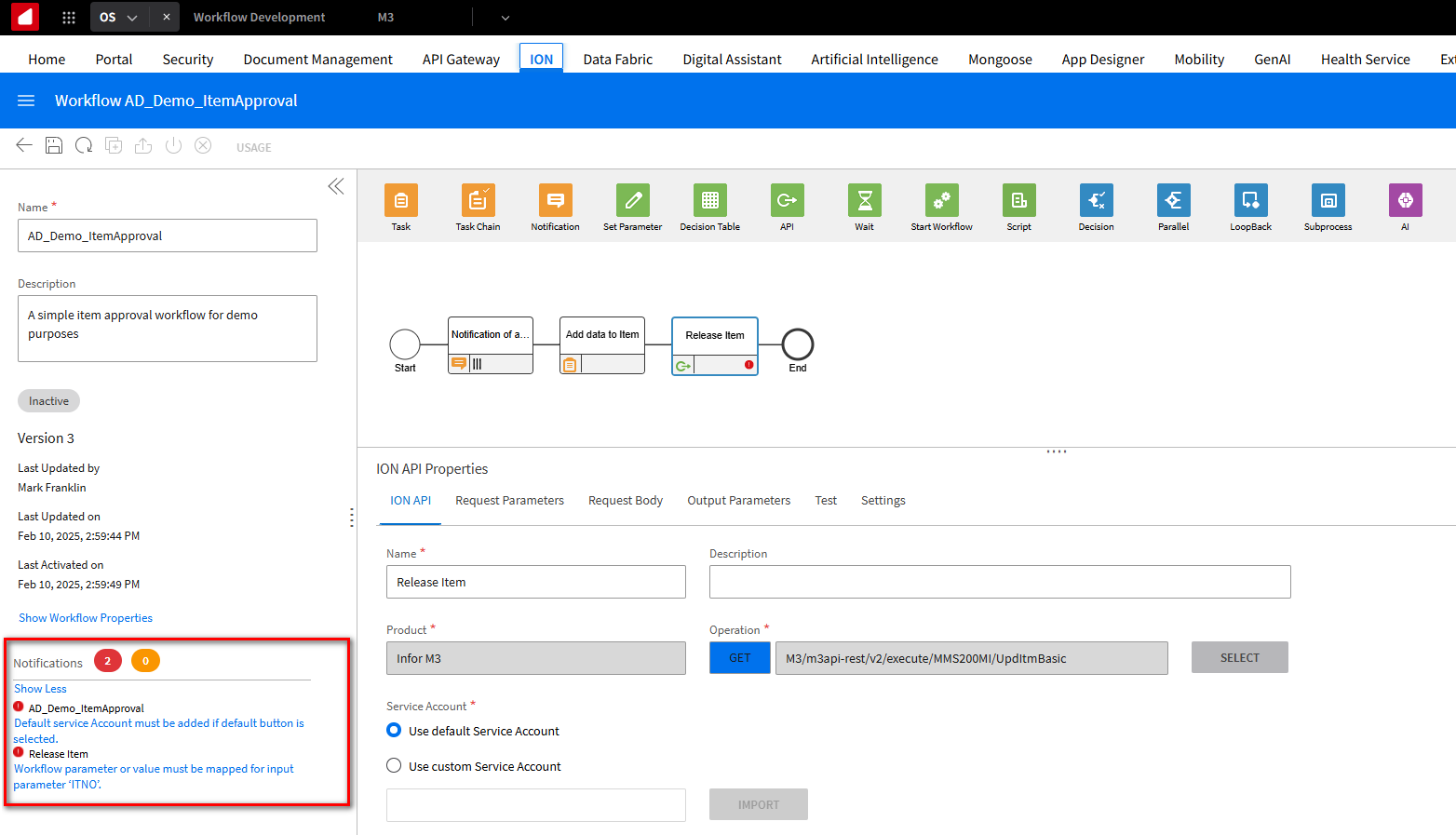
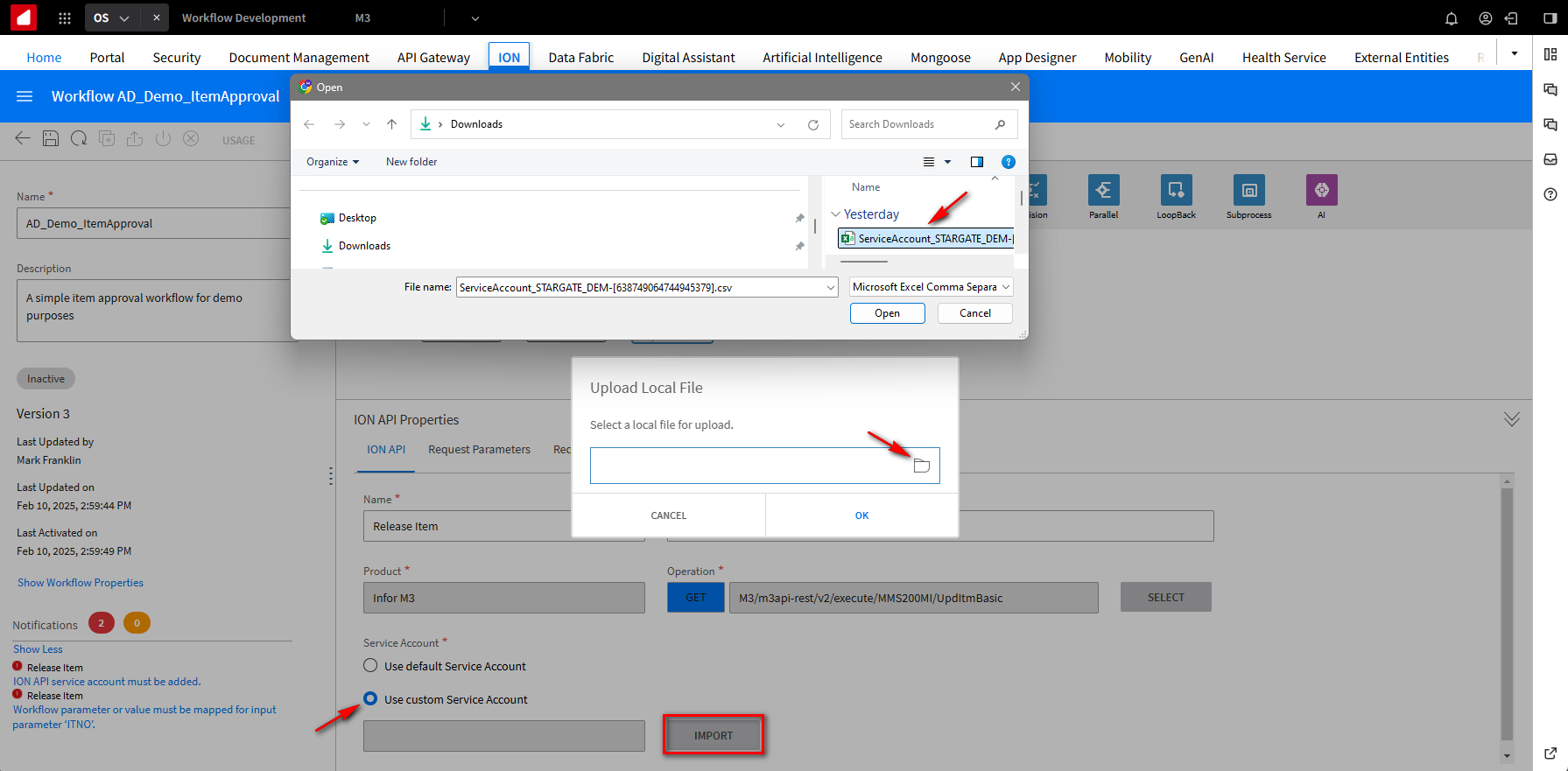
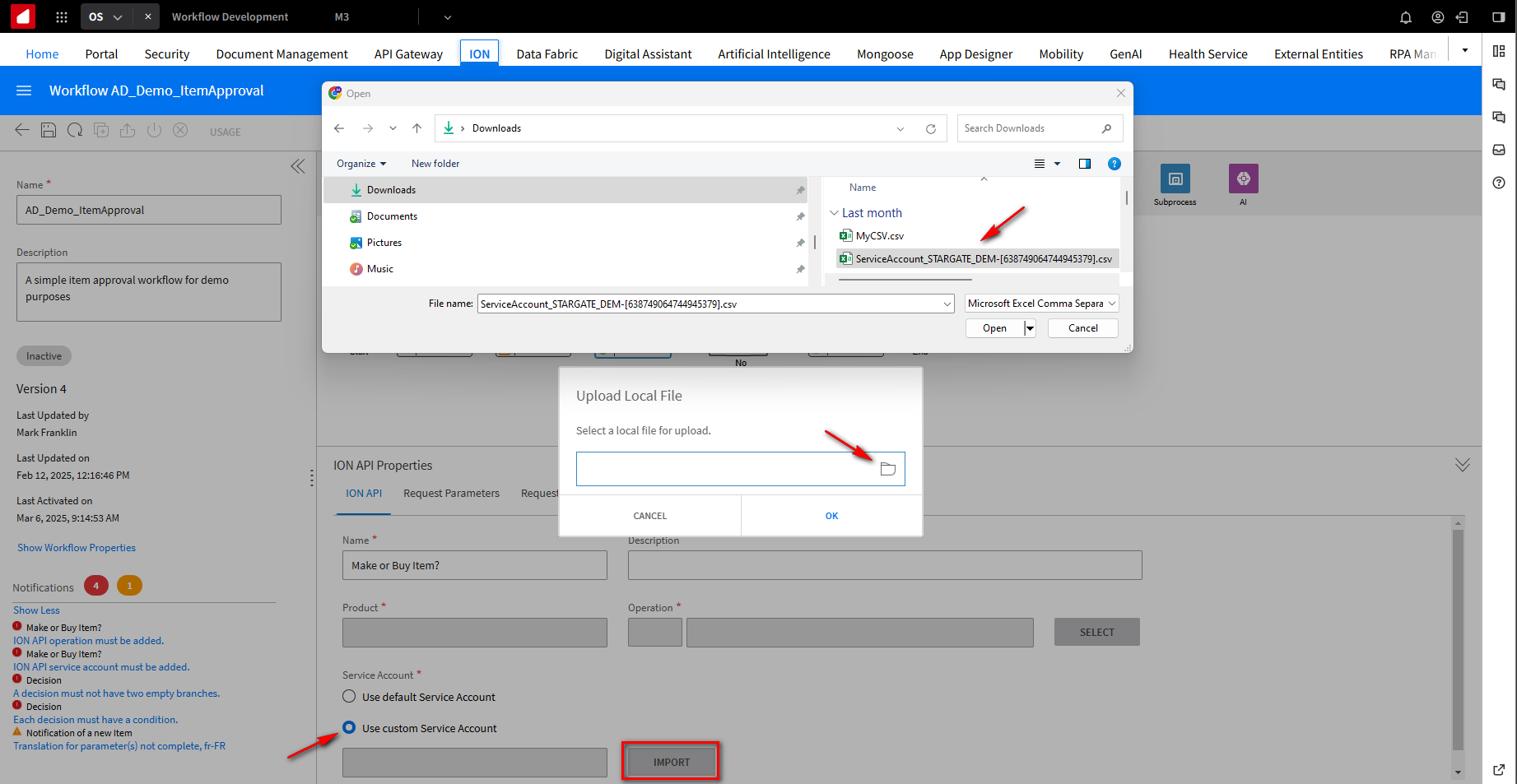
We will use the Service Account we created earlier. Click on the Use Custom Service Account option and click the Import button. In the Upload Local File screen, click on the folder icon and Select the detailed service account credentials file you downloaded earlier. Click Open, then OK.
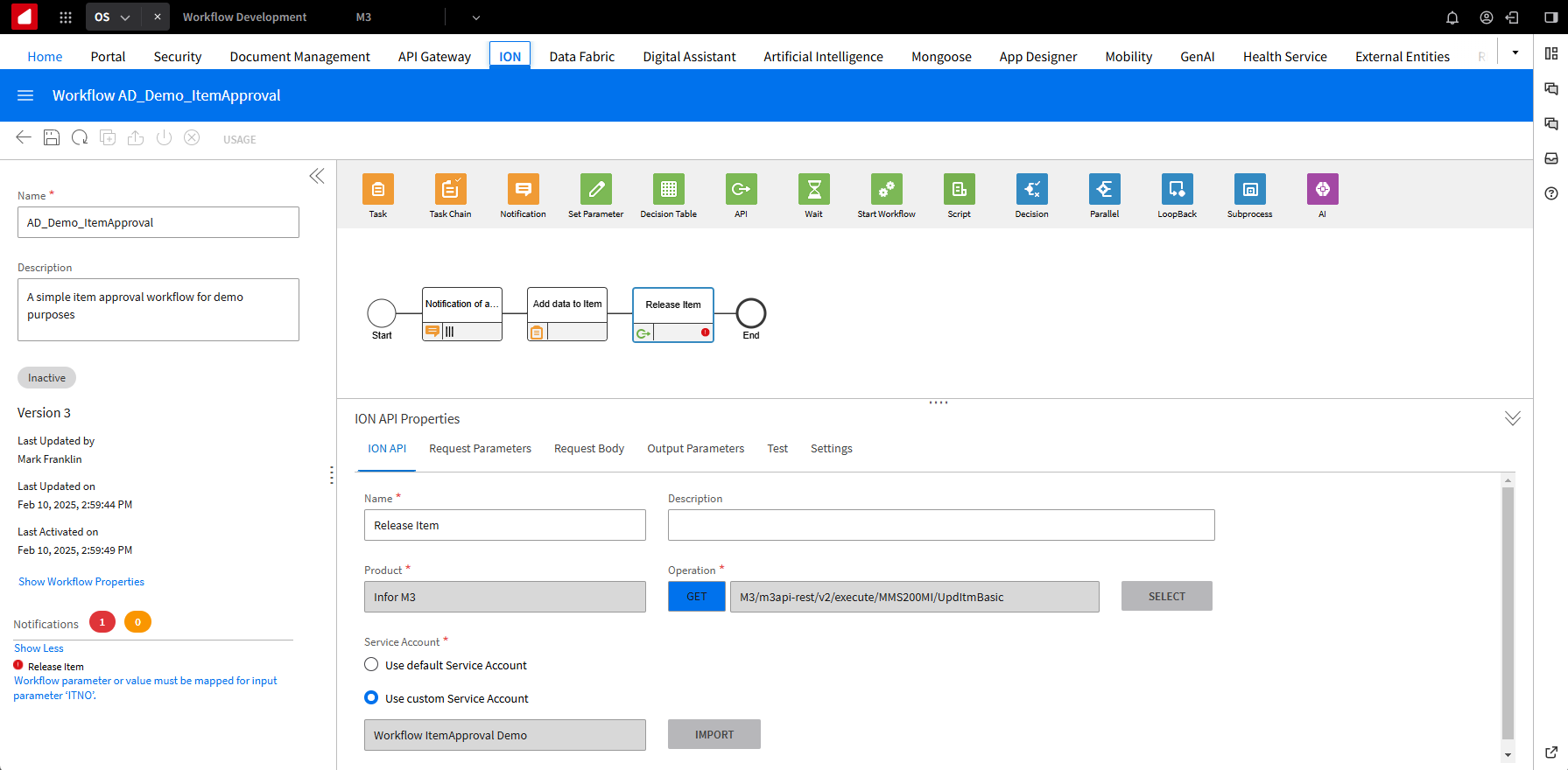
This is what your page should look like.
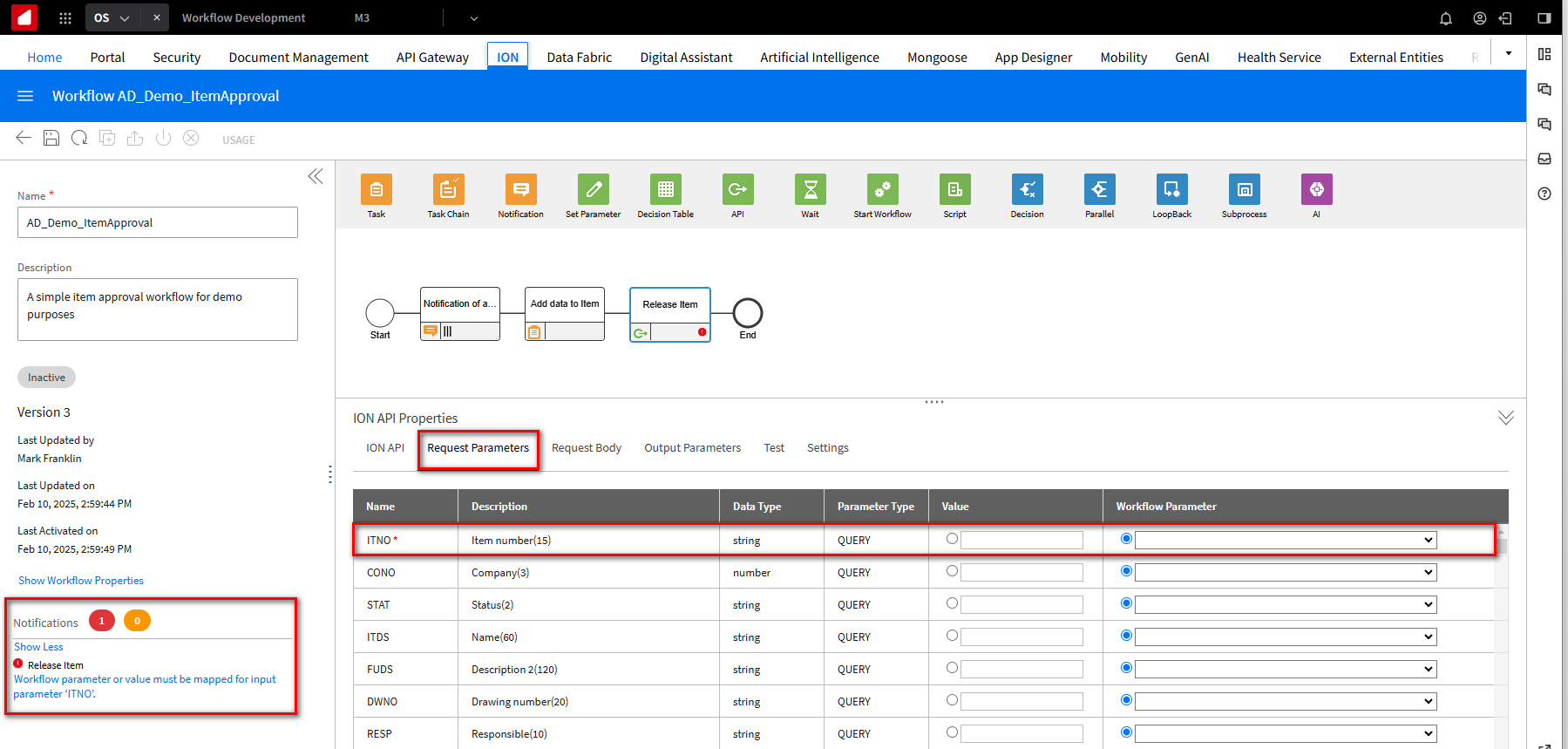
Because we are calling the API from the API gateway, which has swagger documentation, it knows we need a Workflow Parameter setting. If you click on the Request Parameters tab, you will notice the ITNO parameter has a red dot next to it. You will also see the Error message notifying you that the ITNO parameter needs mapping. We must give it an item number and the item number we are working with. It will take a workflow parameter, which has not been set yet and will be set next.
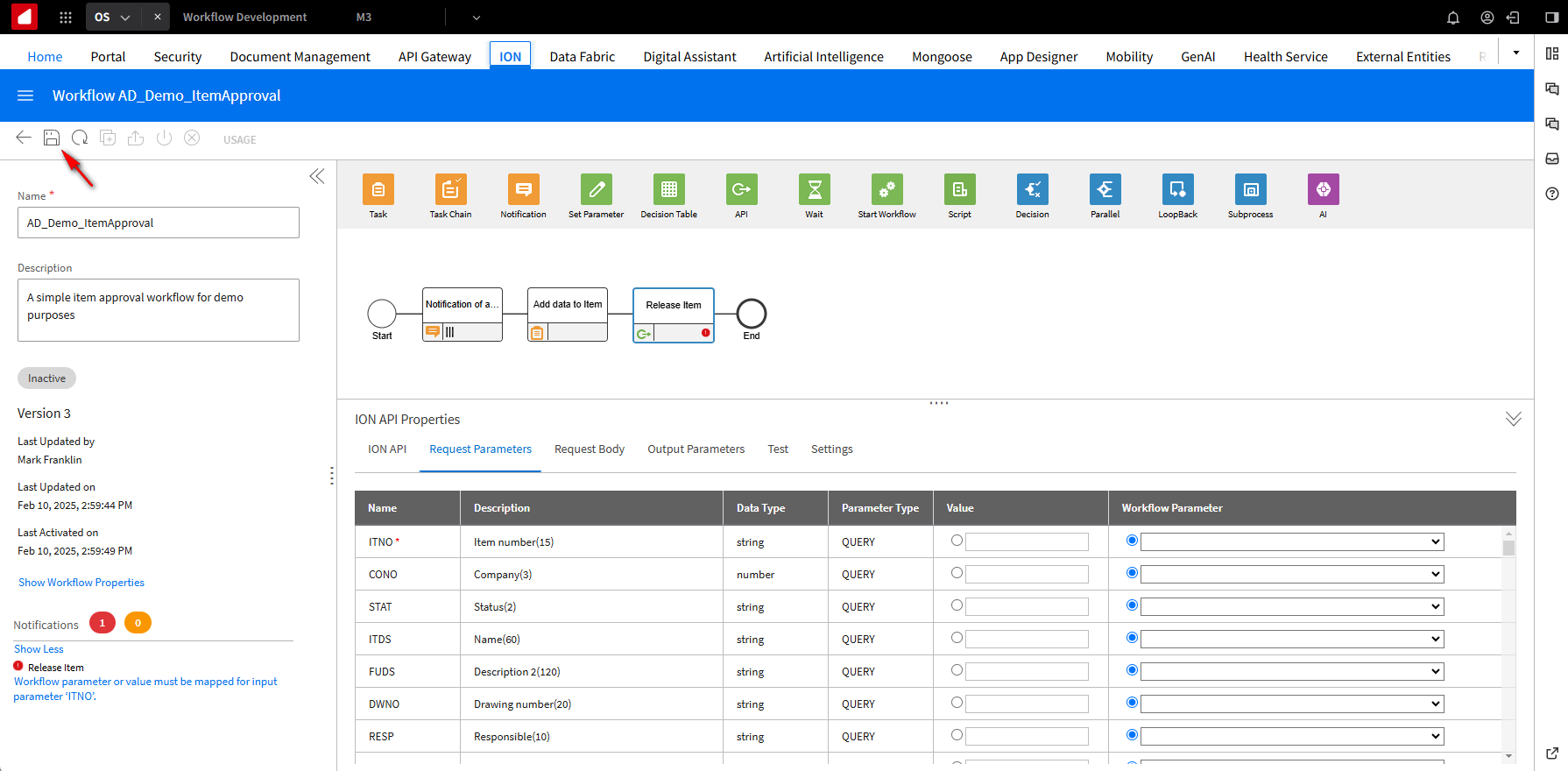
Click Save on the workflow.
To add some parameters, click on the module, click on Start, and click the + button in the Workflow Properties section under the Parameters tab. On the Add Workflow Parameters screen, enter ITEM in the Name field. Since it’s an import parameter, select the Input option. Click OK.
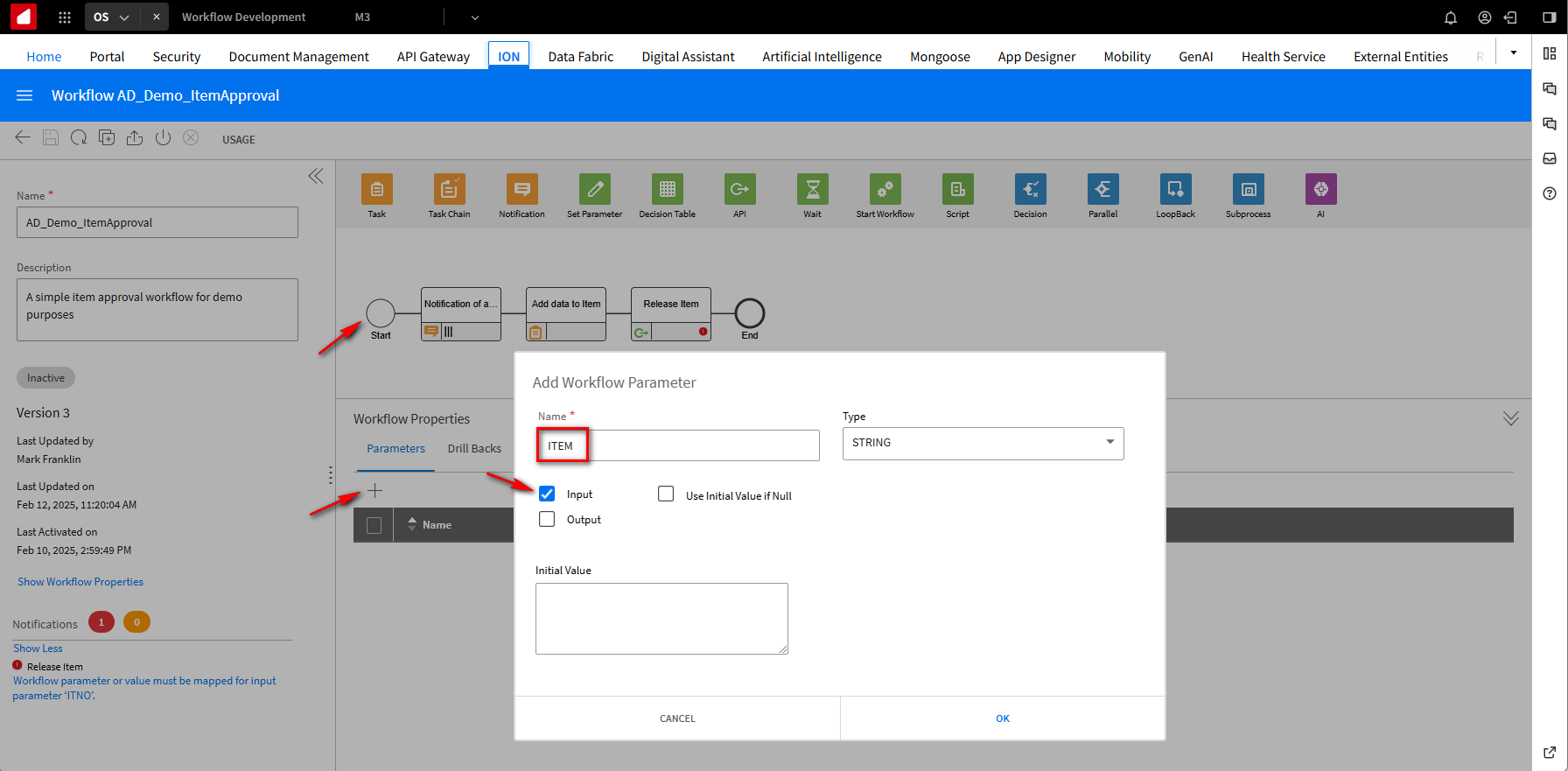
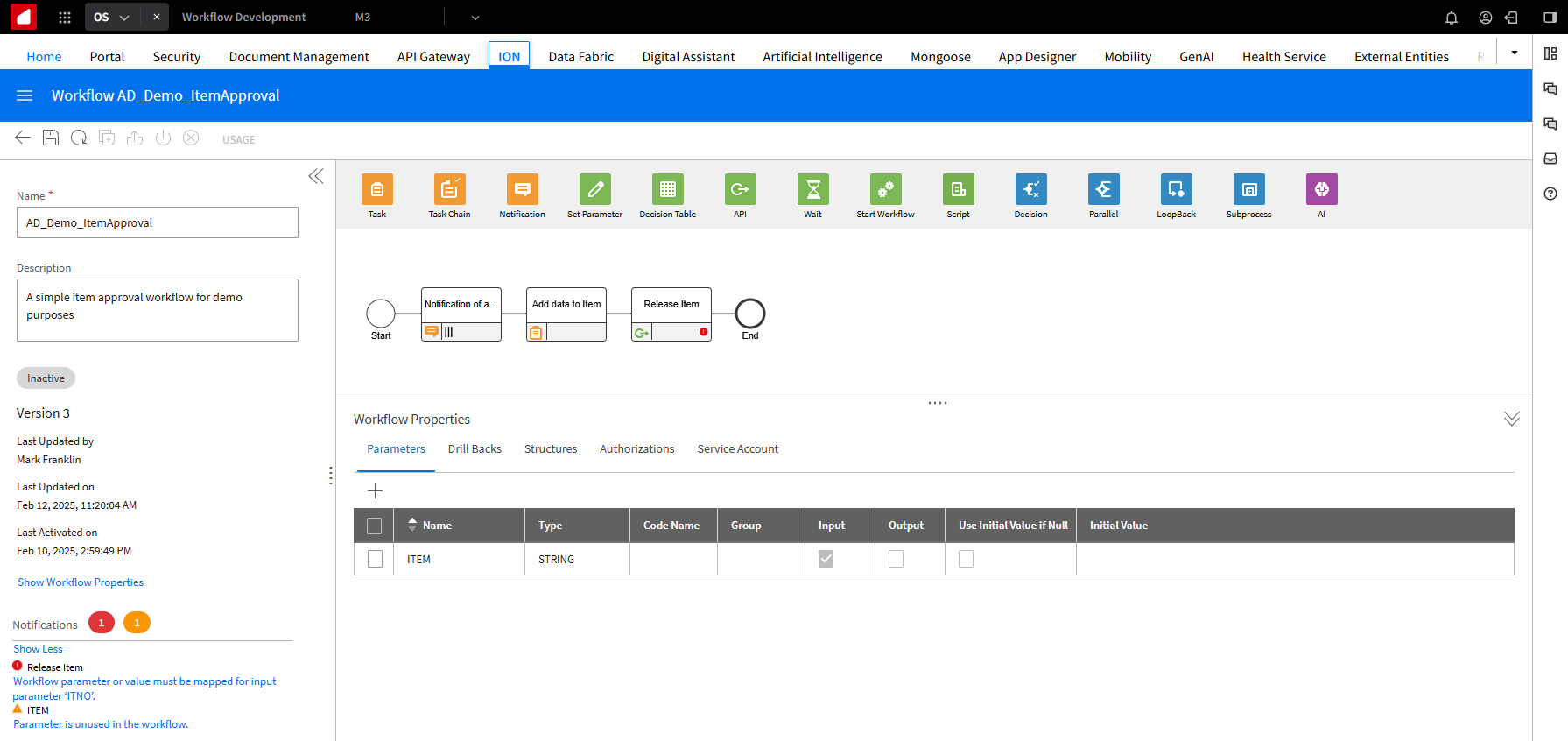
This is what the screen looks like after the ITEM Parameters setting.
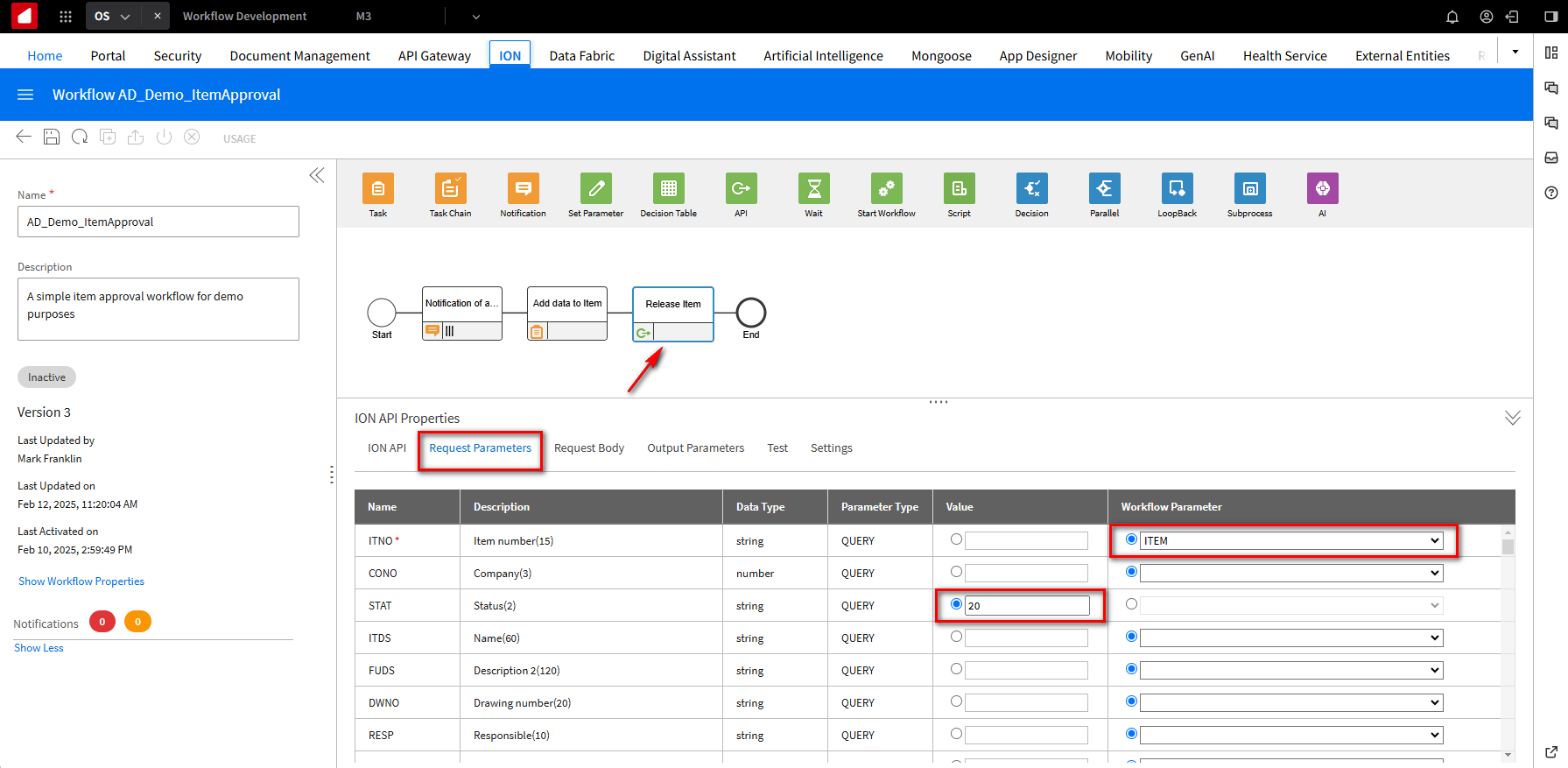
Now click on the API Release Item module step, and under the ION API Properties section, select the Request Parameters tab. On the ITNO parameter in the Workflow Parameters field, from the dropdown, choose ITEM. Since this will update the Item record, we also want to update the Status. In the Value field of the STAT parameter, enter 20, which was a release status.
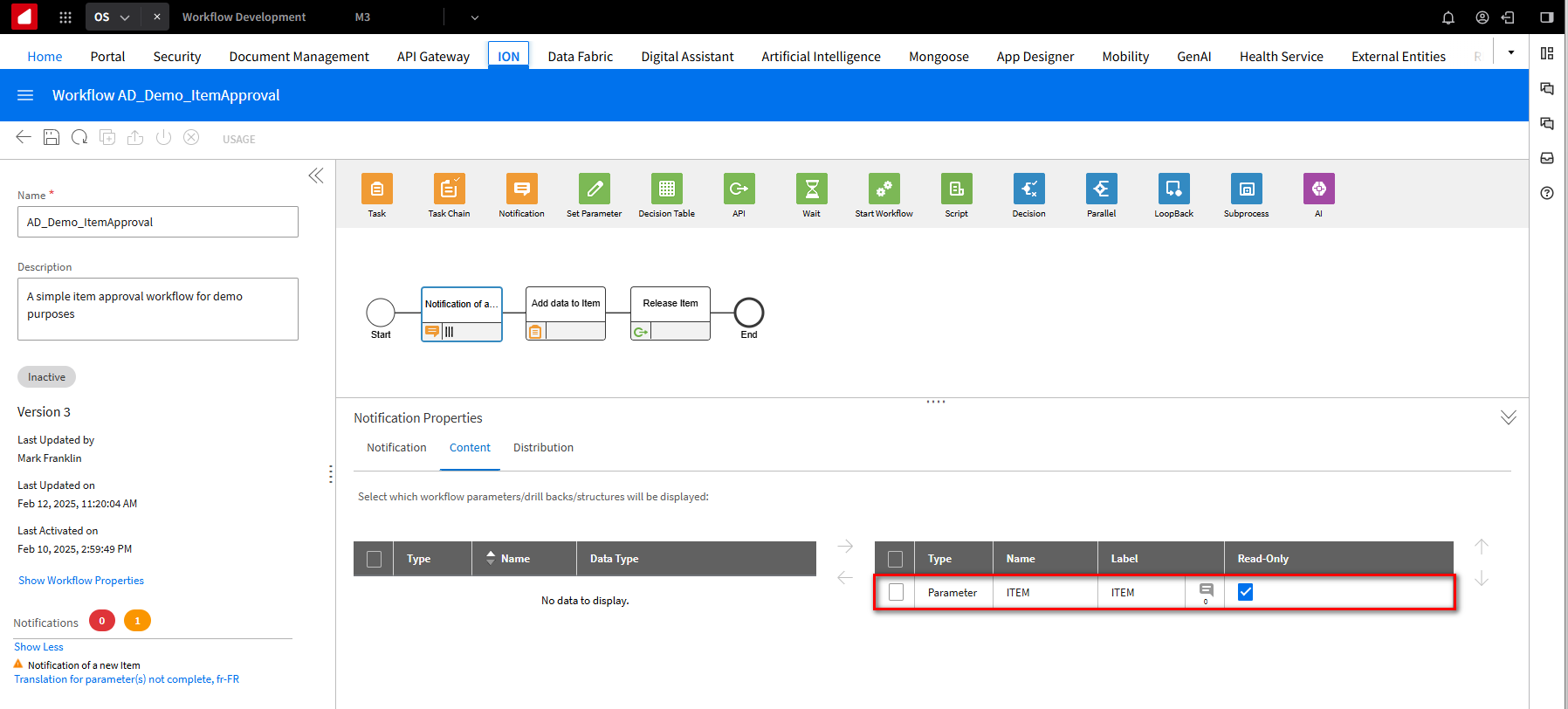
Now that we have the ITEM parameter set, we can use it within the messages. Click on the Notification module step. The ITEM parameter needs to be part of the Content to be used in the message; under the Notification Properties section, select the Content tab, select the ITEMParameter, and click the -> arrow to move it to the enabled displayed section.
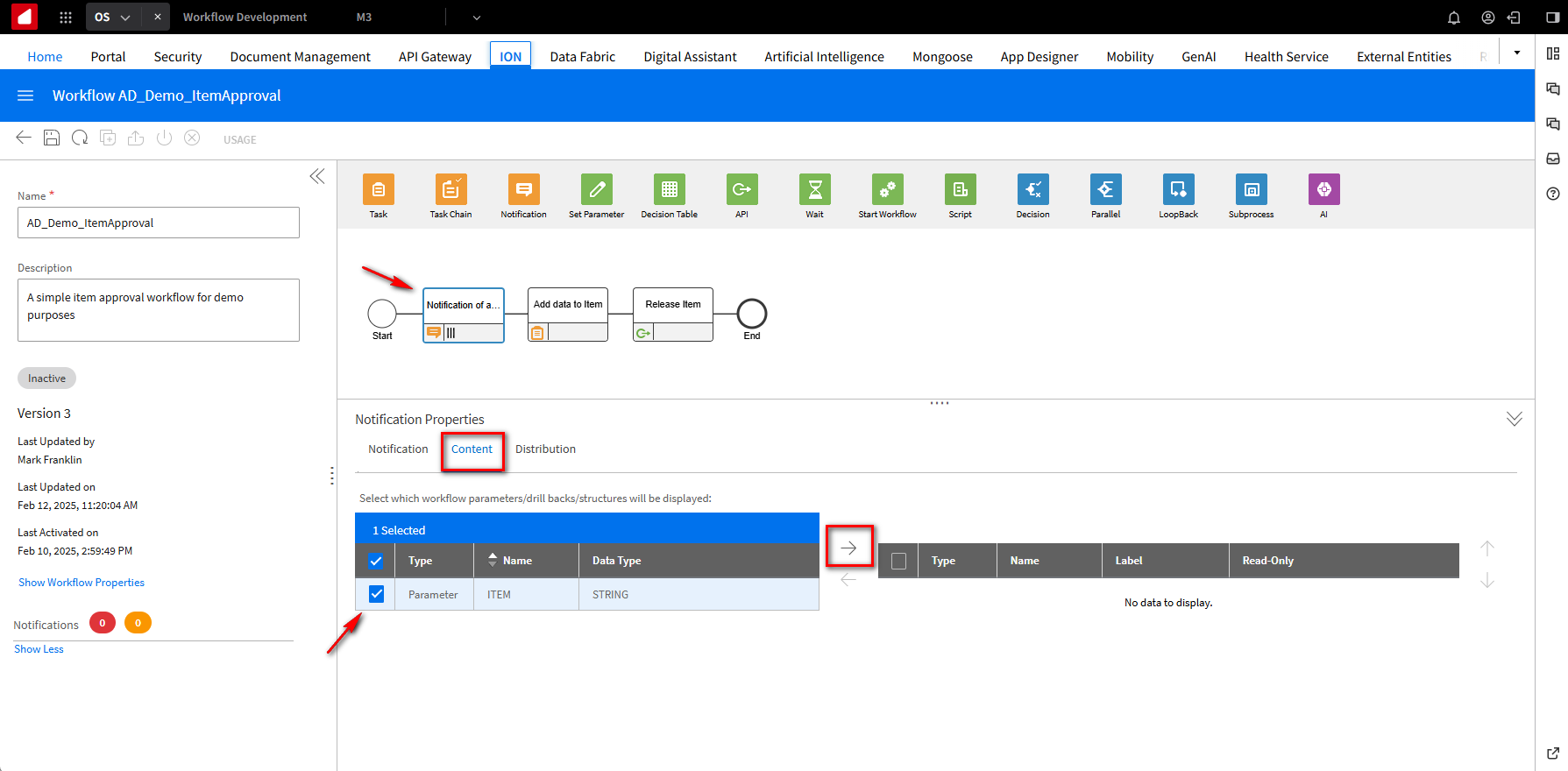
This is what it should look like after the move.
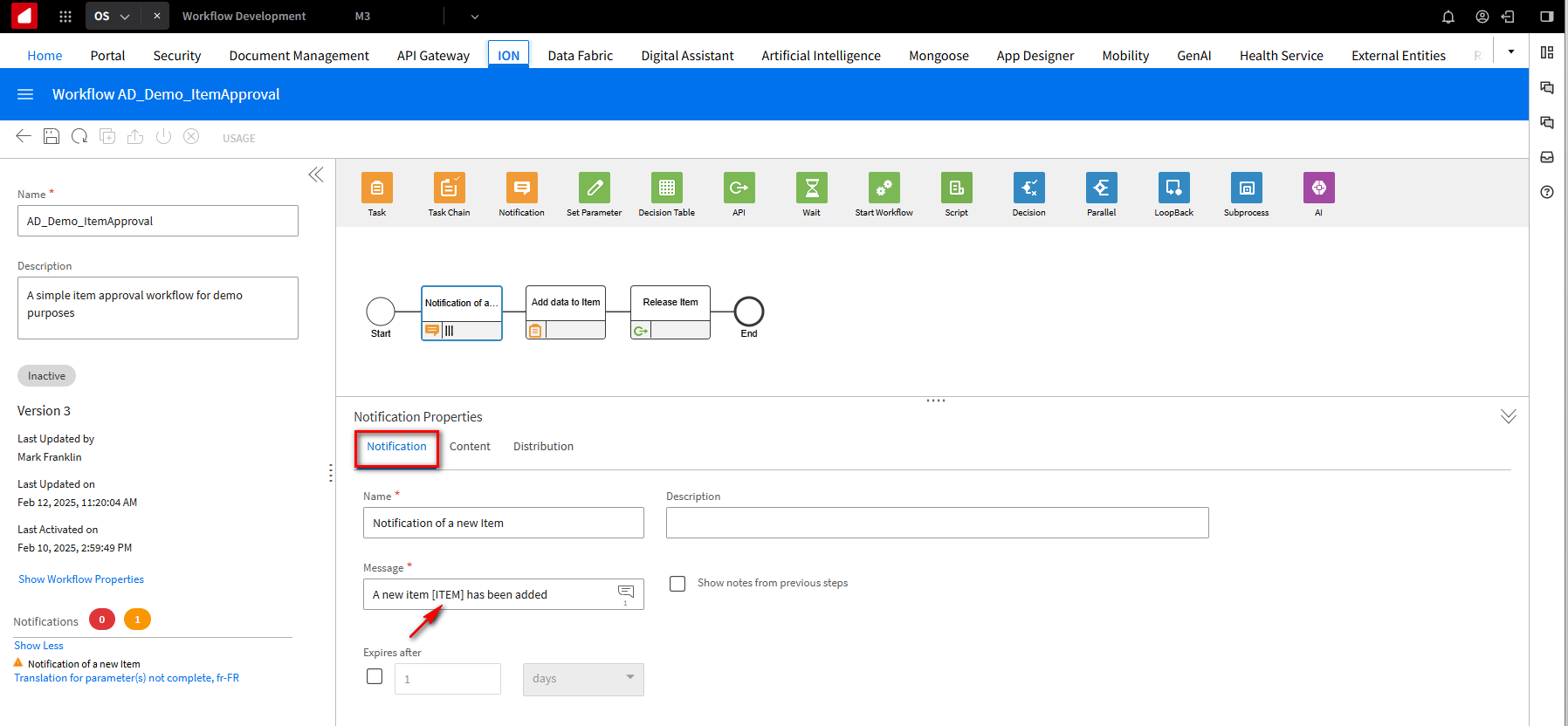
Click the Notifications tab and add the [ITEM] parameter to the Message field like this. A new item [ITEM] has been added. This will pass the Item name in the message.
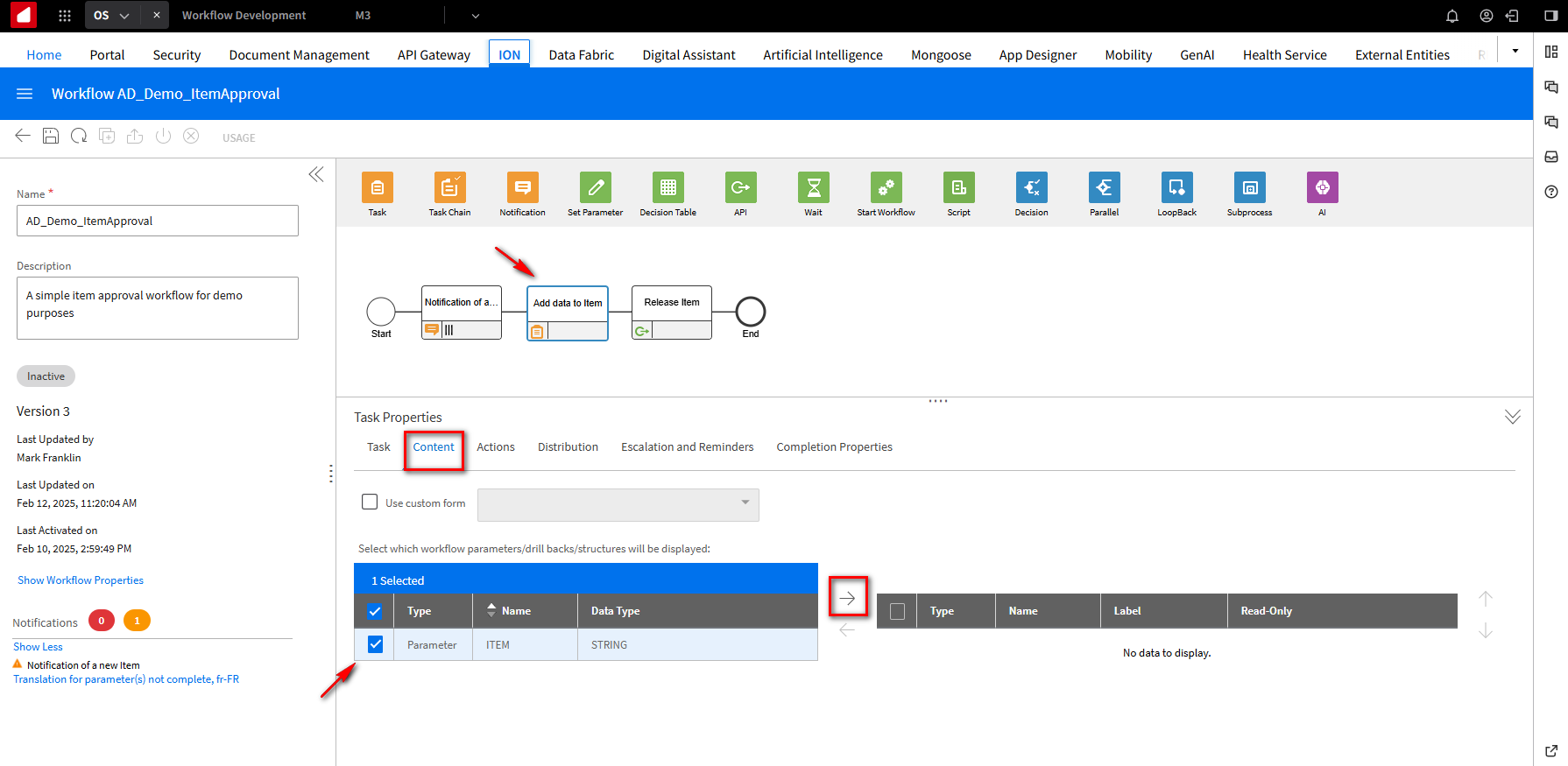
We will also change the message on the Add data to item module step. Click on the Add data to item step. The ITEM parameter needs to be part of the content used in the message; under the Task Properties section, select the Content tab and then the ITEM Parameter. Click the -> arrow to move it to the enabled displayed section.
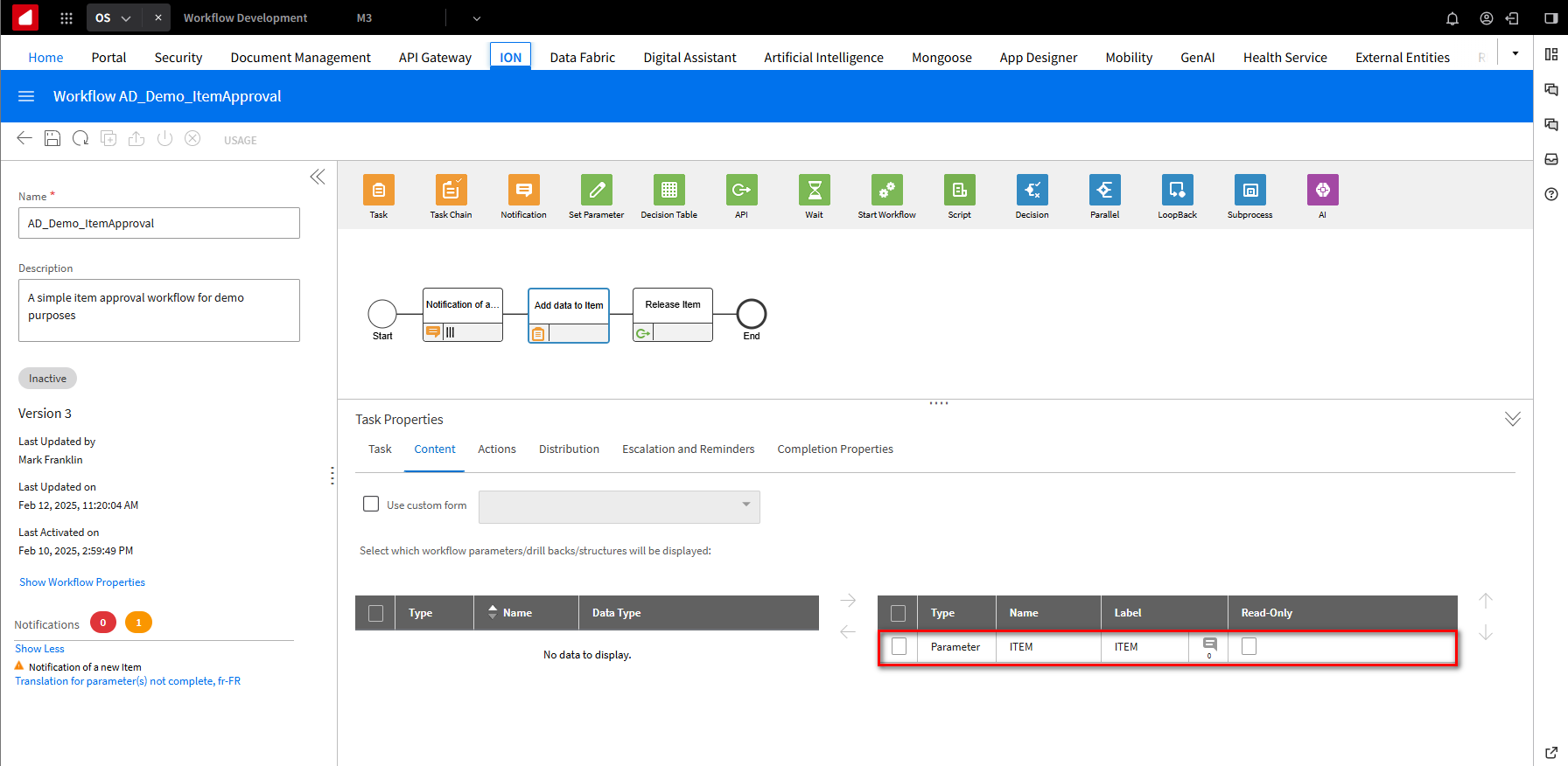
This is what it should look like after the move.
Click the Task tab and add the [ITEM] parameter to the Message field like this. Please add base data to the item [ITEM]. As mentioned before, this will pass the Item name in the message.
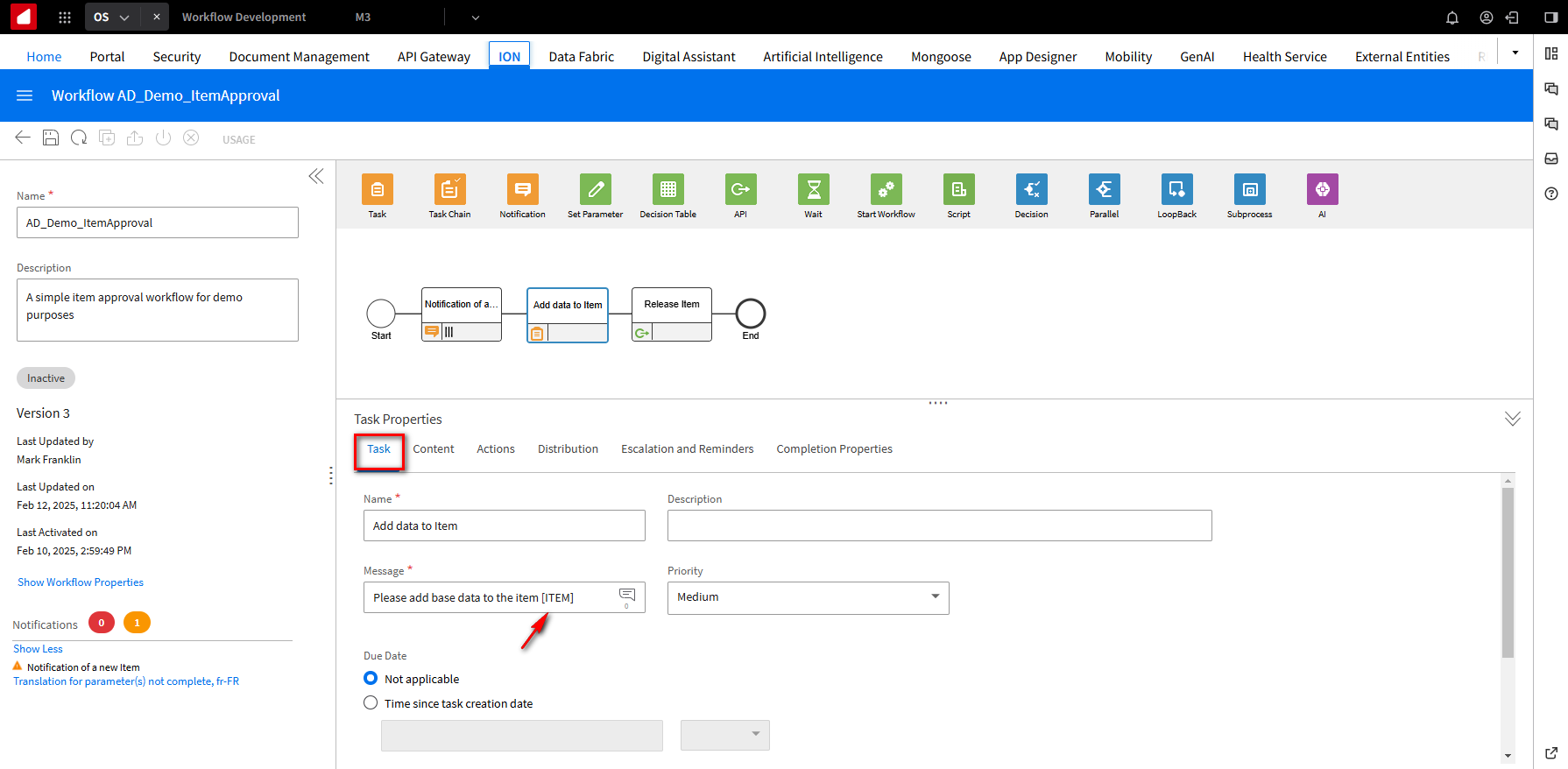
Click Save.
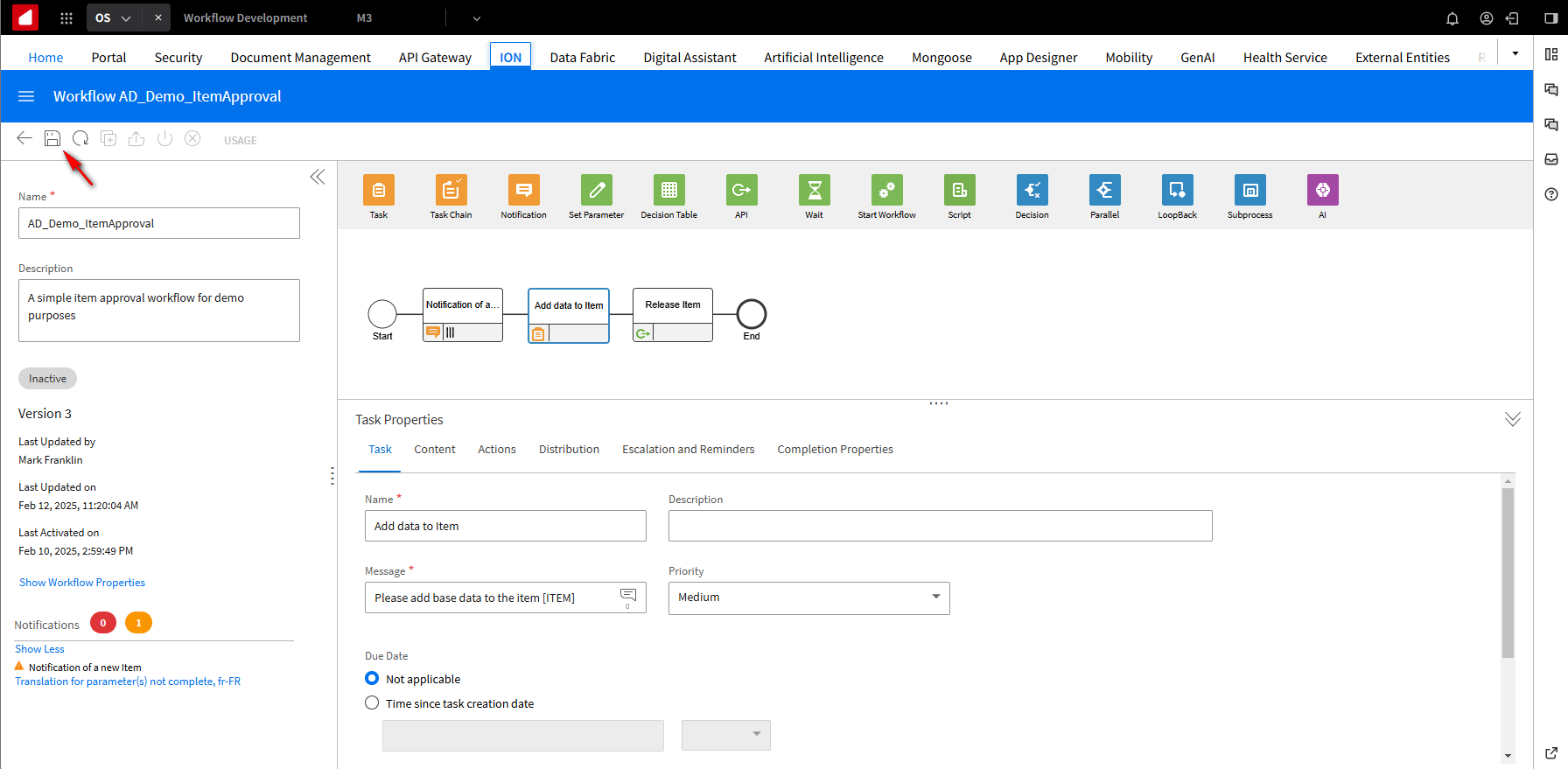
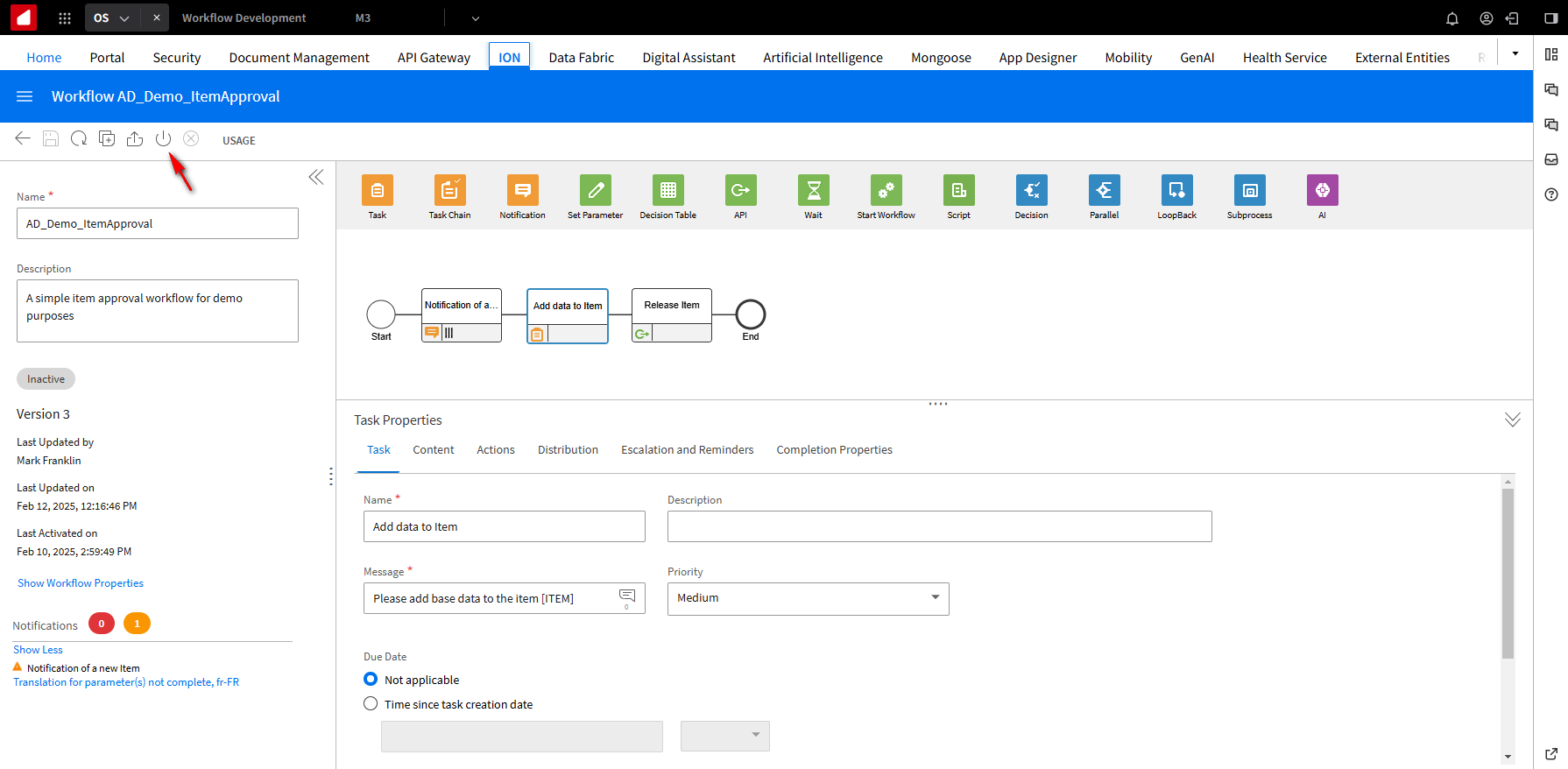
Click Activate to activate the workflow.
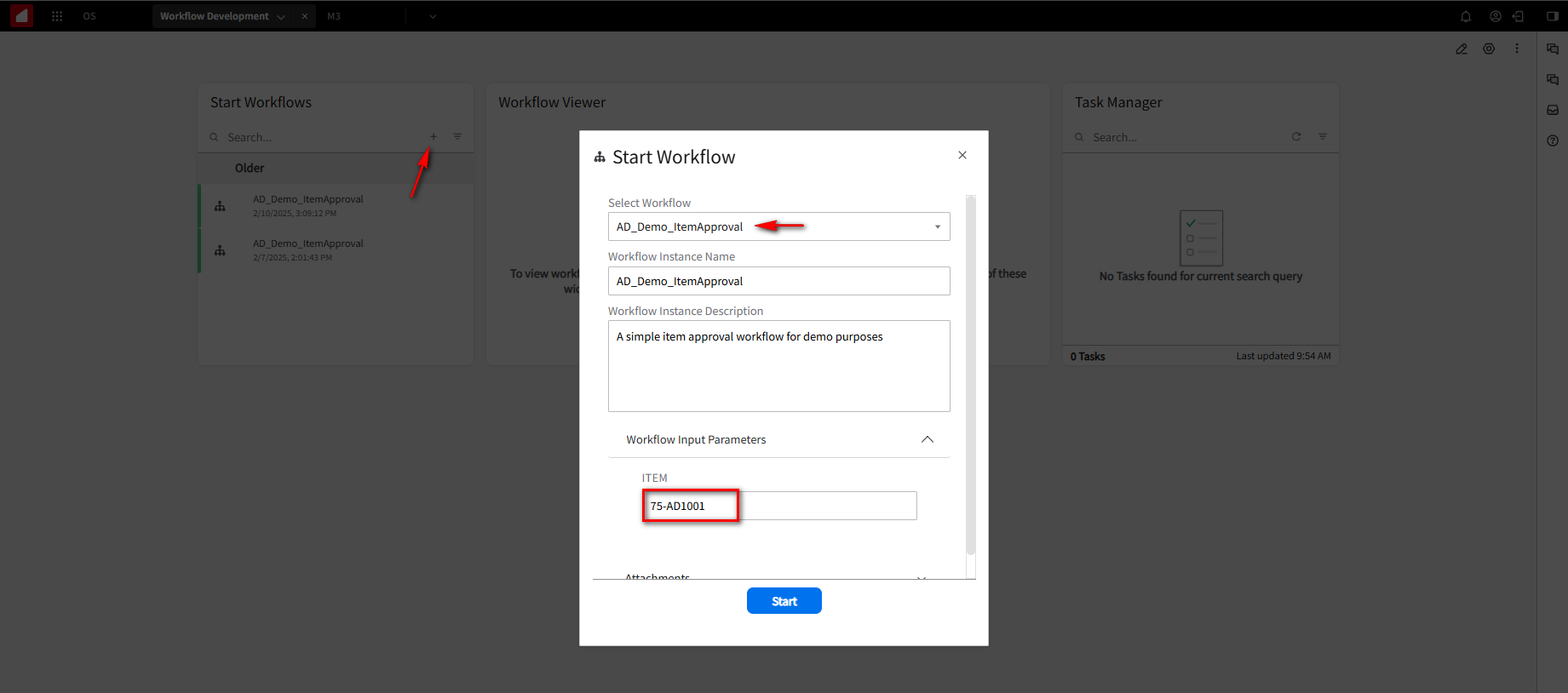
Go back into your workspace. In the Start Workflow widget, click on the + sign. On the Start Workflow page, from the drop-down menu, select AD_Demo_ItemApproval in the Select Workflow field. Because we are doing this manually, put the M3 item name 75-AD1001 in the ITEM field and click the Start button.
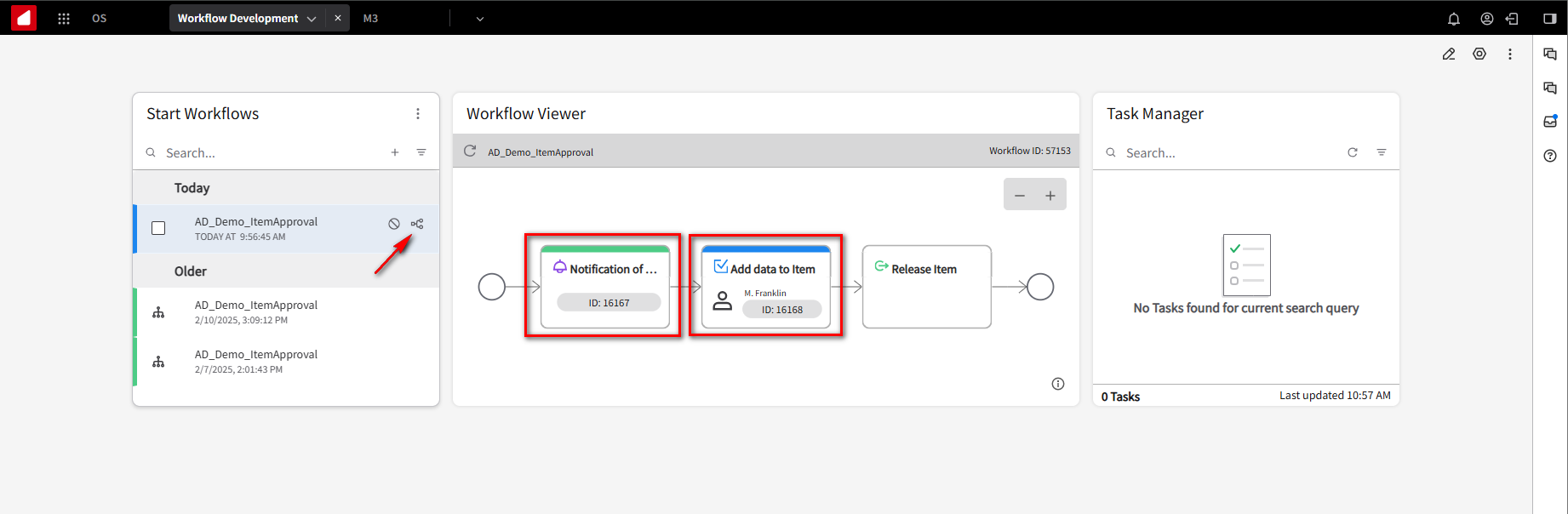
A new step is created. Click on the Hide in Workflow View Icon for the latest step in the Start Workflows widget notification. Notice the Notification step is labeled as green, which means it’s already been done. The Add Data to Item step is labeled as Blue, meaning it’s waiting for something.
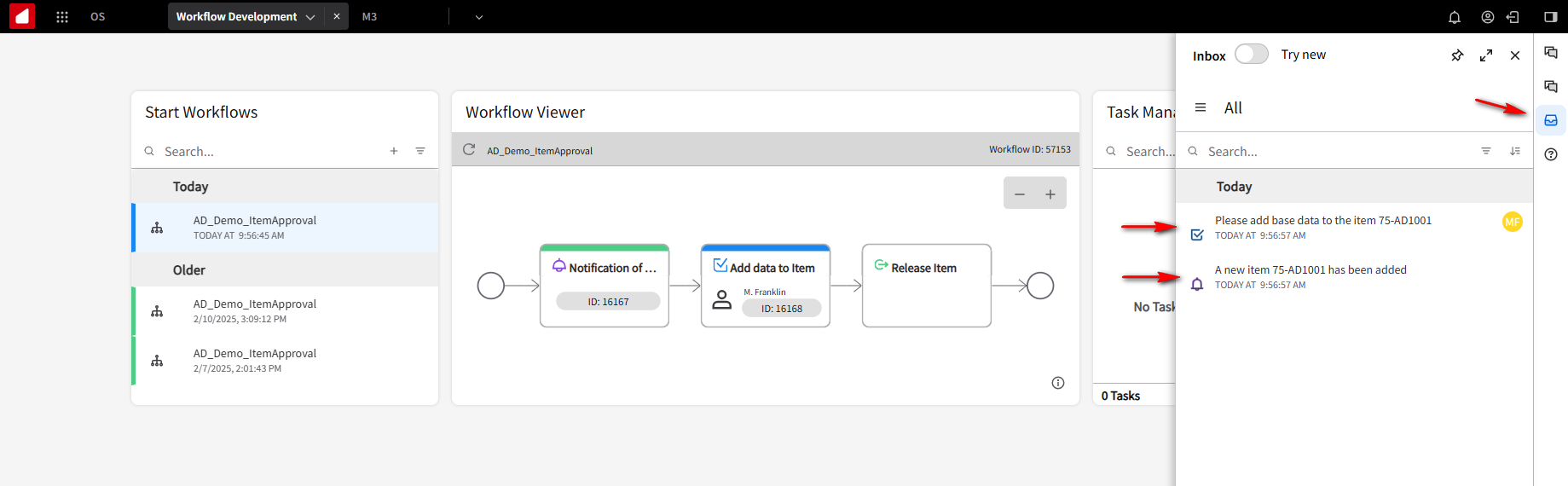
Click on the Inbox to view the notifications. There should be messages saying “A new Item has been added” and “Please add base data to the Item”.
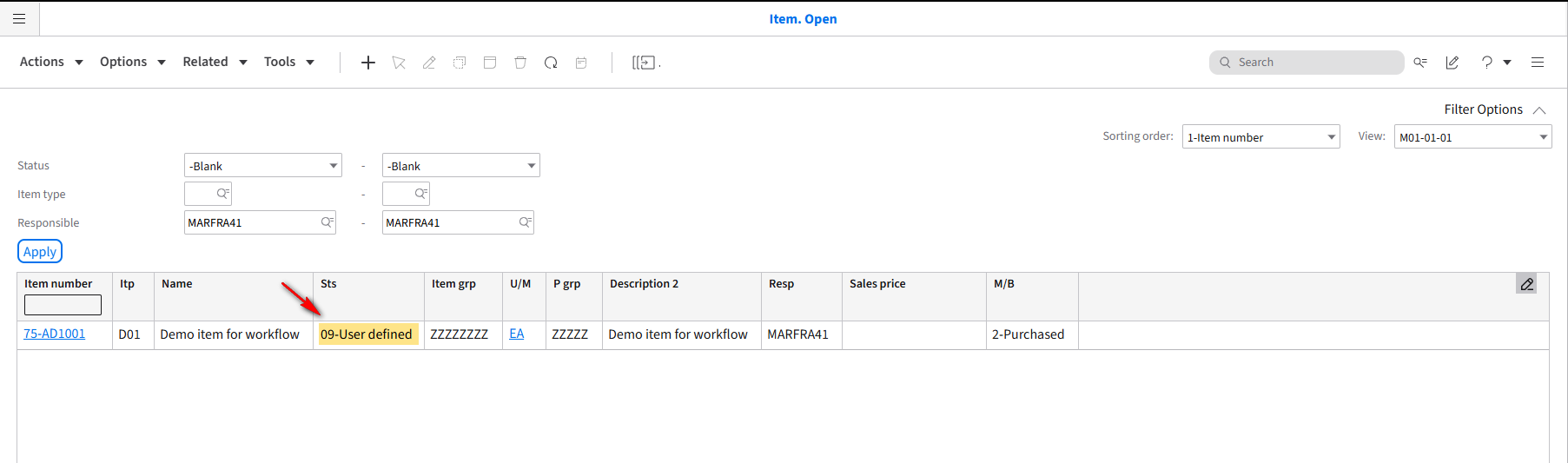
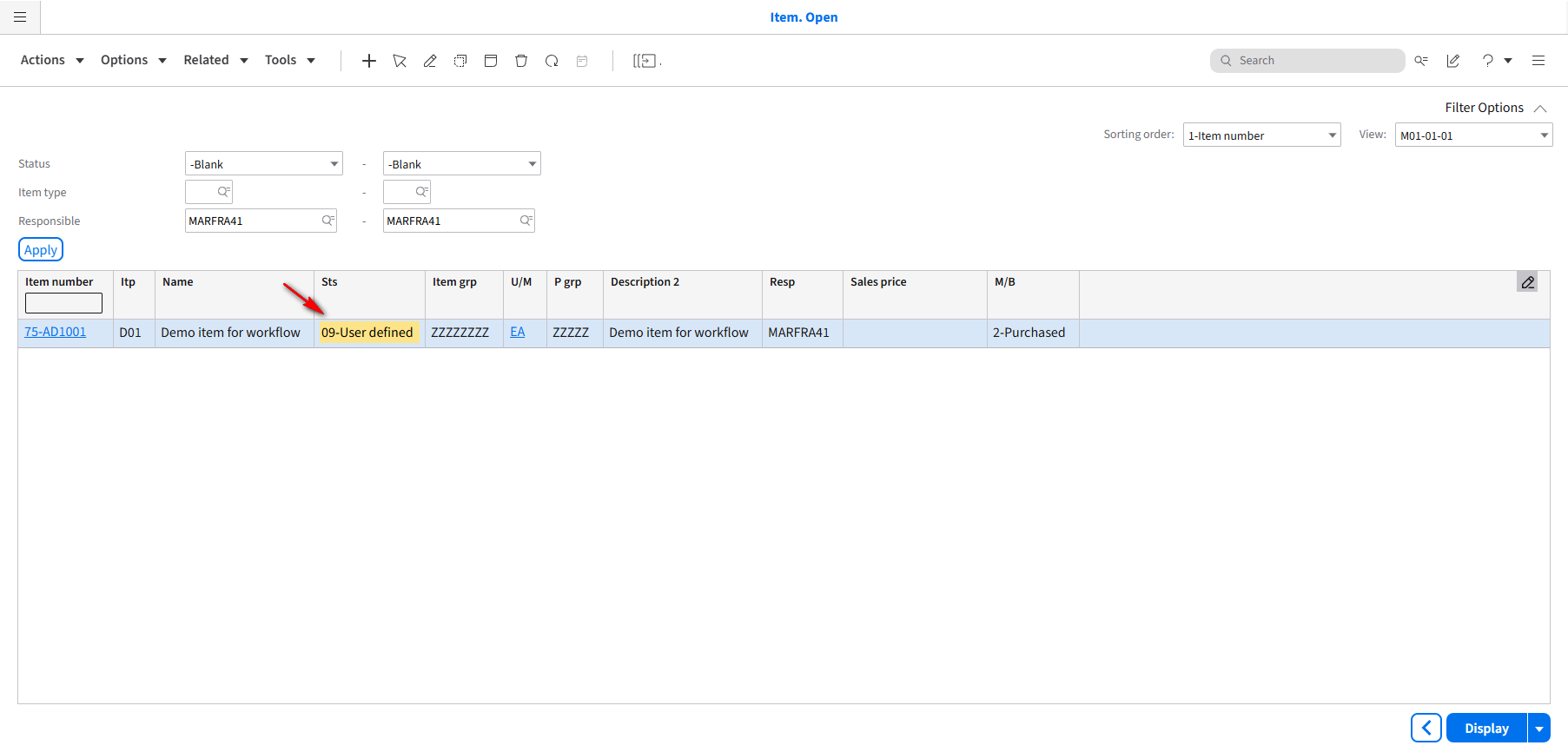
If you recall, the status code on the M3 75-AD1001 Item is set to 09-User defined.
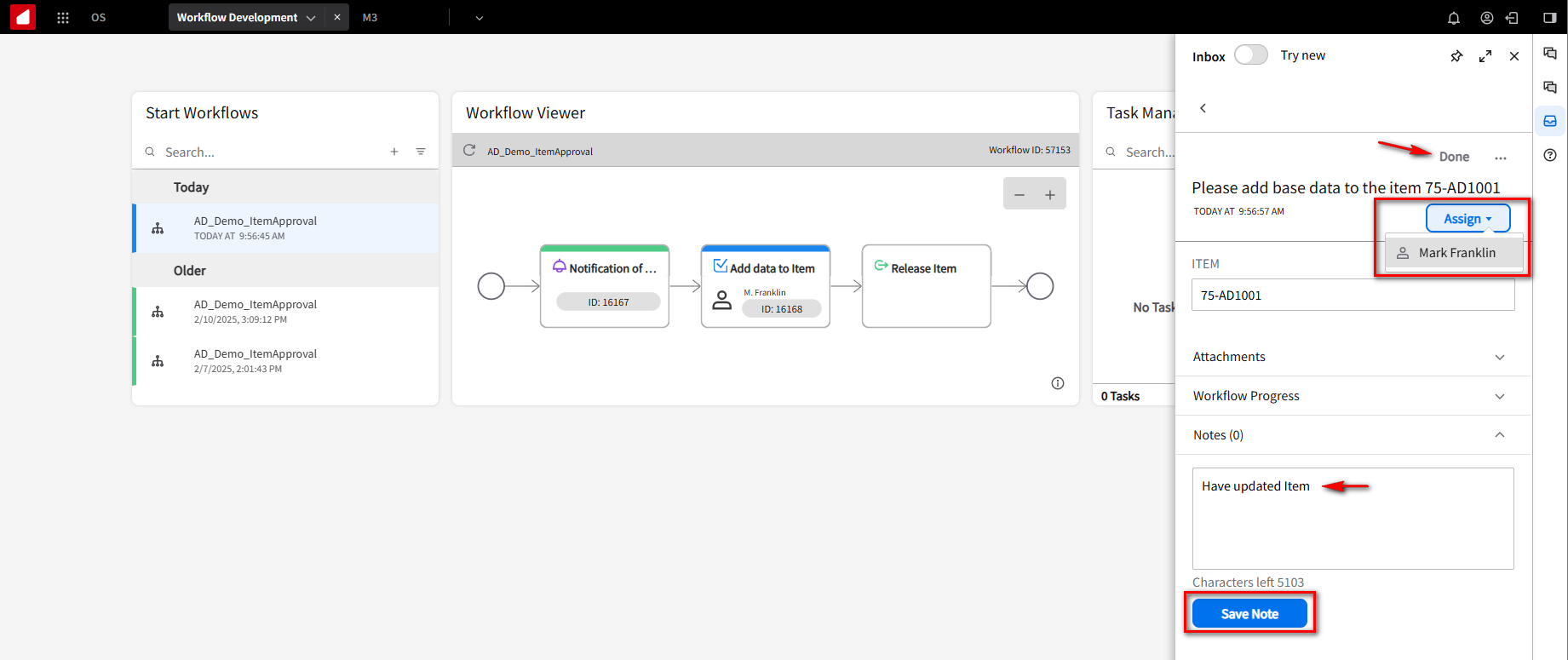
In the Inbox, select the message “Please add base data to the Item” and click the Assign button to verify it’s assigned to you. Add a note. “Have updated Item” in the Notes field and click the Save Note button. Click Done.
You will see the message “A new Item has been added”.
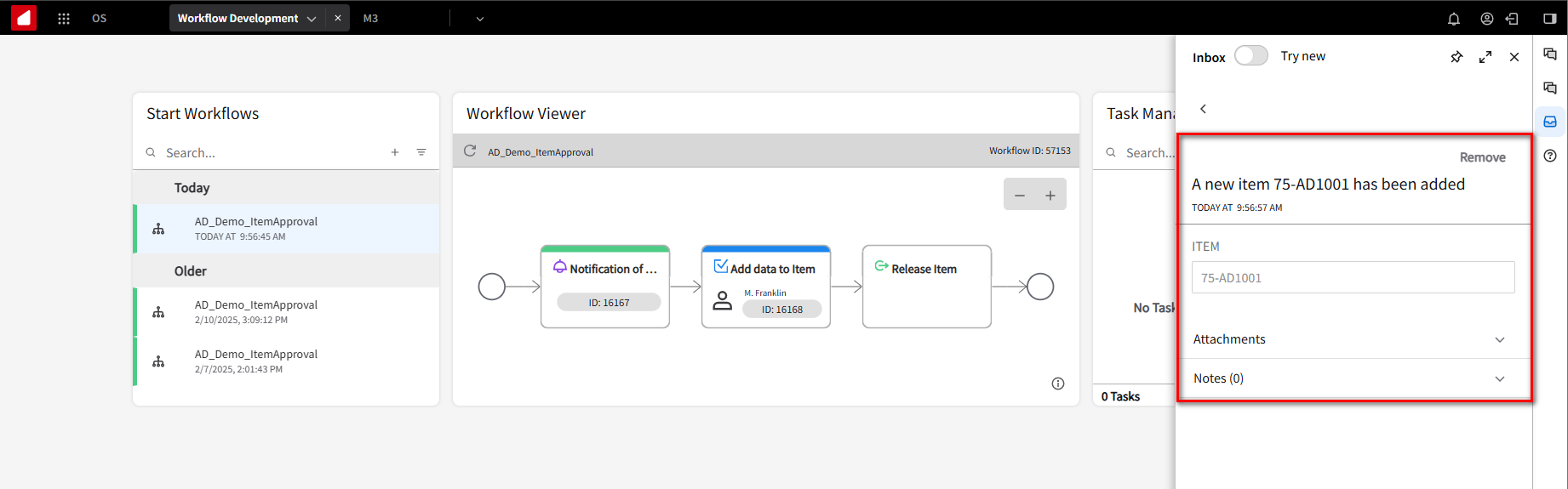
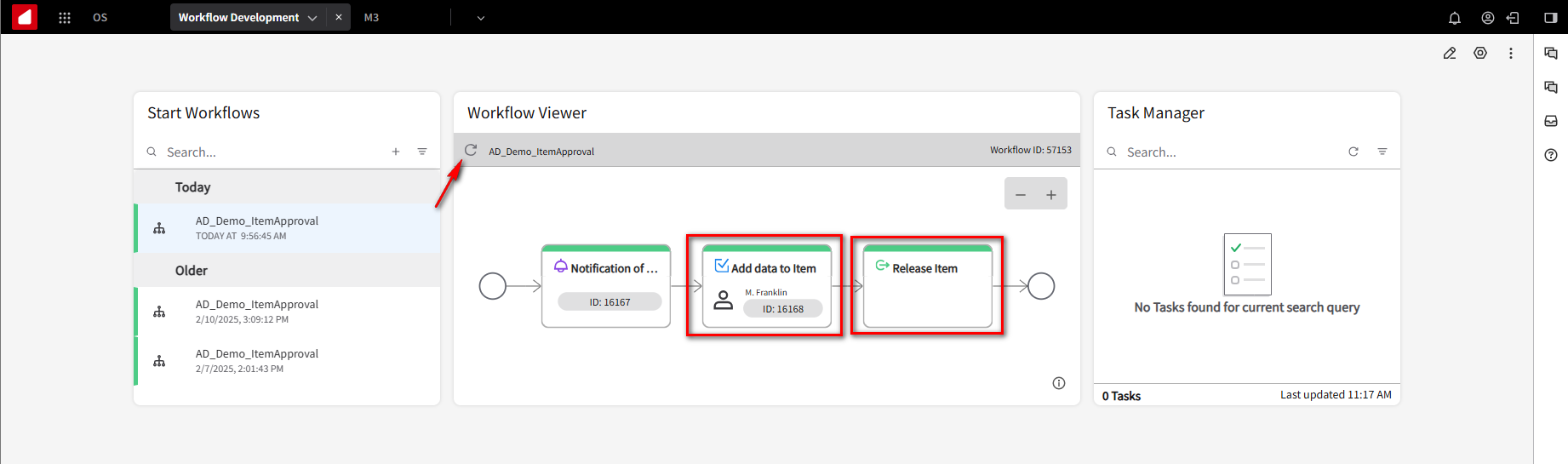
Go to the Workflow Viewer widget and click refresh. You will notice that the Add data to Item and Release Item steps are now labeled green, which means they are done.
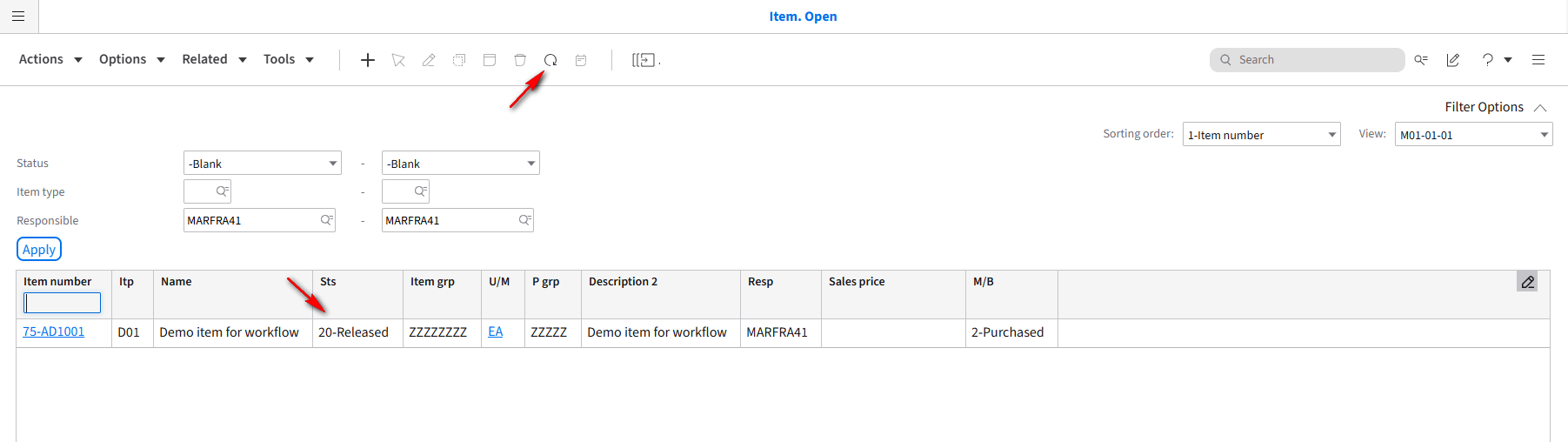
Go to M3 and click refresh. You should notice the status of Item 75-AD1001 change from 9 User defined to 20 Released.
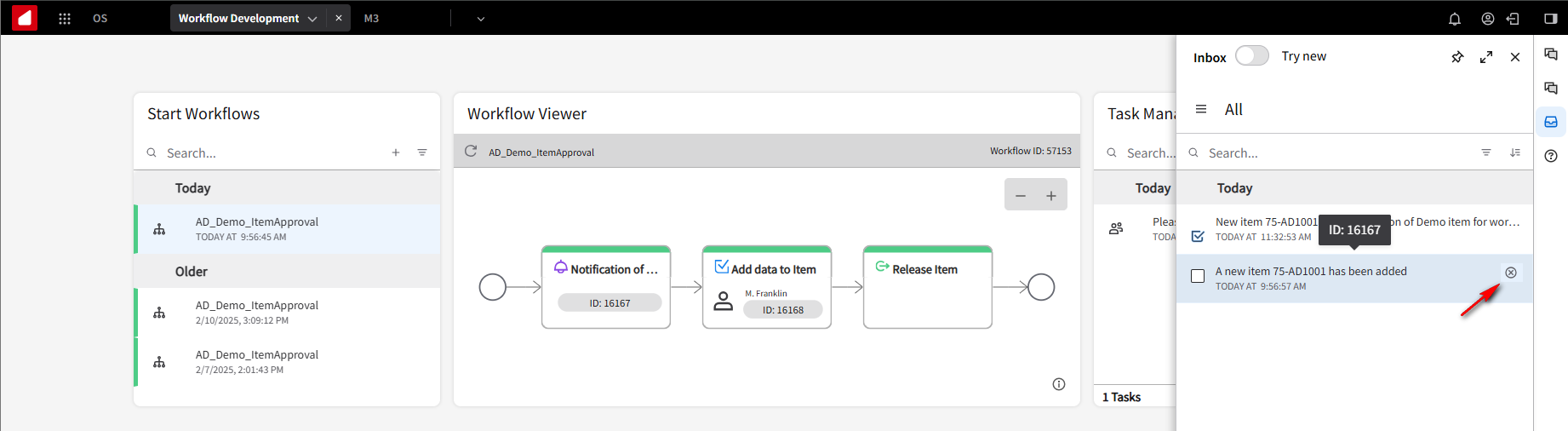
Let’s clean up the messages in the Inbox. Click the remove icon for the “A new item has been added” Notification.
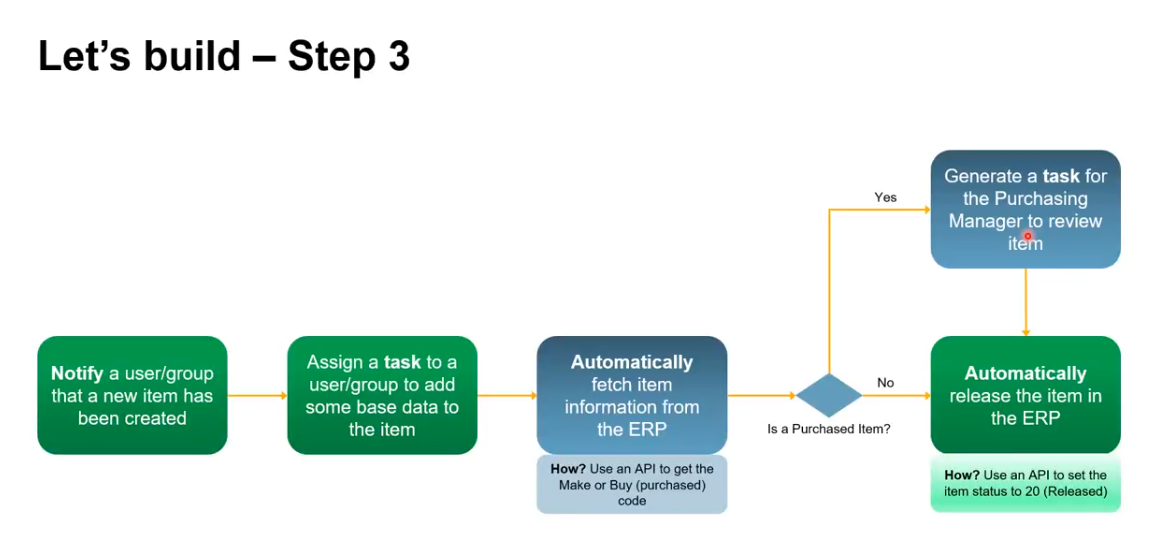
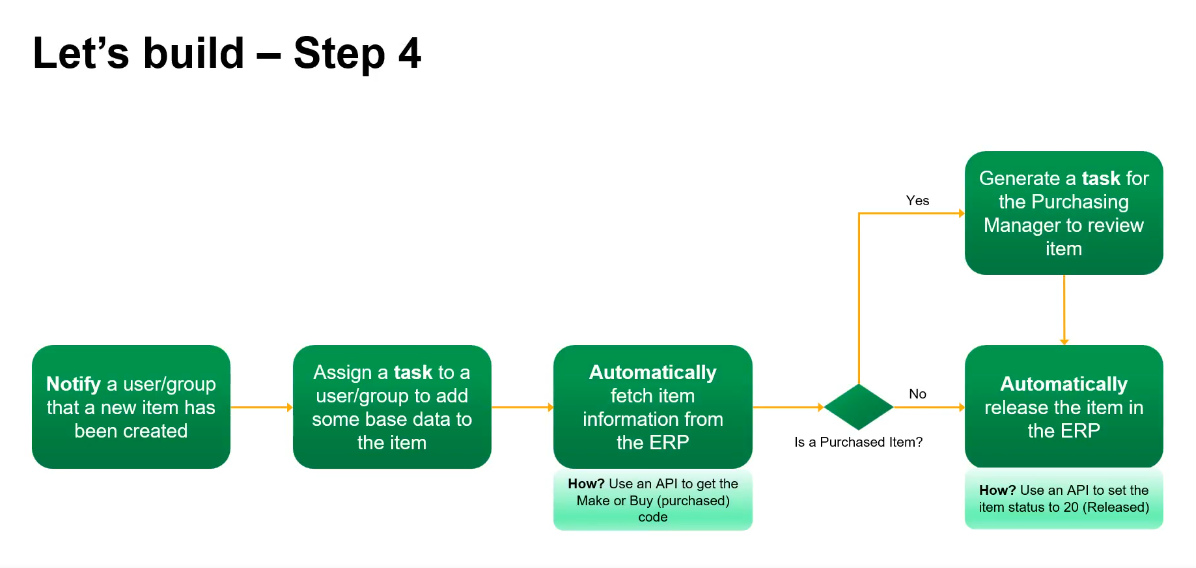
To recap what we’ve done so far, we’ve done the notification, assigned a task, and automatically released the item in the ERP using the API. We will now work on Step 3. Before we automatically release the Item, we want to check whether it is a purchased item. So again, we will call an API to get the make-or-buy code, which is the purchase code for the particular item. If it’s a purchased item, we want to send a message to the purchasing manager to review it before it’s released. Then, it will be automatically released.
Configure
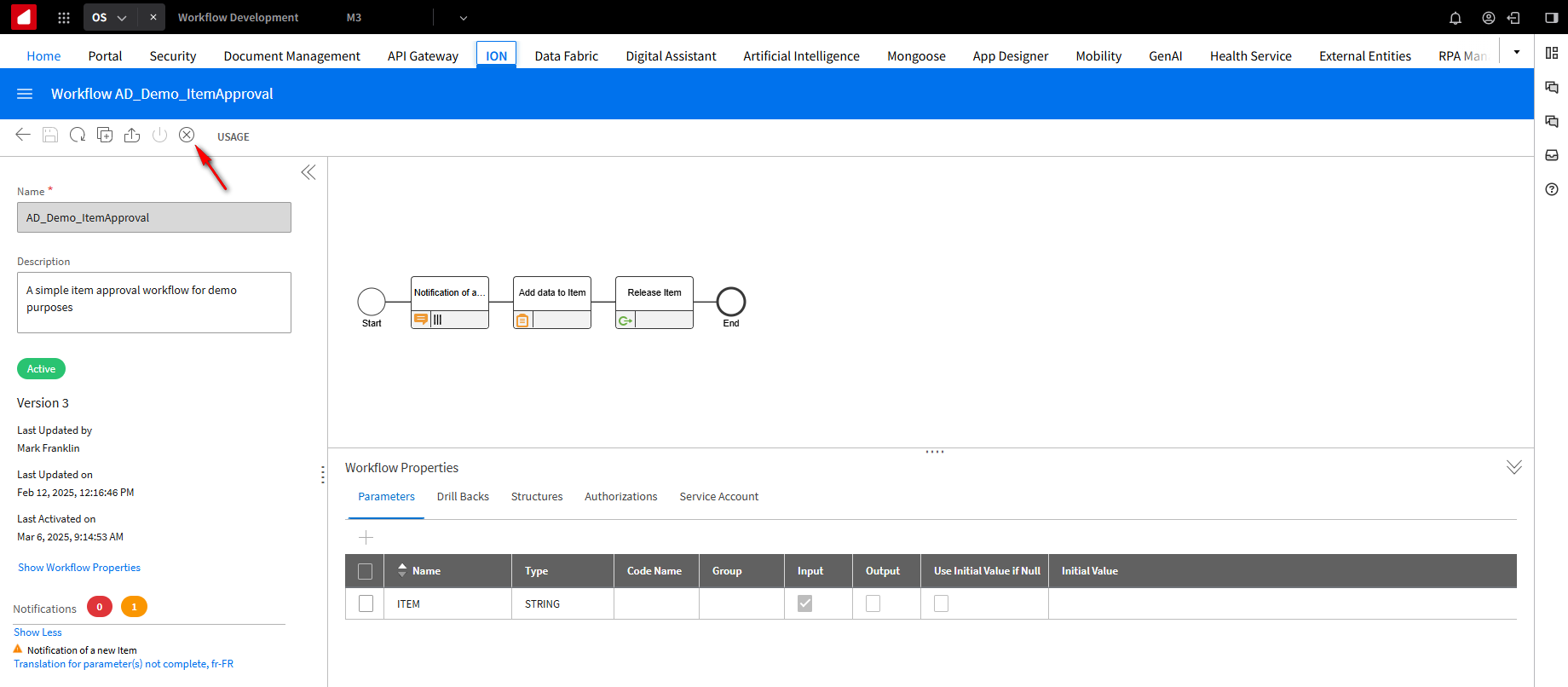
Go to your Workflow and click Deactivate.
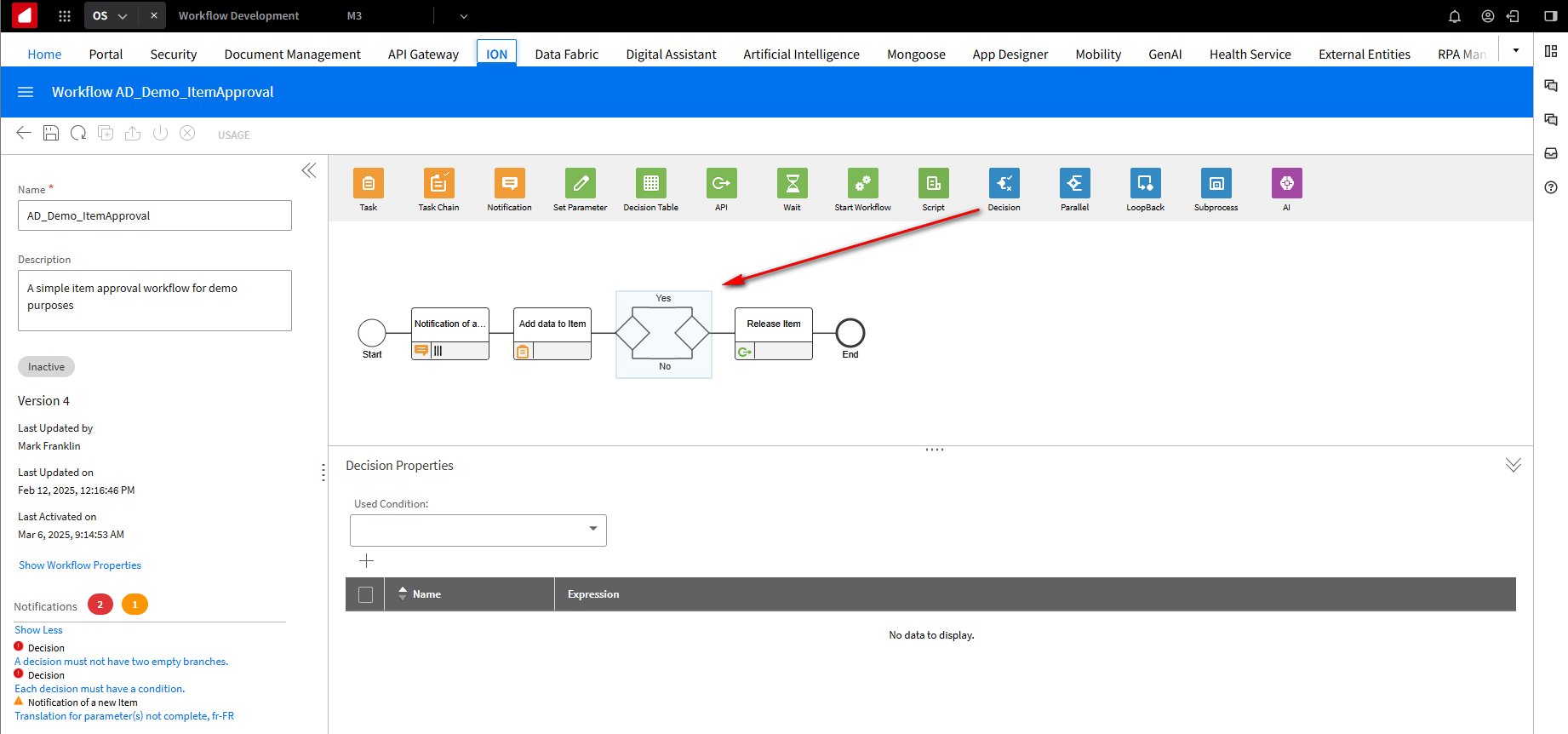
Drag and drop the Decision tree icon between the Add data to Item and Release Item steps.
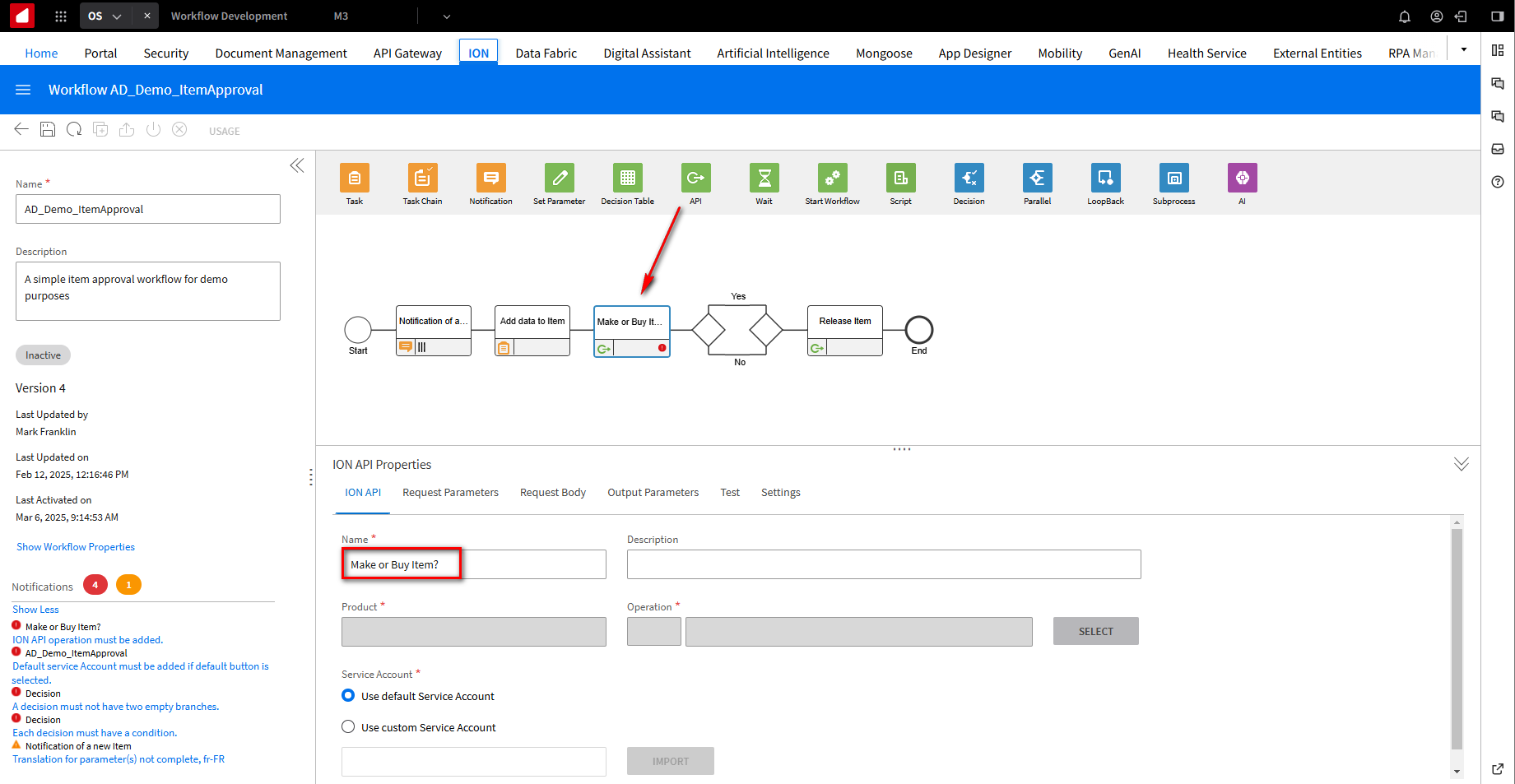
We want to check if the Item is a purchased item, which means we need to call an API. Drag and drop the API icon between the Add data to Item and Decision tree steps. Click on the API step, and in the ION API Properties field under the ION API tab, fill in the Name field with Make or Buy Item?.
Because we are calling an API, we need to configure a service account. We will use the Service Account we created earlier. Click on the Use Custom Service Account option and click the Import button. In the Upload Local File screen, click on the folder icon and Select the detailed service account credentials file you downloaded earlier. Click Open, then OK.
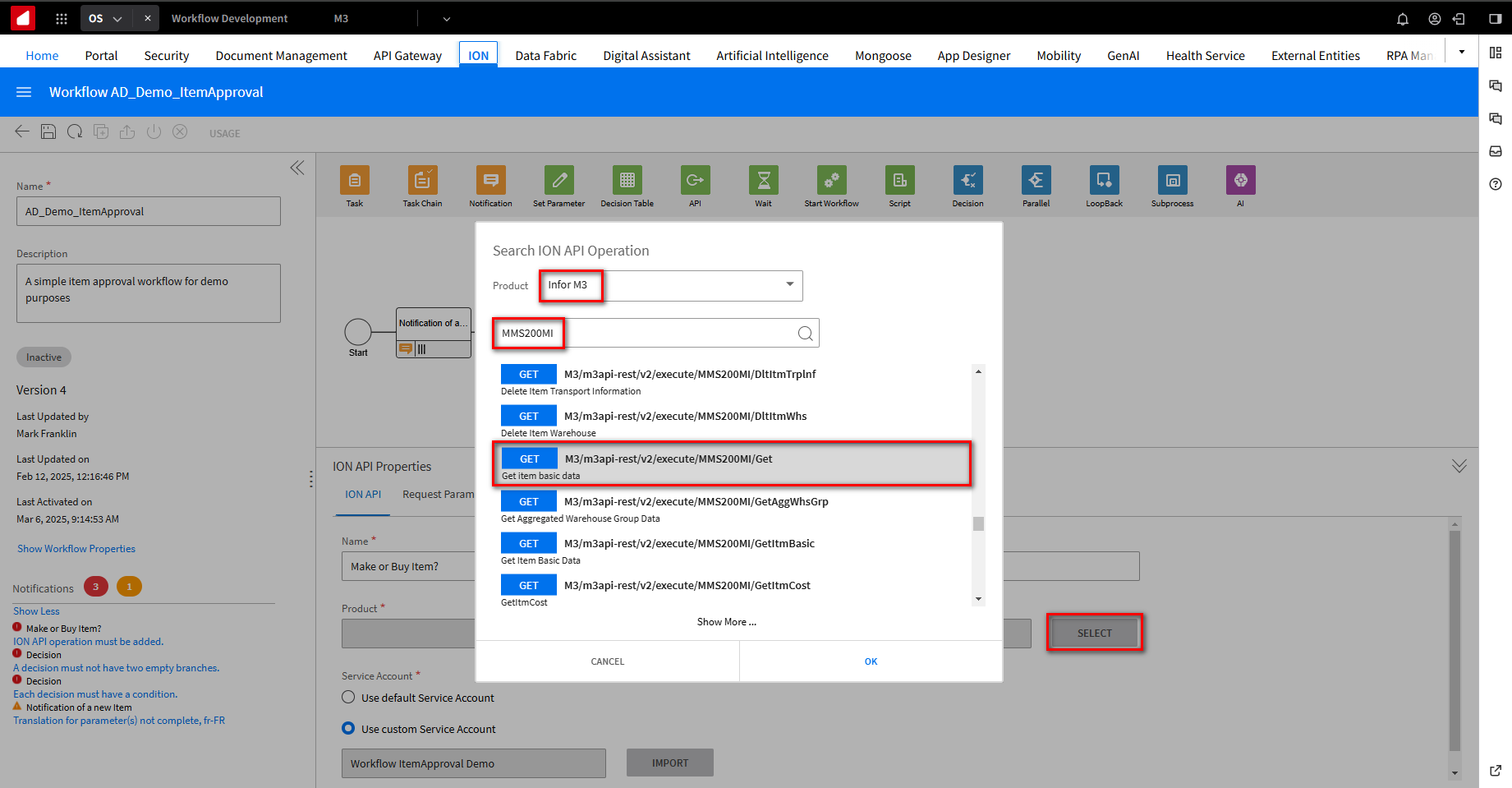
In the Product field, click the Select button to select the API you want to call. On the Search ION API Operation screen, In the Product field from the dropdown list, type MMS200MI and click the search Icon. Scroll down until you find the M3/m3api-rest/v2/execute/MMS200MI/Get API and select it since we want to get basic information. Click OK.
While scrolling down through the list of APIs, you may need to click on the Show More Icon to view additional APIs.
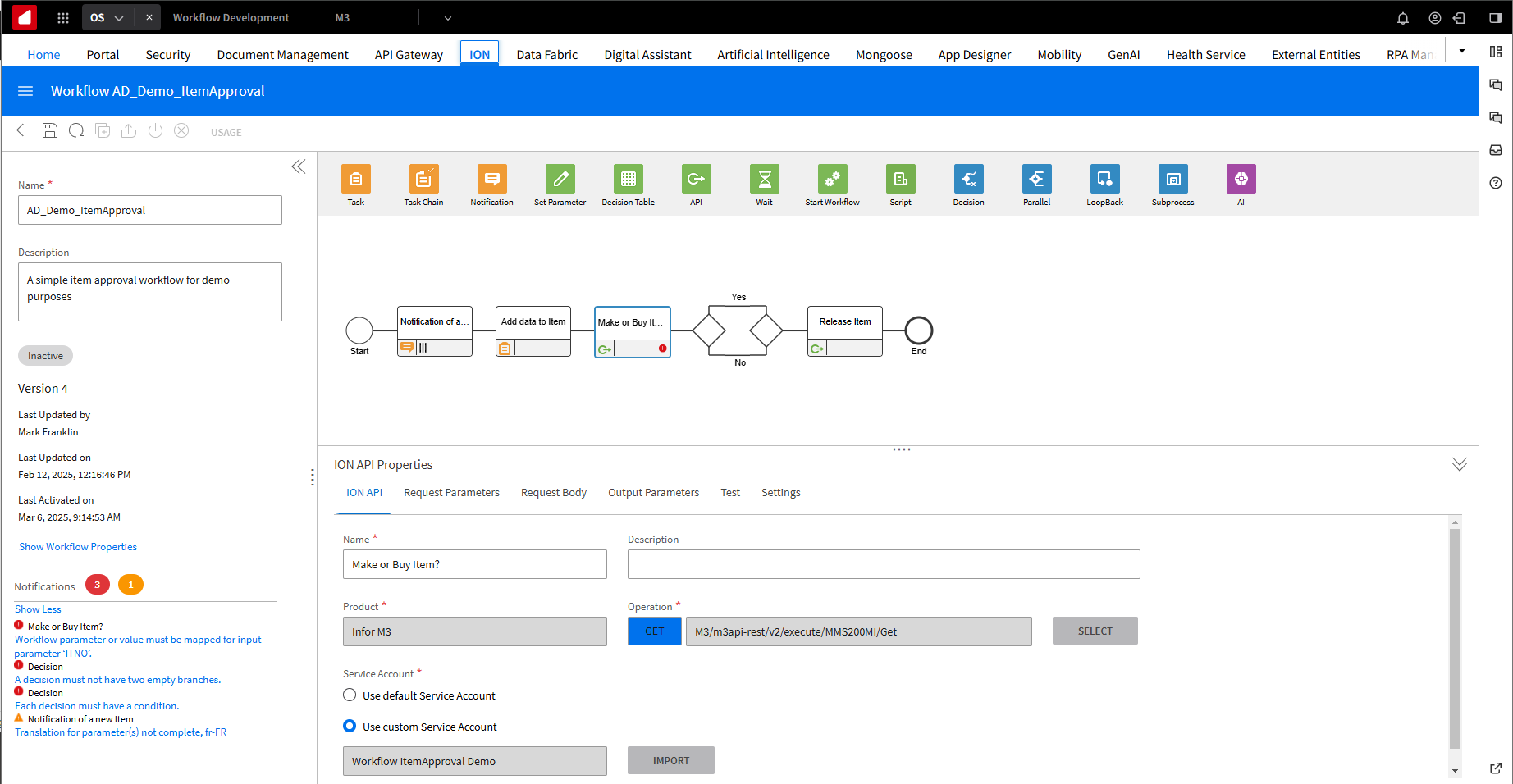
Here are the Product field settings after the API selection.
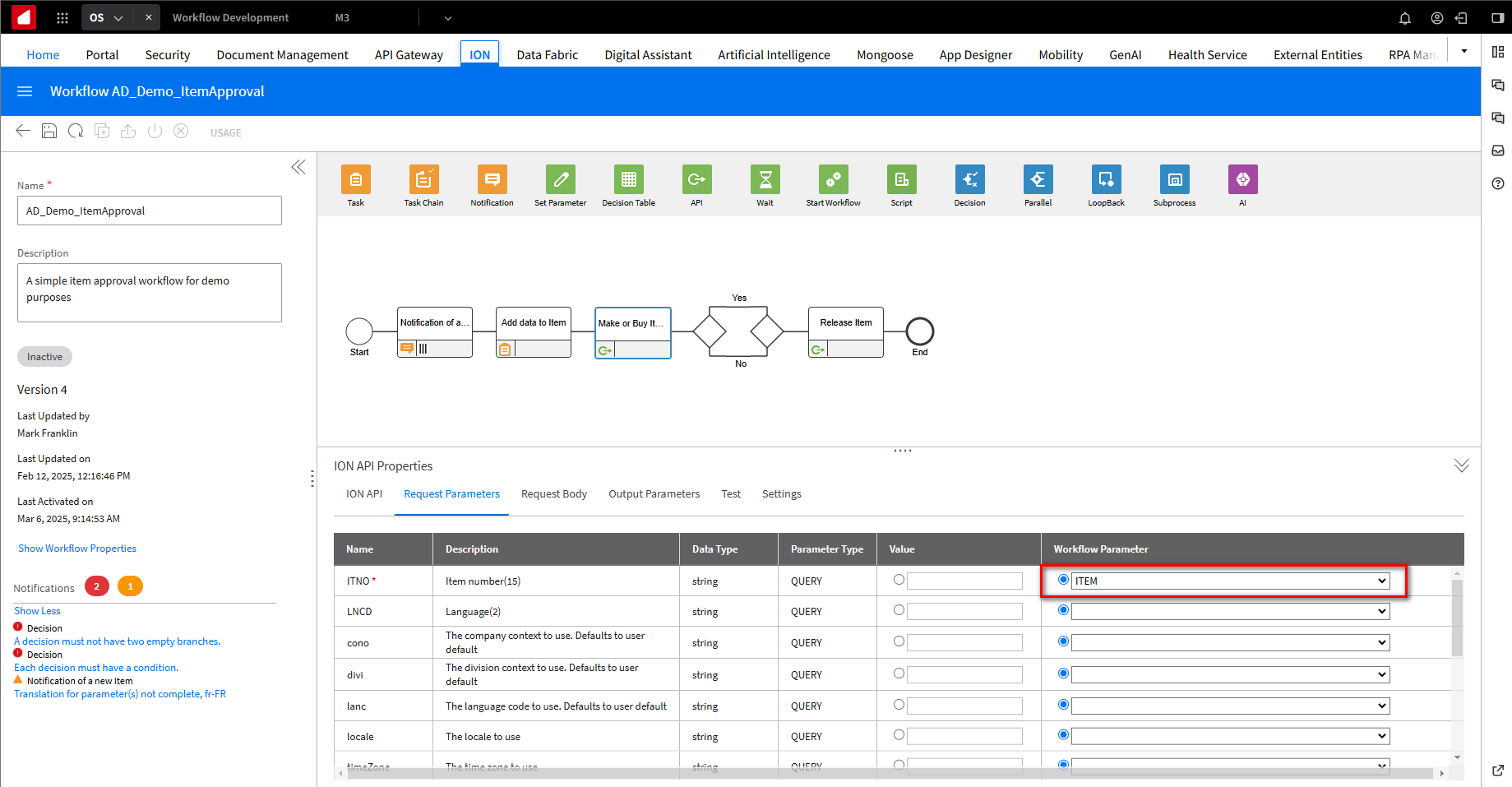
Select the Request Parameters tab. On the ITNO parameter in the Workflow Parameters field, from the dropdown, select ITEM since this will update the Item record.
Click on the Output Parameters tab. This API also outputs information because we will be taking the code we need. It wants to know what it is that we’re outputting or checking as part of the output parameters. We need to work with a JSON file, so our return code is part of a JSON file. Set the Response Content Type field to application/json. Click the + button and set the Response to BODY. We need to set the Path to get to the JSON file. Looking for something called M-A-B-U or “Make a Buyer Code”. Set the Path to $.results[0].records[0].MABU.
Our JSON files are based on the O-A-G standard, which is the industry standard.
Once we’ve got the information, where do we want to drop it? We need to drop it into another parameter that we can use. For the Workflow Parameters field, we need to configure another parameter.
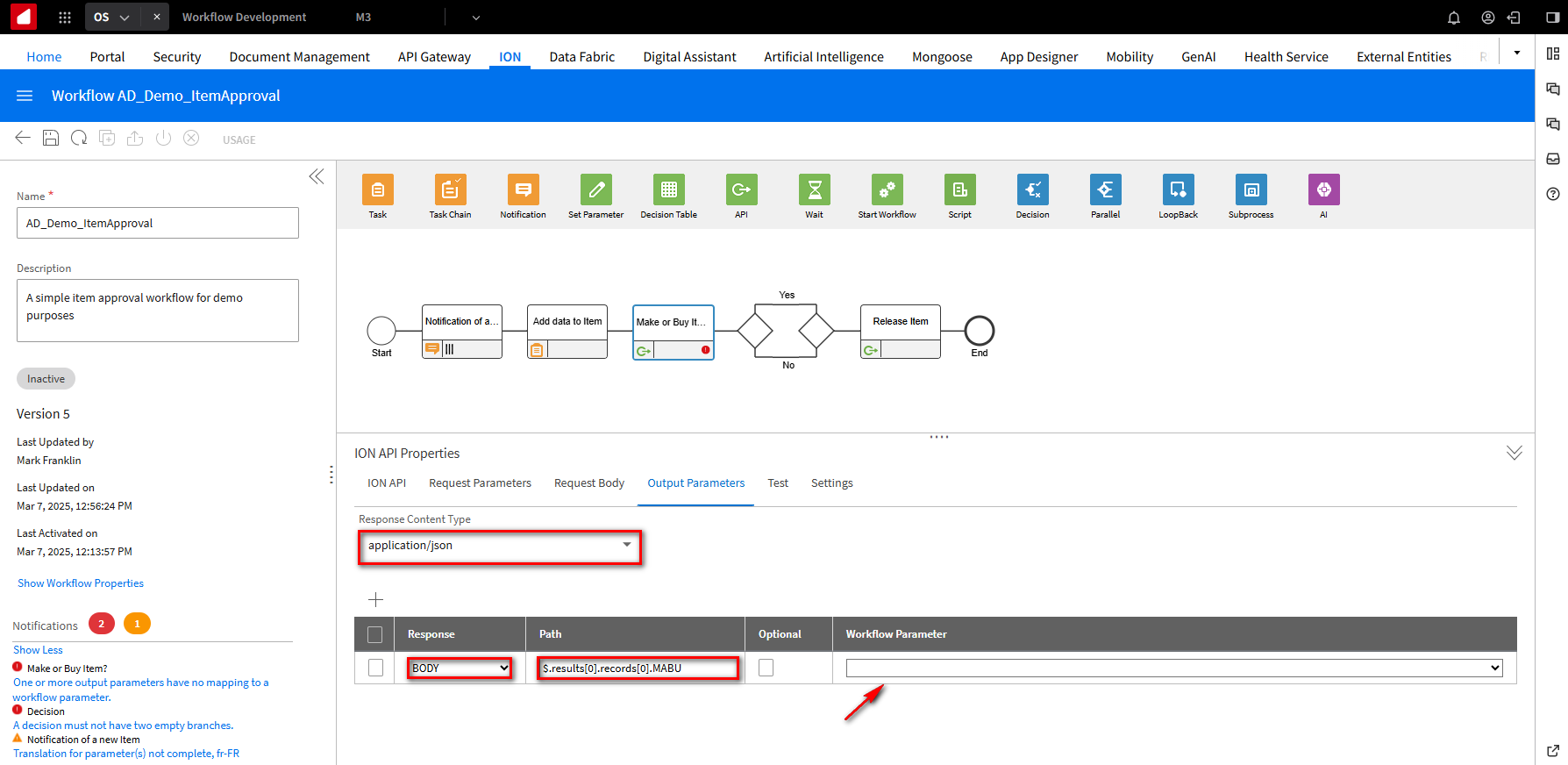
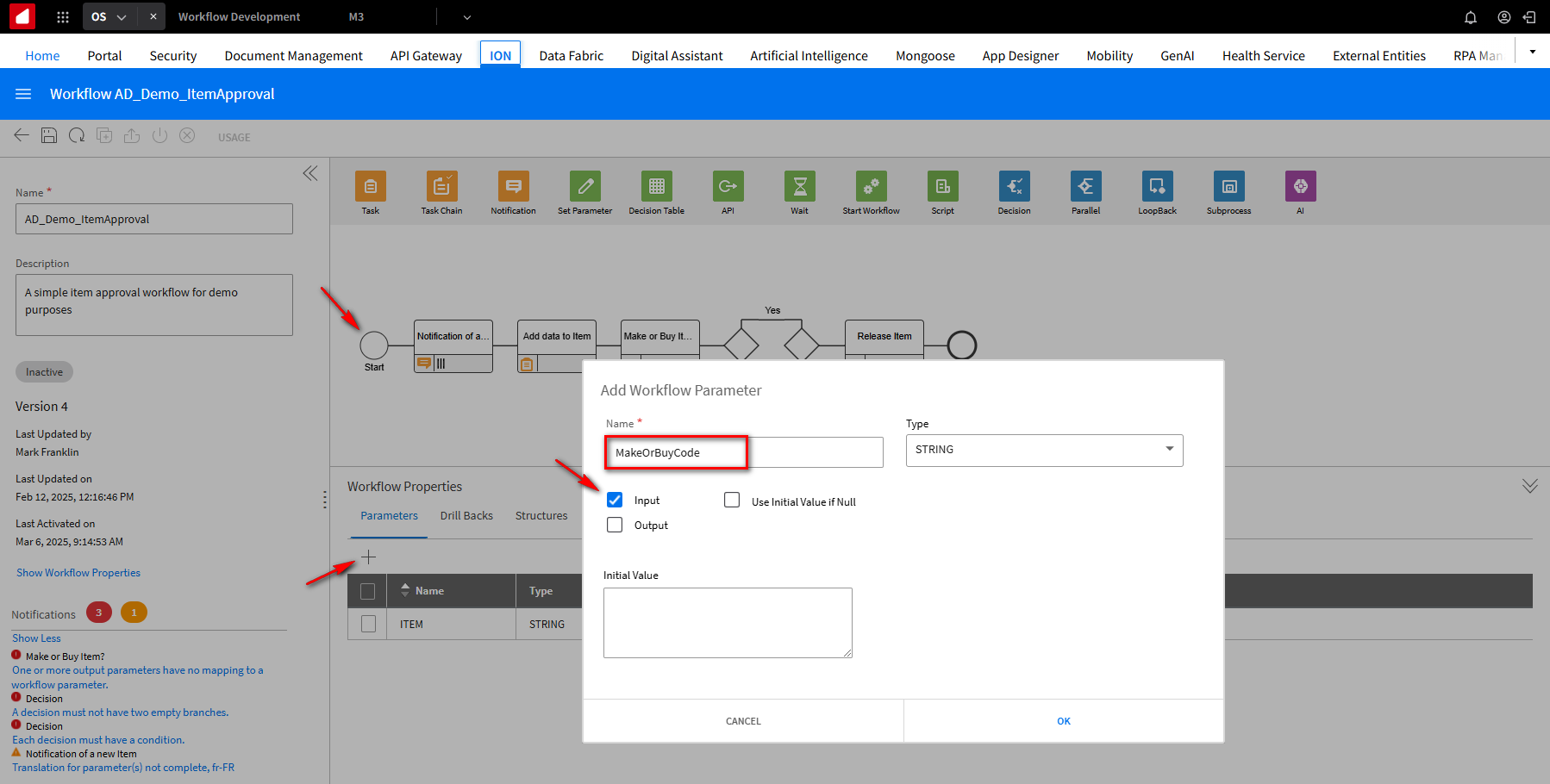
To add another parameter, click on the module, Start, and click the + button in the Workflow Properties section under the Parameters tab. On the Add Workflow Parameters screen, enter MakeOrBuyCode in the Name field. Since it’s an import parameter, select the Input option.
Click OK.
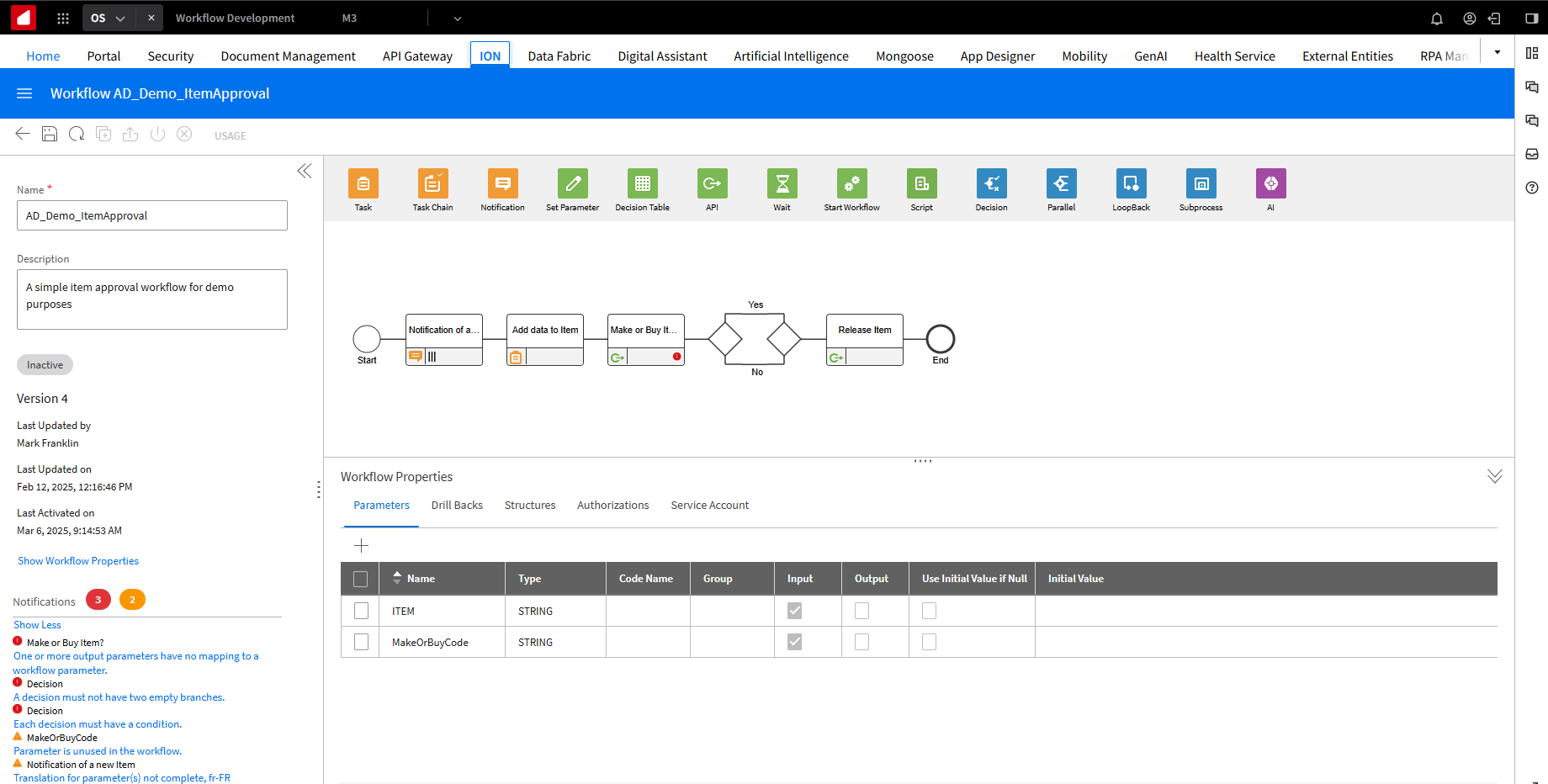
This is what the screen looks like after the ITEM Parameters setting.
Go back into the Make or Buy It step, and from the Workflow Parameter drop-down, select the MakeOrBuyCode parameter.
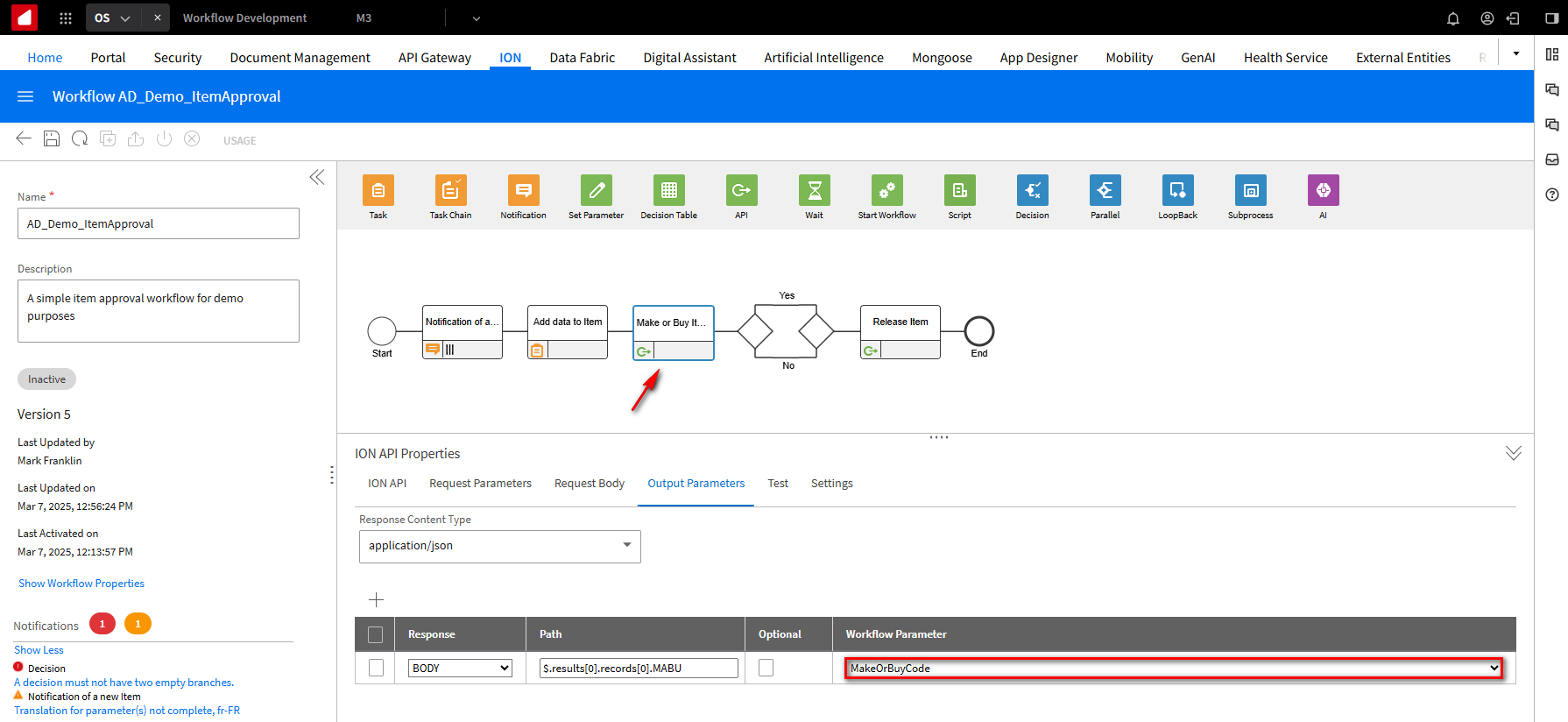
So, this API will look for the item and return something in the $.results[0].records[0].MABU field path into the MakeOrBuyCode parameter. We are going to use the API configuration in the Decision tree.
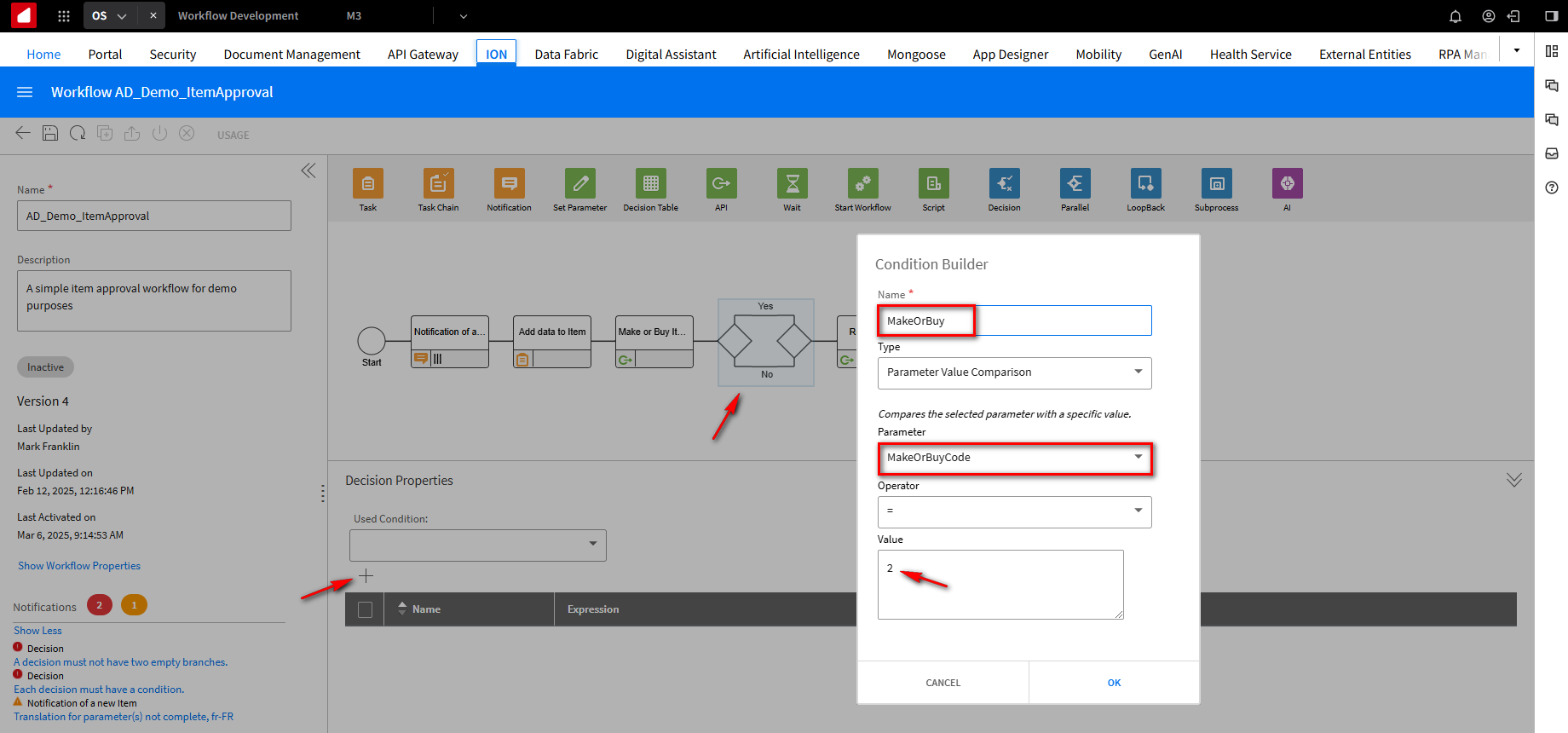
Click on the Decision Tree step of the module. We will tell it to look for something, and we want to check if the MakeOrBuy parameter is equal to 2, which is the code for purchased. If it is, MakeOrBuy is true. Click the + button, on the Condition Builder screen; in the Name field, input MakeOrBuy. This name can be set to any name. In the Parameter field, use the drop-down, select the MakeOrBuyCode option, and in the Value field, input 2. Click OK.
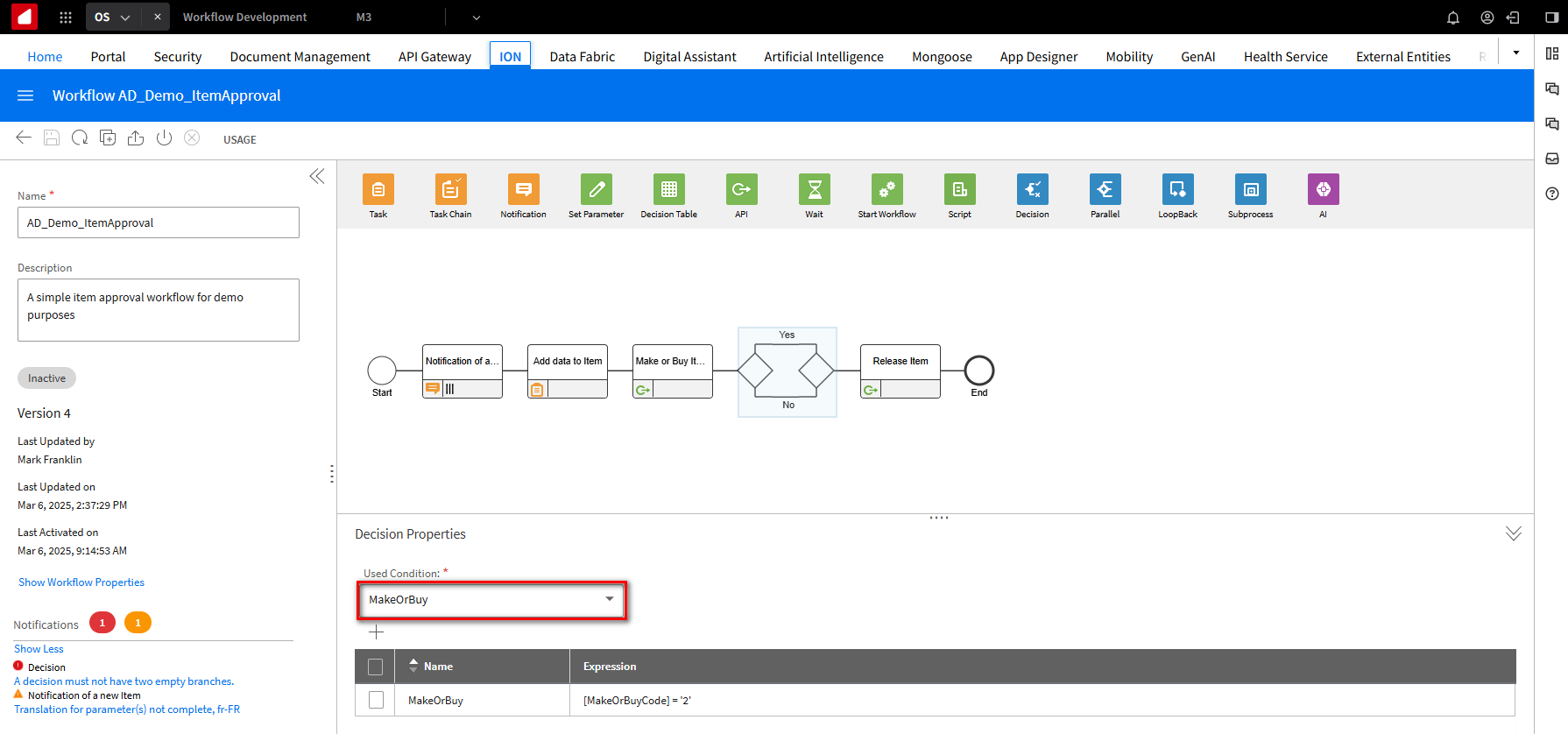
Select the MakeOrBuy option from the drop-down menu in the Used Condition field.
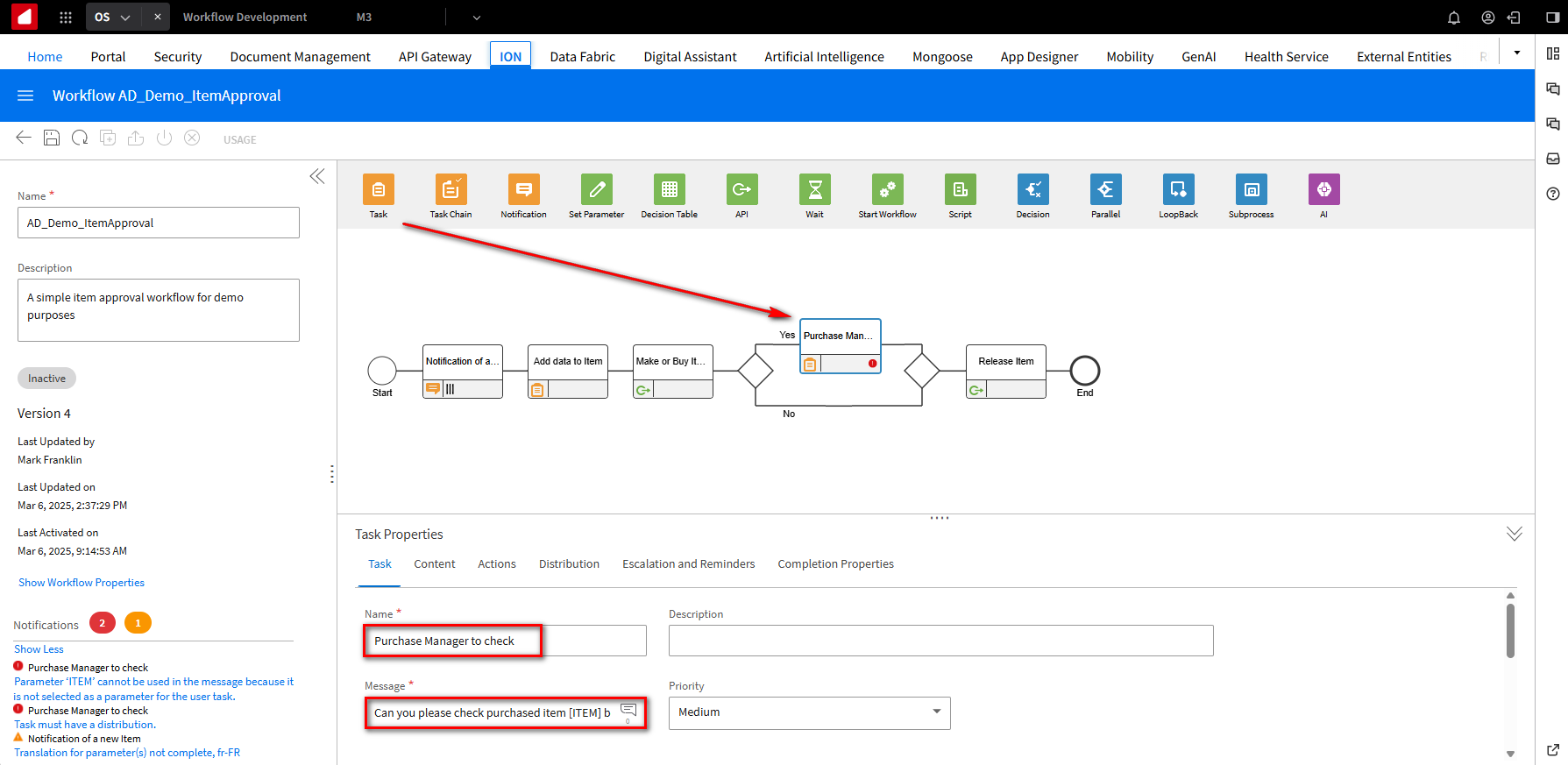
If the decision is Yes, the purchasing manager will be responsible for this Item. To set this up, drag and drop a Task icon into the Yes decision step. In the Task Properties section under the Task tab, fill the Name field with Purchase Manager to check. In the Message field, input “Can you please check the purchased item [ITEM] before it is released?”
We will use the Item, so in the Task Properties section, click the Content tab and select the ITEM parameter. Click the -> symbol to move the Parameter to the enabled section.
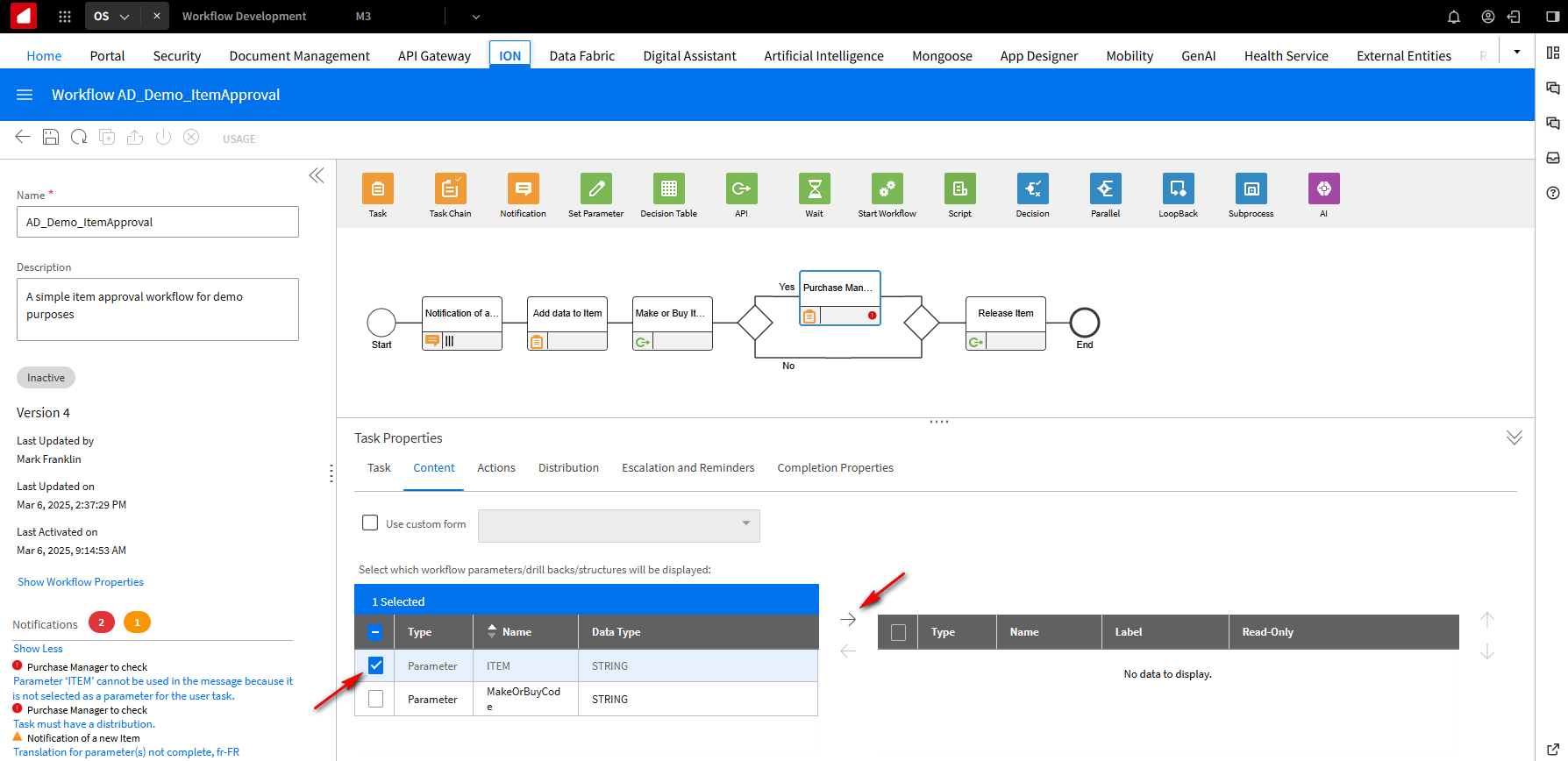
This is what it will look like after the move.
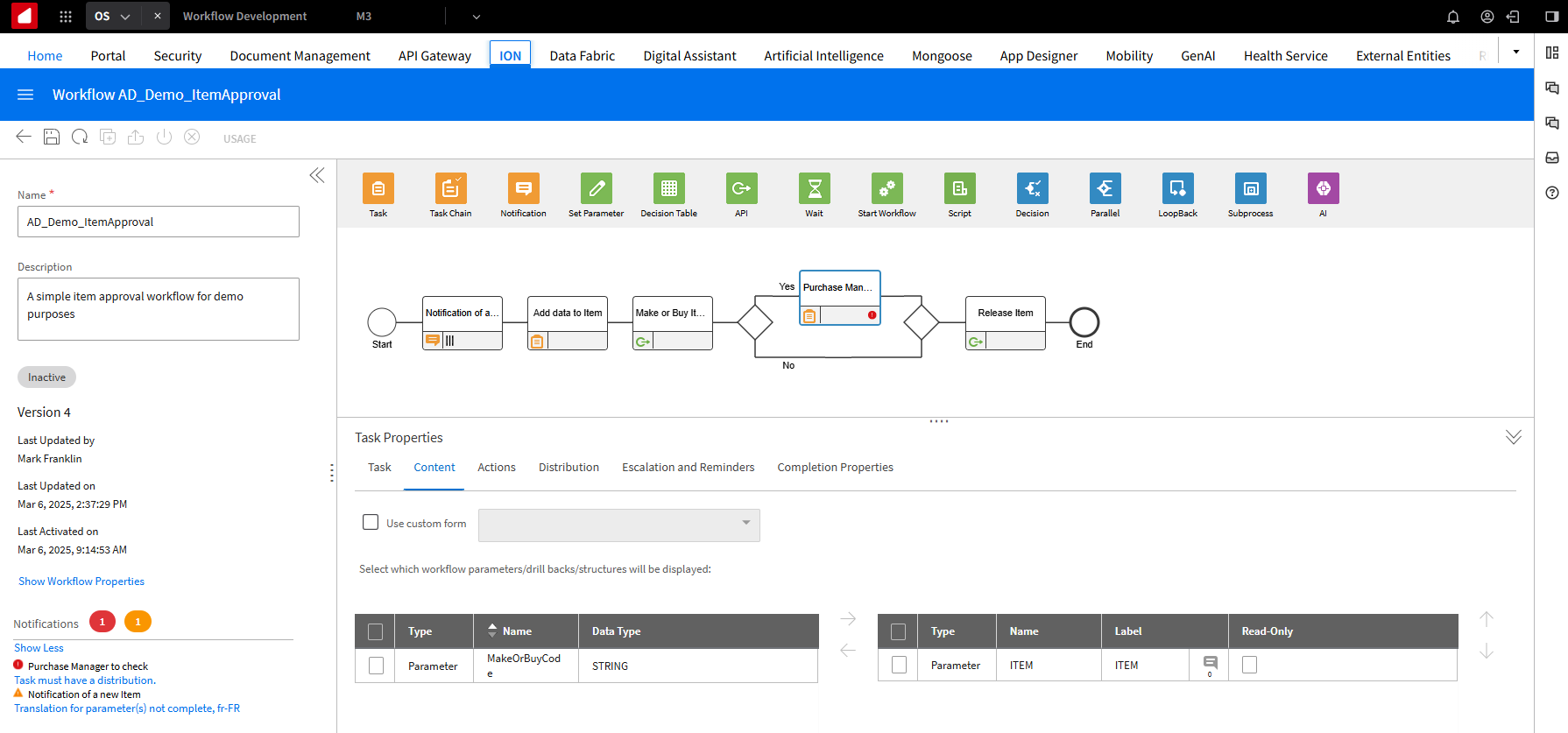
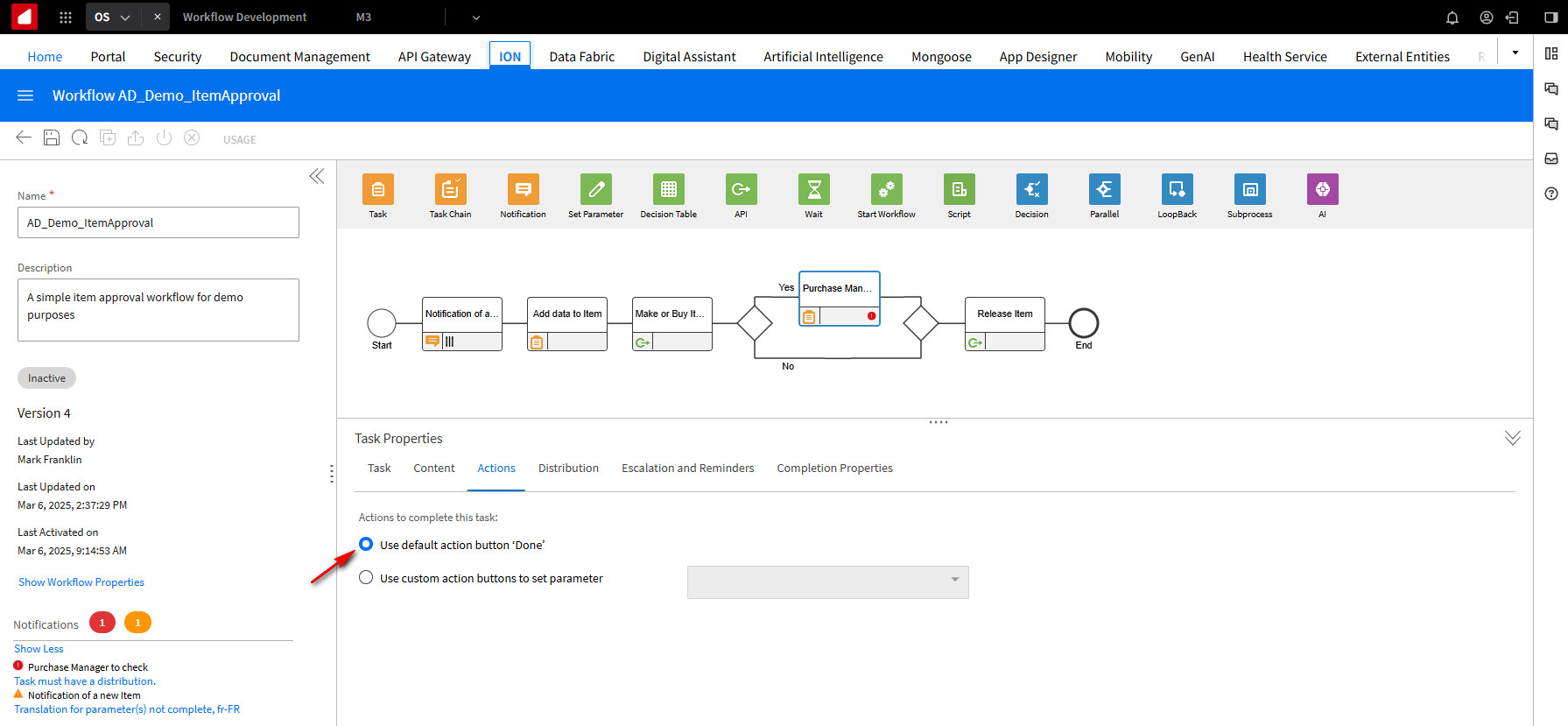
In the Task Properties section, click the Actions tab and select the Use default action button ‘Done’.
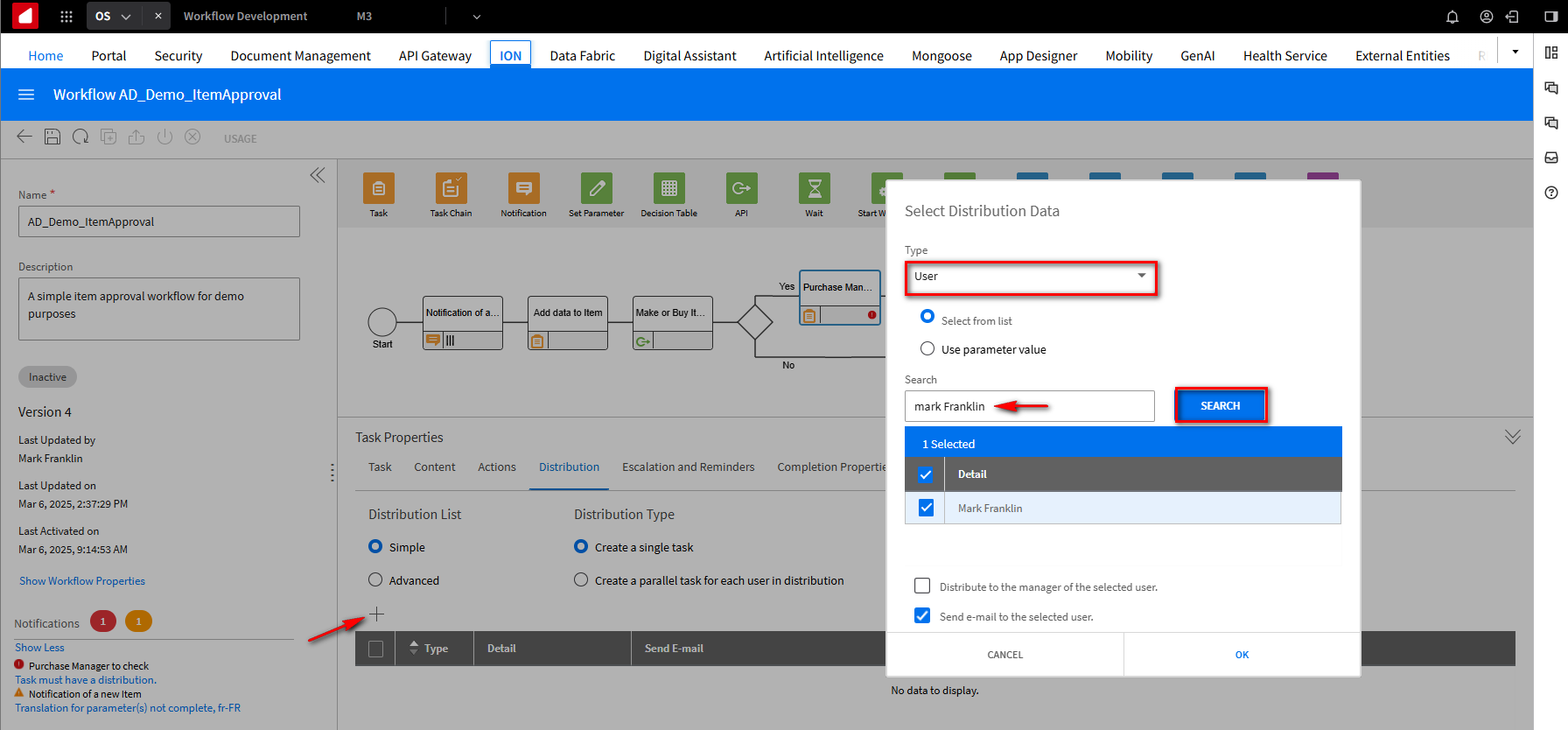
Who do we want to send it to? We are going to send it to yourself. In this example, you will also be the purchasing manager. In the TaskProperties section, click the Distribution tab and then click the + button. On the Select Distribution Data screen, select User from the drop-down in the Type field. In the Search field, type your name and click the Search button. Make sure your name is chosen. Click OK.
This is what the screen will look like after the distribution assignment.
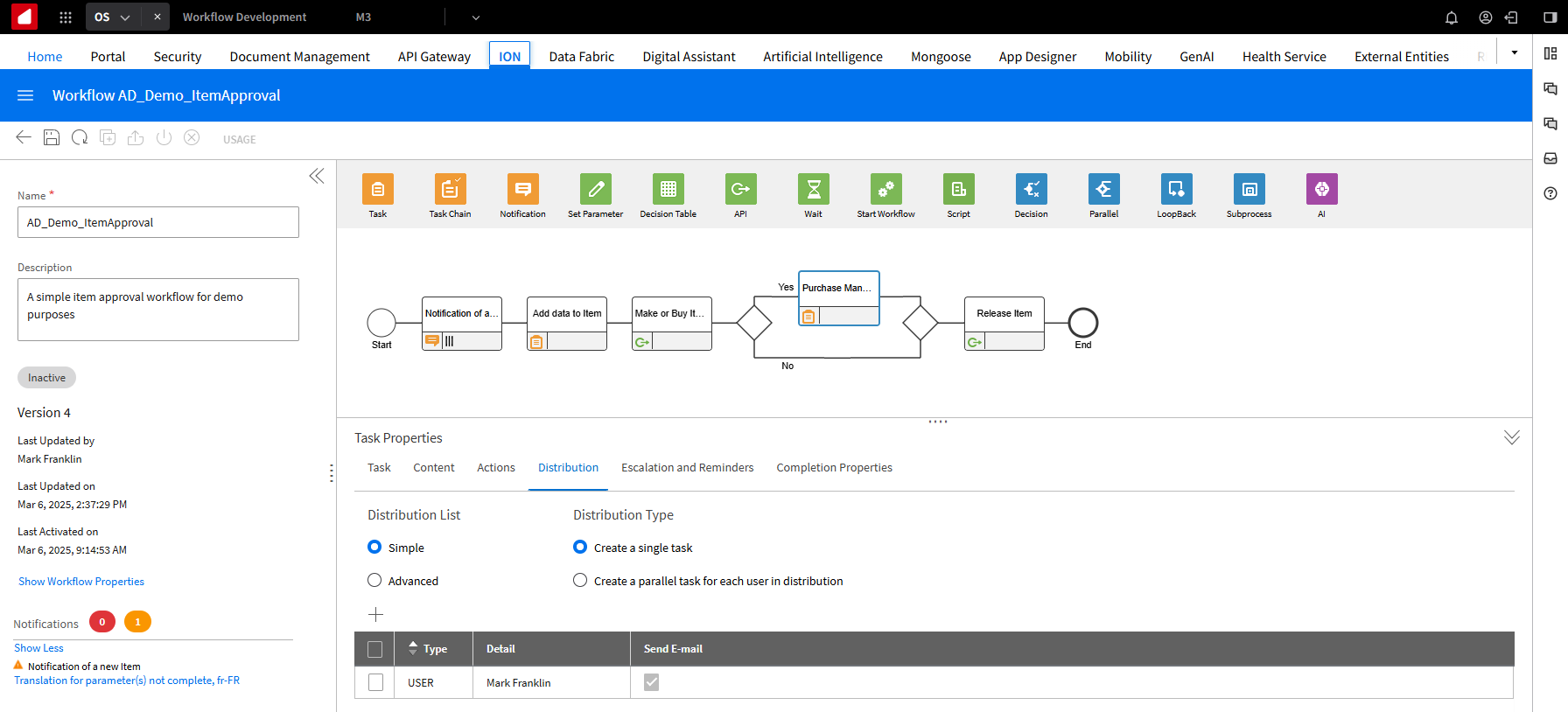
To recap what we just configured, we’ve got the Make or Buy It API, performed a decision check, sent a message to the Purchasing Manager, and will release the item as before when the Purchasing Manager is done. Click Save, then Activate.
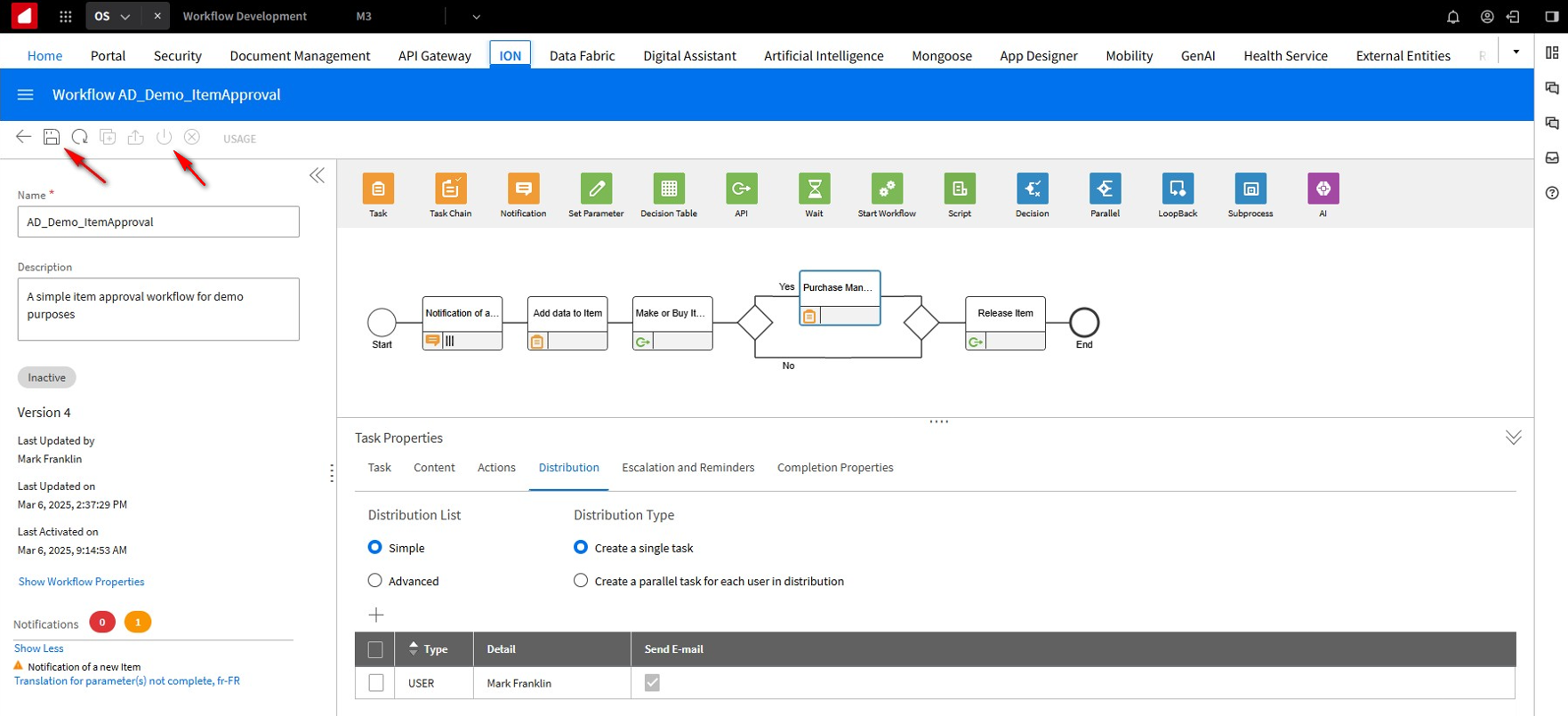
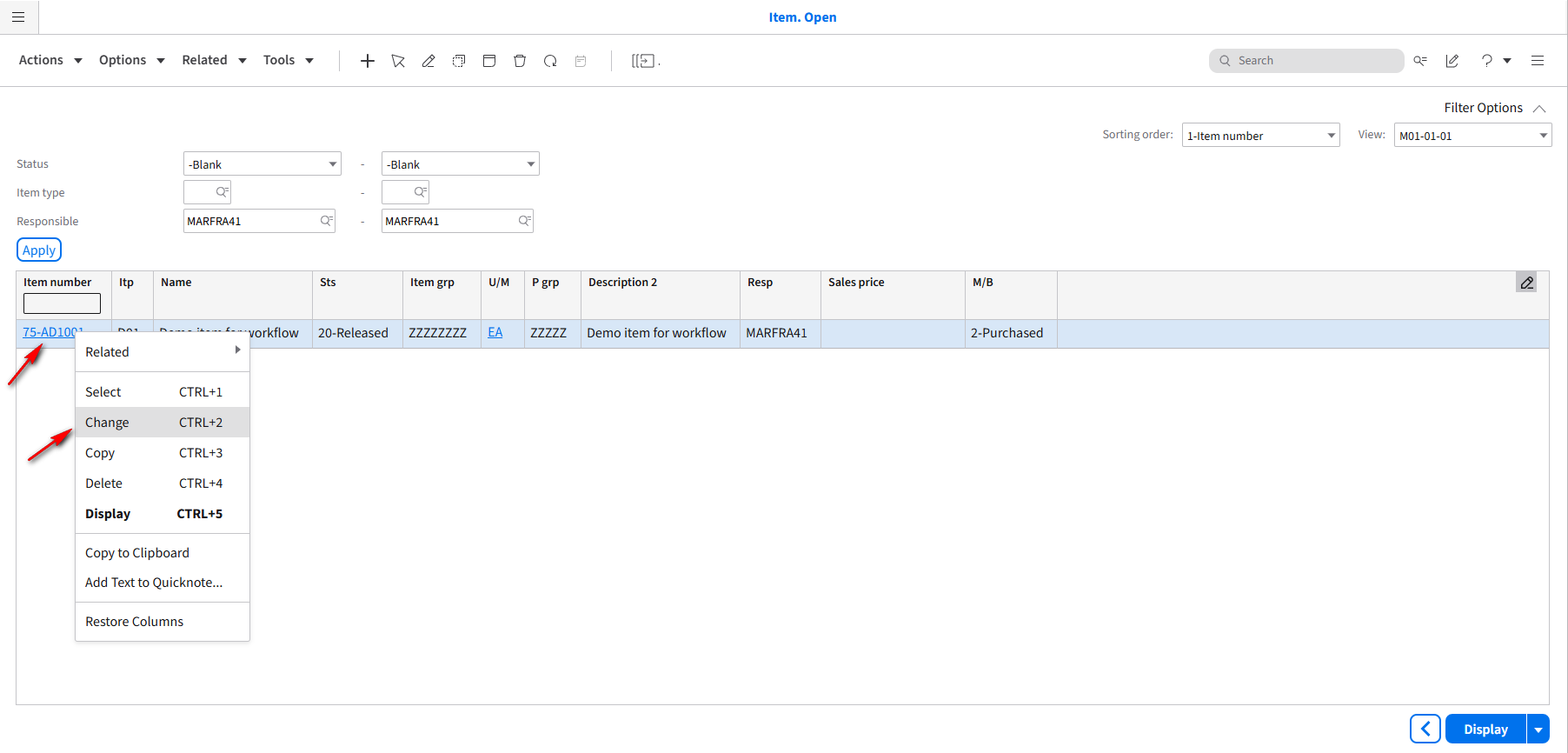
We need to change the status of the M3 Item back to 09-User defined. To do so, go to the M3 application, right-click the 75-AD1001 Item, and select the Change option.
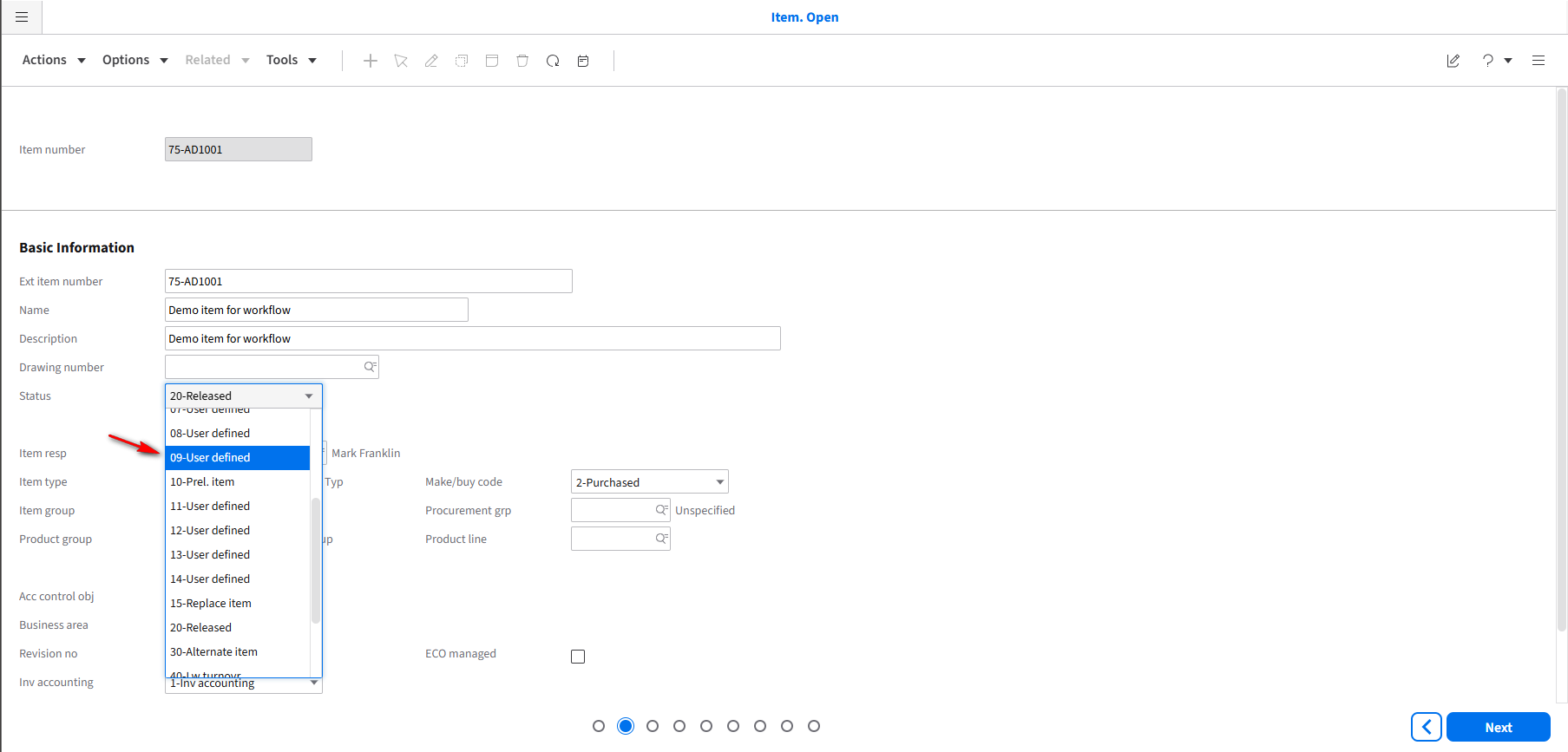
Select the 09-User Defined option from the drop-down menu in the Status field. Click Next.
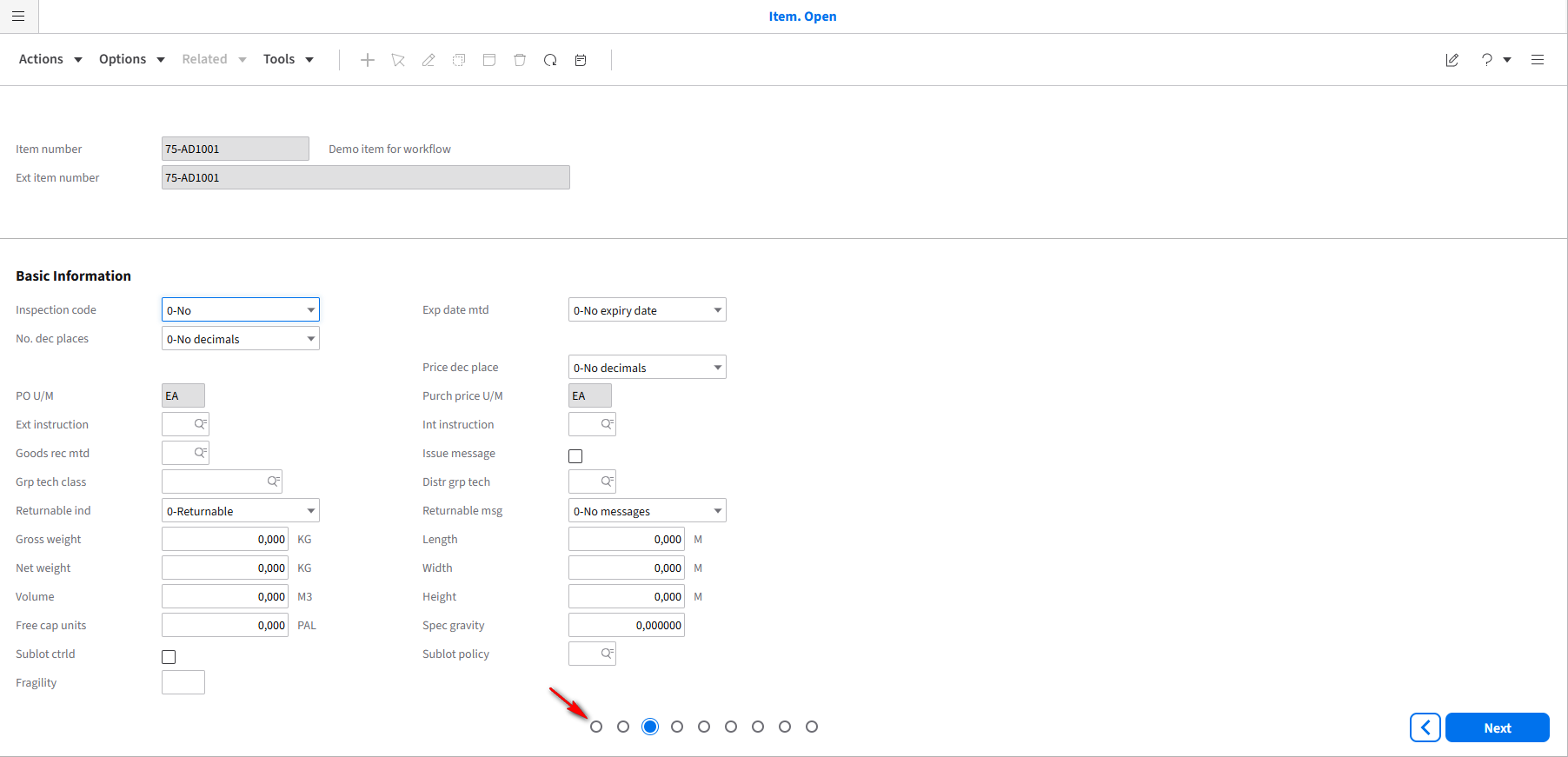
Click the first dot at the bottom of the page to return to the main page.
Your status should now be changed to 09-User defined.
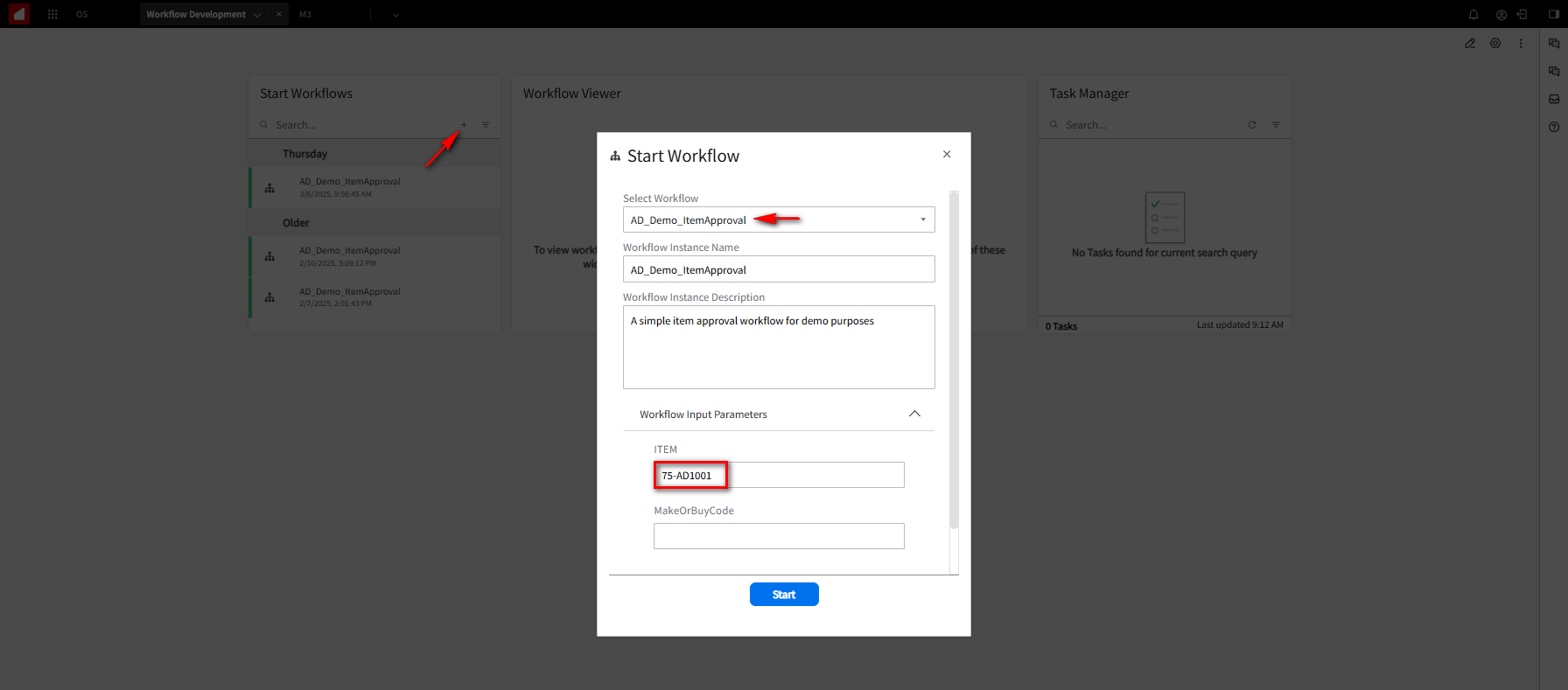
Go back into your workspace. In the Start Workflow widget, click on the + sign. On the Start Workflow page, from the drop-down menu, select AD_Demo_ItemApproval in the Select Workflow field. Because we are doing this manually, put the M3 item name 75-AD1001 in the ITEM field and click the Start button.
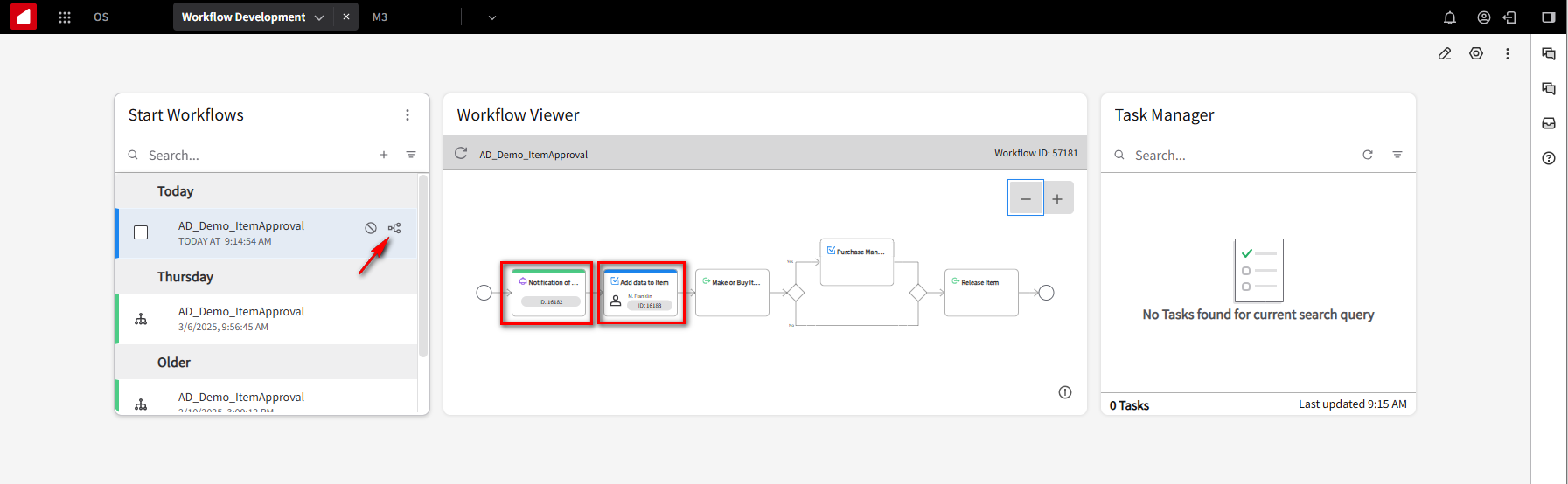
A new step is created. Click on the Hide in Workflow View Icon for the latest step in the Start Workflows widget notification. Notice that the Notification step is labeled green, which means it’s already been completed successfully. The Add Data to Item step is labeled as Blue, meaning it waits for something.
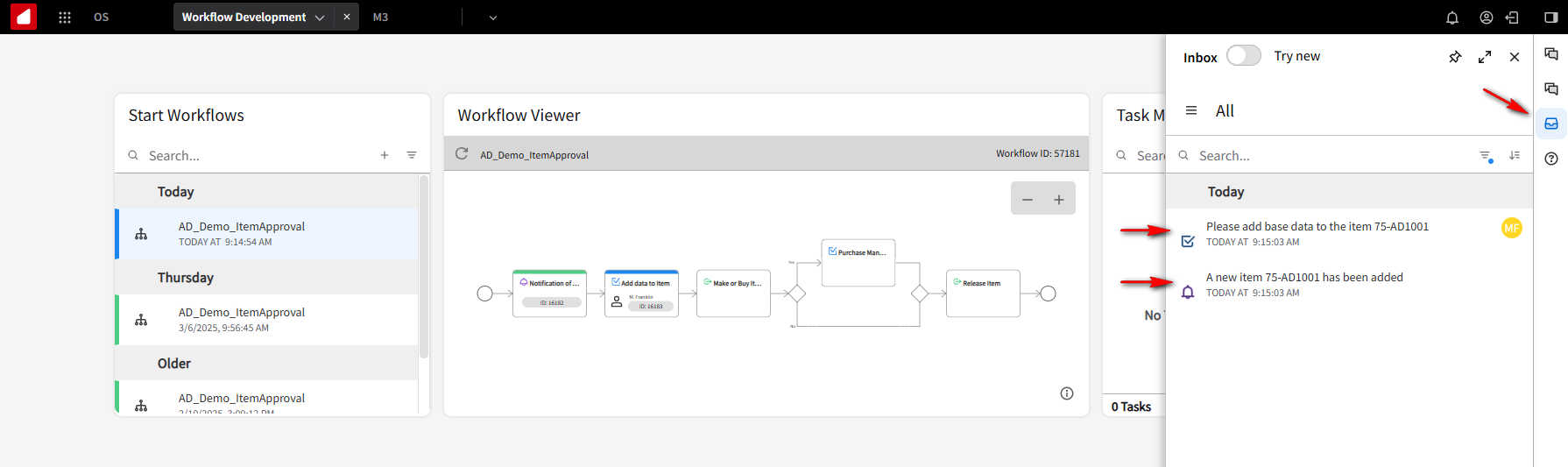
Click on the Inbox to view the notifications. There should be messages saying “A new Item has been added” and “Please add base data to the Item”.
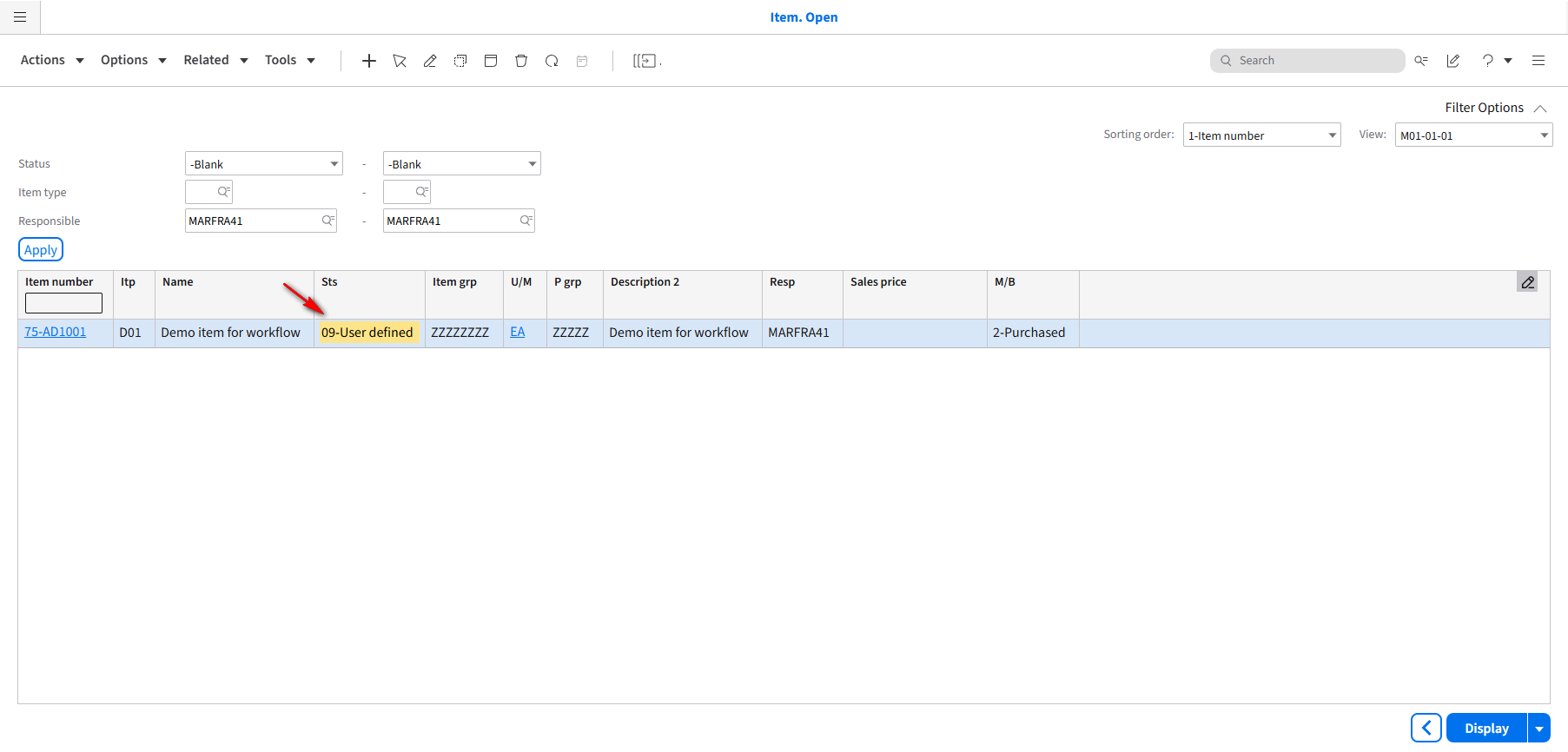
Recall, we switched the status code ont he M375-AD1001 Item back to 09-User Defined
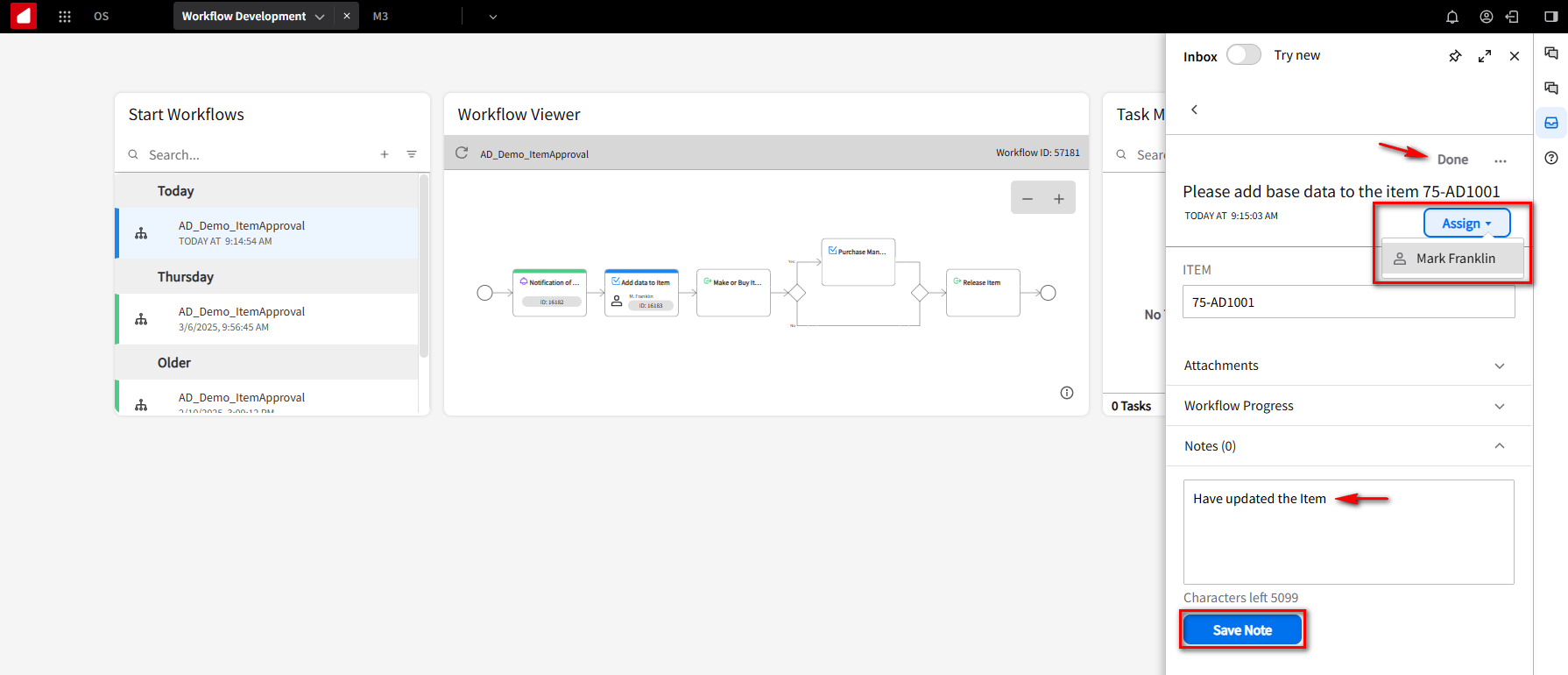
In the Inbox, select the message “Please add base data to the Item” and click the Assign button to verify that it’s assigned to you. If not,assign it to yourself. Add a note. “Have updated the Item” in the Notes field and click the Save Note button. Click Done.
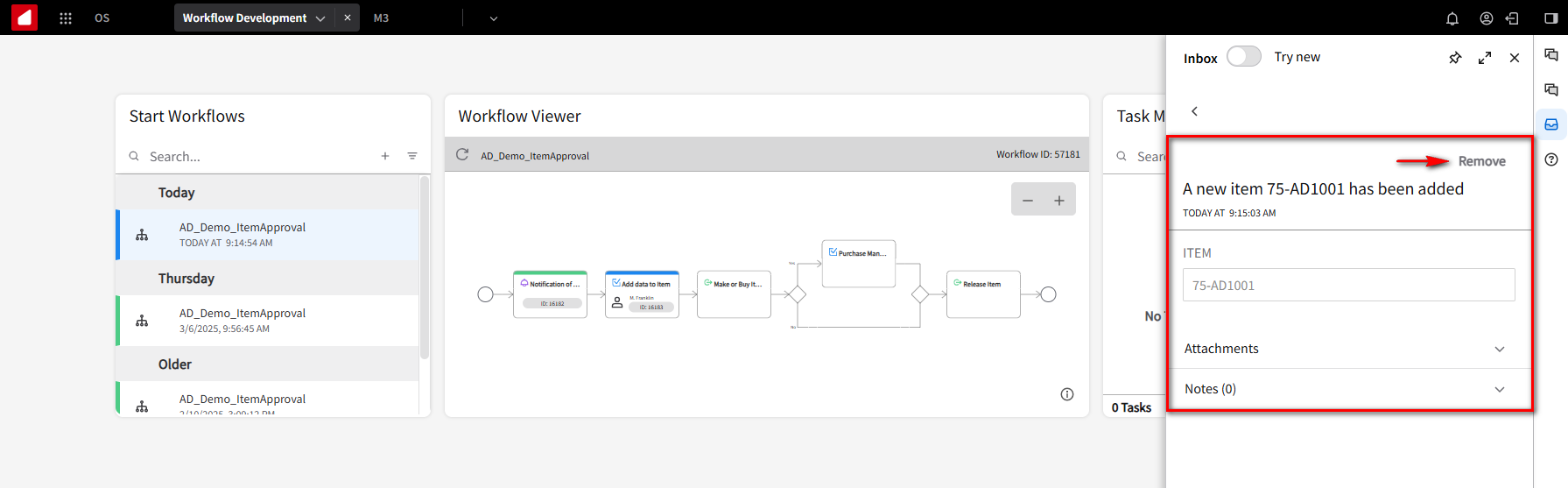
You will see the message “A new Item has been added”. Click on Remove to keep the inbox clean from notifications.
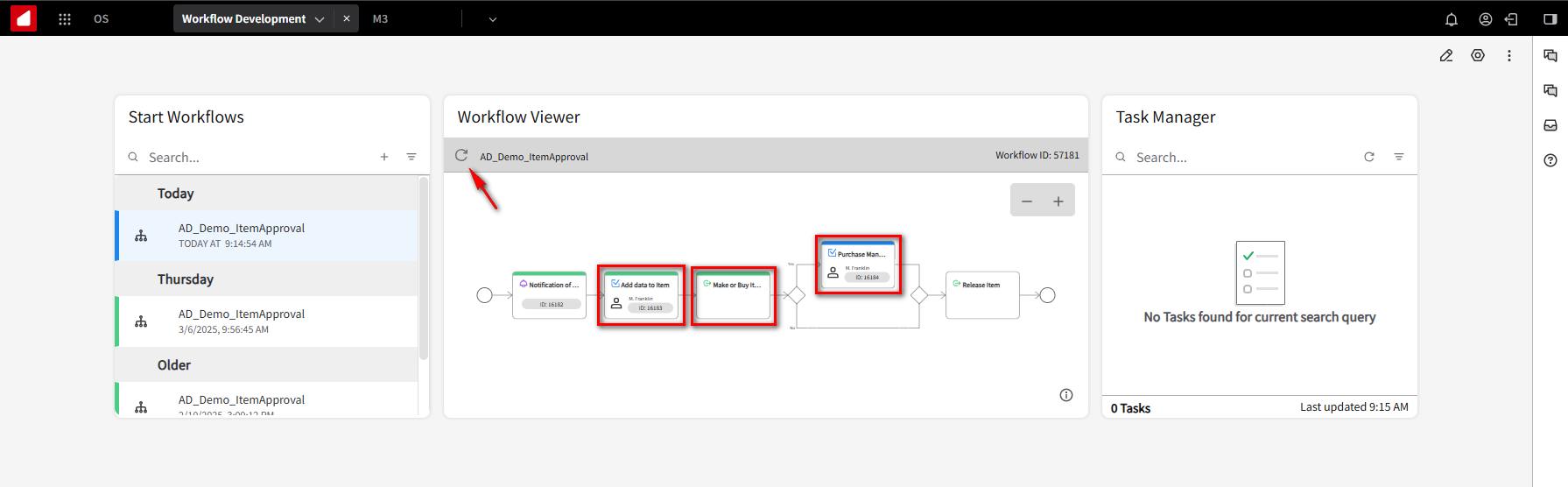
Go to the Workflow Viewer widget and click refresh. You will notice that the Add data to Item and Make or Buy Item steps are now labeled green, which means they are completed successfully. Since the item was a purchased item, the Purchase Manager step is now labeled blue, meaning the purchase manager has a task to perform. Since we set ourselves up as the purchase manager, we will check our inbox for a message.
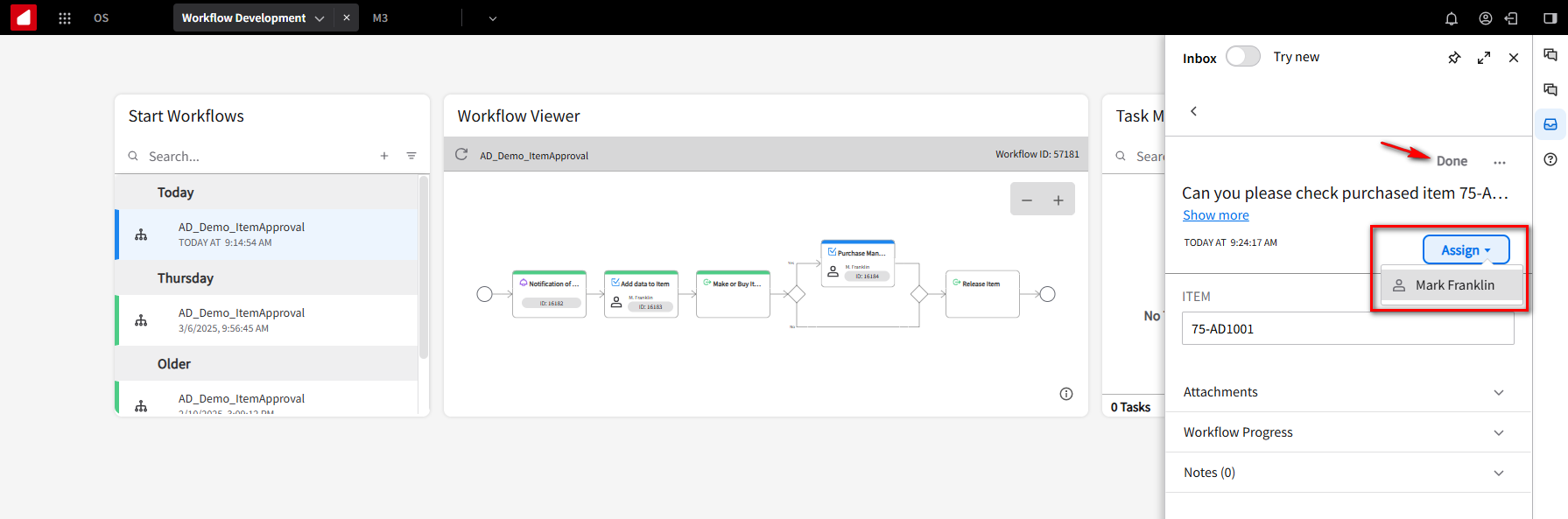
In the Inbox, select the message “Can you please check purchased item” and click the Assign button to verify that it’s assigned to you. If not, assign it to yourself. Click Done. The message will then be removed.
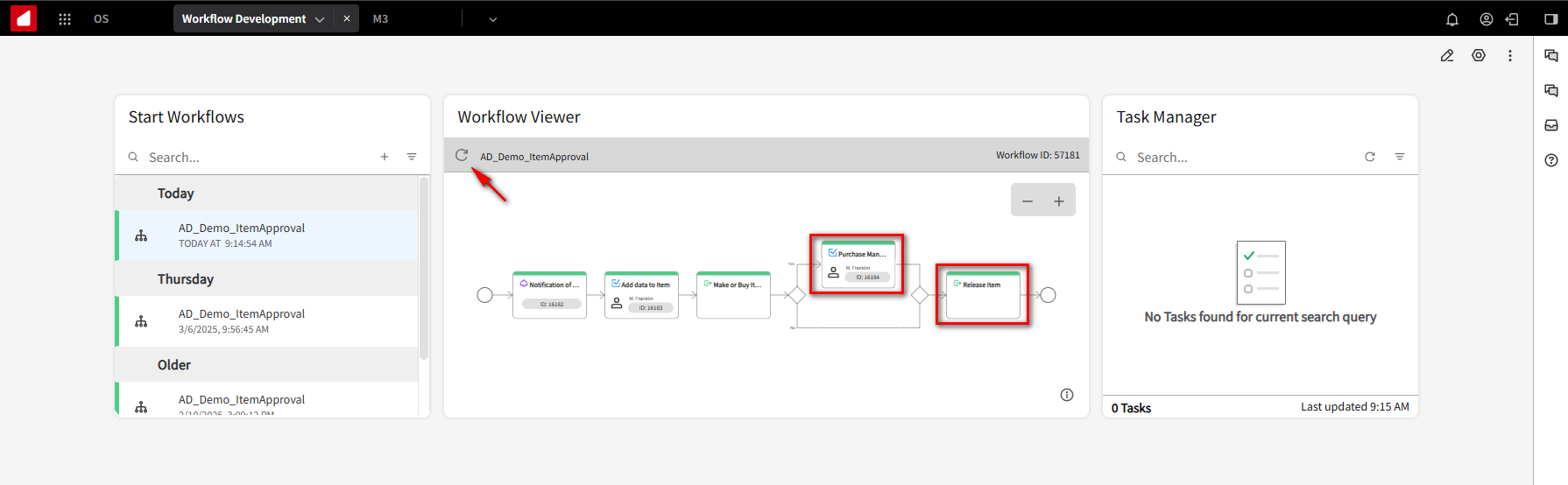
Go to the Workflow Viewer widget and click refresh. You will notice that the Purchase Manager and Release Items steps are now labeled green, which means they were completed successfully.
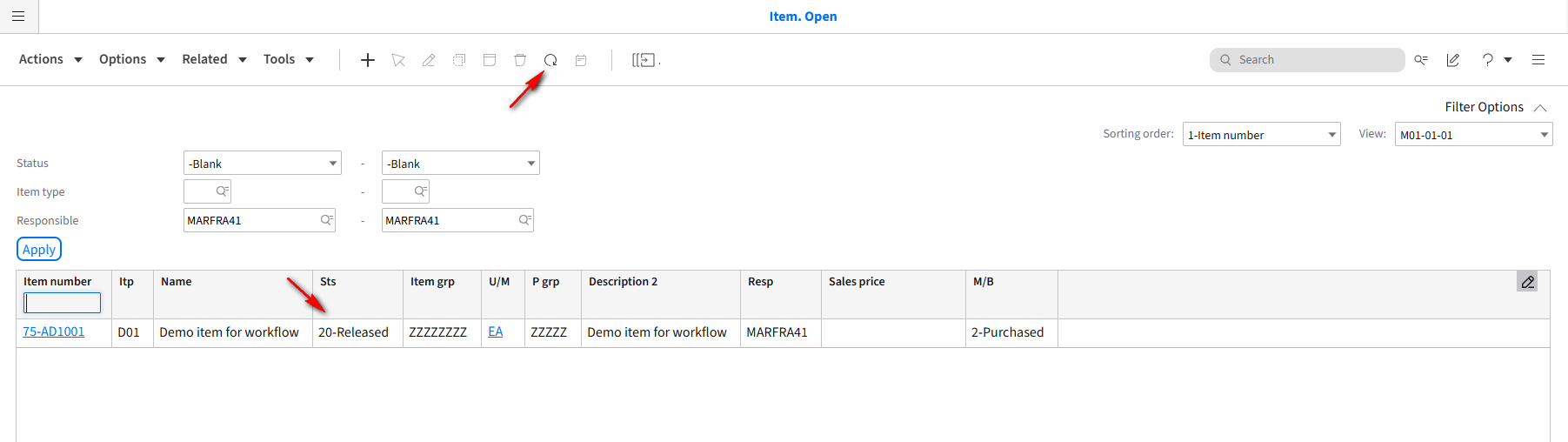
Go to the M3 application and click the refresh button. You will notice that the Status on item 75-AD1001 is set to 20-Released.
To recap what we have just completed, we’ve done the notification, assigned a task, and checked to see if it was a purchased item. Because it was, it generated a task for the purchasing manager and then automatically released the item.
All previous steps have been run manually, and we want to run the workflow automatically from within the system itself. We will initiate the workflow automatically and listen to what we call an item master BOD (business object document). If we create a new item, we’ll get an Item Master BOD and check that BOD to see if it’s a new item, it’s the items we were checking for, and it’s in the right division. If all those conditions are met, then we’ll automatically start the workflow.
Automate the workflow
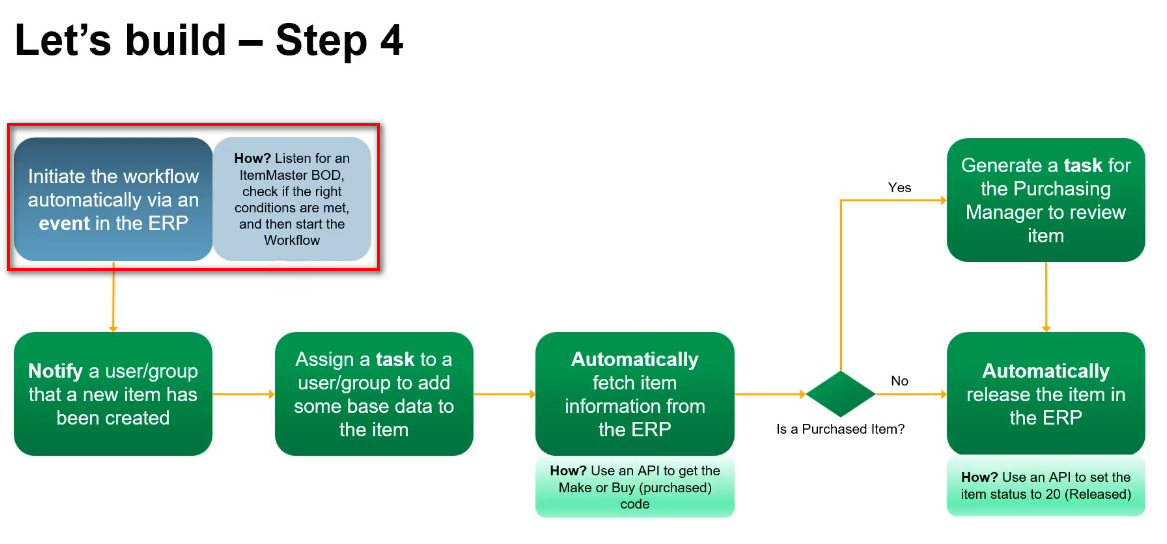
Go into the OS tab. We need an activation policy to start a workflow automatically. From the navigation menu, expand Monitors & Workflows and select Activation Policies. Click +Add.
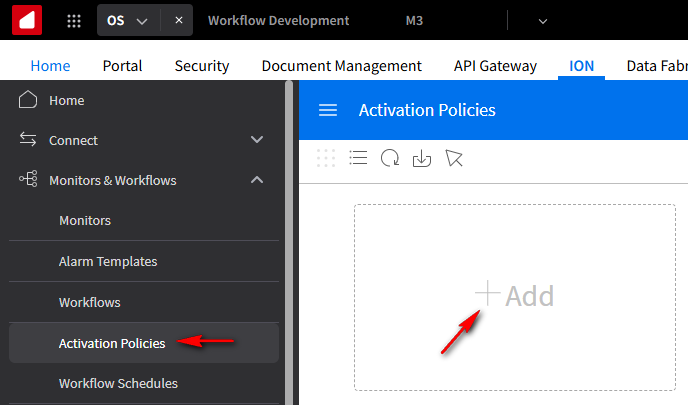
What we want to do in this example is we want the activation policy to start the workflow that we created, and it’s going to start if the conditions are met.
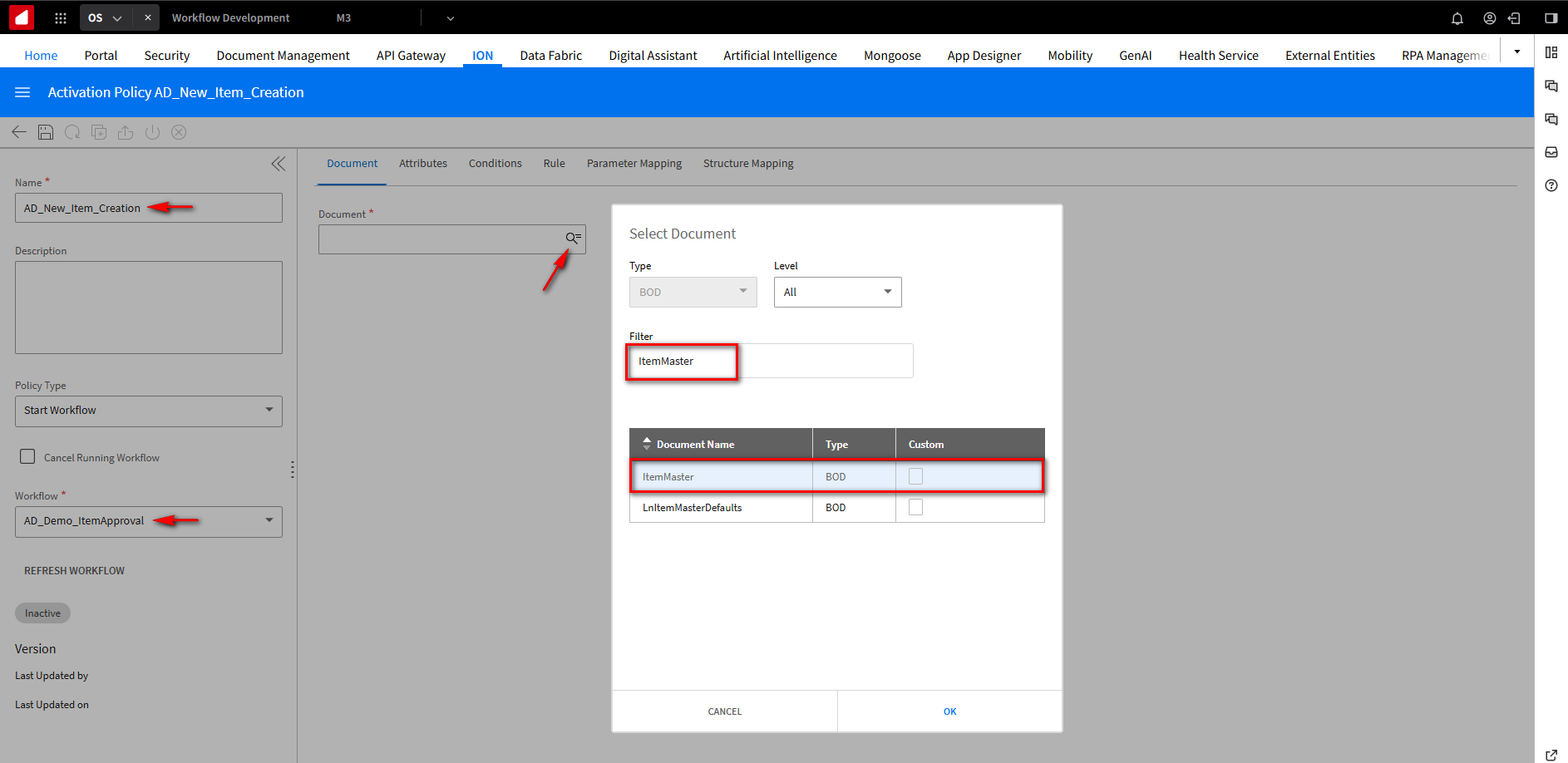
On the Activation Policy page, fill in the Name field with AD_New_Item_Creation. In the Workflow field, from the drop-down, select our workflow, AD_Demo_ItemApproval. Under the Document tab, click on the browse icon in the Documents field. In the Filter field, search for ItemMaster. Select ItemMaster, and click OK.
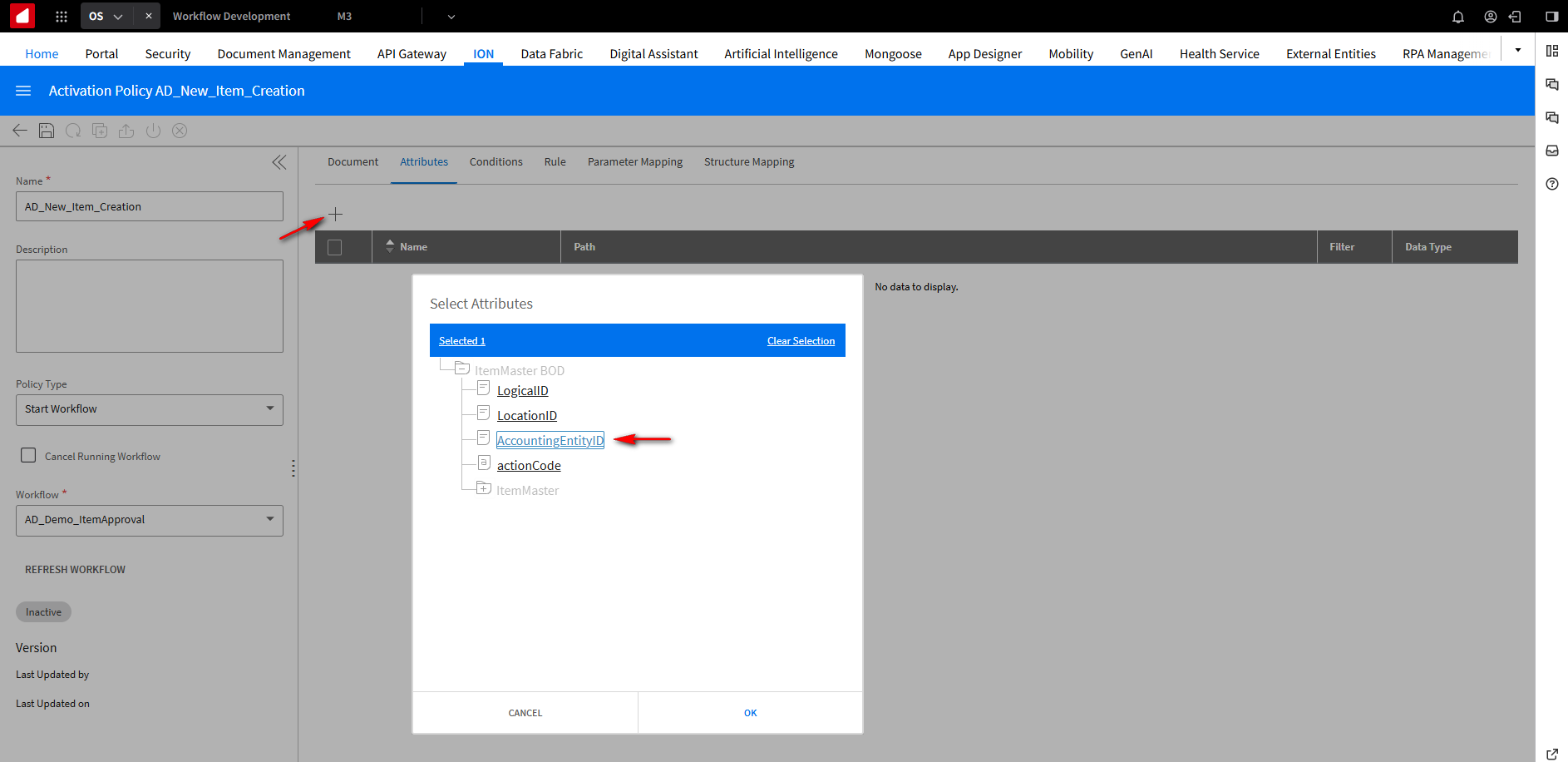
If a BOD (business object document) comes in and is of type Item Master, we want to extract some fields because we’ll use these for certain checks. We are picking the accounting entity ID, action code, code status, ID, and procurement type. Under the Attributes tab, click the + button and expand ItemMaster BOD. Select AccountingEntityID. Click OK.
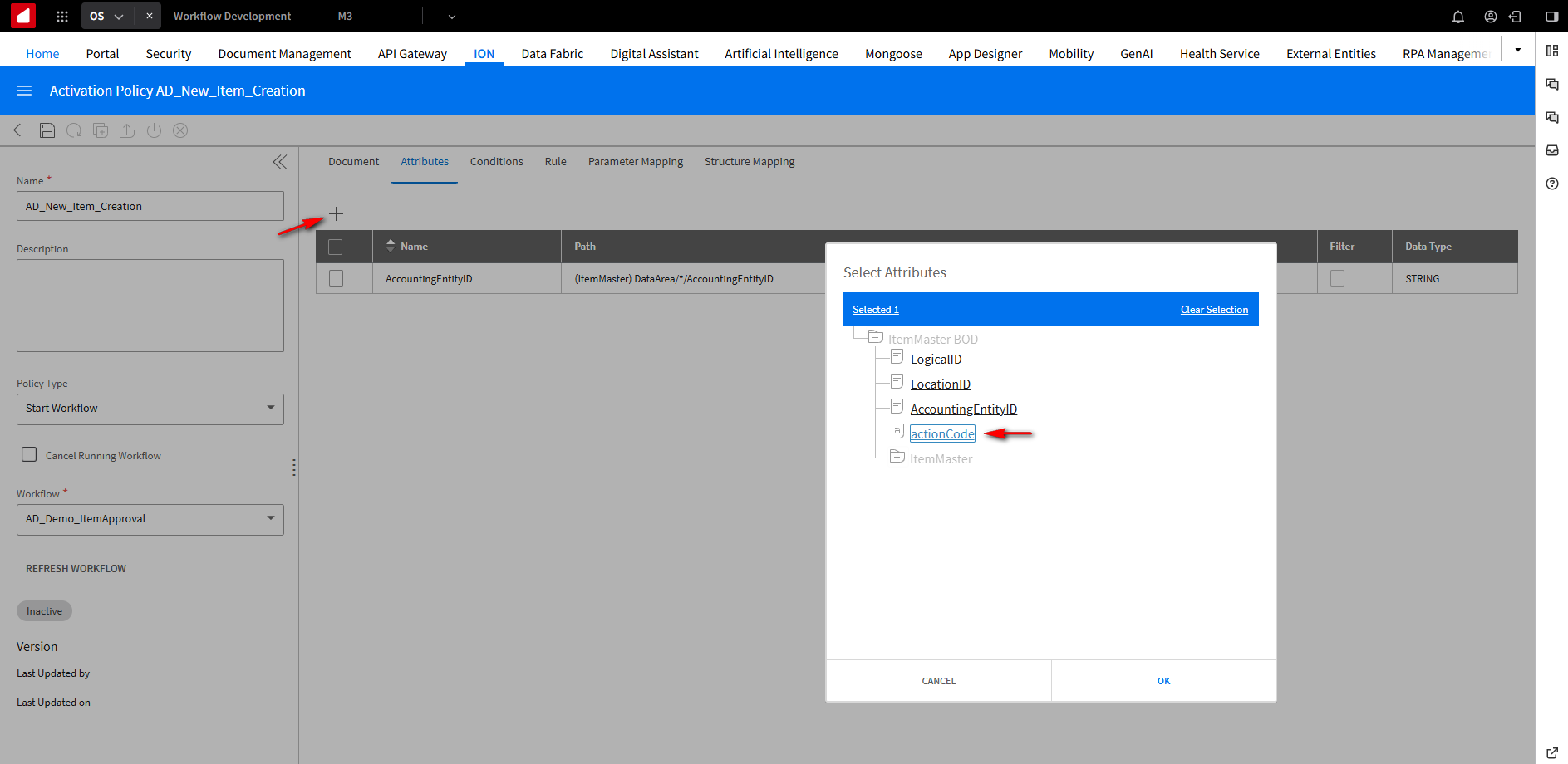
Click the + button again and expand ItemMaster BOD. Select actionCode. Click OK.
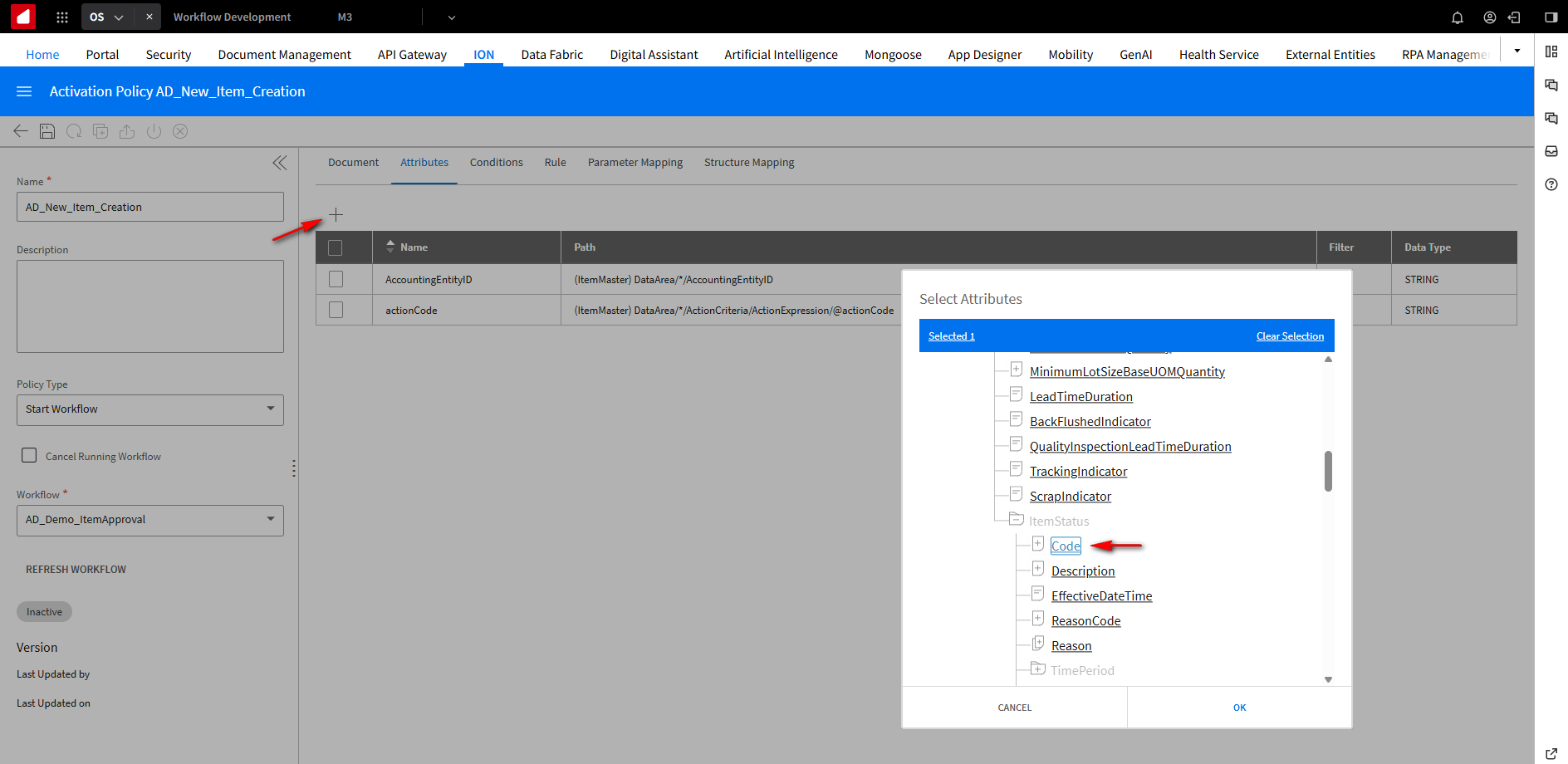
Click the + button again and expand ItemMaster BOD, ItemMasterHeader, and ItemStatus. Select Code. Click OK.
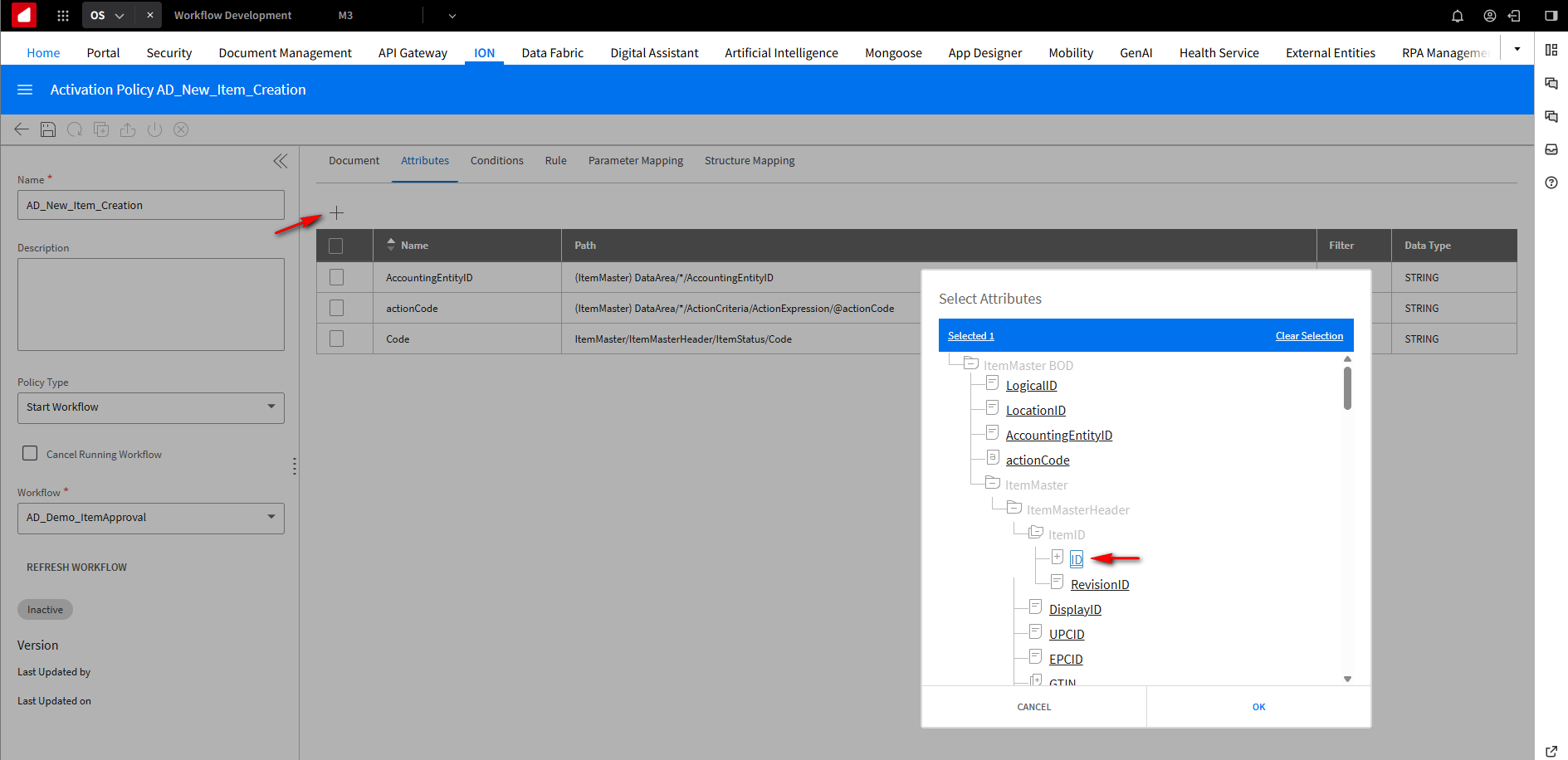
Click the + button again and expand ItemMaster BOD, ItemMasterHeader, and ItemID. Select ID. Click OK.
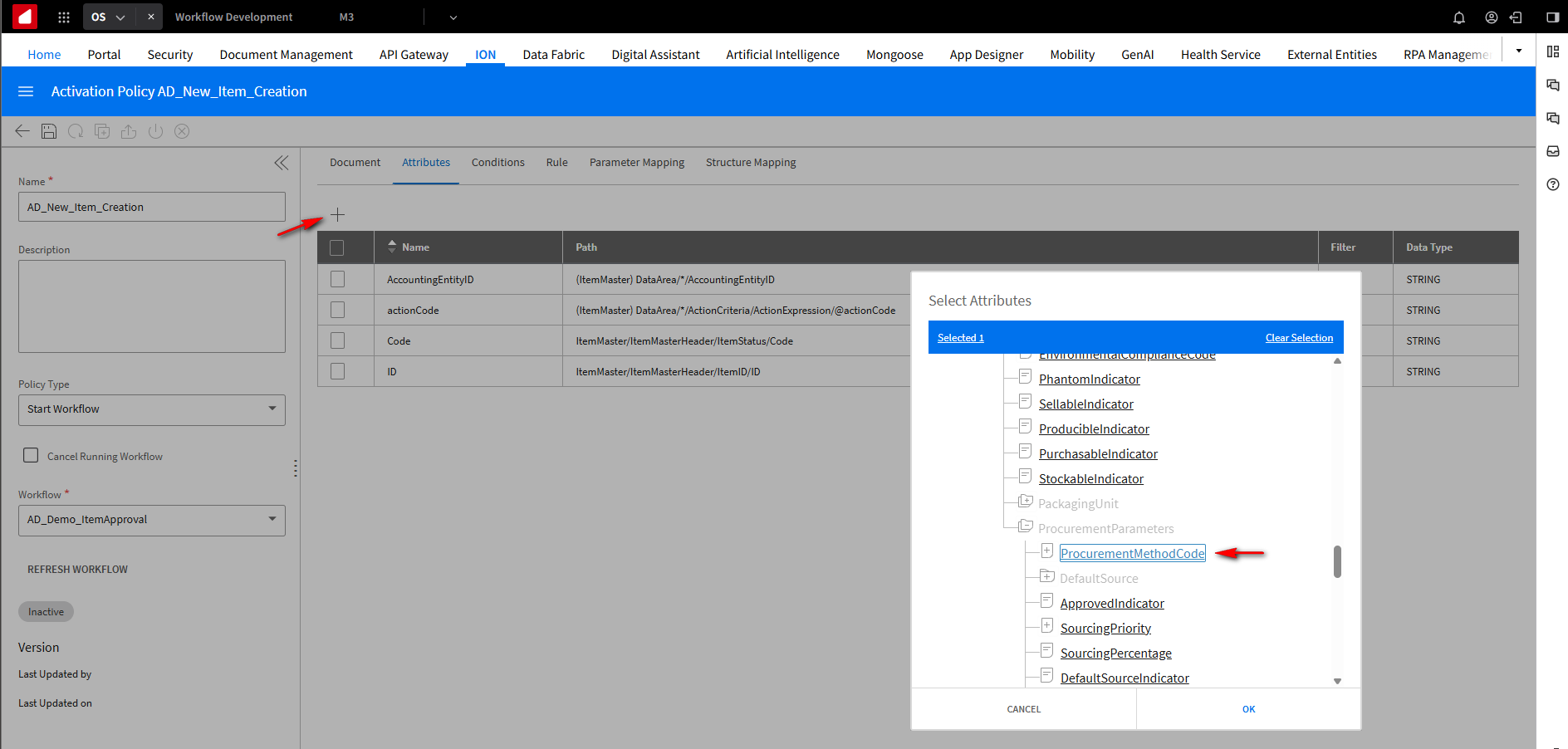
Click the + button again and expand ItemMaster BOD, ItemMasterHeader, and ProcurementParameters. Select ProcurementMethodCode. Click OK.
This is what the Attribute looks like after the setup.
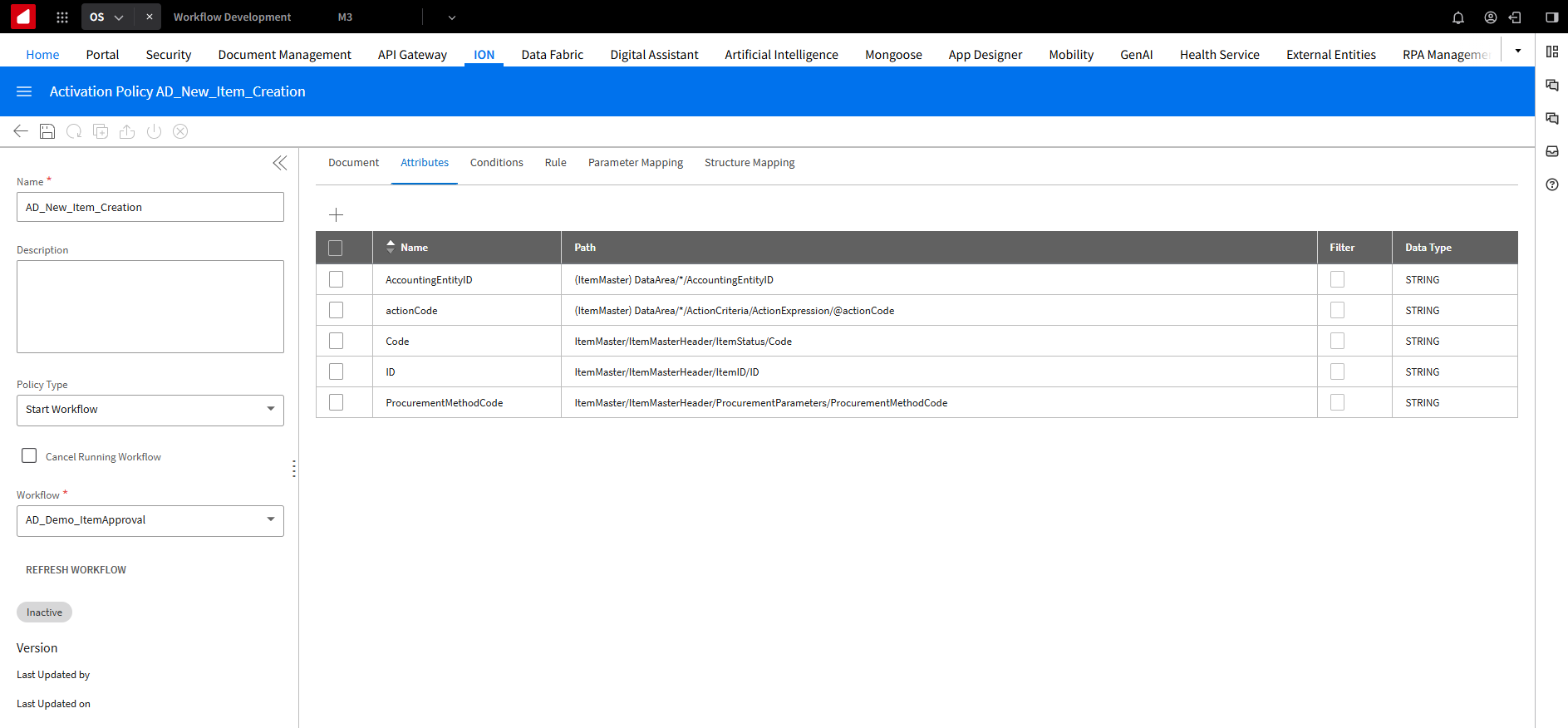
Typically, within the workflow, you would check to see if it’s a purchased item by calling an API. You could automatically pass the Buy or Make code as part of the BOD and have it checked against what we’re sending across. The reason we have an attribute set is that we are going to put some conditions in place.
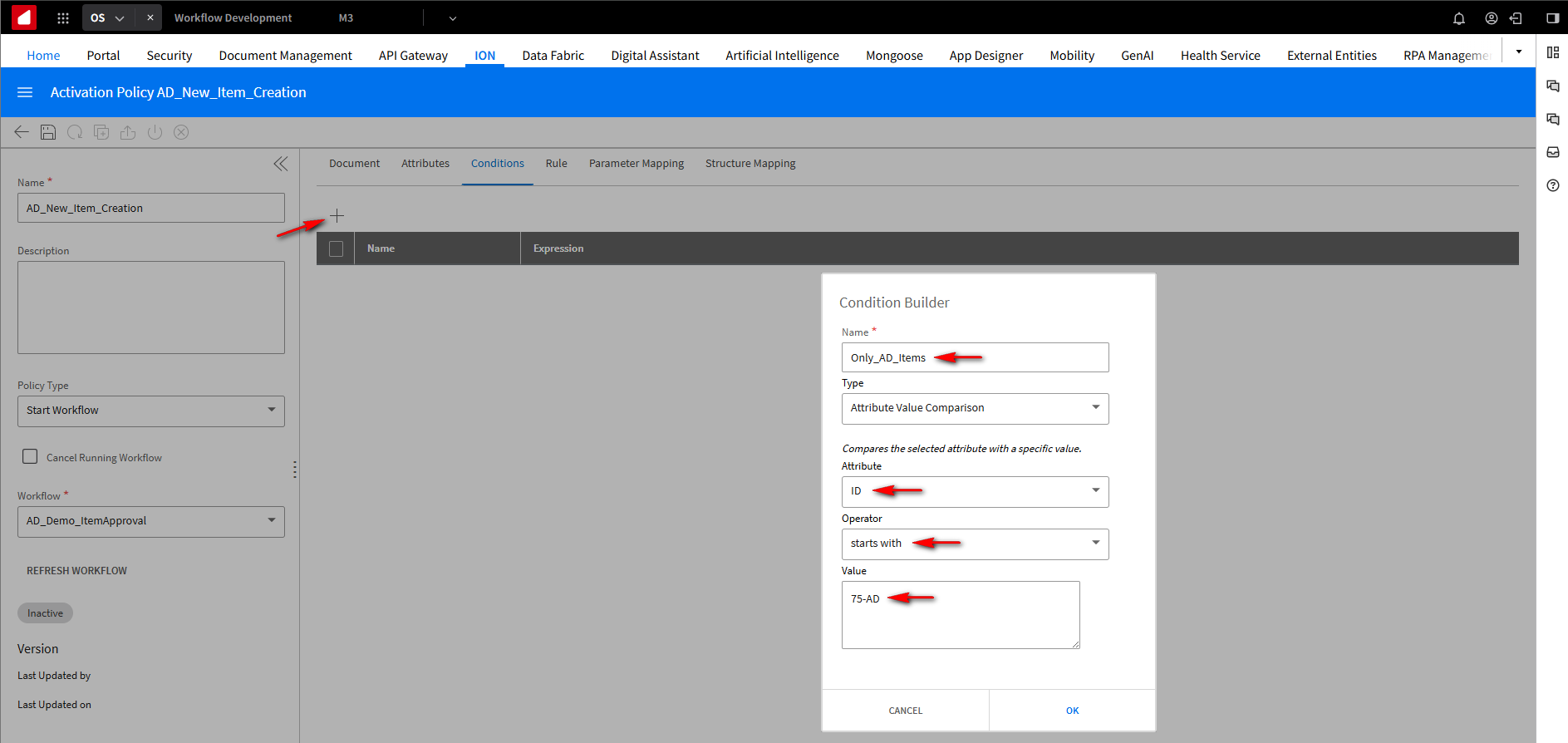
We are only interested in items that begin with 75-AD. We want it to execute on certain item types. Under the Conditions tab, click the +button. In the Name field, add Only_AD_Items. In the Attribute drop-down field, select ID. In the Operator drop-down field, choose starts with, and in the Value field, put 75-AD. Click OK.
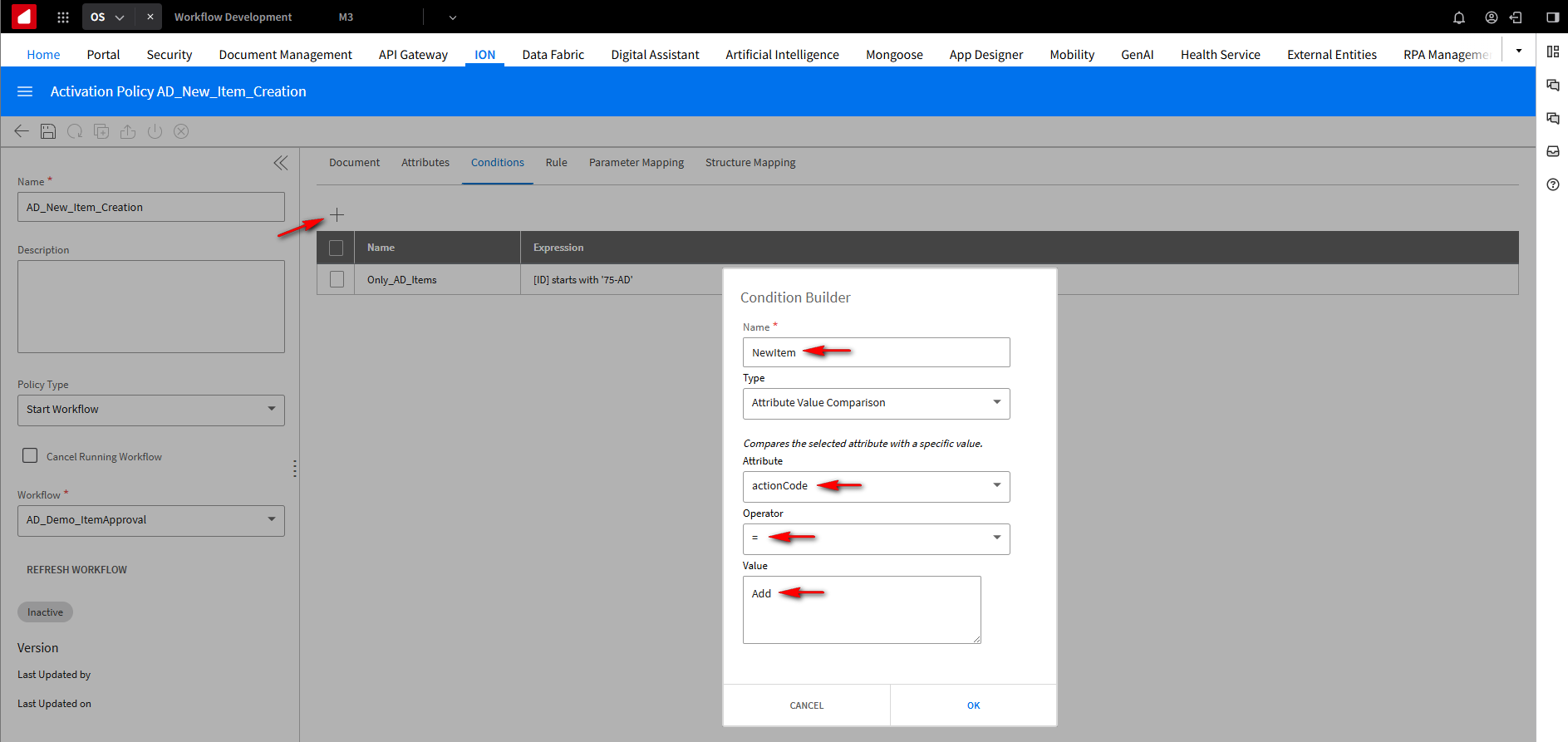
We are also checking if it’s a new item, so whether the action code is equal to add, i.e. a new item has been created. Click the + button. In the Name field, add NewItem. In the Attribute drop-down field, select actionCode. In the Operator drop-down field, choose equals, and in the Value field, put Add. Click OK.
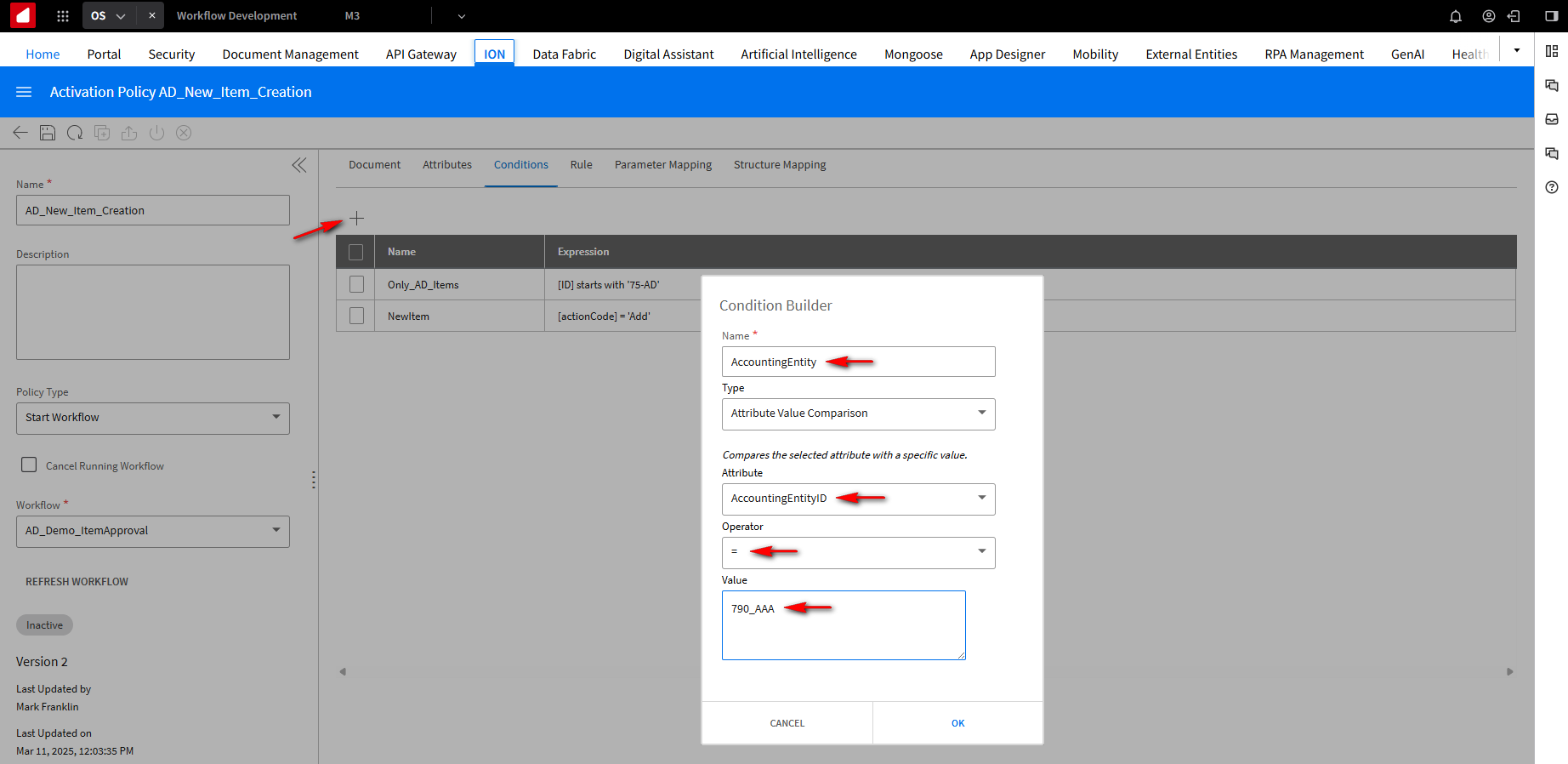
We are also checking the field AccountingEntity to see whether the entity is 790_AAA. To find out what the AccountingEntity value is, click on the M3 tab, and in the search bar, type User, then select User.Open. Type your M3 username into the User search field and hit Enter. You will use the Company and Division field values for the AccountingEntity name.

Click the + button. In the Name field, add AccountingEntity. In the Attribute drop-down field, select AccountingEntityID. In the Operator drop-down field, choose equals, and in the Value field, put 790_AAA. Click OK.
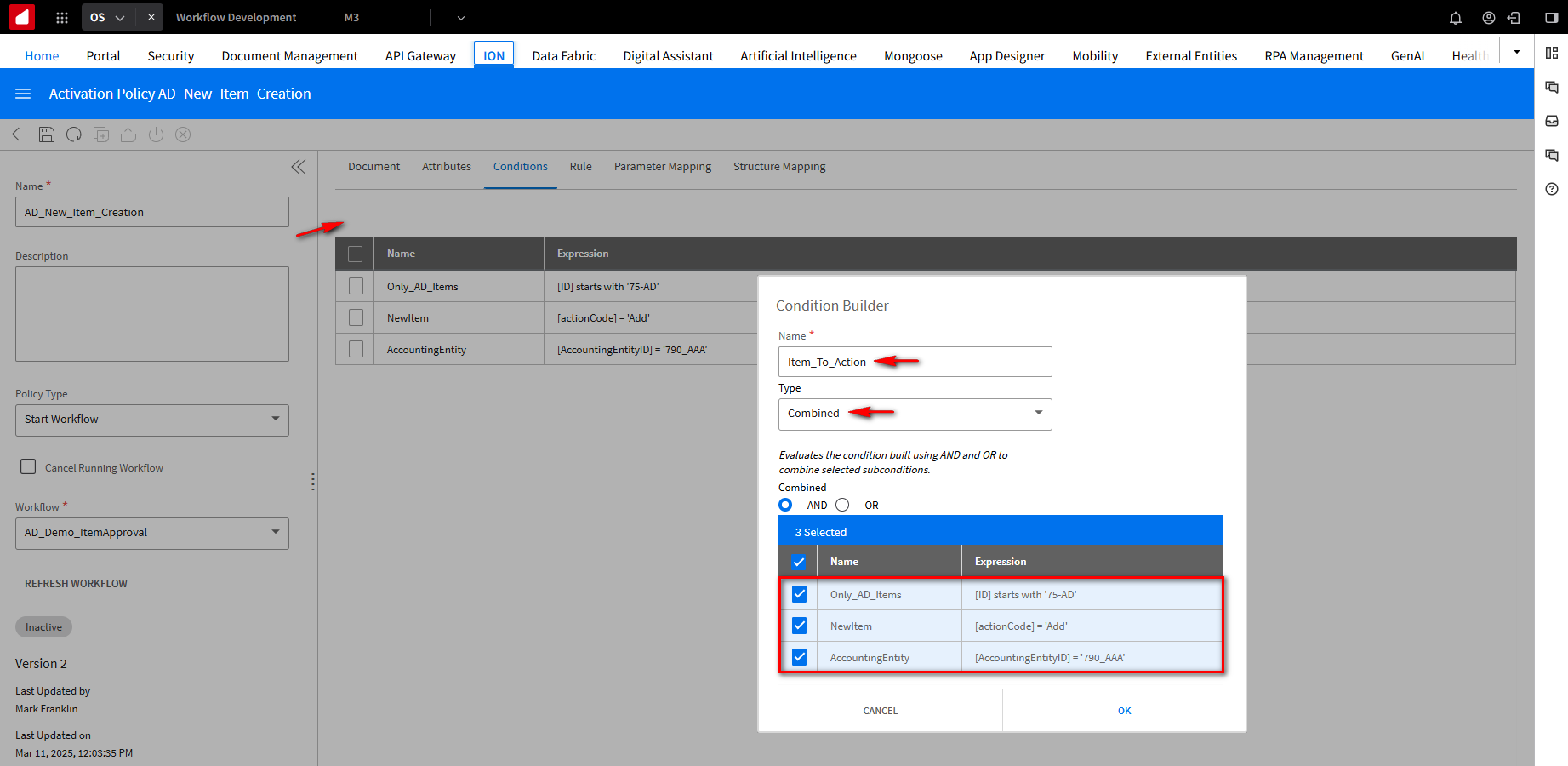
We’ve got Item_To_Acton. This is what we call a combined code. This picks up the conditions that have already been defined. Saying that all the conditions need to be true for this condition to be true. So, in other words, Item_To_Action is valid only if the item begins with 75-AD, is anew item, and is in this particular accounting entity. Click the + button. In the Name field, add Item_To_Action. In the Type drop-down field, select Combined. Select the AND option and select all the conditions. Click OK.
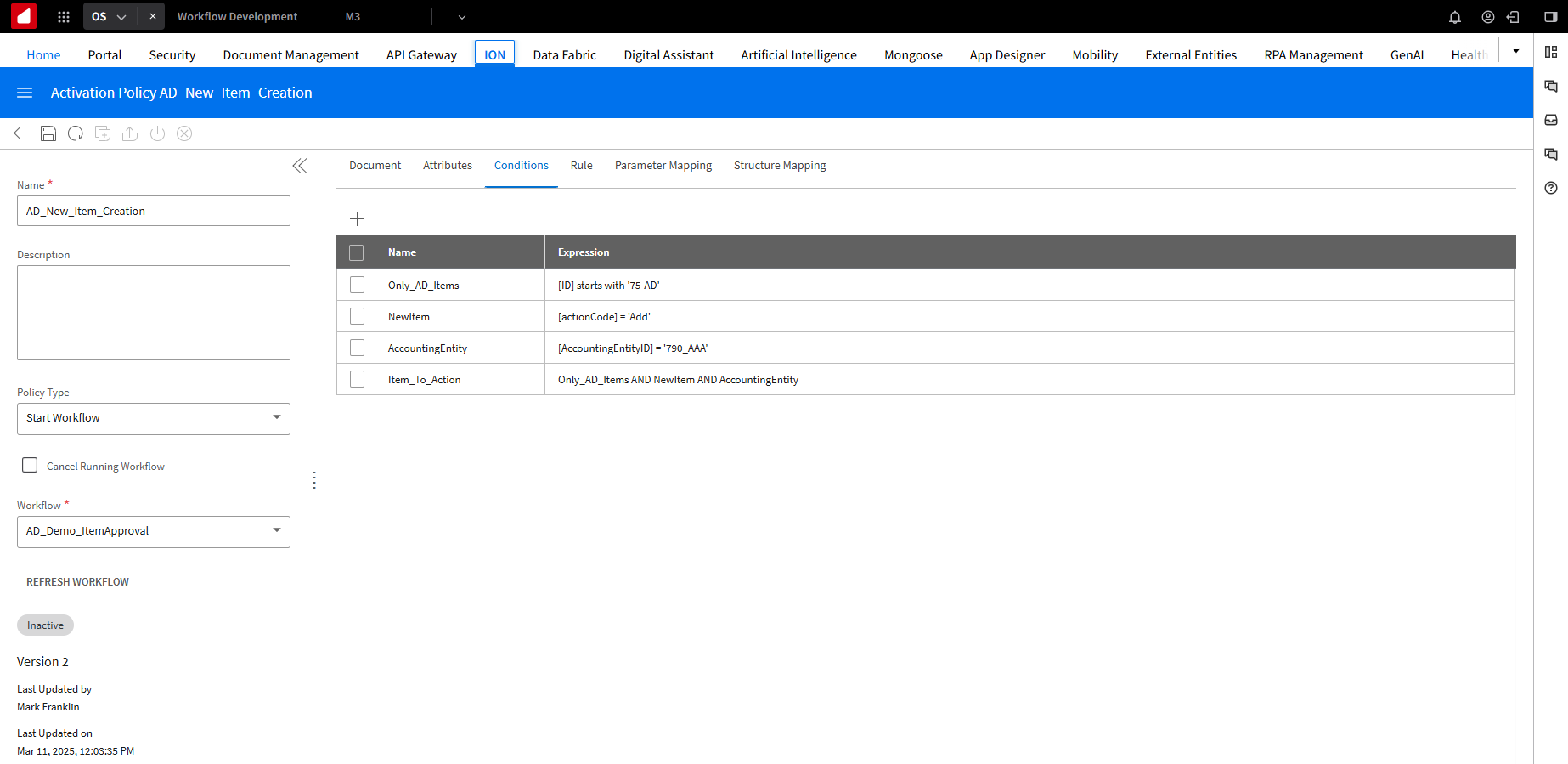
This is what the conditions look like after the setup.
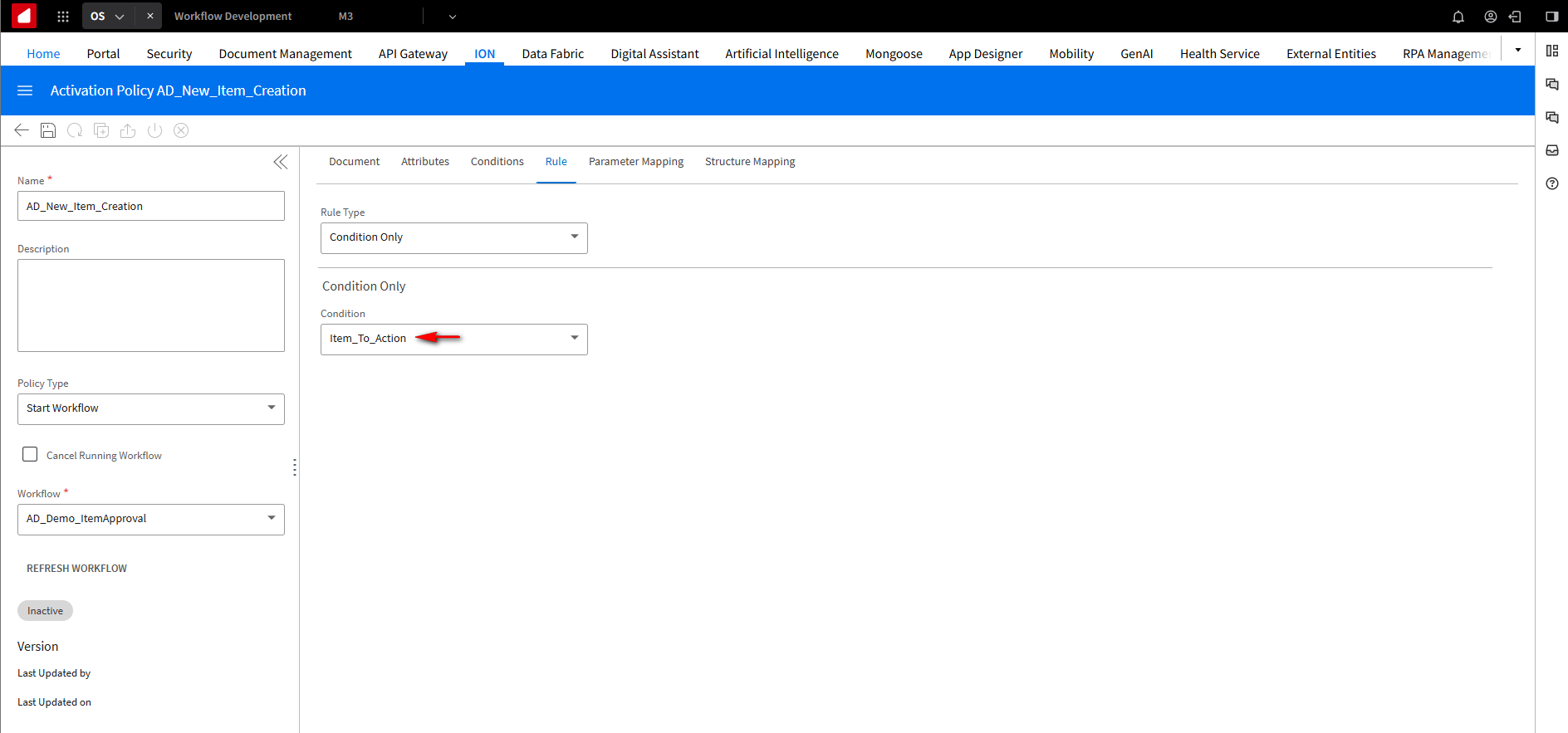
Under the Rule tab, in the Condition drop-down field, select Item_To_Action. You could also select New Items and it will fire off no matter what or if you are only interested in items begin 75-AD, but because we want to narrow it down to our items in our entity, we will use the Item_To_Action condition.
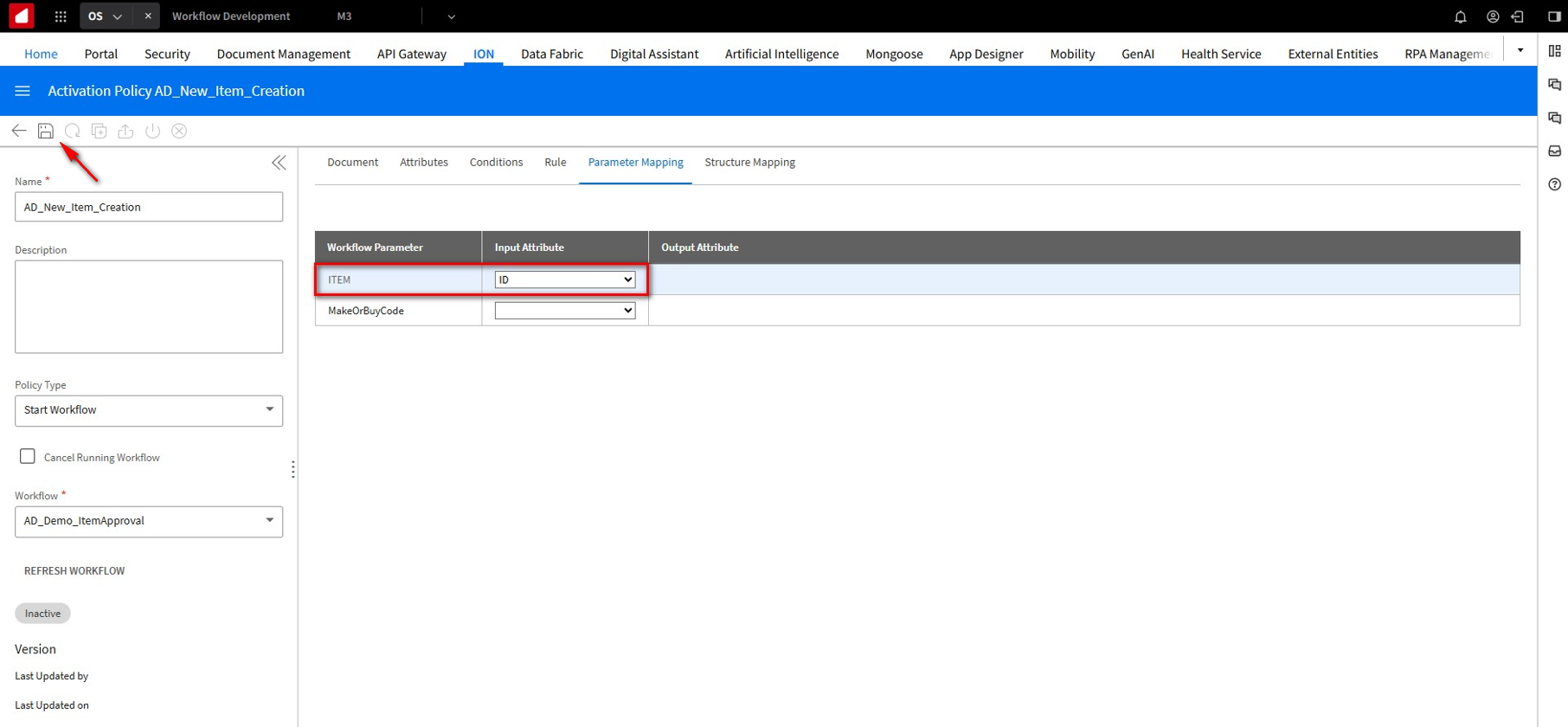
We need to pass this information across the workflow. The item ID will be inputted into the workflow, so it automatically knows which itemwe’re working with. Under the Parameters Mapping tab, for the ITEM Workflow Parameters value in the Input Attributes drop-down field, select ID. Click Save.
Click Activate. You will receive the following warning message. We get this warning even though we’ve not set a value and because we’re not using the MakeOrBuyCode parameter in our workflow for this tutorial section. We previously set up the MakeOrBuyCode Workflow parameter with an input mapping. Click OK.
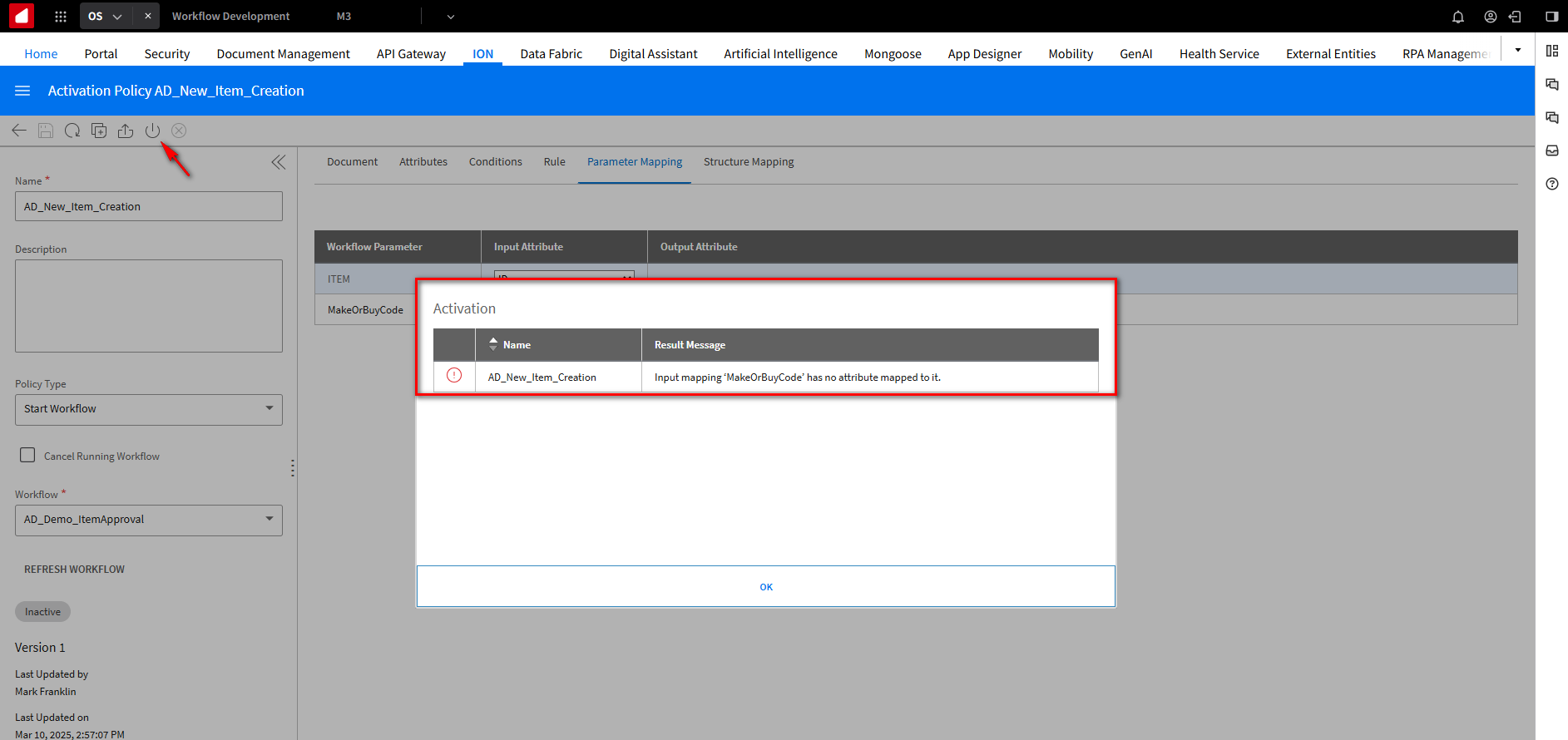
There are a couple of ways to resolve this issue. We could set an Input Attribute value in the Parameter Mapping tab on the ActivationPolicy page. This would send the parameter through the workflow without us using it. Or, following these steps, we can go into our AD_Demo_ItemApproval workflow and click Deactivate.
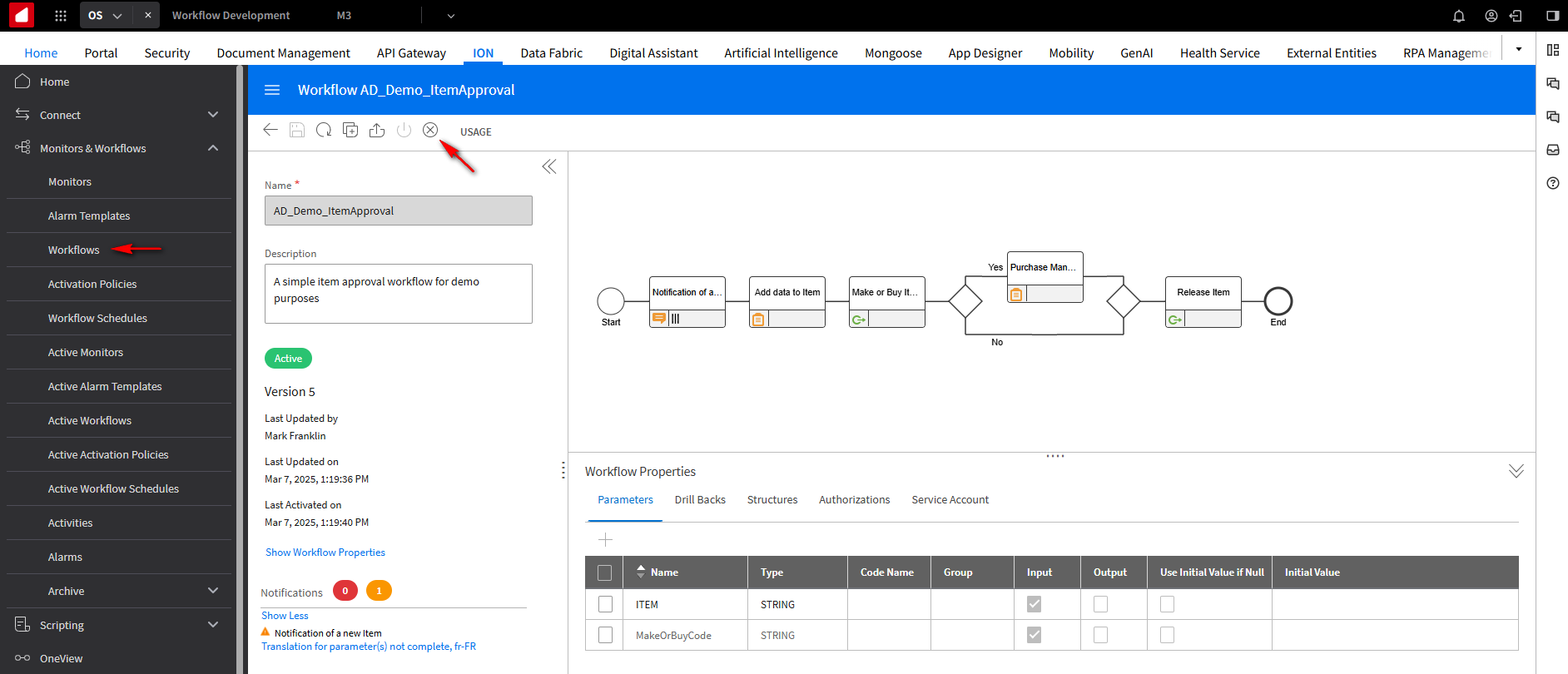
In the Workflow Properties section, on the Parameters tab. Click on the MakeOrBuyCode parameter and click the edit pencil icon. On the Edit Workflow Parameter screen, uncheck the Input option. Click OK. It will not be passed through the workflow, where as the item number will be passed. Click OK.
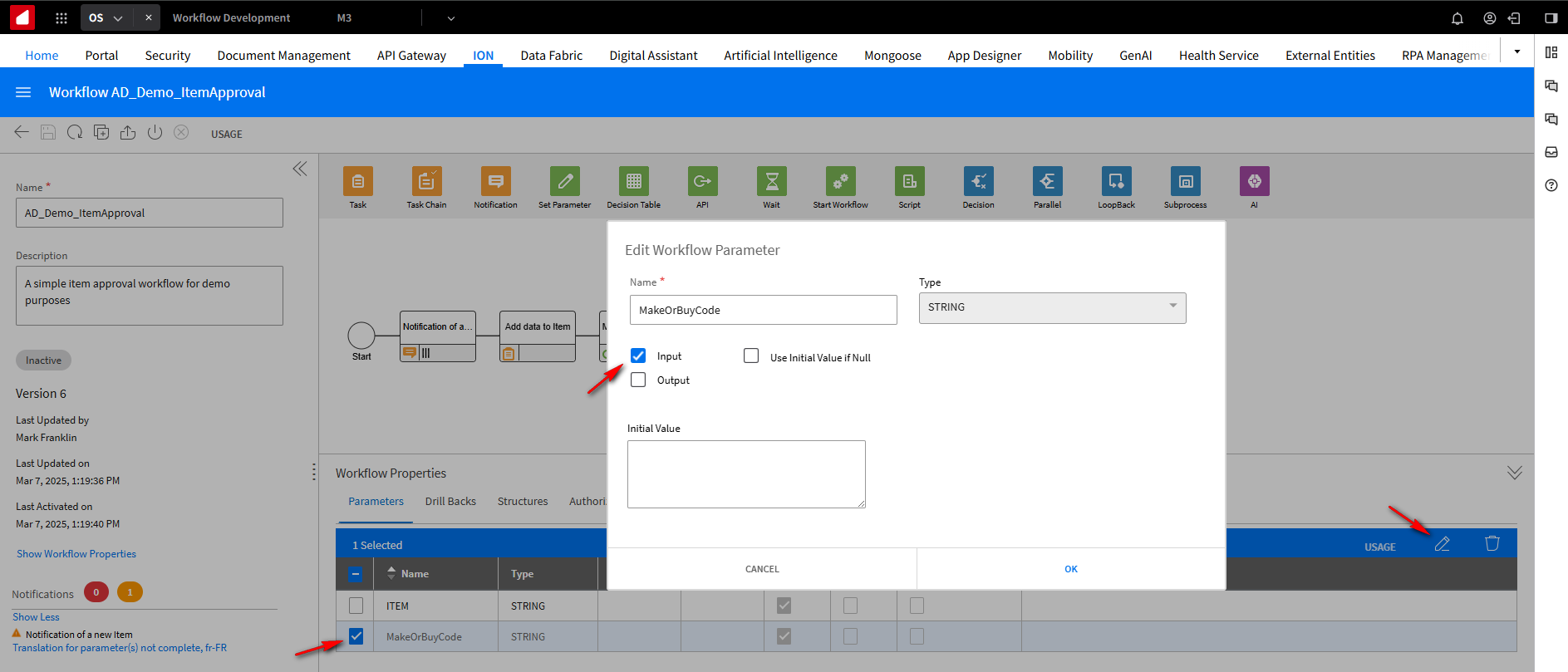
Click Save and Activate. You will notice that the MakeOrBuyCode parameter now does not have the Input value checked.
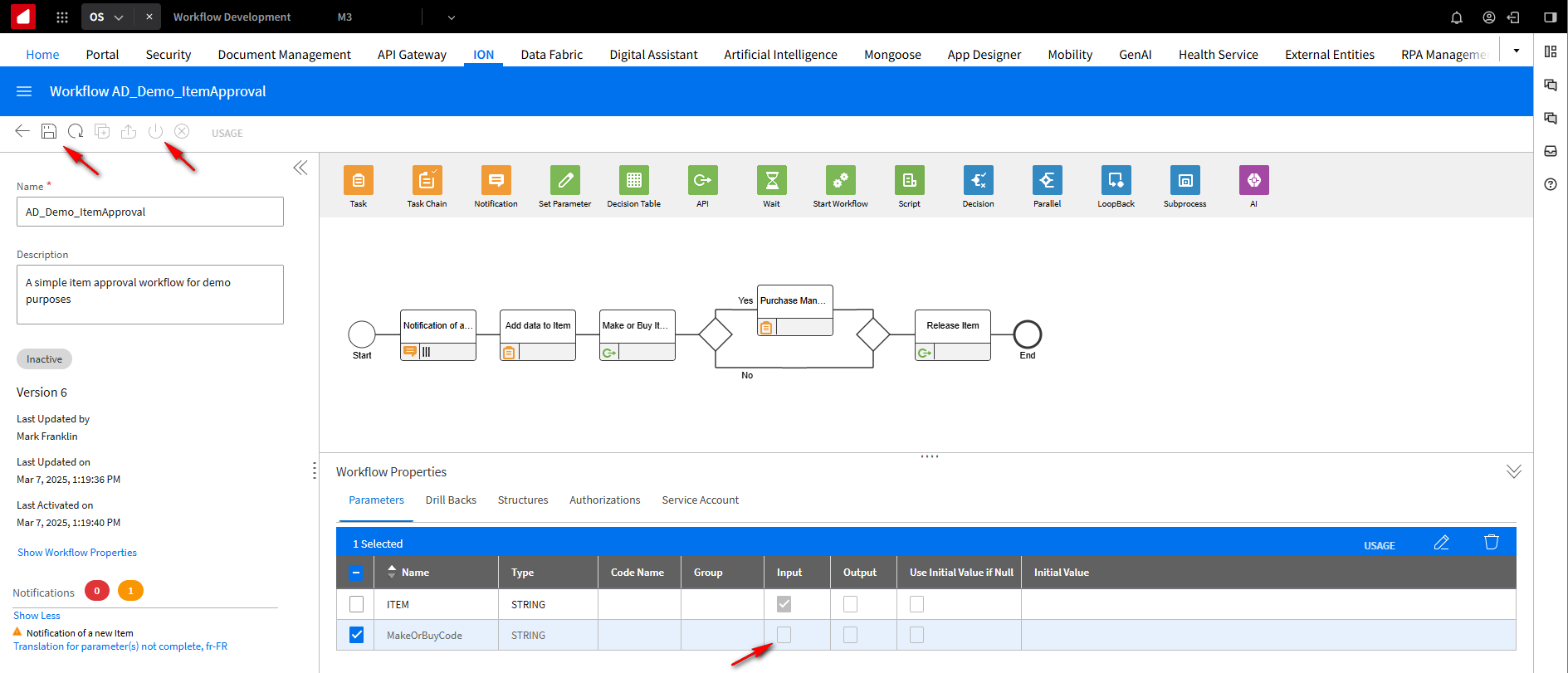
You can go back into your AD_New_Item_Creation Activation Policy. Under the Parameter Mapping tab, you will notice that the MakeOrBuyCode parameter is not there because it is no longer an input parameter.
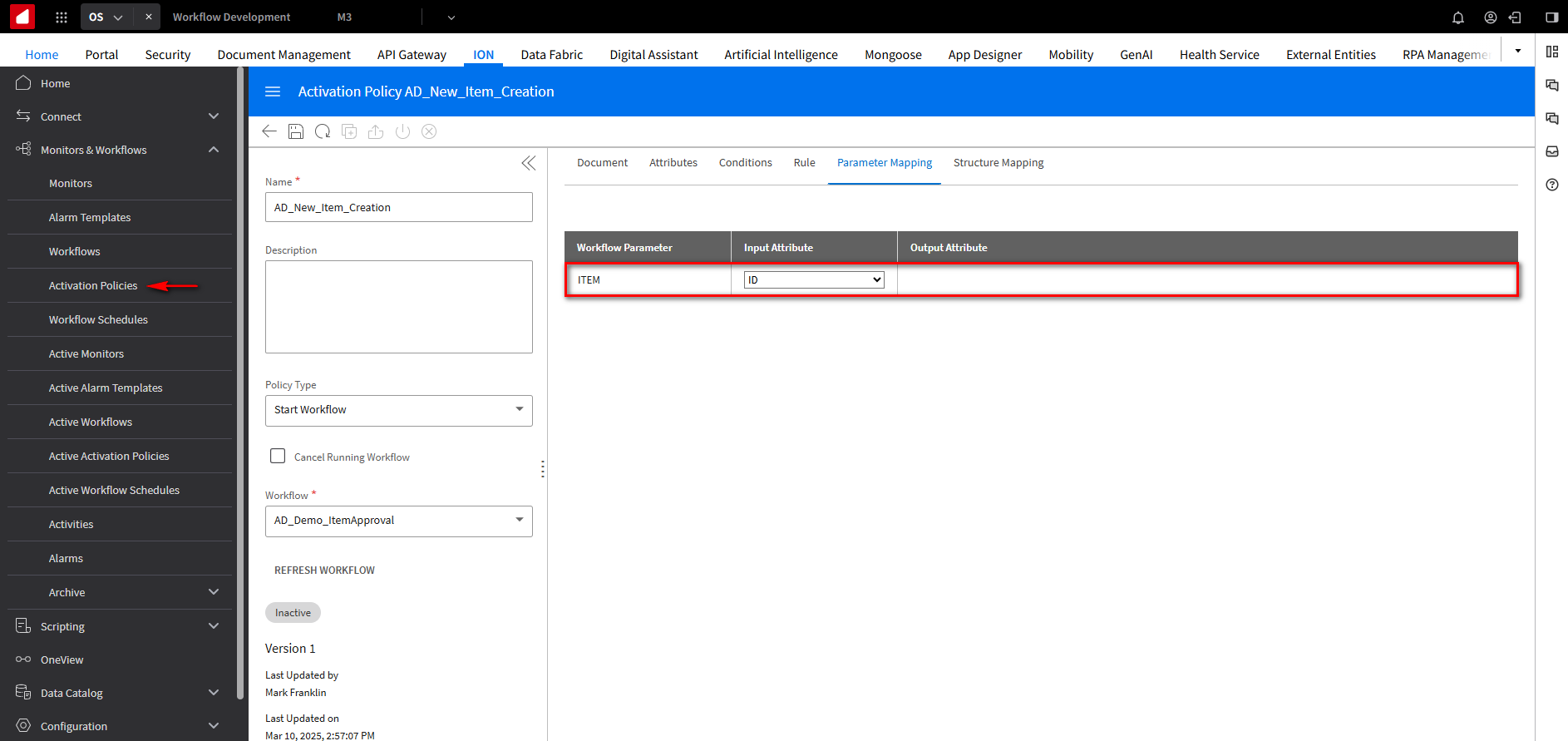
Click Save and Activate.
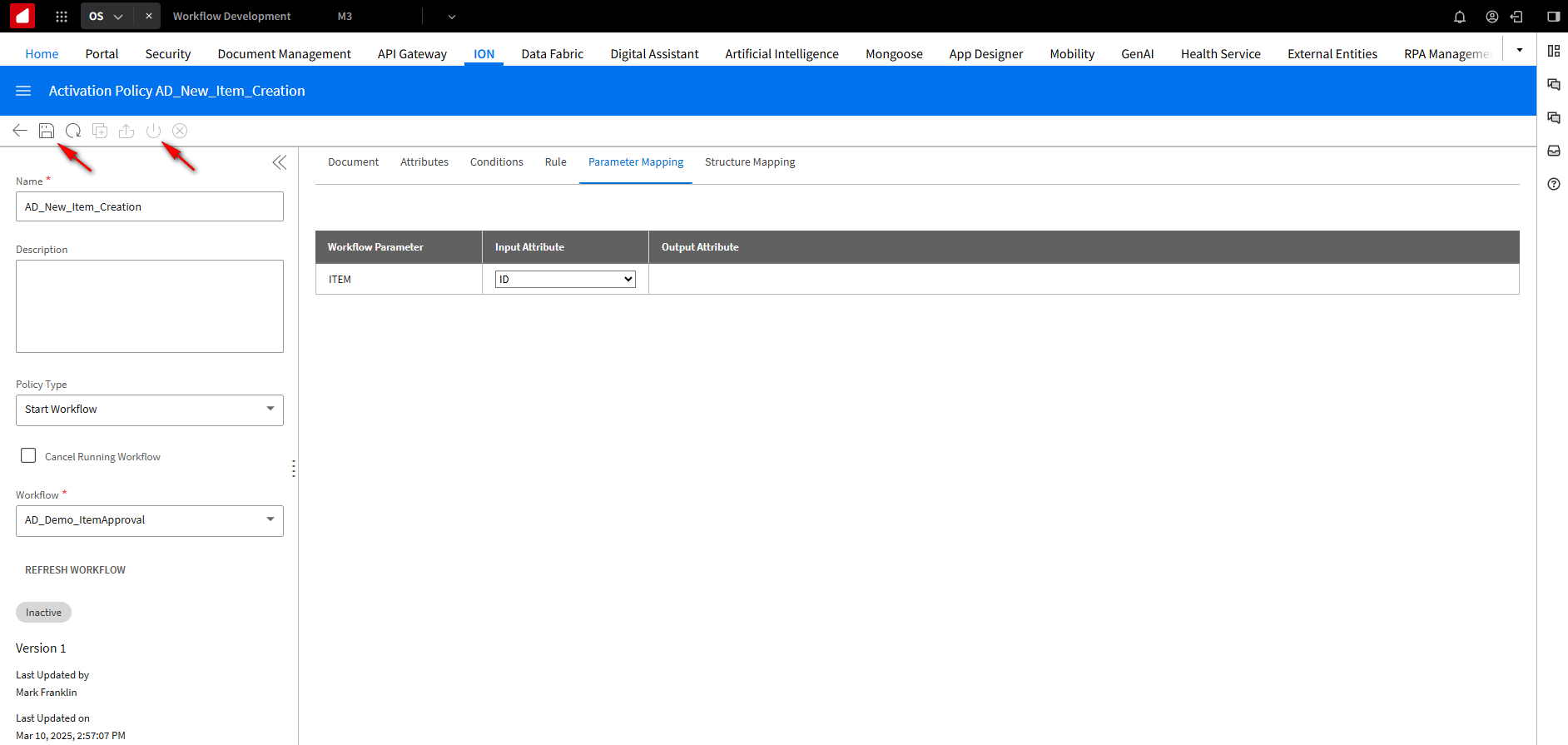
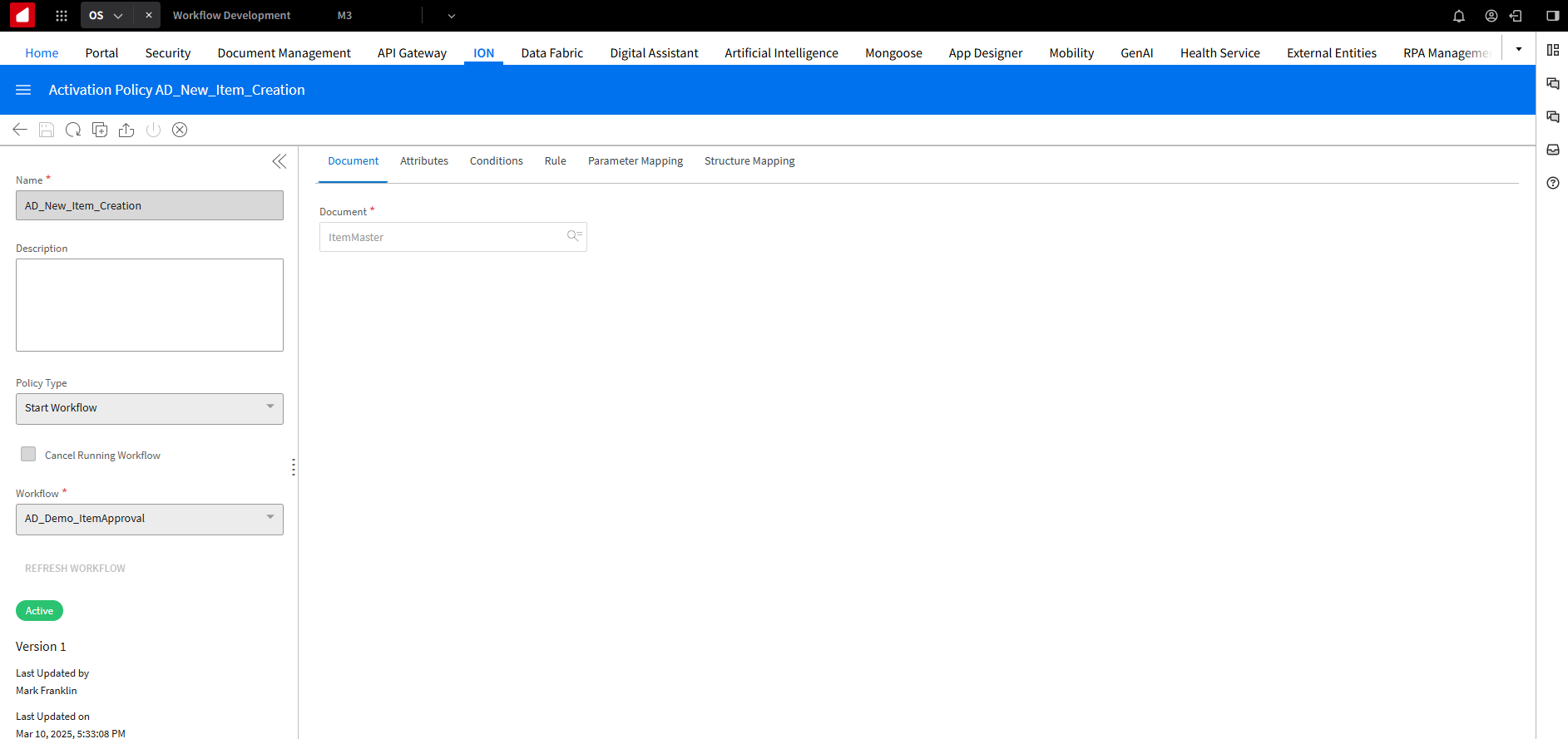
Here is what the AD_New_Item_Creation Activation Policy looks like after being activated.
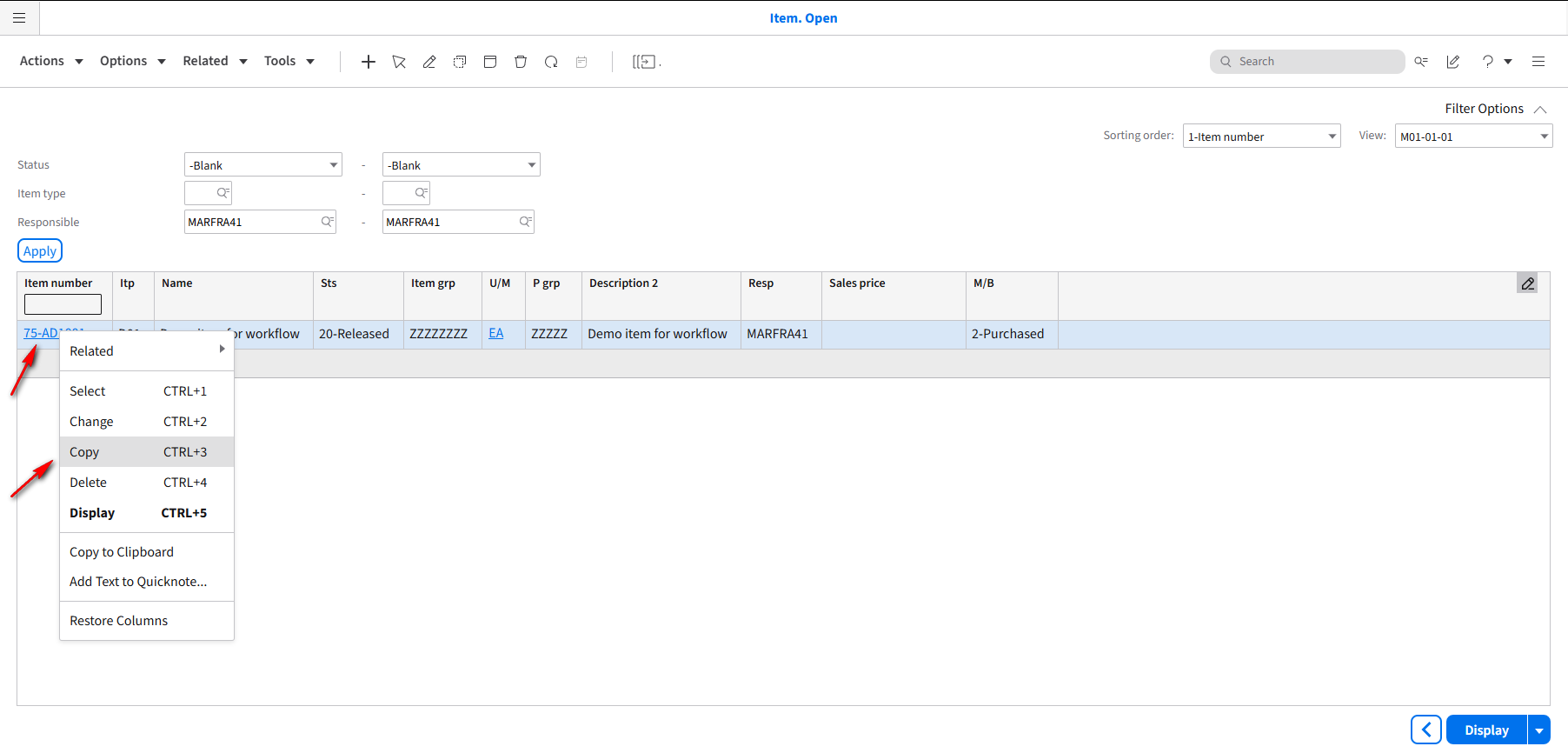
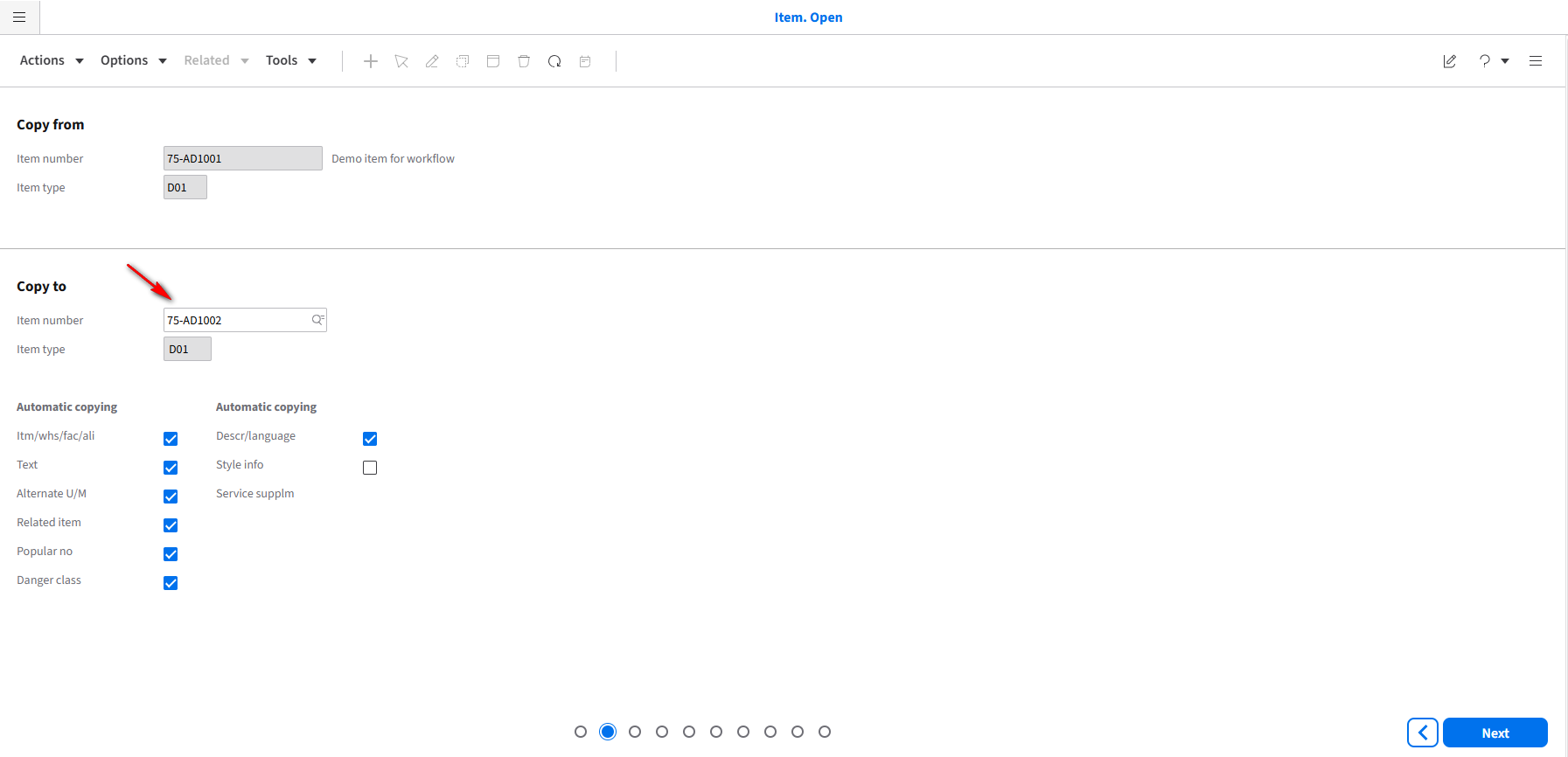
Let’s test the automated triggered workflow and create a new record. Go into M3 and make a copy of the 75-AD1001 Item. Right-click the 75-AD1001 Item and select Copy from the drop-down.
Change the Item Number to 75-AD1002 and click Next.
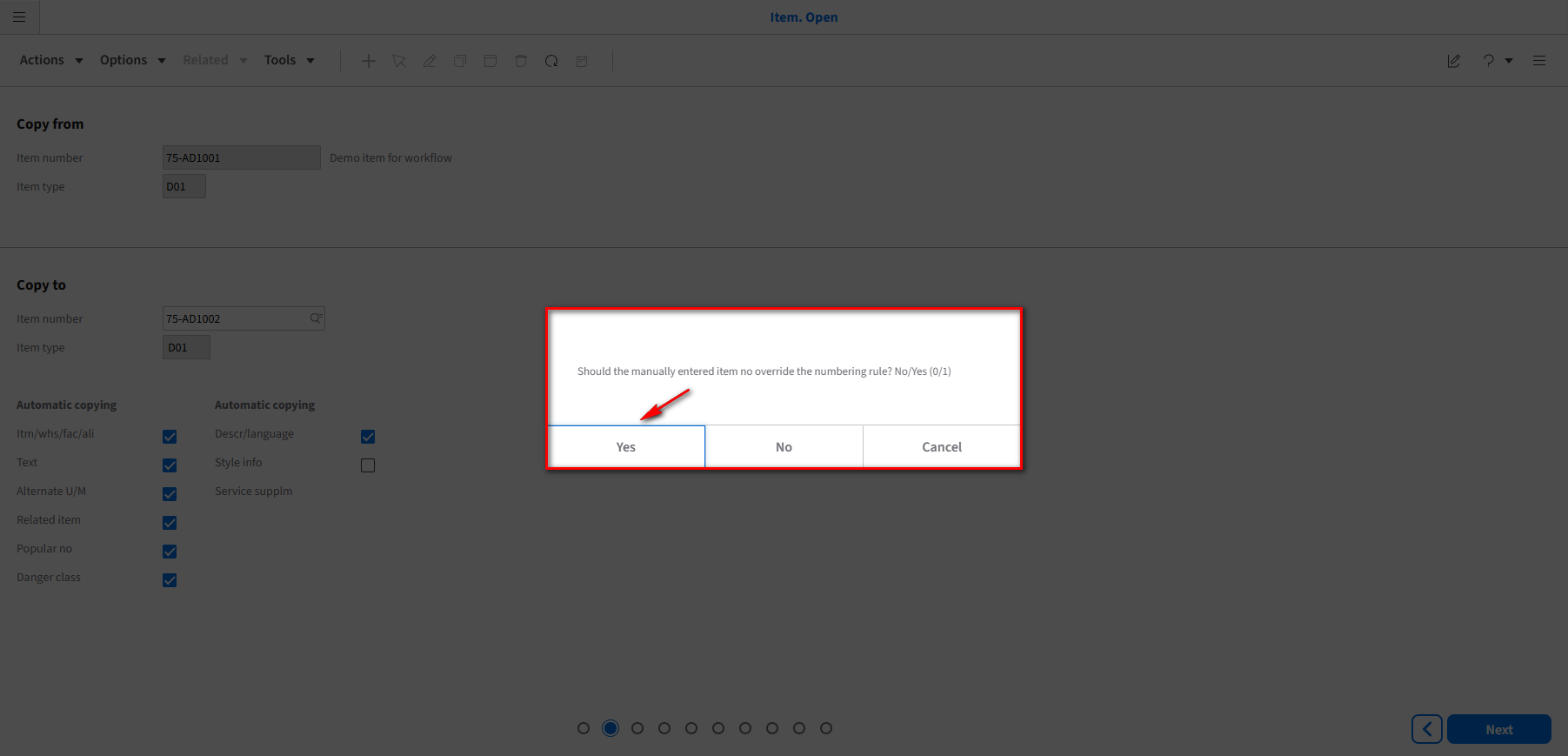
Click Yes on the message you receive below.
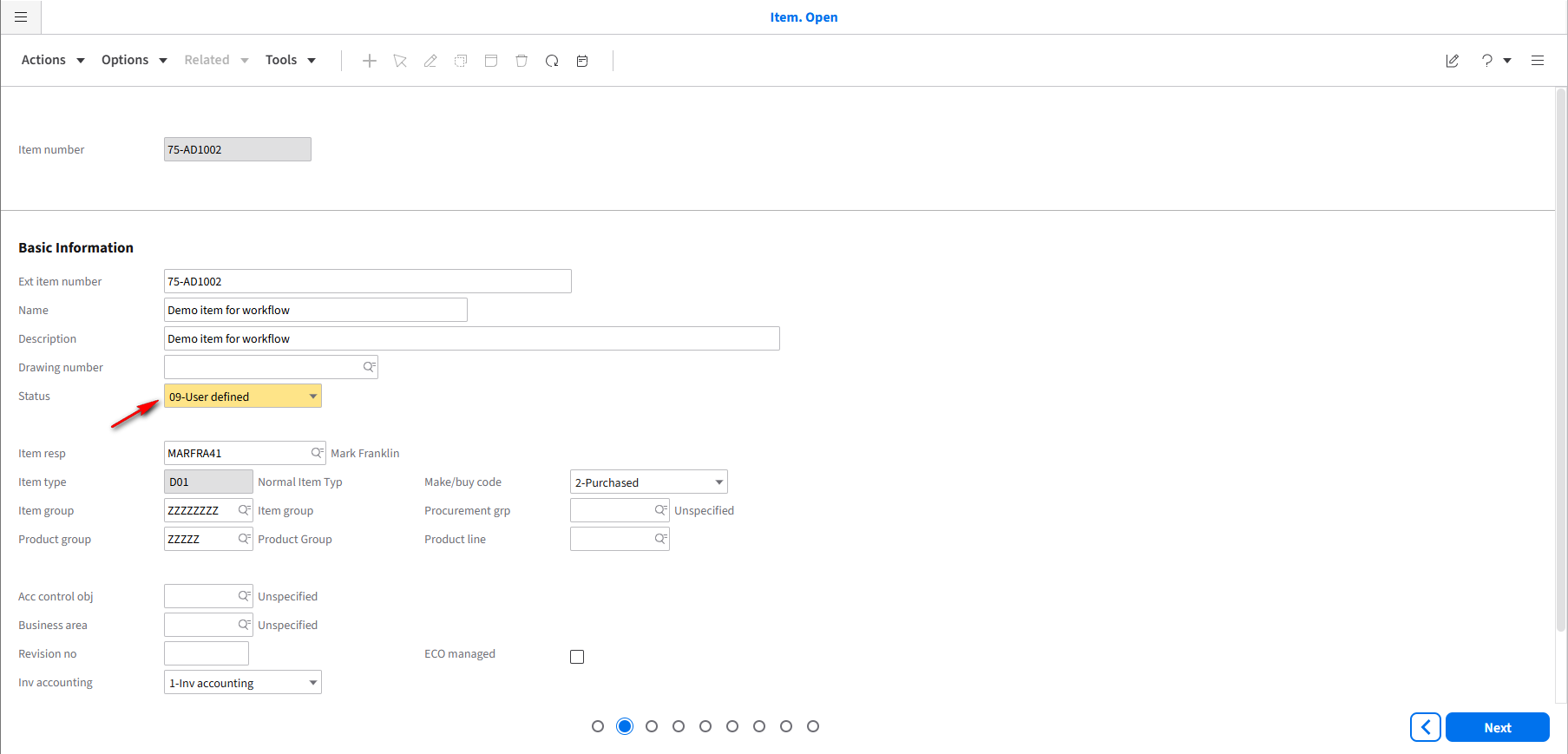
Change the Status drop-down field to 09-User defined. Click Next.
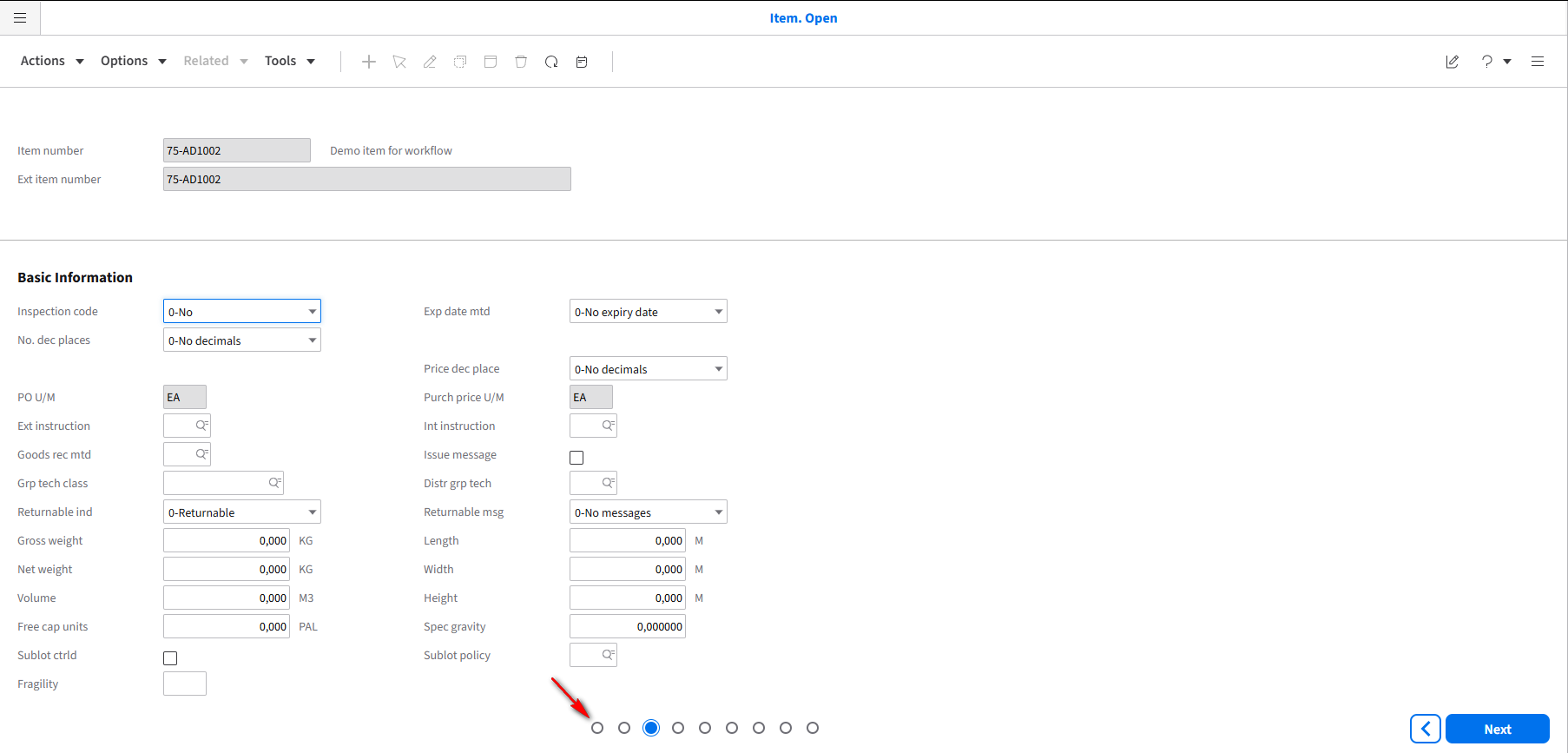
Click the Browse or first dot to return to the Main Item page.
Click on the Inbox to check on the messages. You will see notifications that a New item has been received. Click on the new Item.
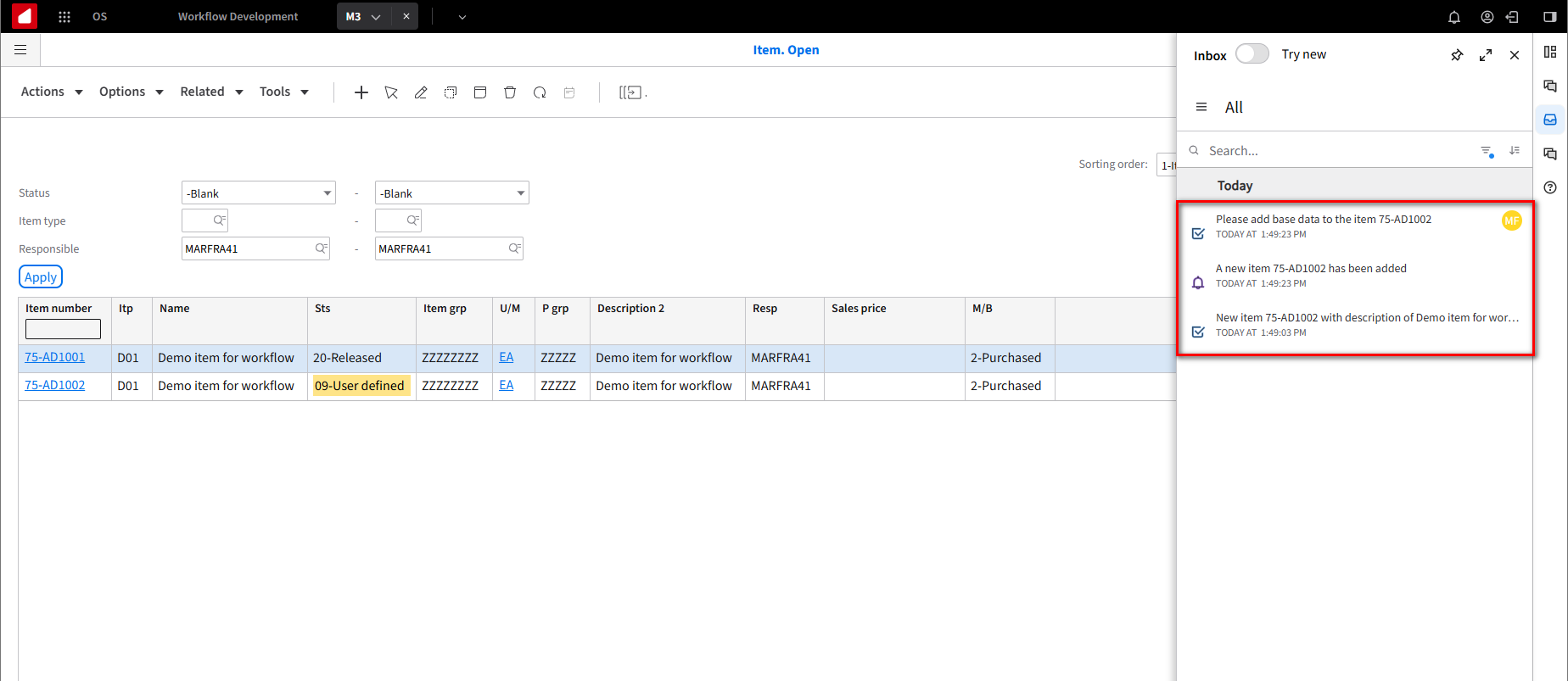
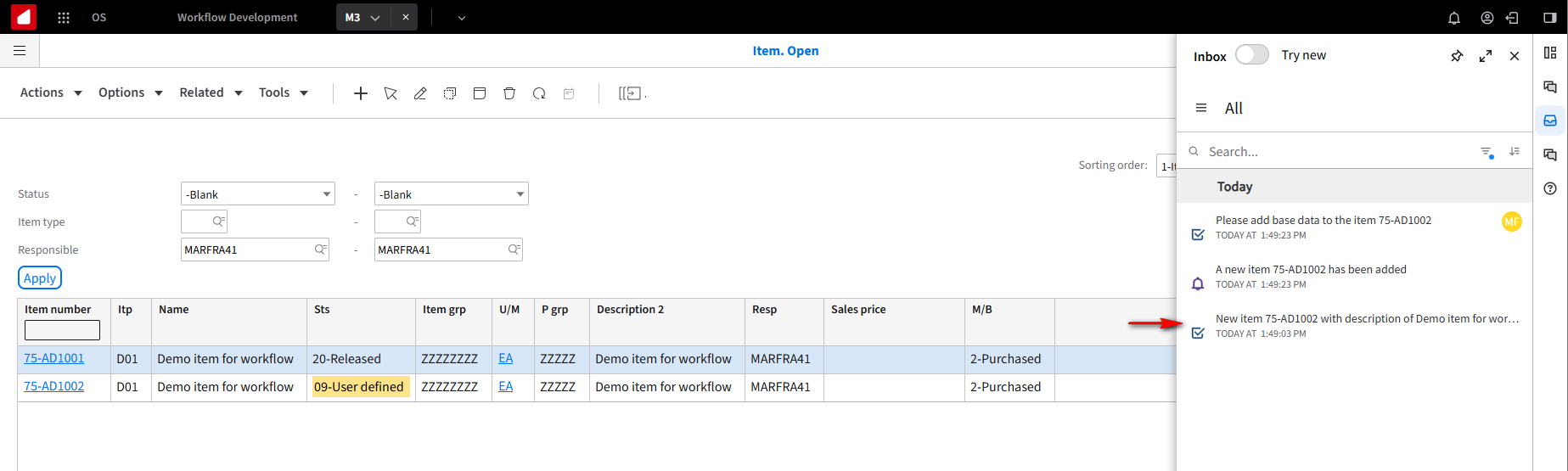
Click on the First notification.
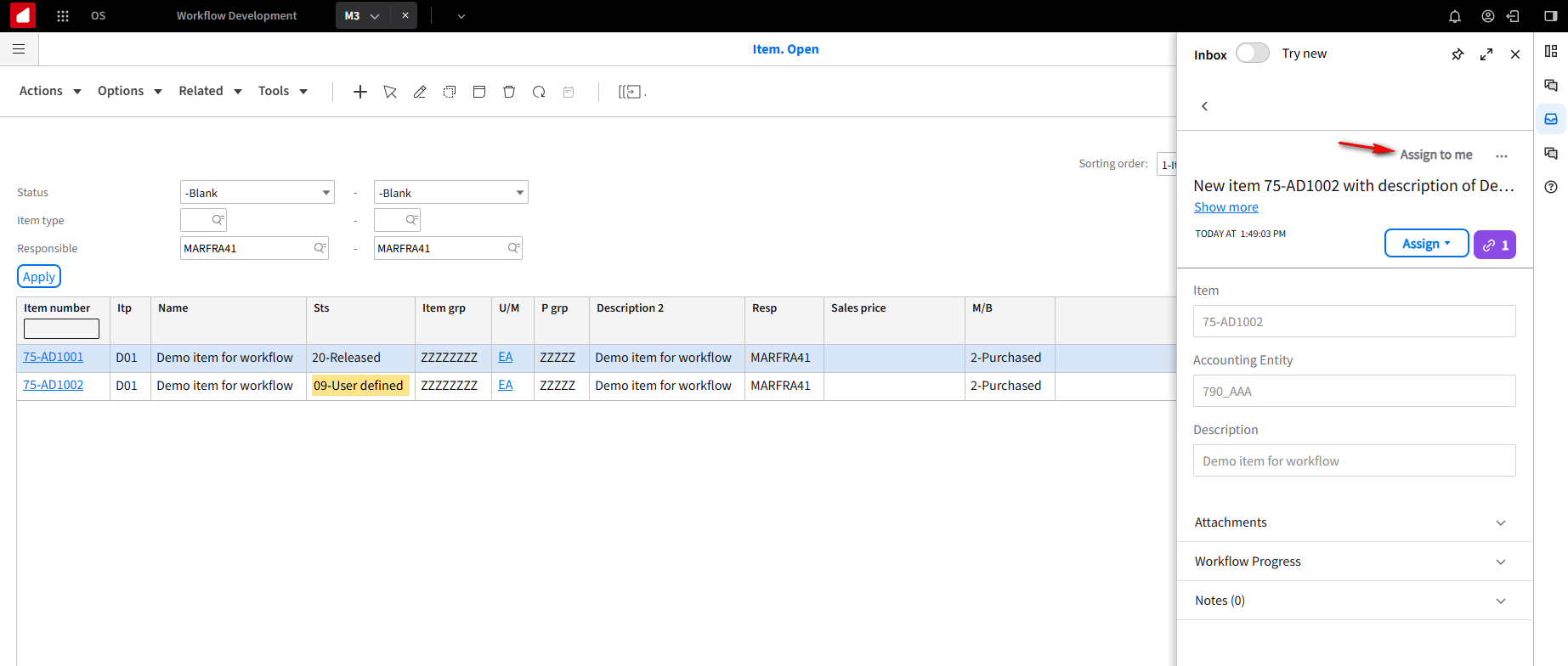
Click on Assign to me.
Click on Done.
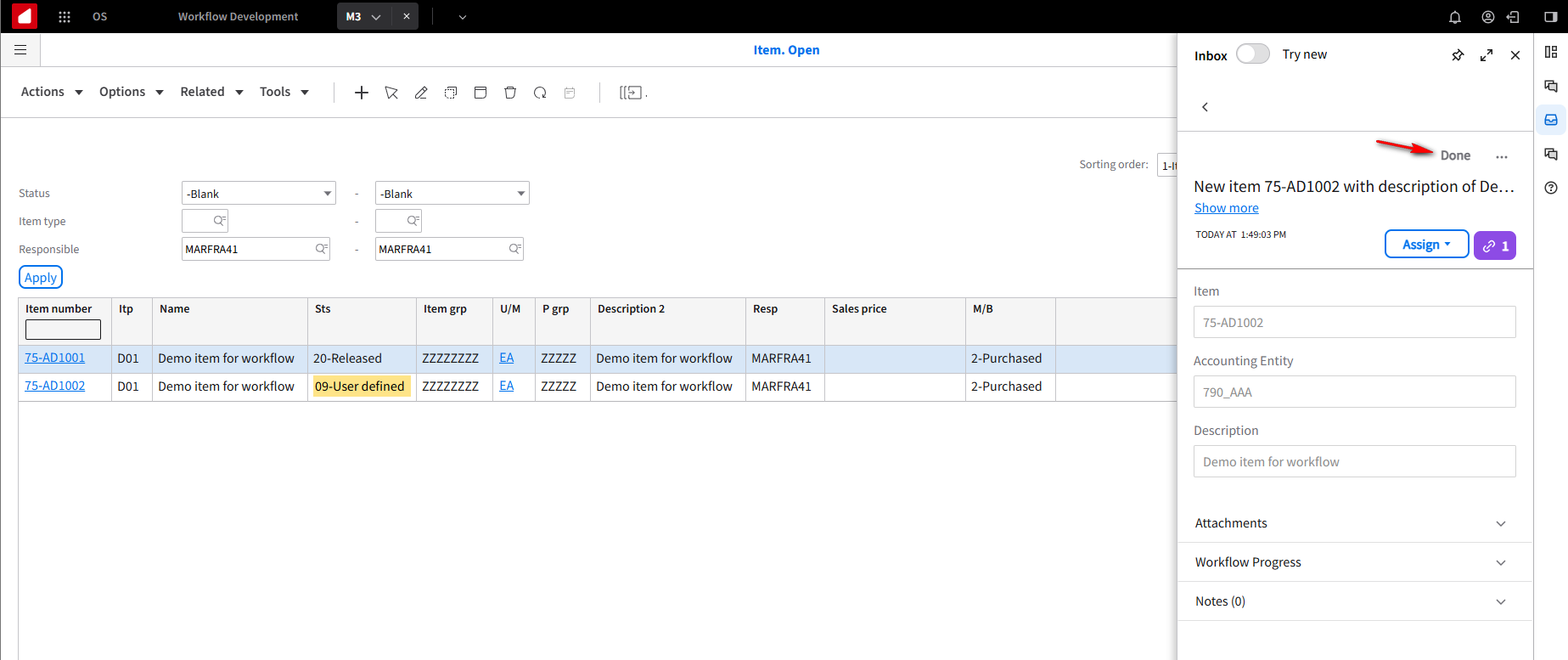
This is what it looks like after you click Done.
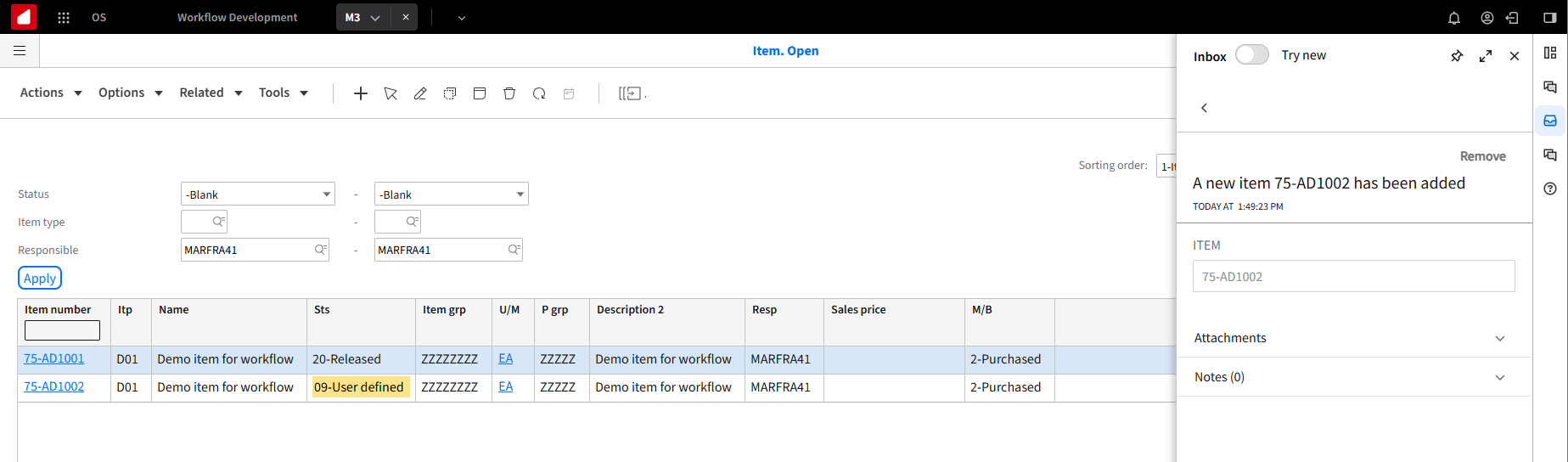
The second notification is just telling you the Item has been added.
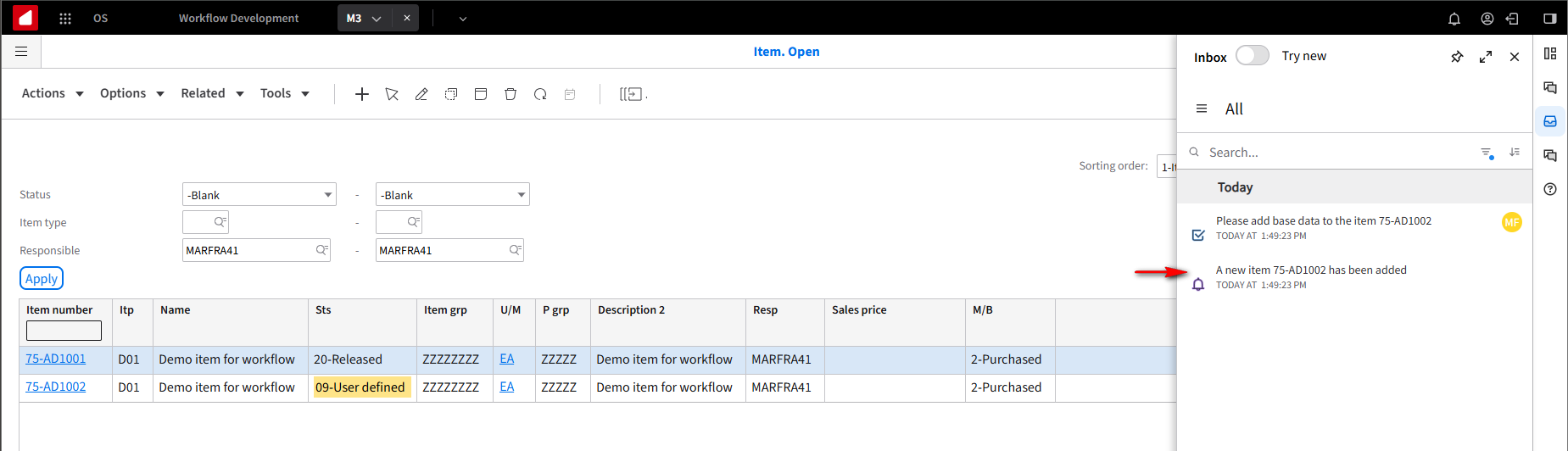
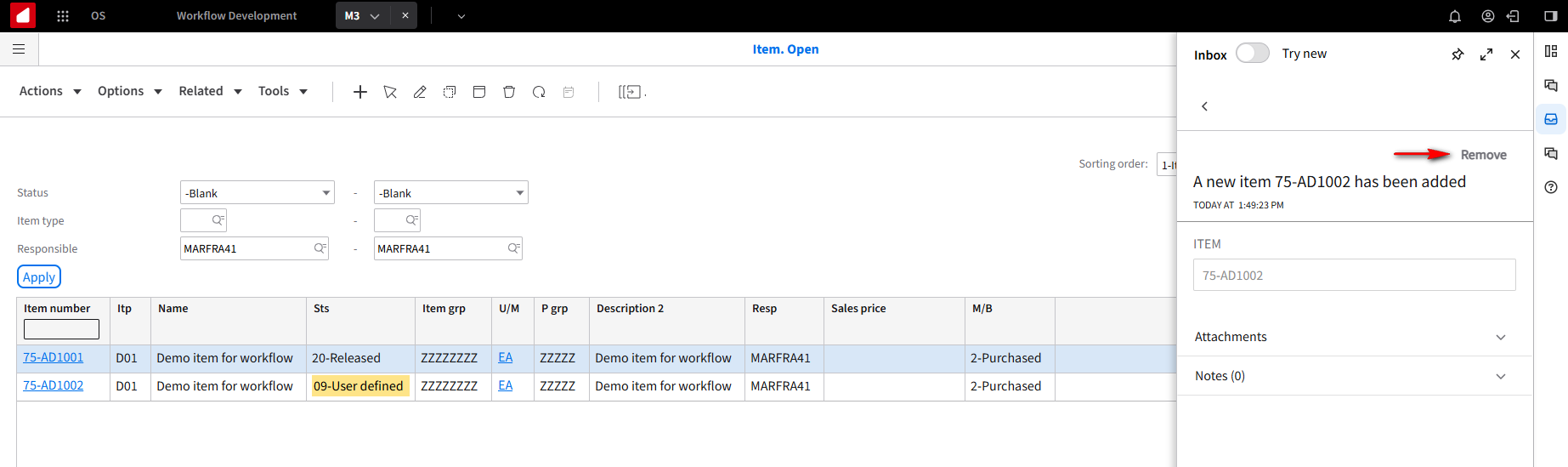
Click on the notification and click Remove.
The third notification is the Add Base Data task.
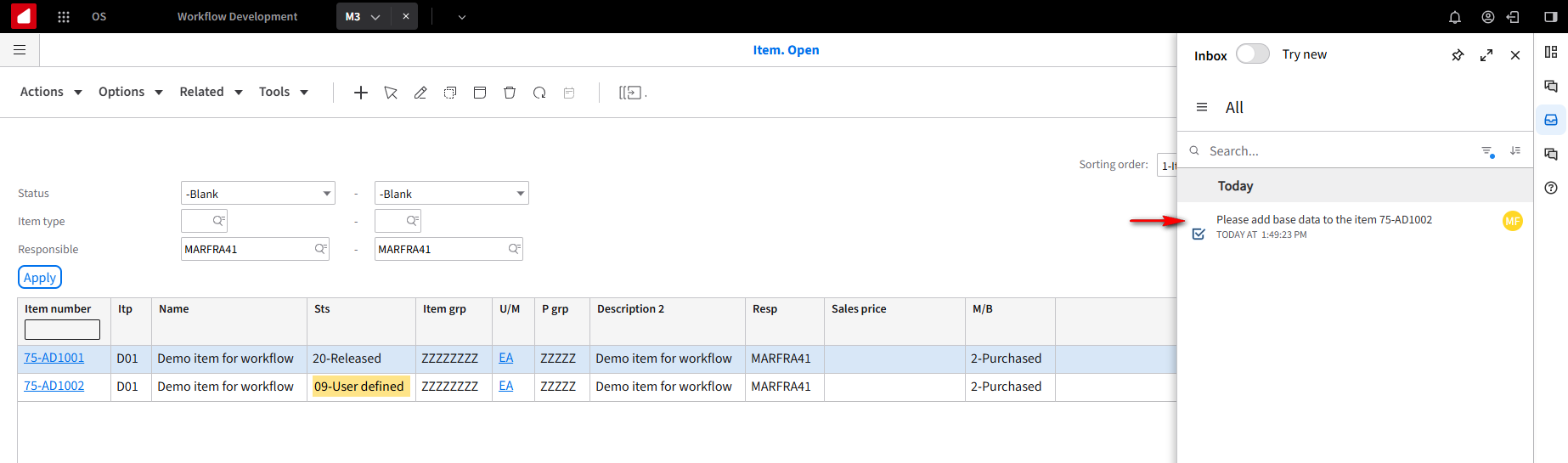
Click on the notification and then click on Assign to validate it is assigned to you. Click Done.
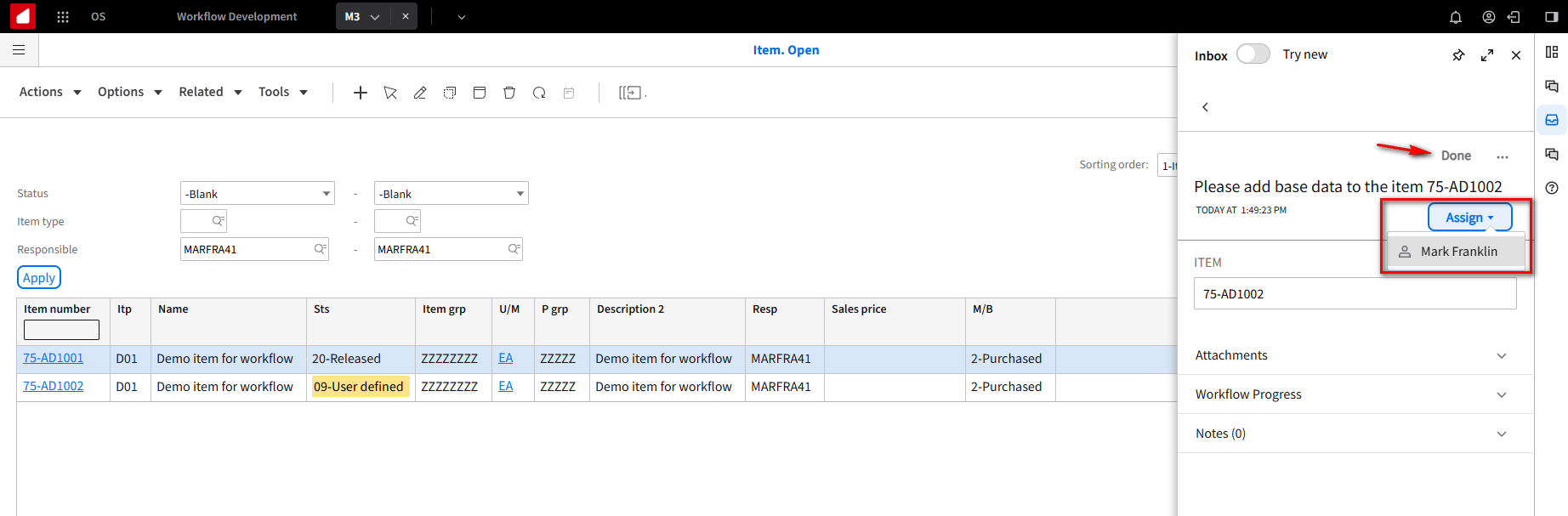
You will now get the Purchase Manager notification. Click on the notification.
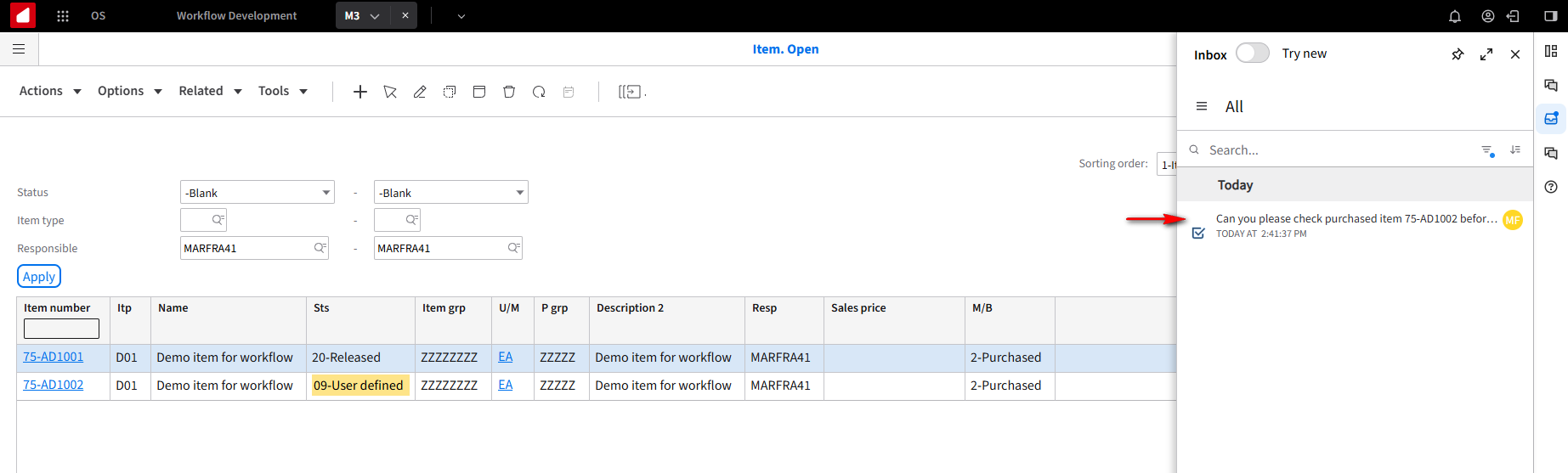
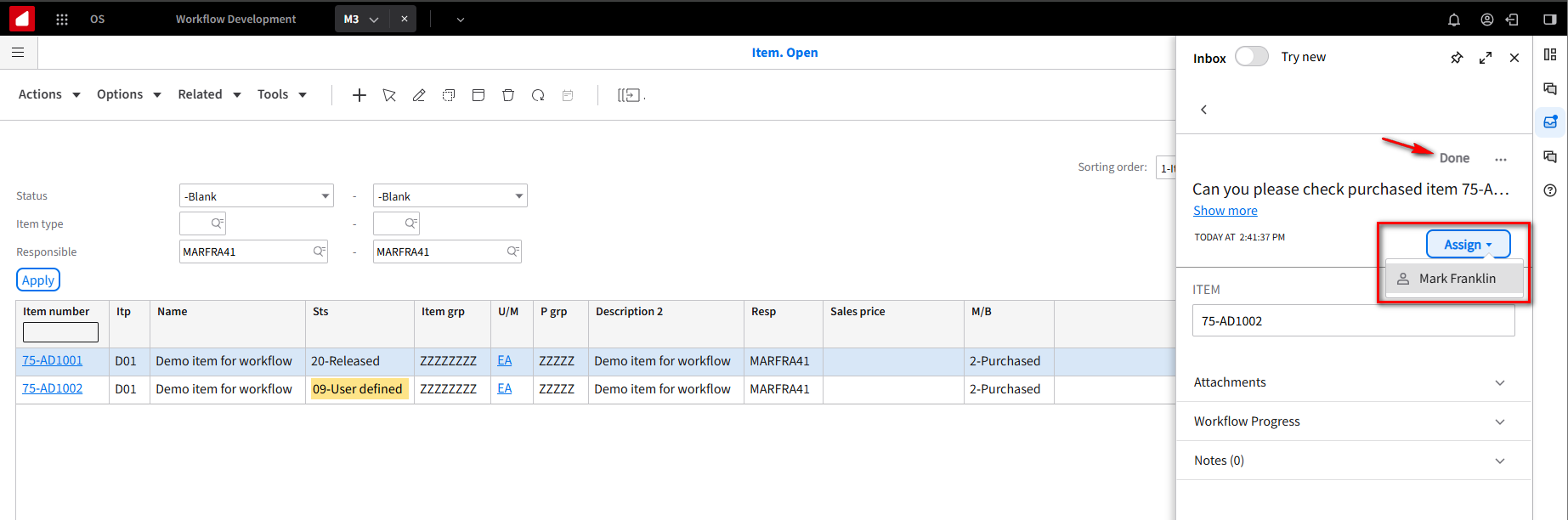
Since we configured ourselves as the Purchase Manager, click on Assign to validate that it is assigned to you. Click Done.
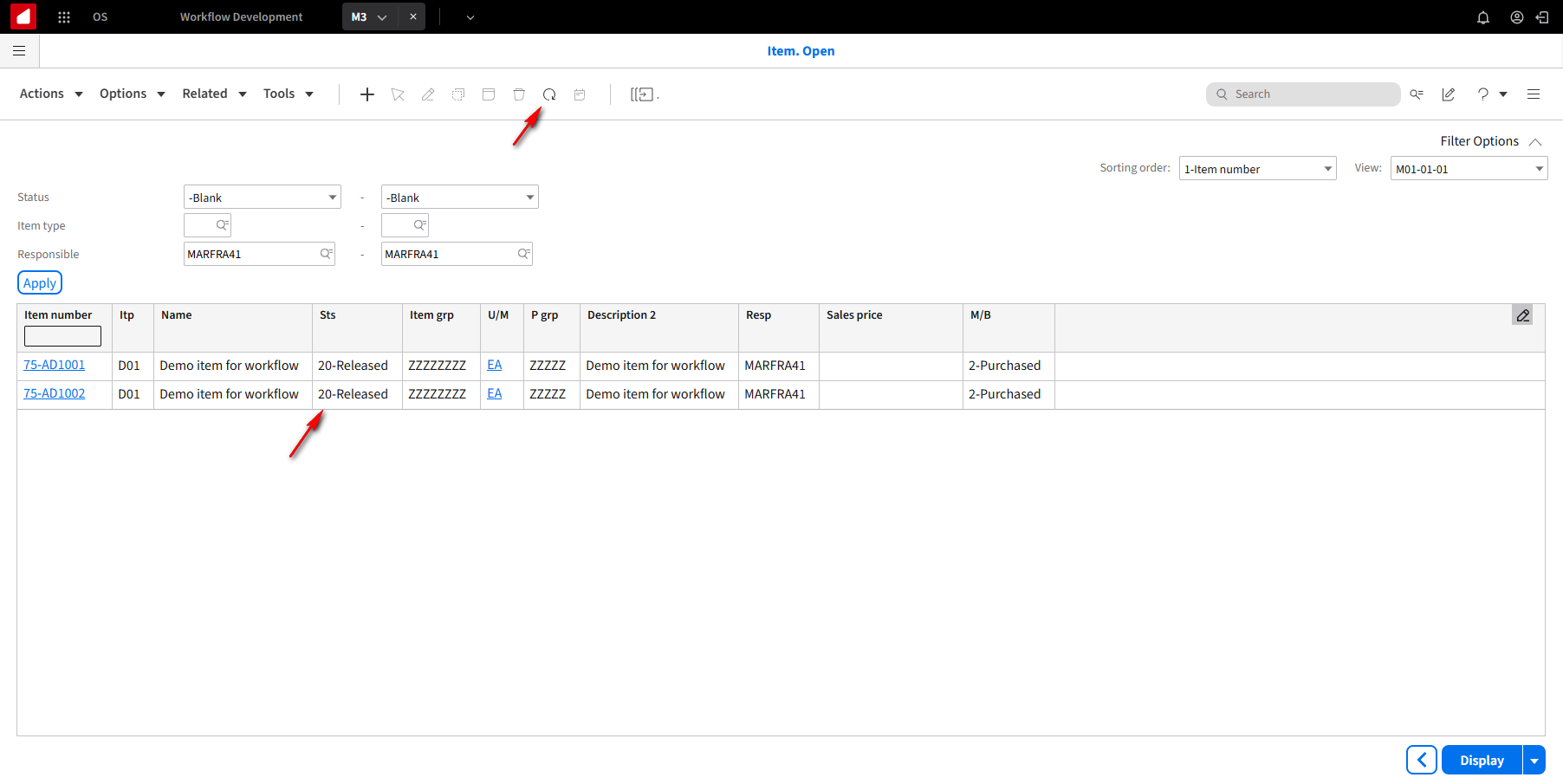
On the M3 Main screen, click refresh. The status on Item 75-AD1002 should now be 20-Released. This tells us the workflow worked and all the steps were processed.
To recap, we just built a workflow that automatically initiates through an event in the ERP. It notifies the user, assigns a task to have somebase data, checks to see if it’s a purchased item, tells a purchasing manager to do something, and automatically releases it. It’s a simpleapproval workflow with a few steps, and you can see how easy it is to build it if you use the right tools and processes.
This concludes this tutorial on how to build a simple approval workflow within Infor ION using the M3 ERP.
Resources
Online help documentation:
On this page
- Build a workflow using notifications, APIs, workspaces, and ERP